Adult Day Health Care (ADHC)
Overview
Adult Day Health Care organization and management processes are different from typical in-home care processes. See below for an administrative overview of the ADHC model in Ankota. NOTE: Please be sure to review the Ankota Quick Launch video prior to reading the information below.
Index
I. Set-up
- Initial Configuration
- Facility Management
- Authorization Management
- Authorization Management for ADHC with Family Check-in
- Pre-Scheduled vs. Unscheduled Visits
- Automated Visit Closure
- Schedule Limitations
- Client Check-in Notifications
II. General Use
- Overview
- Kiosk Management (Client Check-in/Check-out)
- Signatures
- Cancel Check-in
- Manual Visit Correction
- Shift Management - Scheduled Visits
- Shift Management - Unscheduled Visits
- Activity Management
- Retroactive Activity Attendance Reporting
- Attendance Report
III. Troubleshooting
I. Set-up
Initial Configuration
Initial configurations are generally performed by an Ankota specialist. If your company was not implemented with the Adult Day management modules, you will want to request the ADHC package (Client Check-in, Activity Attendance, and Staff Check-in), as well as a staff/caregiver kiosk profile, most likely.
Please note that in addition to the standard configurations, you may need to request the following to be added to your system:
- Visit types (since these are usually unique to each organization)
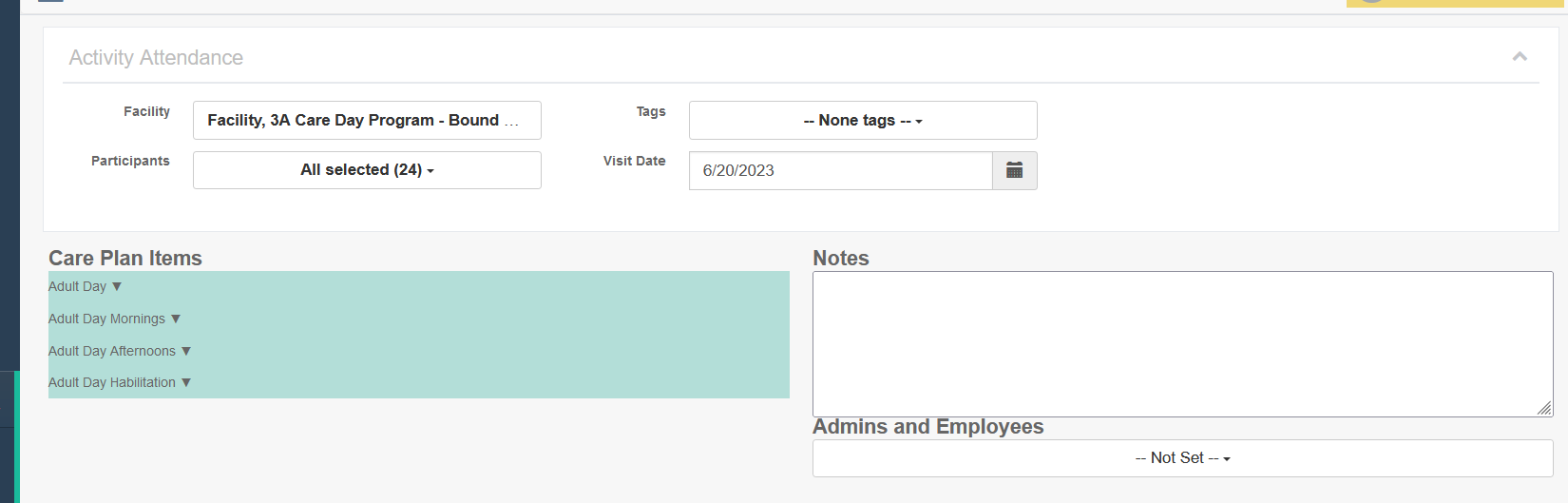
- ADHC activities (care plan items). If you wish to break up care plan items by categories, the Adult Day Activities screen has the option to work by category with drop-down lists if that is preferred
- Facilities
- Signature function - turn on if desired
Facility Management
Facilities are the backbone of Adult Day management in Ankota. These facilities are usually added by your implementation specialist as part of your Ankota implementation process. As you add clients AND caregivers or admins, each one should be assigned to a facility on their main profile page.
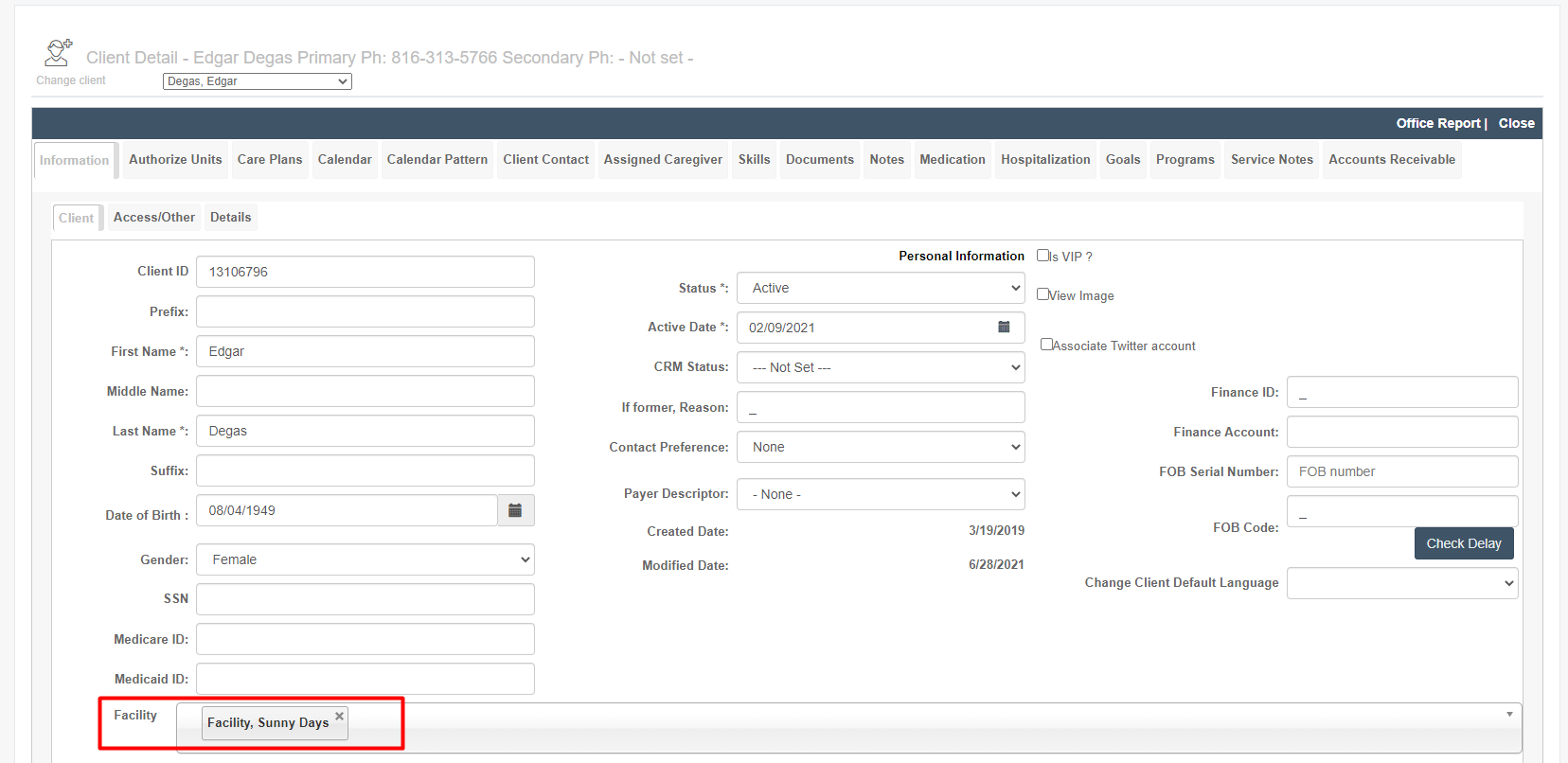
Should you need to add more facilities, reach out to Support for assistance.
Authorization Management for ADHC (Staff Check-in)
Most Adult Day service providers have staff members check in their clients. In this case, there are many options for authorization/visit type management. Best practice is to create an authorization, which will allow the system to correctly choose visit type for each client during check-in, even without scheduled visits.
Create Authorization
To create an authorization, simply follow the standard authorization entry process.
Automatic Authorization/Visit Type Management
If you have any of the following structures in place, Ankota will automatically apply the correct visit type during Adult Day check-in:
- One authorization per day for the client
- Pre-scheduled visits
- A single default visit type
Manual Authorization Management
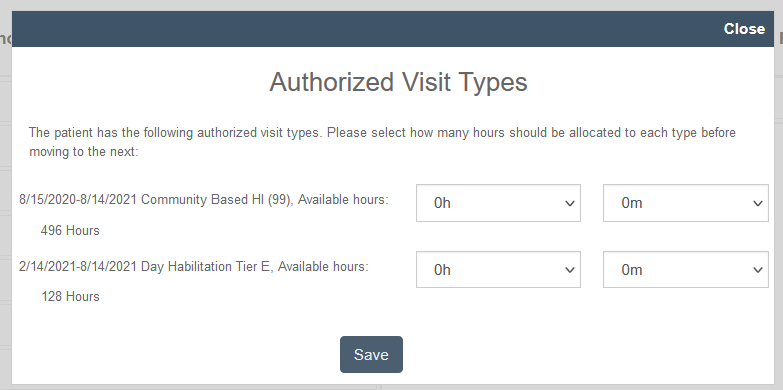
In some cases, companies will not want to pre-schedule visits, and there will be more than one Adult Day visit type. In this scenario, the staff member handling check-in will need to choose the authorized visit type and hours at the time of check-in.
Once this configuration is set up, as part of the client's regular check-in process, a staff member can enter the appropriate hours and minutes that you plan to authorize for the client's day by visit type.
Example:
Authorization Management for ADHC with Family Check-in
Unlike the staff check-in model, family (or other caregivers) would not be expected to know the funding/visit type/authorizations associated with the service. To ensure the family member/caregiver will not have to choose the visit type, use one of three methods of visit type management:
- One authorization per day for the client
- Pre-scheduled visits
- A single default visit type
Automated Visit Closure
Some organizations may need check-ins but not check-outs, usually because they have private pay visits that are billed at per-visit rates. If this is the case, the system can be updated to automatically close visits after the scheduled duration or a specific standard duration. (This is not defaulted.)
For example, if the limit was set to 8 hours on the Adult Day visit type, clients' Adult Day visits would automatically close out at 8 hours.
Schedule Limitations
The Schedule Limitations tab is not defaulted on, except for in private pay environments. This access must be requested to use this feature.
Some organizations may need to track when clients are not supposed to come in, yet at the same time, allow them to clock in if needed against their authorization. Specifically, this function is aimed at clients with long-term care insurance that may be approved for only certain days of the week, but, if specifically requested, may allow an additional or make-up day. These unauthorized check-ins can then be tracked in a special Adult Day health care tracking report.
To turn on schedule limitations:
- Open the client's profile
- Click the Schedule Limitations tab
- Add constraints as needed (typically full-day)
- Save
For example, here only Tuesday, Wednesday, and Thursday are allowed service days.
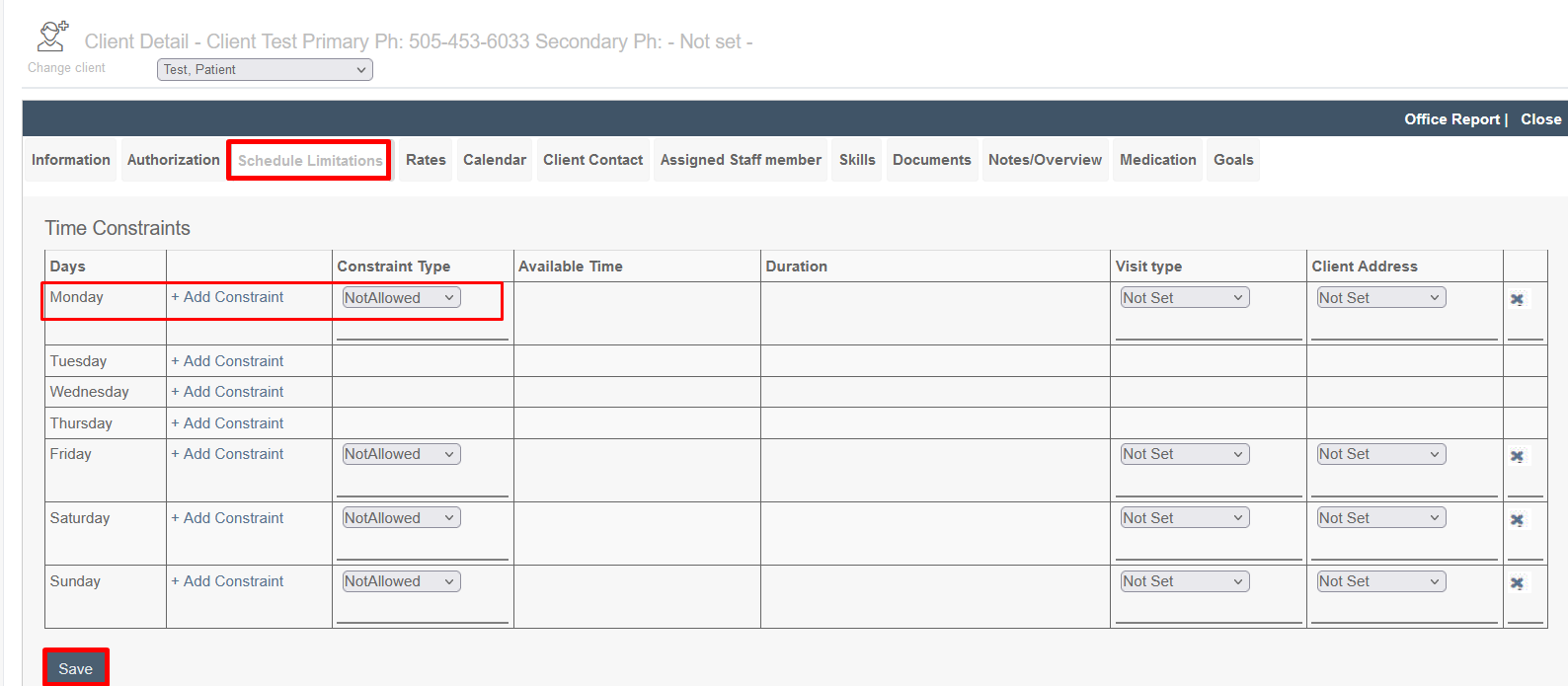
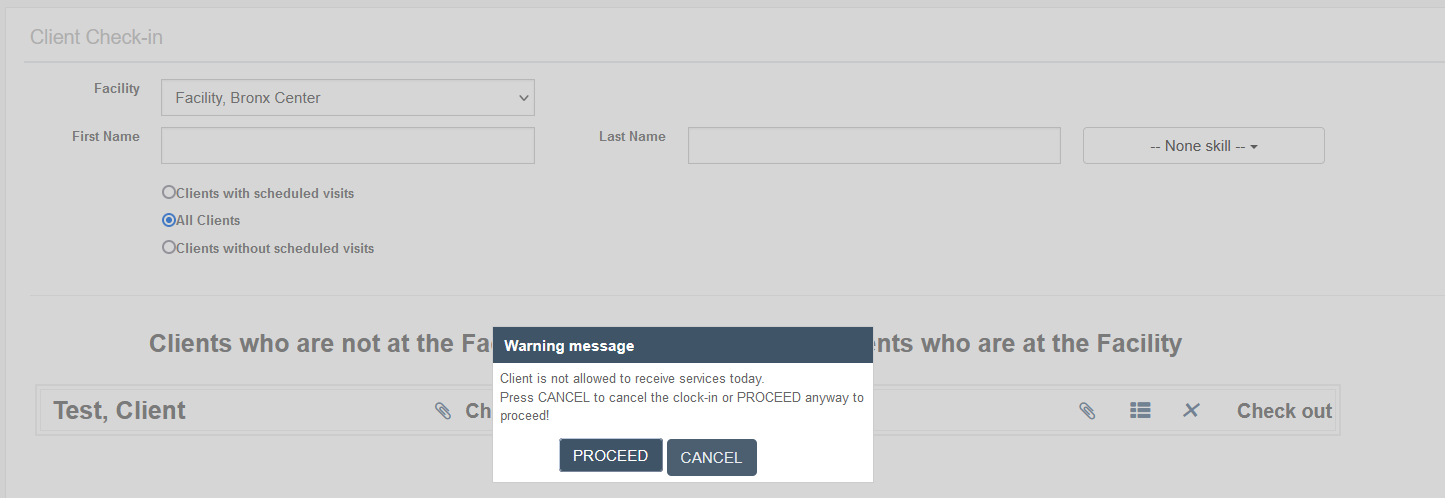
When the client is checked in, staff will receive a warning notification that service is not authorized for the client this day. If they wish, they can override the warning. The system will track the override in the appropriate report.
Client Check-in Notifications
Some organizations want their staff to be notified of reminders during client check-in. Ankota provides an option for these reminders.
On each client's Notes/Overview tab, there is a special checkbox for "Include note in check-in."
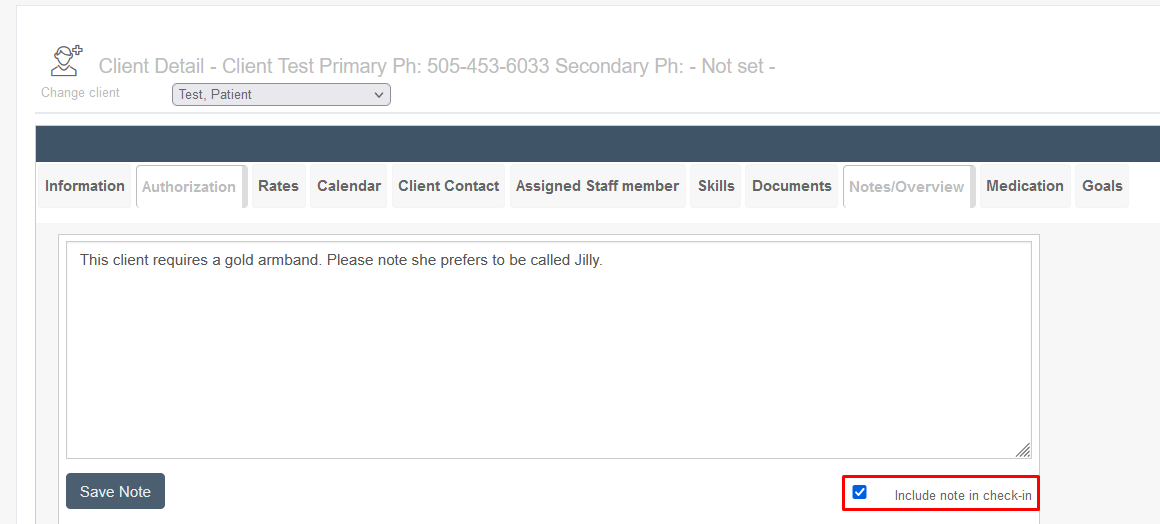
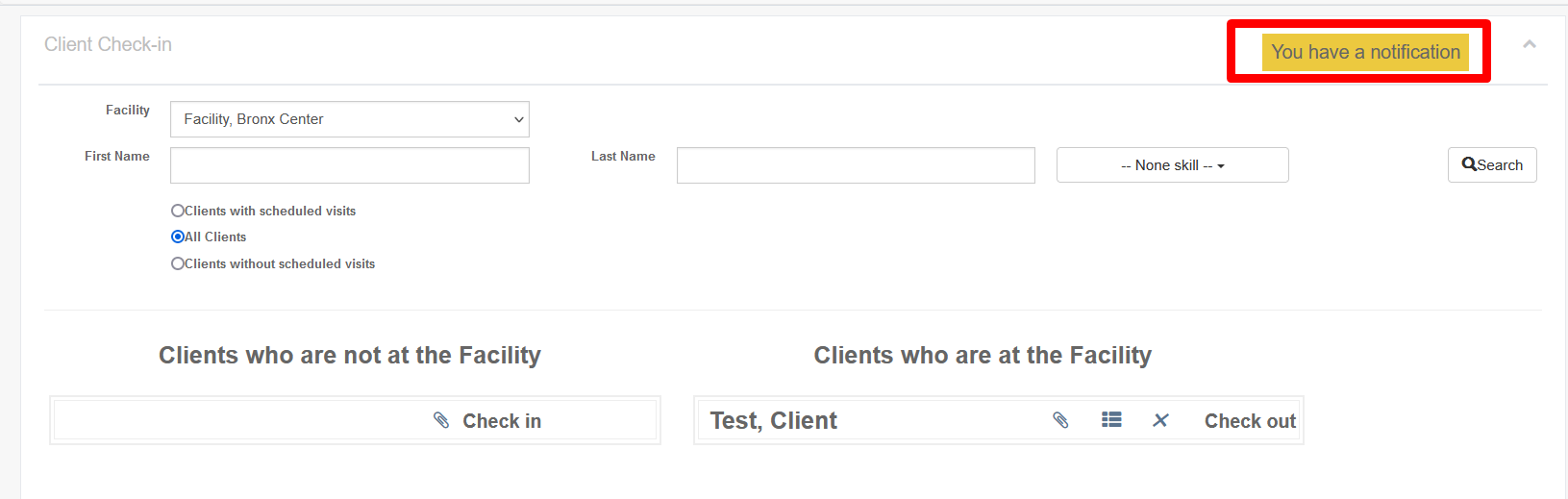
When checked, notifications will be provided. When the client is checked in to the Adult Day module, a flashing yellow pop-up will appear including the first paragraph (up to 200 characters) of information from the client's profile.
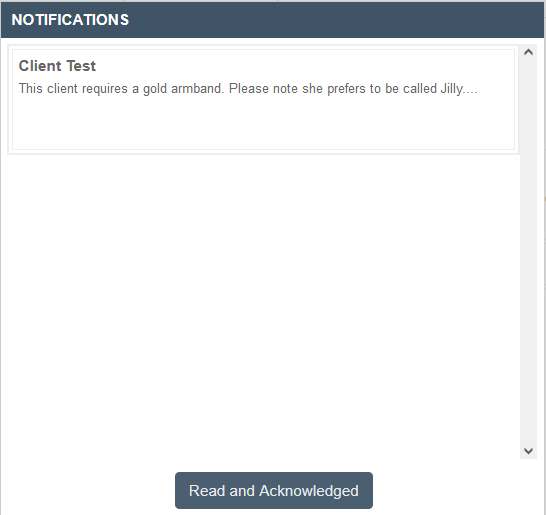
When the flashing yellow notification is clicked, a new pop-up will appear with a list of all unread client check-in notifications. To close out this window, the user will need to confirm they have read and acknowledged this information.
II. General Use
Overview
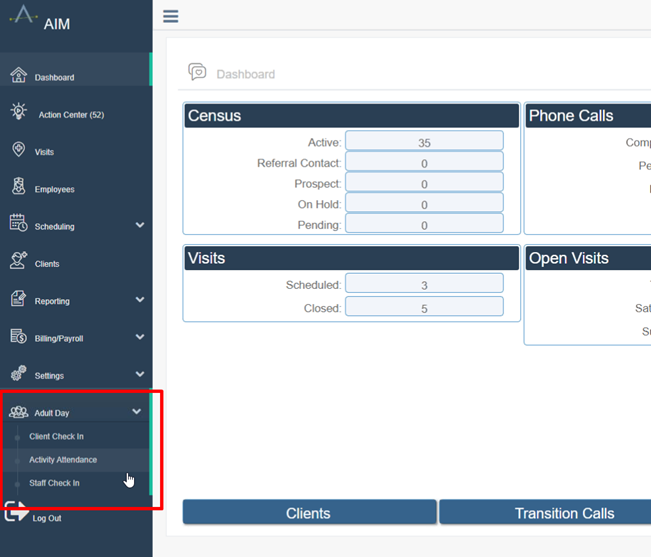
Adult day functionality in Ankota allows for client check-in/out, activity attendance, and staff check-in/out. Once configured, these options will appear in the left menu under the Adult Day module.
Not all Adult Day facilities use all three Adult Day options. In addition, for those organizations which choose the "kiosk" method, only the Adult Day section will be visible to staff for client management (unless other sections, such as Mapping, are requested). See below for more information on kiosk management.
Full Ankota Access
Kiosk Management (Client Check-in/Check-out)
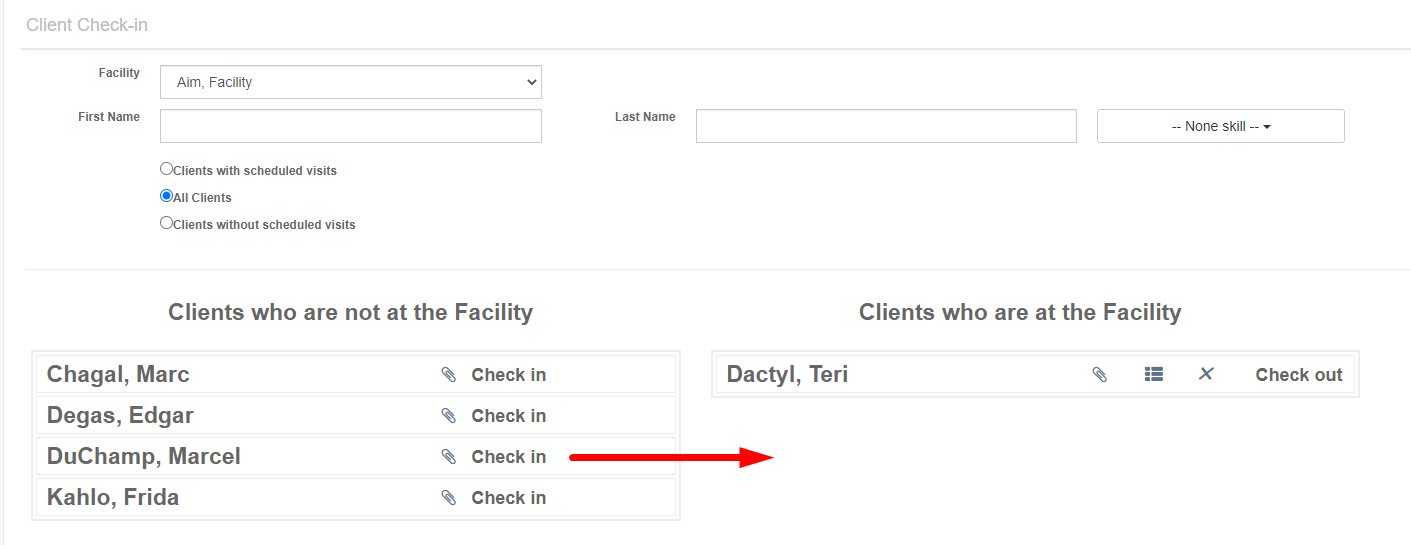
Most facilities will choose to make the Adult Day Health Care section available through a single login, or "kiosk." More on kiosk management is available in the Caregiver Resources Adult Day Kiosk walkthrough, but in general, caregivers should simply drag and drop the appropriate client from the "not at the facility" left side to the "at the facility" right side.
NOTE: most tablet users find the "Check in" and "Check out" links easier to use, while desktop users generally prefer the drag-and-drop.
NOTE: There is an option to require DUAL LOG-INS, where the user first logs in with the Kiosk log-in, then logs in with their personal credentials. This is a custom feature. Contact Ankota Support for more.
Signatures
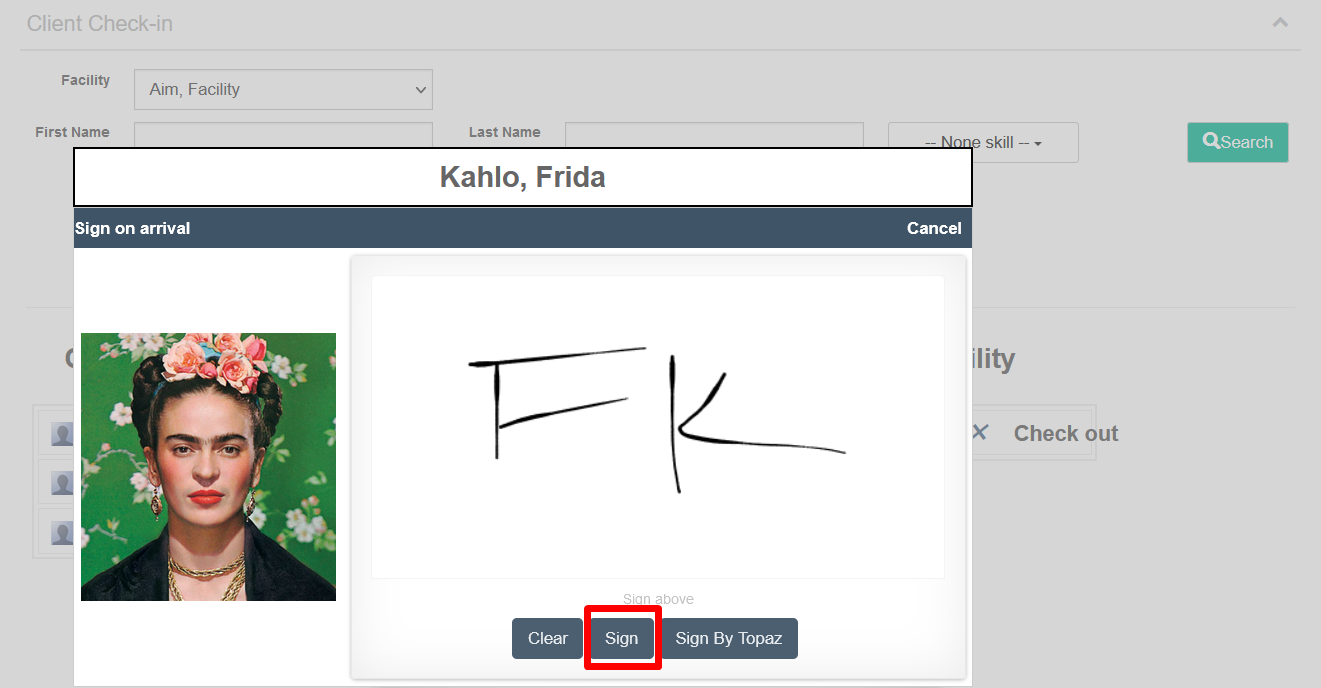
For facilities that require signatures at check in and check out, a pop-up will appear at check in and check out. (This can be turned on/off as needed.) If a picture is registered for the client, that picture will be included during clock-in and clock-out.
Cancel Check-In
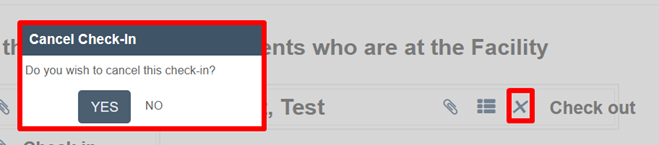
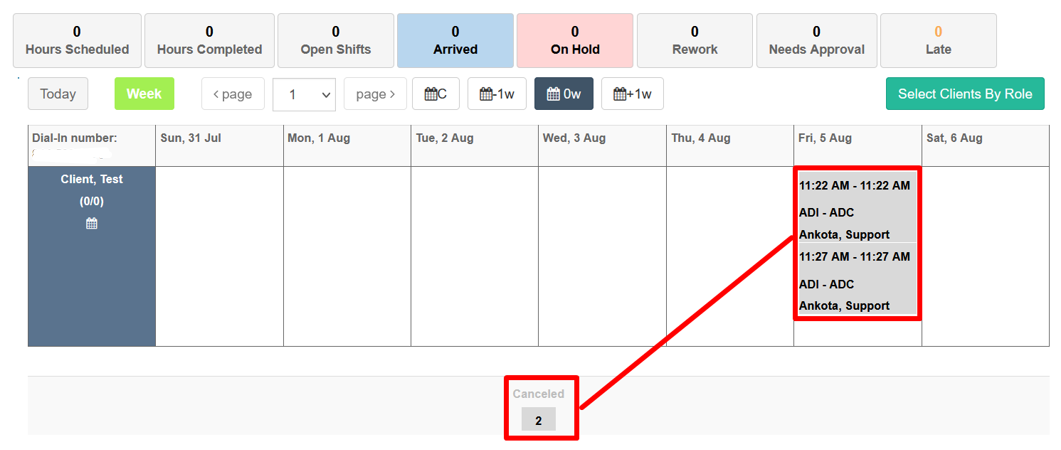
If a client was accidentally checked in and check-in needs to be cancelled, click the X next to the client's name in the "Clients who ARE at the Facility" section. A prompt will confirm cancellation. If yes, the client will return to the "Clients who are NOT at the Facility" section and the visit will be cancelled on the schedule board. If no, the client will remain checked in.
The schedule board will look like this:
Manual Visit Correction
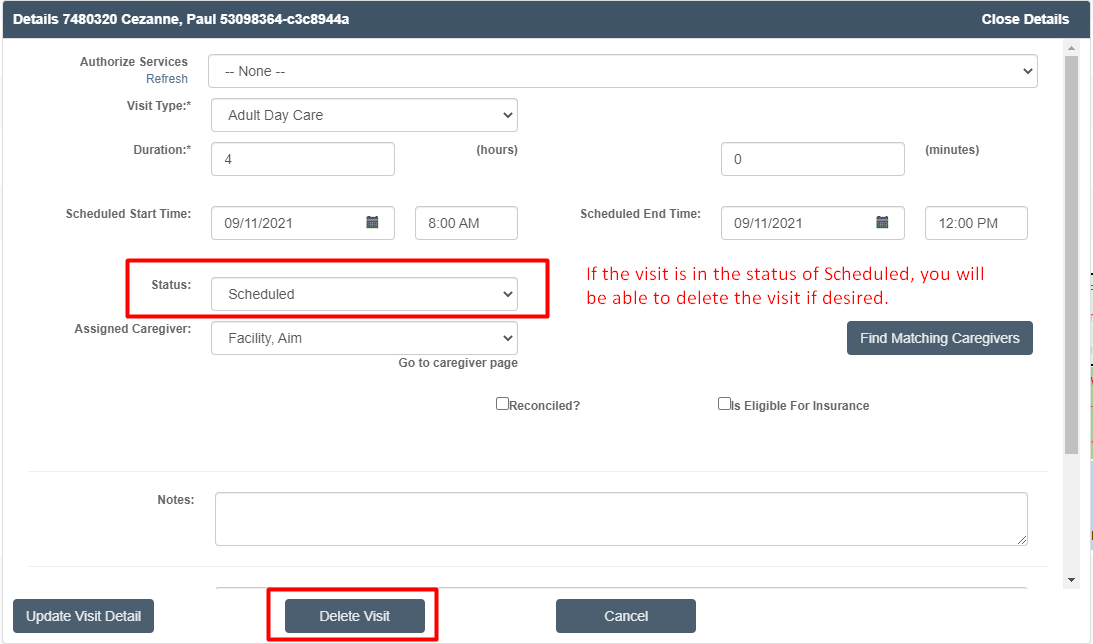
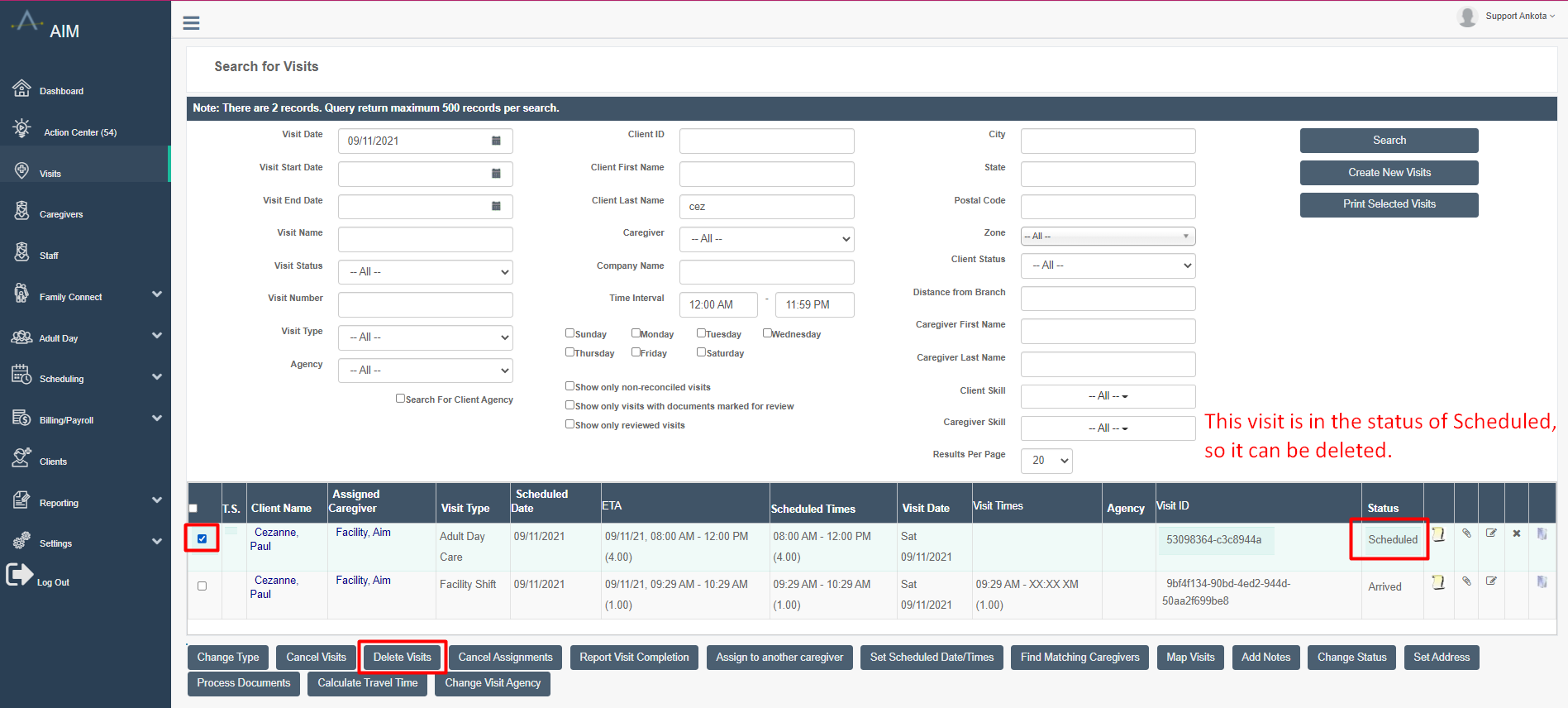
If clients are accidentally clocked in, the visit can either be cancelled as shown above, or the visit can be changed to the status of scheduled, then deleted, by any admin in ankota.net. This can be done either on any scheduling board, or on the Visits page.
Visits in the status of Arrived cannot be deleted, so they must first be saved in the status of Scheduled before they can be re-opened and deleted.
Deletion via Calendar Access
Deletion via Visits Page
Arrival and departure times can be updated via the Visit Approval Dashboard.
Shift Management - Scheduled Visits
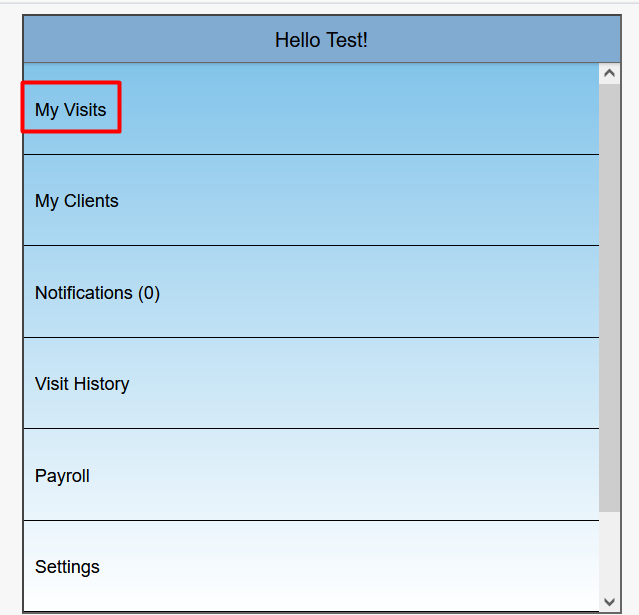
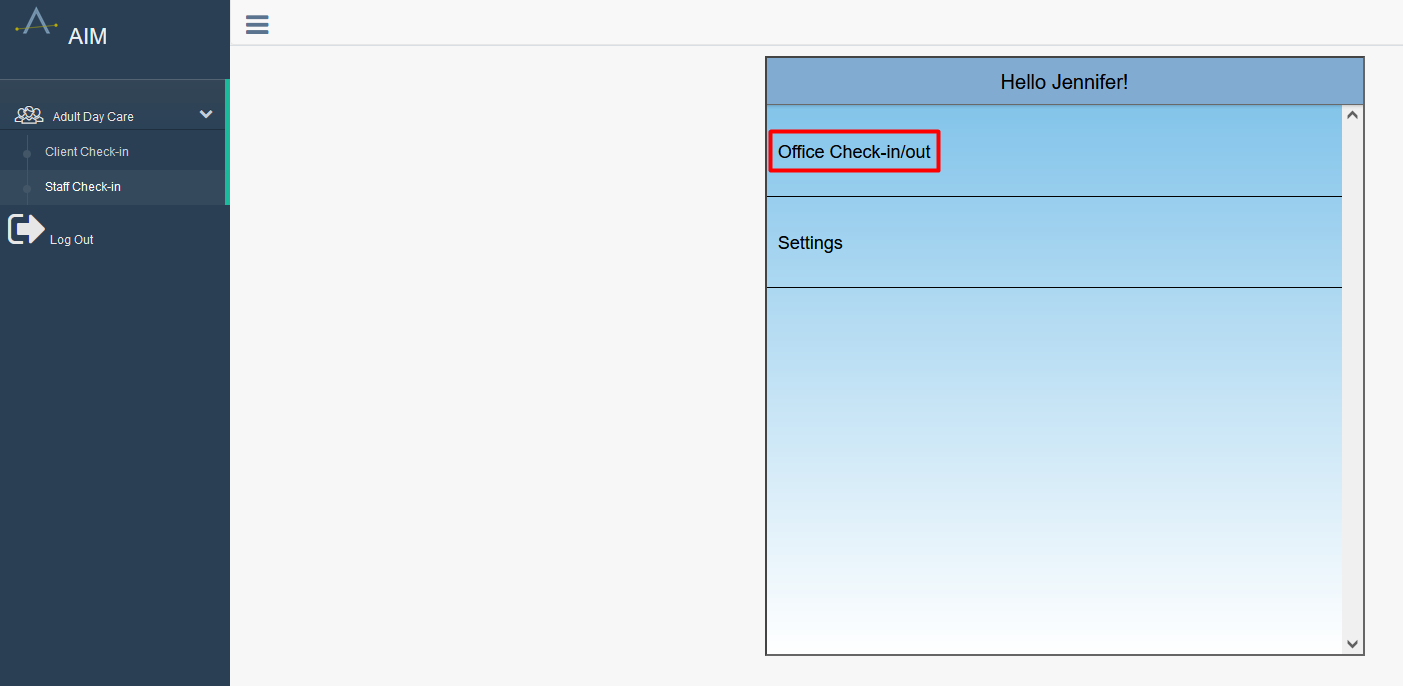
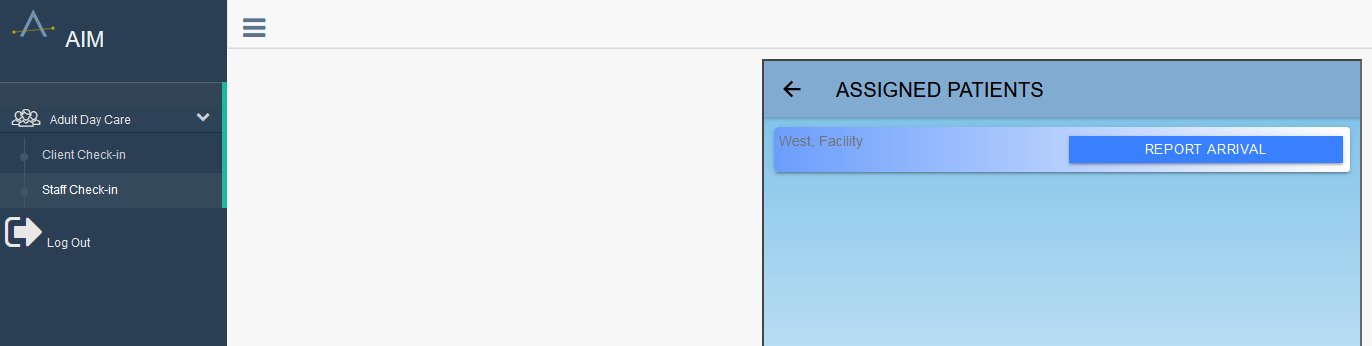
For organizations which manage shifts in Ankota, the Staff Check-in page is available under the Adult Day module. Caregivers can clock in and out from the Staff Check-in page using their user name and password, then clock in and out of scheduled office shifts. In short, click Visits and follow the prompts to clock in and out. For a more detailed walkthrough, see the Mobile App walkthrough.
Shift Management - Unscheduled Visits
For organizations which wish to manage shifts in Ankota and limit available mobile app sections, the Staff Check-in page is available under the Adult Day module. Caregivers can clock in and out from the Staff Check-in page using their user name and password, then clock in and out of office shifts as needed.
The unscheduled visits method allows caregivers to clock in and out of office shifts at any time, without scheduling caregivers to office visits in advance. These visits will be flagged only if the caregiver is in the wrong location at the time of check-in/out. This function does require special set-up; reach out to Ankota to add this configuration if desired.
Activity Management
Care Plan (Activity List) Buildout
Activity lists for Adult Day are created by creating a care plan and assigning it to a facility. Typically, a single care plan will be built with the assistance of an implementation specialist, then assigned to the facility once. Until the care plan changes, no updates are needed. Clients do not need individual care plans for Adult Day activity management, although they can have personal care plans so that non-standard care plan items can be addressed specifically for that client.
The facility care plan will normally be developed hand-in-hand with an Ankota implementation specialist.
To update an Adult Day care plan:
- Click Settings
- Click Services Settings
- Click on the Adult Day care plan to open it
- Change the selected care plan items inside the care plan
- Scroll to bottom and save
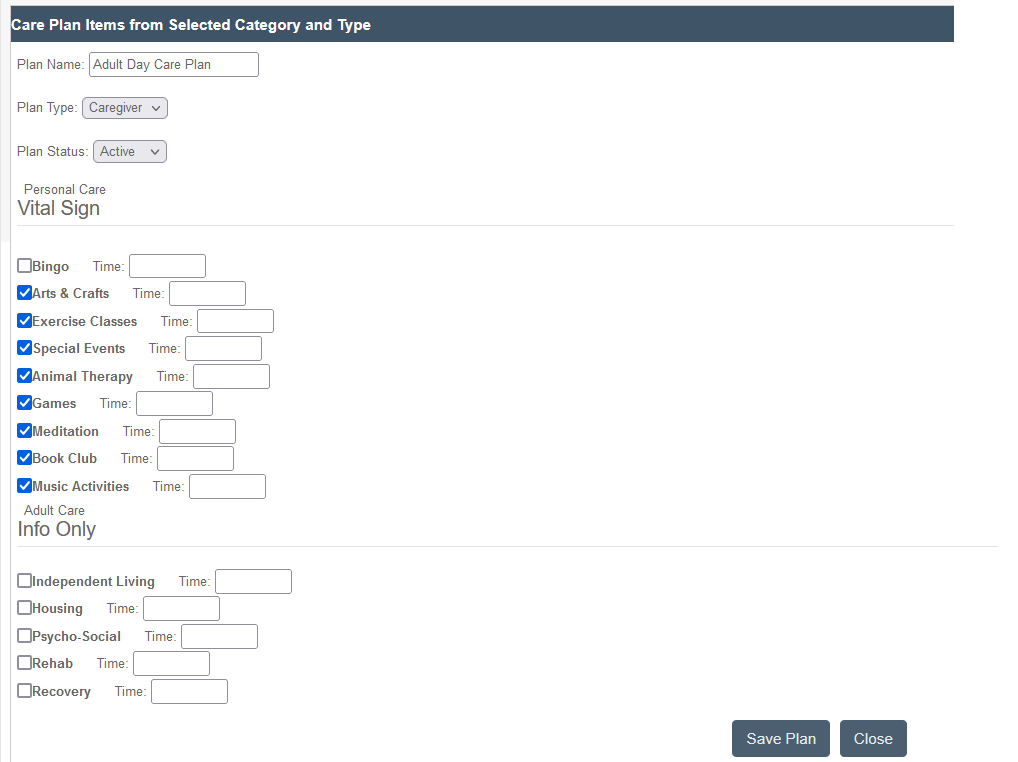
If new or altered care plan items are needed, contact support@ankota.com to request an update to care plan items.
Individual Daily Activity Management
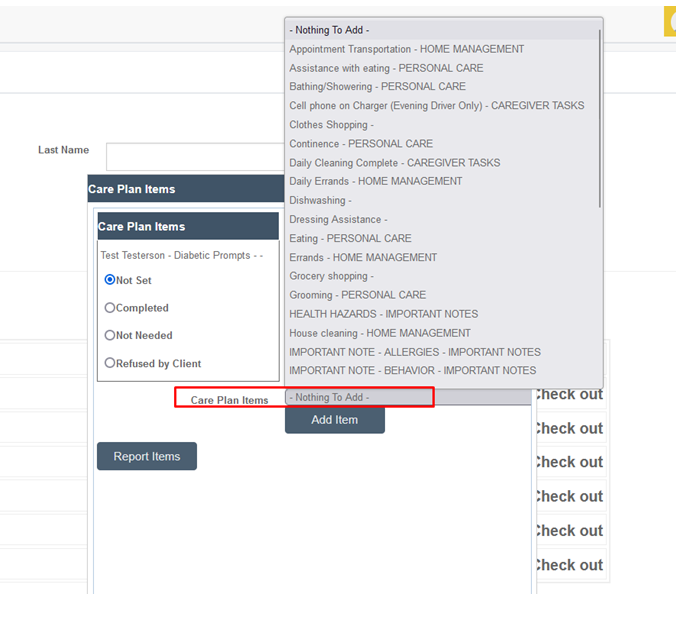
Since not every activity will apply to every client every day, the activity must be added to the client one of two ways:
- apply the activity to the caregiver on the main Activities page
- add the activity to the caregiver using the drop-down list
Clients' applied activities/care plan items can be viewed by clicking on their "list" icon on the main check-in page:
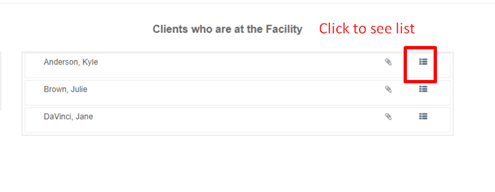
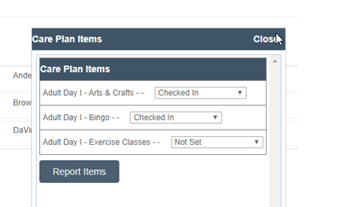
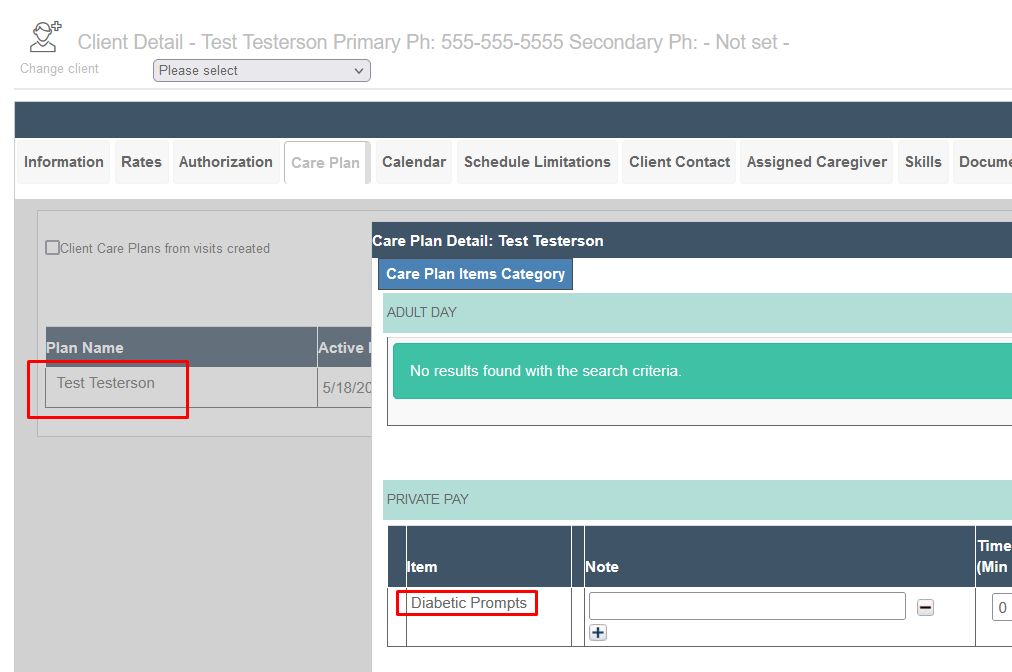
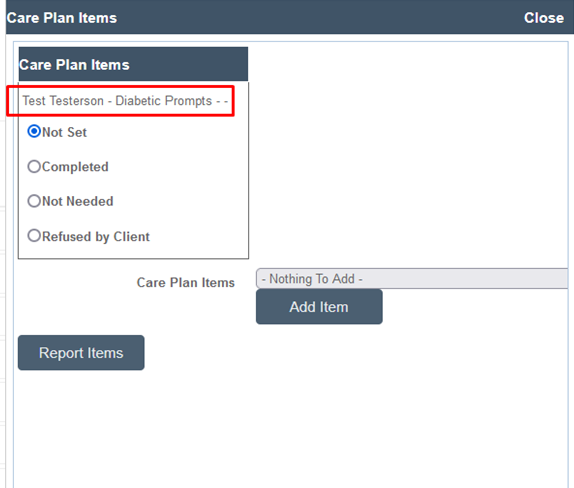
The client's personal, unique care plan information (not the facility care plan) will show up on this page without anything needing to be selected, so long as the visit type is set up to ask the questions in the category.
For example, Test Testerson here has a diabetic prompt in her care plan that is being asked about:
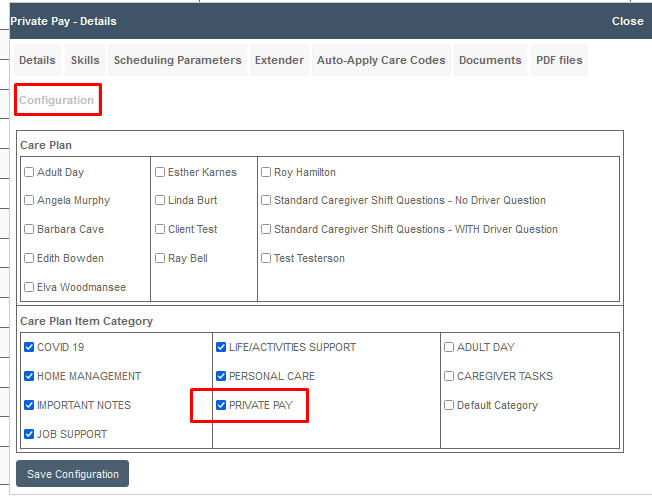
Her visit type is also set to ask questions for that Private Pay category:
So now the client check-in board is asking about the diabetic prompt:
Group Daily Activity Management
Activities can also be managed at a group level at each facility via the Activity Attendance page. The Activity Attendance page generally looks like this:
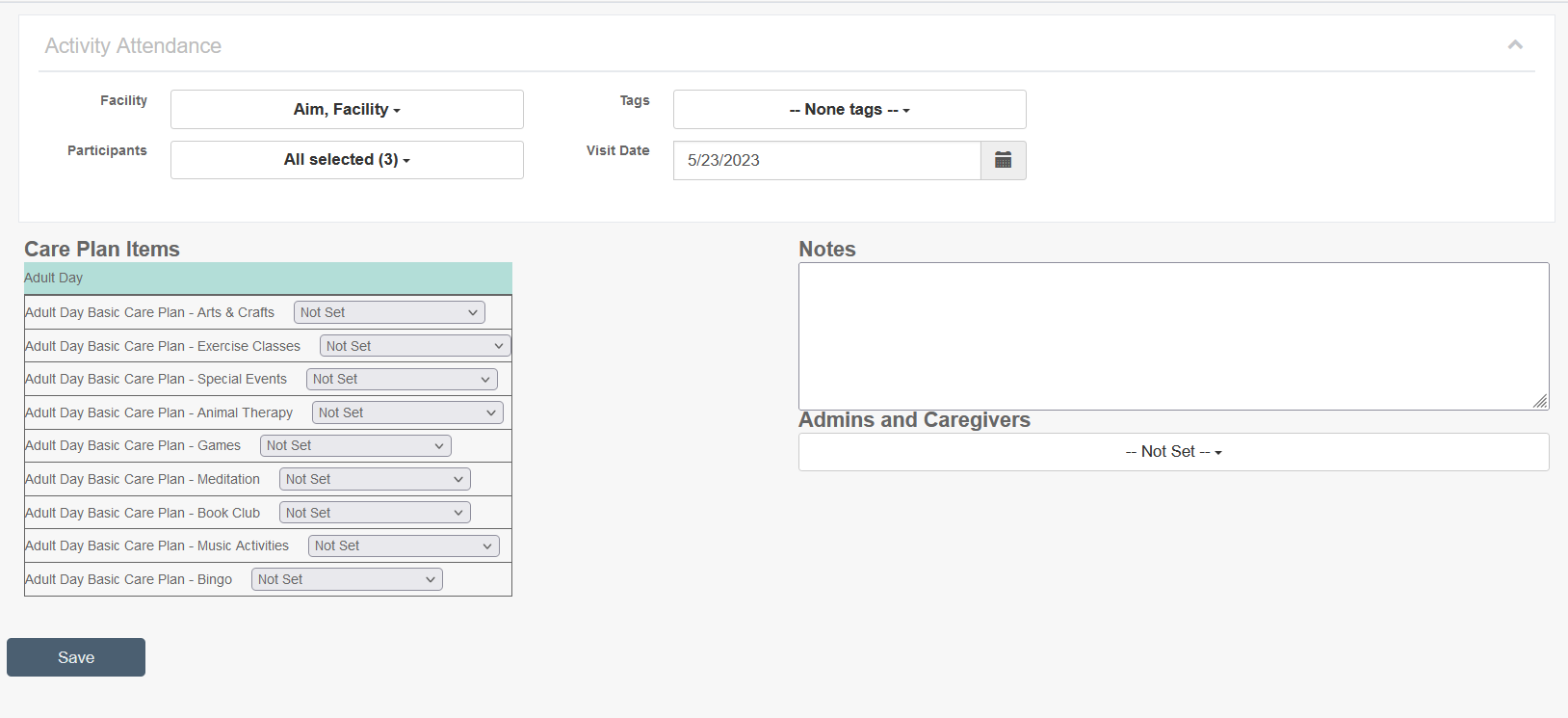
To manage activities as a group:
-
Select a facility
-
Select a tag, if desired (to pull up a specific group of clients)
-
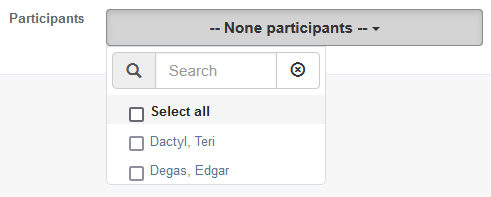
Select participant(s); if more than one participant is selected, the activity will be updated for everyone selected
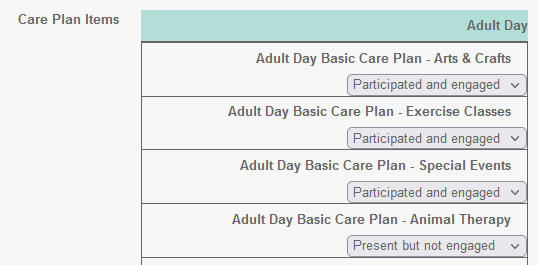
- The activity list will appear
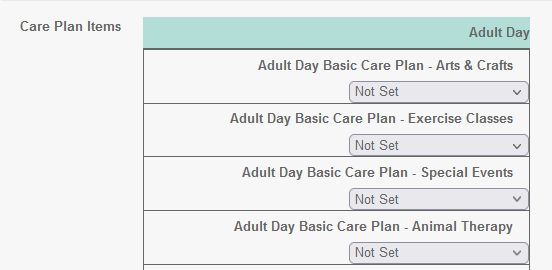
- Select status (same status will apply to EVERY client selected)
- Add notes if desired

- Select your name

- Save
Retroactive Activity Attendance Reporting
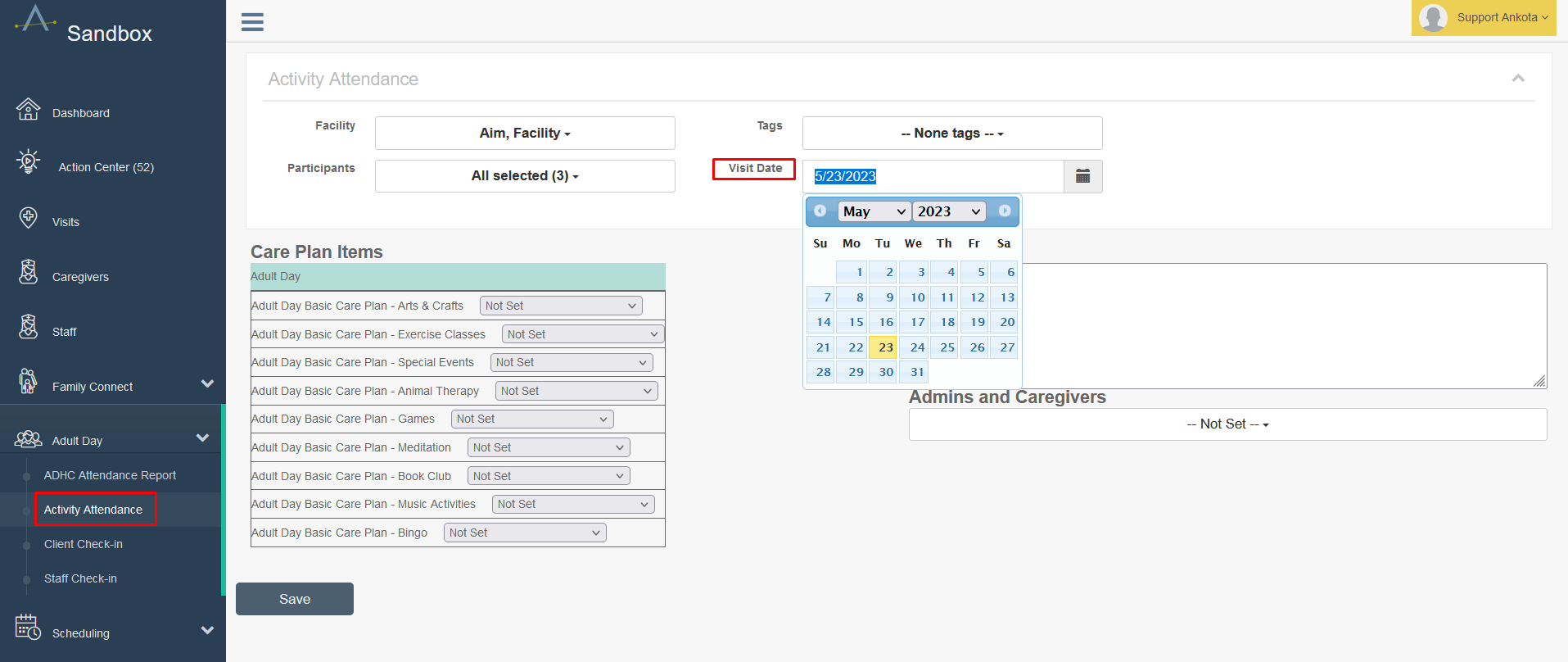
If activities were not reported for a previous day, this can be corrected using the date picker on the group Activity Reporting page. Any client who was checked in OR checked in and out can have activities reported retroactively. (Unchecked in clients cannot have activities reported retroactively.)
To report, select the Facility and participants as usual, then pick the Visit Date. Then report as usual, knowing that these activities will be reported on the selected date. Clients must have been checked in on this day for retroactive activity reporting to work. If front desk workers need clients checked in retroactively, they will need to ask an admin with schedule board or general visits access to update the check-in status retroactively.
Attendance Report
Ankota provides an adult day attendance report which includes the following:
- Visits Authorized and Attended
- Visits Authorized and Missed
- Visits Unauthorized and Attended
This report provides an overview of client attendance, wanted or not. For full use, use the Schedule Limitations function so that Ankota can identify the days which are not permitted.
III. Troubleshooting
If issues arise, the following troubleshooting steps may help resolve them.
Visit Type Choice Missing From Adult Day Check-in Board
If the visit type choice option does not appear on the adult day check-in board, review the following:
- Is the system set up for visit type choice upon check-in? If not, reach out to Support to request this feature.
- Does the client have an authorization for the visit type options they should have?
- Is the authorization active?
- Is the authorization exhausted?
- Does the client have pre-scheduled visits? If only one visit type is scheduled for the day, they will automatically be checked in for that visit type.
Visit Type Choice Appearing (Unwanted) on Adult Day Check-in Board
If visit type choice should not appear on the adult day check-in board, reach out to Support to request this feature be turned off. Be sure to request a default visit type for each facility to ensure that clients are checked in on the correct visit type.