Billing Report - Completing Invoices
Overview
Once invoices have been built on the Calculate Billing/Payroll page, the reports are available under the Billing Report page. On this page, they can be completed, reviewed, and also accessed later. For more on custom invoices, see Custom Invoice Options.
Completing Invoices
-
Go to the Main Menu.
-
Click Billing.
-
Then click Billing Report (Client).

On the Billing Report (Client) screen, invoices can be viewed as PDFs. Choose the Date From and Date To to search.

Choose whether those dates are the visit date or invoice date (the date the invoice was created), adjust any other filters if desired, then click the turquoise View Report button.

Note: The View Report and Complete buttons have been updated to turquoise for easy access.
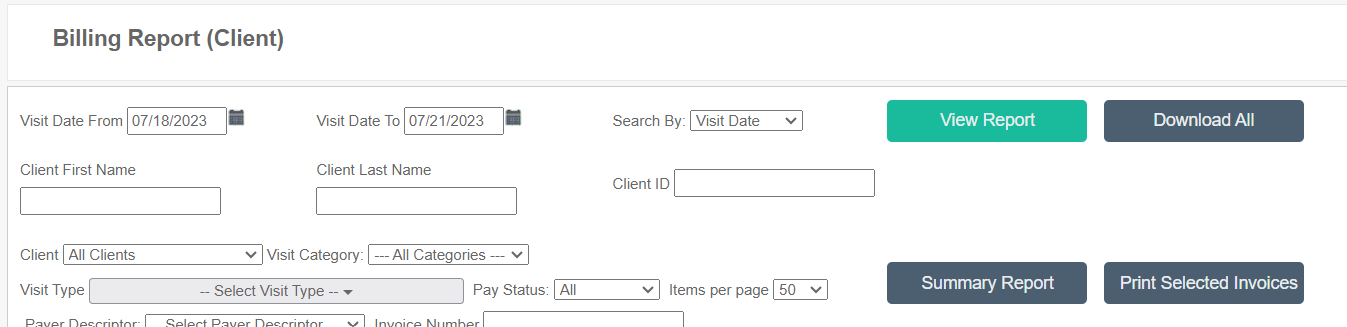
Invoices can be viewed as PDFs using two methods:
- Click Pdf in the row of the client's name.

- Or select one or more invoices and click Create Invoice PDF.

Correcting Invoice Errors
If something appears wrong, use the following approach:
-
Cancel the invoice(s) that has errors.
-
To cancel an invoice, cancel the draft.
-
If the invoice is completed, select and change it to draft, then cancel.
-


-
Go back and fix the errors. For example:
-
Go into the Visits tab and adjust times or other factors.
-
If the rate was not set or was incorrect, fix the billing (or payroll) rate, recalculate, and recreate the invoice.
-
Marking Invoices Complete
Once draft invoices meet expectations, they can be moved to Complete (either one by one or grouped together). Check the boxes, then click the turquoise Complete button.

Emailing Invoices
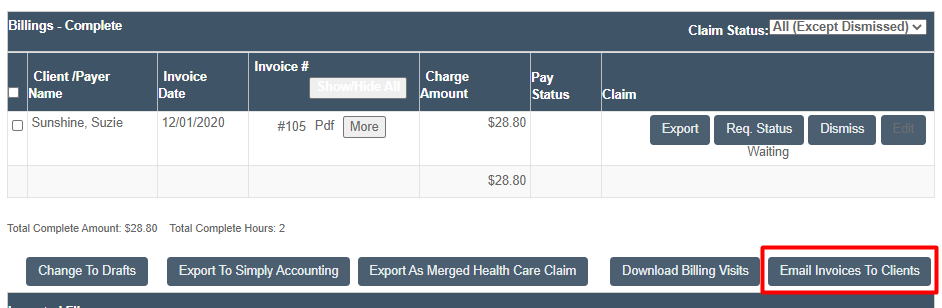
To email invoices, select the completed invoices, then click Email Invoices To Client. A working email must be registered to the client for this button to function. If the Email Invoices button is not configured in your environment, contact Ankota to have it enabled.
For more reports, see Downloadable Billing Reports.