Clearing Your Browser Cache (Formatting Issues or Blank Pages/Tabs)
Overview
When a browser is used, it saves information from websites in its cache or cookies. Clearing the cache fixes issues associated with that data storage, such as formatting issues or blank pages or tabs.
Clearing Chrome Browser Cache (Recommended Browser)
- Open Chrome
- Click the 3 dots at the top right
- Click More Tools
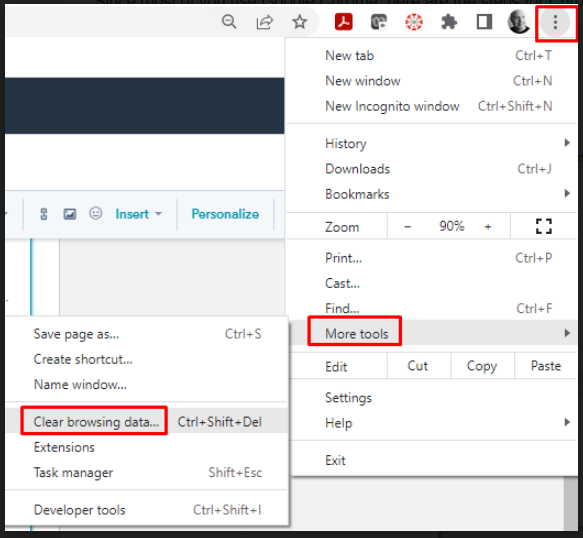
- Click Clear Browsing History
- To delete everything, select All time
- Next to "Cookies and other site data" and "Cached images and files," check the boxes
- If cookies should be kept, do not check the box next to cookies
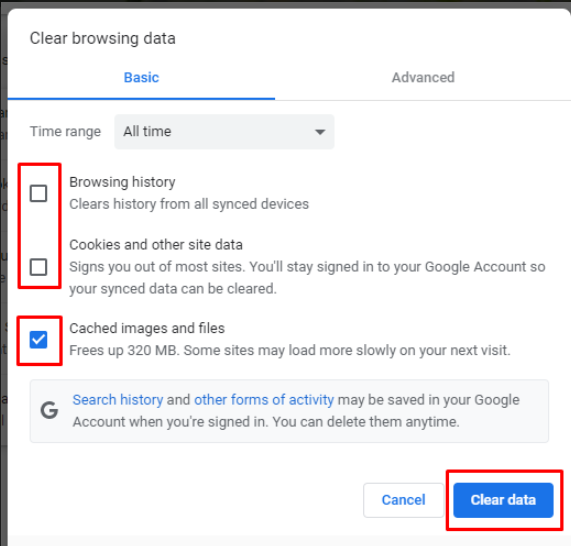
- Click Clear data
Clearing Firefox Browser Cache
- Open Firefox
- Click the menu button and select Settings
- Select the Privacy & Security panel
- In the Cookies and Site Data section, click Clear Data
- Remove the check mark in front of Cookies and Site Data
- With Cached Web Content check marked, click the Clear button
- Close the about:preferences page; any changes made will be saved
Clearing Edge Browser Cache
- Open Edge
- Select Menu (3 dots icon on top right corner)
- Click Settings
- Click Privacy & services
- Under Clear browsing data, select Choose what to clear
- Select the Cached images and files check box
- Select Clear
Clearing Safari Browser Cache
- Open Safari
- Click Safari
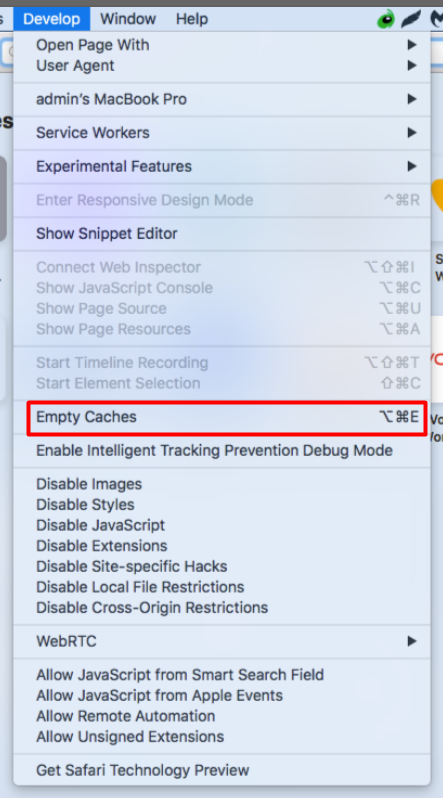
- Click Develop. If Develop is not visible, click Preferences in the list
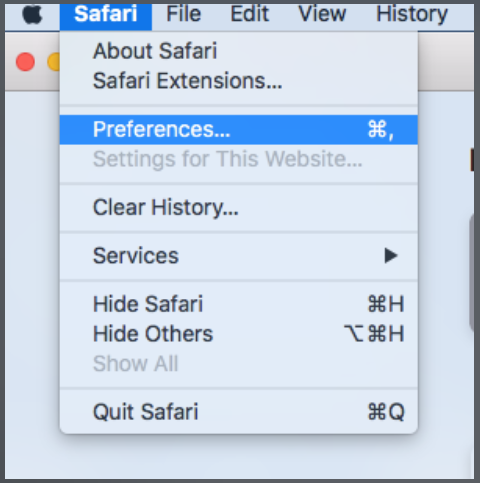
- This will open Settings
- Click Advanced (tab on far right)
- Check the box next to Show Develop menu in menu bar (at bottom)
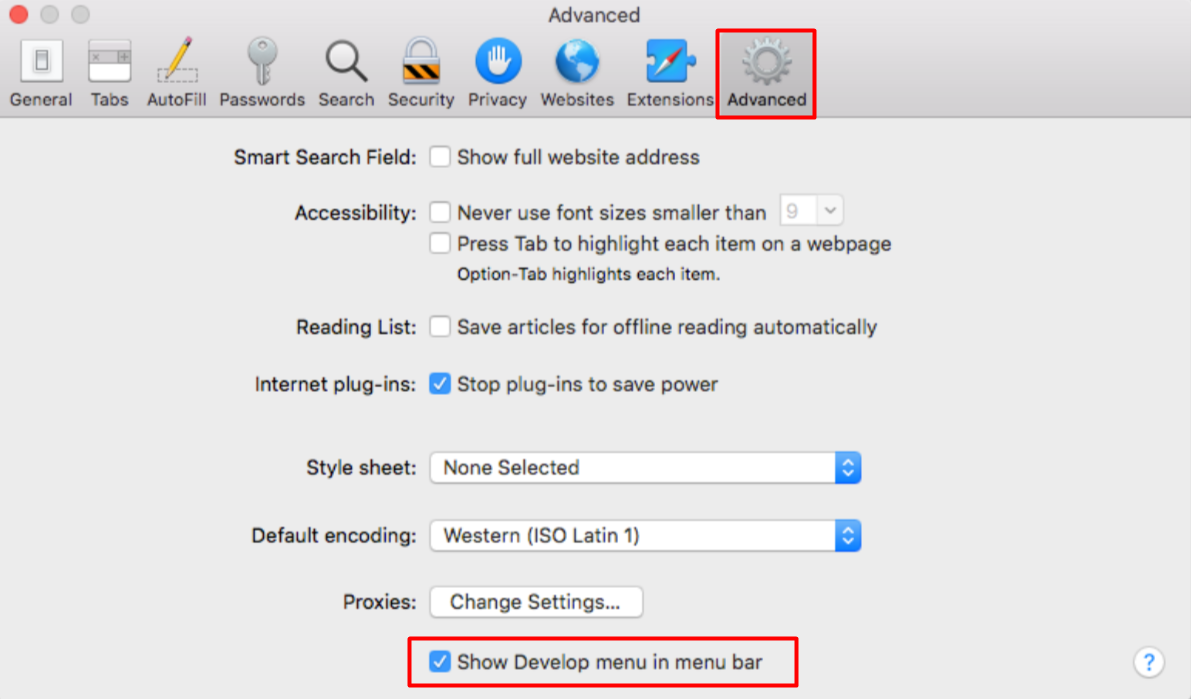
- Return to the Safari browser
- Click Empty Caches from the list below
Ankota.net Not Working on Wi-Fi but Working on Cellular Data for Staff
Page Can't Be Reached
This means a web resource or web page cannot be accessed. Most of the time, the resource is still available online, but there are issues with the local computer or network.
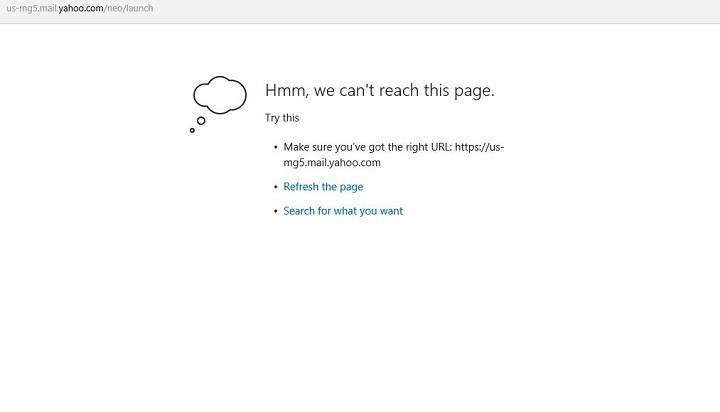
The phrase is used broadly and often attached to other errors. Major causes include:
- Timed out connections
- Misconfigured network, internet, or firewall settings (restricted website)
- DNS resolution errors
- Failed or bad internet connection
The error may appear in a few variations:
- hmm can't reach this page
- can't reach this page refused to connect
- hmmm… can't reach this page the connection was reset
- hmm can't reach this page windows 11
Restricted Site Solution
- Select the Windows Start button
- Search Internet Options
- Click on the Security tab
- When a pop-up window appears, click Restricted Sites
- Click the Sites option underneath Restricted Sites
- Under Websites, a few listed domains may appear
- Select ankota.net and click the Remove button
Was this article helpful?