Correcting Payer Descriptors and Visit Types
Overview
Payer descriptors should be assigned to the client from day one. This assigns them to the correct payer and billing table, and when the client is scheduled for visits, associates the payer descriptor with that visit series.
If this process is not followed correctly, scheduling adjustments may be needed, which can be addressed on the Visits page.
If visits have already been paid or billed with the wrong payer descriptor and/or visit type, the invoices and payrolls from that time period must be cancelled in order to correct the invoices. Invoices and payrolls can be recreated after the payer descriptor and/or visit type correction (which will also automatically correct any billing table issues).
Correcting Visit Types on Visits
Generally, if visits are scheduled using calendar-based scheduling with authorizations, it will not be possible to select a wrong visit type, since by selecting the authorization the visit type will be assigned to the visit. In case of error, use the following steps.
Open the Visits page, then filter for the appropriate visits. Select the visits to change.

Scroll down and click the Change Type button to change the visit type.
A window will open. Select the appropriate updated visit type, then click the YES, Update Visits button. The visit types will update.

NOTE: If these visits have already been paid or billed, it may not be possible to change the visit type until the affected invoices or payrolls are cancelled. Invoices and payrolls can be recreated after the visit correction.
Correcting Payers on Clients, then Payers on Visits
For organizations that use payer descriptor assignments, there will sometimes be changes where a client needs to change from one payer descriptor to another. This can be accomplished by changing the payer descriptor assignment in the client's profile.
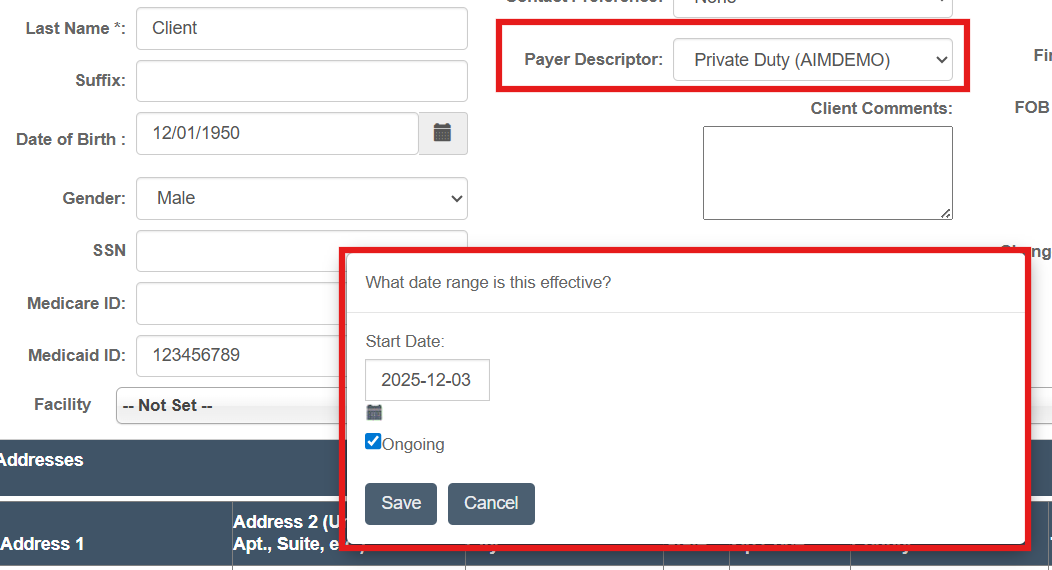
When a payer descriptor is modified within a client's profile, the system will display a pop-up window prompting entry of a start date and end date. These values are stored in the backend to ensure accurate recordkeeping. Past visits will not be retroactively updated.
If no end date is provided, the descriptor may be marked as ongoing.
Future visits will automatically update to reflect the correct payer associated with the descriptor.
Once this is done, future visits that are created will be assigned to this payer descriptor, which can be seen in the Visits page. If visits were created when a different payer was assigned, those visits will need to be updated.
To update the payer descriptor on visits which were scheduled with the old (now wrong) payer descriptor, open the Visits page, then filter for the appropriate visits. Select the visits to change.
Scroll down and click the Change Visit Payer Descriptor button (or Change Visit Agency button, depending on system settings).
A window will open. Select the appropriate updated payer descriptor, then click the Save button. The payer descriptors for the selected visits will update.
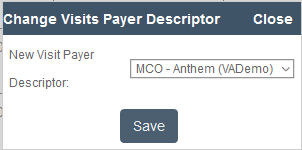
NOTE: If these visits have already been billed, the payer descriptor cannot be changed until the related invoices are cancelled. Invoices can be recreated after the payer descriptor correction.
Payer Descriptor Webinar
A Payer Descriptor webinar recording (2/23/21) is available.