← All help articles

Documents in the Ankota Mobile App

View Documents

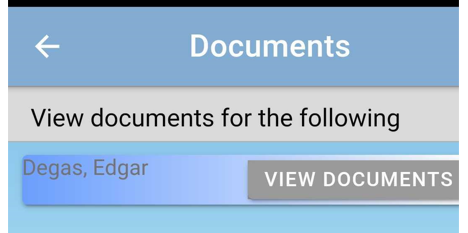
Document screen:

The Documents screen displays a header with a back arrow and "Documents" title, followed by text stating "View documents for the following" with a person's name "Degas, Edgar" shown in a blue highlighted section and a "VIEW DOCUMENTS" button on the right.

Document selections:

PDF Document View:
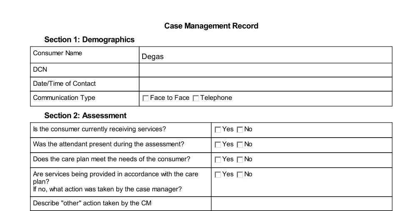
The Case Management Record form displays Section 1 (Demographics) with fields for Consumer Name, DON, Date/Time of Contact, and Communication Type, along with Section 2 (Assessment) containing yes/no questions about consumer services, attendee presence, care plan adequacy, service accordance, and action taken by case manager.

Filling and Processing Documents

Processing documents is a little different from the above. This is when the Visit has an attached document that needs to be filled typically by the caregiver or nurse. Ex: Medication List. 

To fill and process a document in the Ankota Caregiver App, you will need to do the following:

After clocking into the My Visit page, go to My Visit and select Documents attached to the visit. 
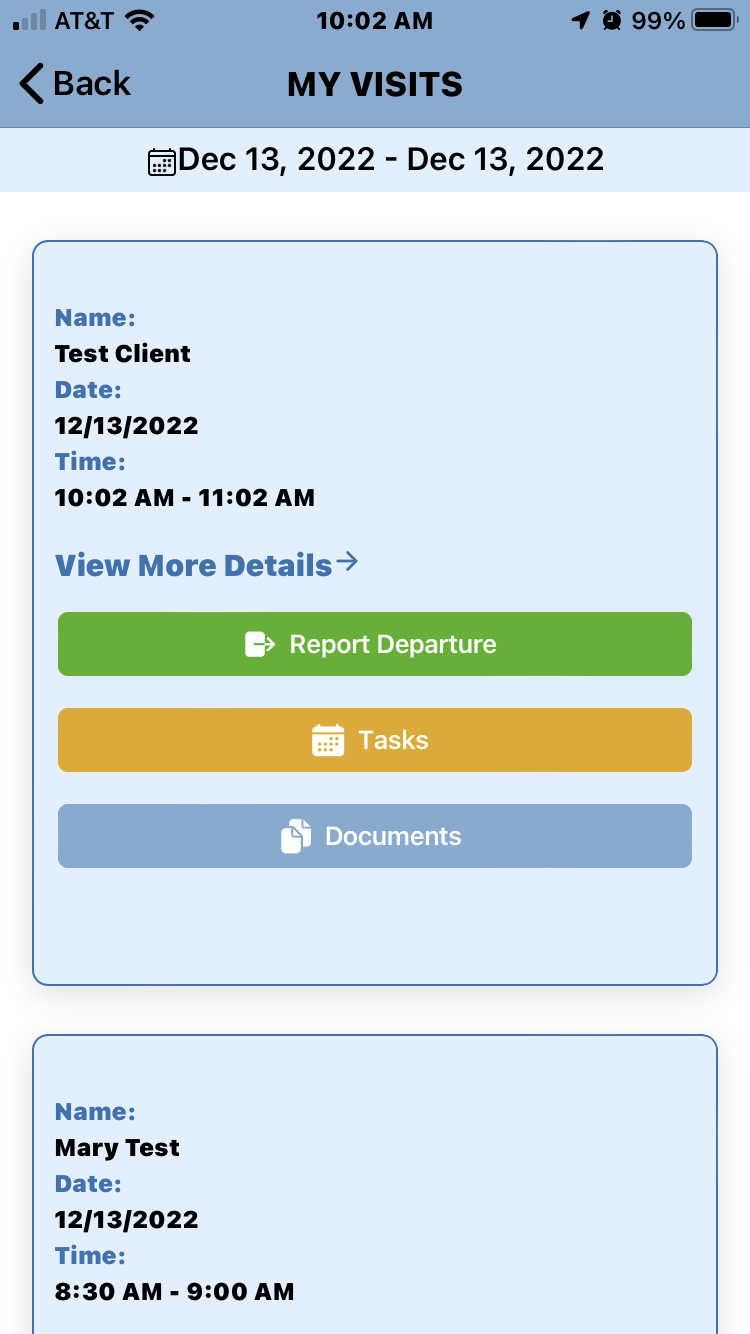
The "MY VISITS" screen displays a list of client visits for a selected date range (Dec 13, 2022), showing visit details including client name, date, and time, with action buttons for "Report Departure," "Tasks," and "Documents" for each visit entry.

This will bring you to the attached document fill forms. Select the document needed.
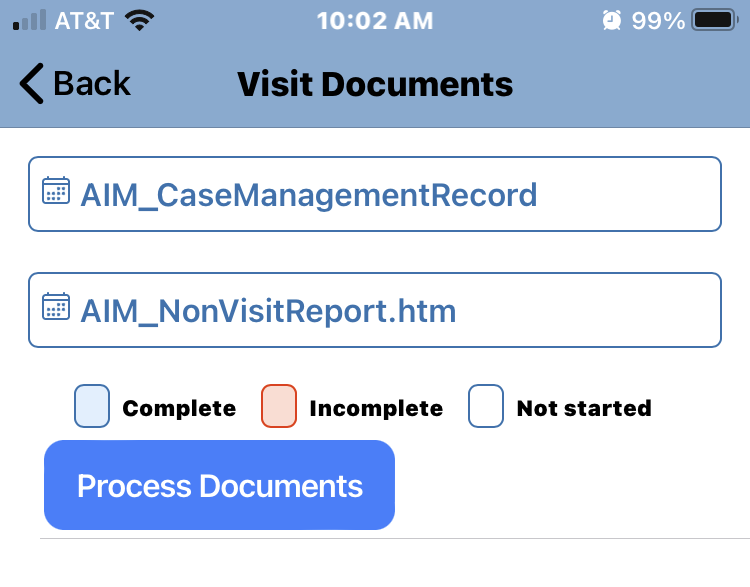
The Visit Documents screen displays two document options (AIM_CaseManagementRecord and AIM_NonVisitReport.htm) with a legend showing document status indicators for Complete, Incomplete, and Not started, along with a blue "Process Documents" button.

Here you will fill the form. After done scroll back to the top to Save. There is an option to select Save Incomplete, this is used so you can go back when later in the visit to finish the document. ResetToNew button will clear what you have previously entered. 
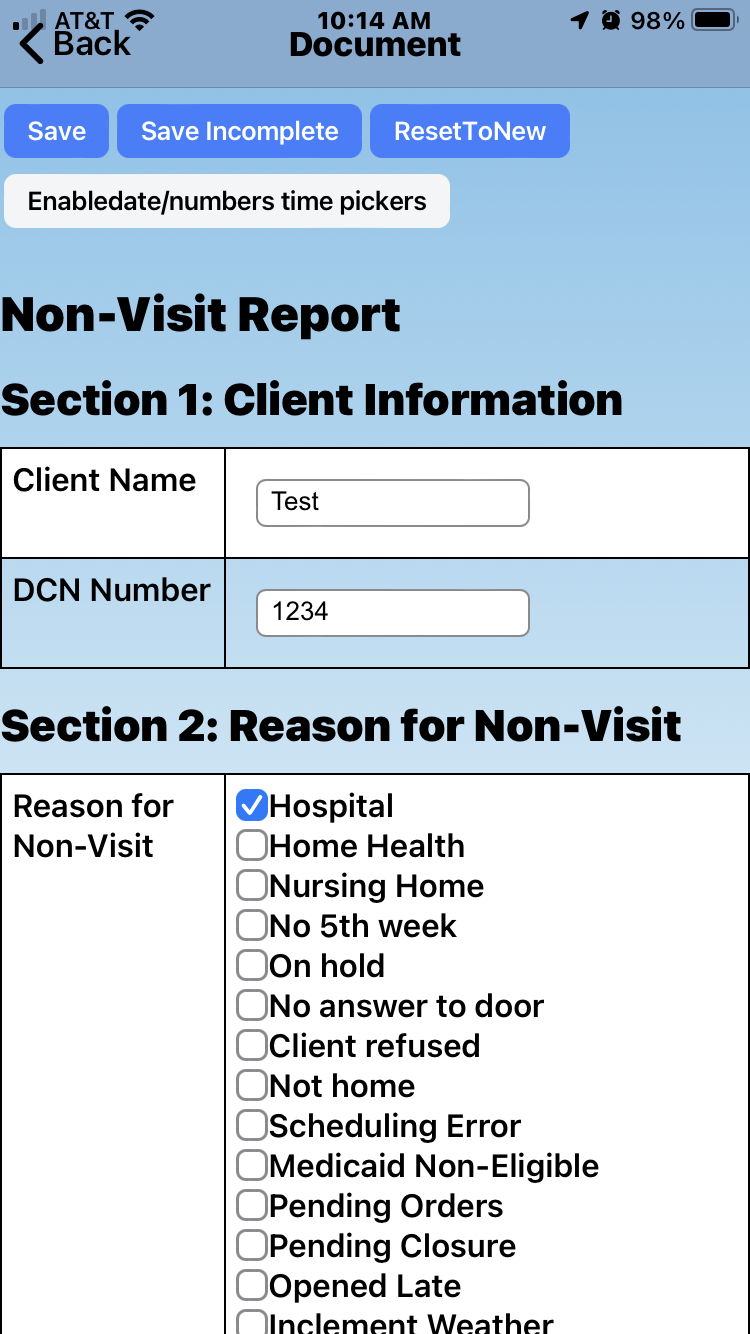
Document form in the Ankota Mobile App showing a Non-Visit Report with Section 1 containing client information fields (Client Name: "Test", DCN Number: "1234") and Section 2 displaying a checklist of reasons for non-visit with "Hospital" currently selected. The top navigation includes Save, Save Incomplete, and ResetToNew buttons, with a note indicating "Enabledate/numbers time pickers" functionality.

After selecting Save there is one last step. Next you will hit Process Documents. 

The Visit Documents screen displays two document options (AIM_CaseManagementRecord and AIM_NonVisitReport.htm) with a legend showing document status indicators for Complete, Incomplete, and Not started, along with a blue "Process Documents" button.

This will move the document over to Ankota. Note: Don't exit the page until it is done spinning.
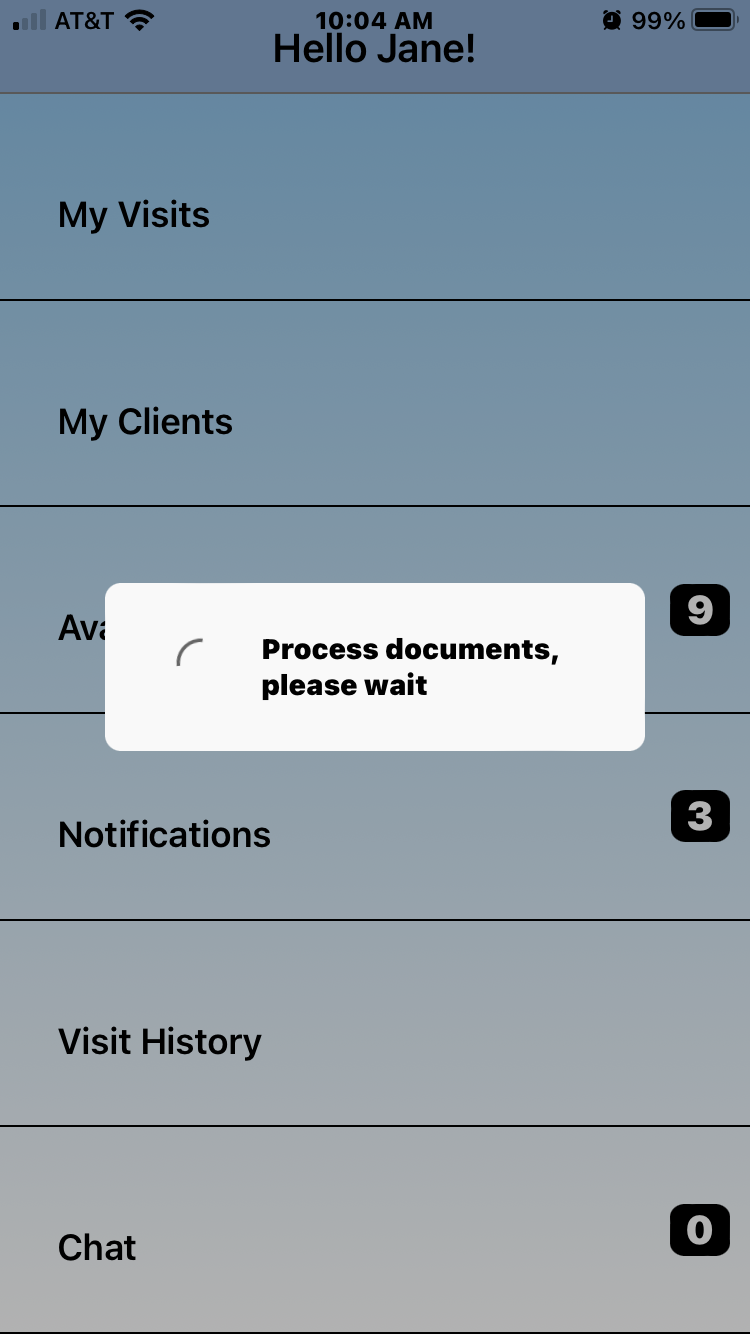
The mobile app's main dashboard displays a personalized greeting "Hello Jane!" at the top, with menu sections for My Visits, My Clients, Notifications, Visit History, and Chat; a loading dialog overlay shows "Process documents, please wait" indicating background processing is occurring.

Was this article helpful?
On this page