Find Matching Caregivers
Overview
Customers may wish to offer out visits through direct offer (the original Find Matching Caregivers Search/Offer functionality) OR through the Available Shifts functions. The Find Matching Caregivers Search/Offer functionality allows organizations to offer out specific visits only to the desired caregivers. The Available Shifts functionality allows organizations to offer out all visits to all caregivers.
This article includes:
- Available Shifts Review/Accept Functionality
- Find Matching Caregivers Search/Offer Functionality
Available Shifts Review/Accept Functionality
For organizations that have Available Shifts in the mobile app, caregivers will be able to review available shifts and request or decline them as desired. (Reach out to Ankota Support if you would like to have this function added.)
Organizations have the option to limit available shifts as follows by request:
- Show open shifts only to assigned workers (off in newer environments)
- All caregivers can accept open shifts (defaulted on in newer environments). You cannot select both of the first two items.
- Show open shifts to workers within ___ miles (defaulted to 15 in newer environments)
- Show open shifts to workers with < ___ hours in the week (defaulted to 40 in newer environments)
- Show open shifts to workers with < ___ hours on the visit date (defaulted to 8 in newer environments)
- Show open shifts to workers for the next ___ days (defaulted to 3 in newer environments)
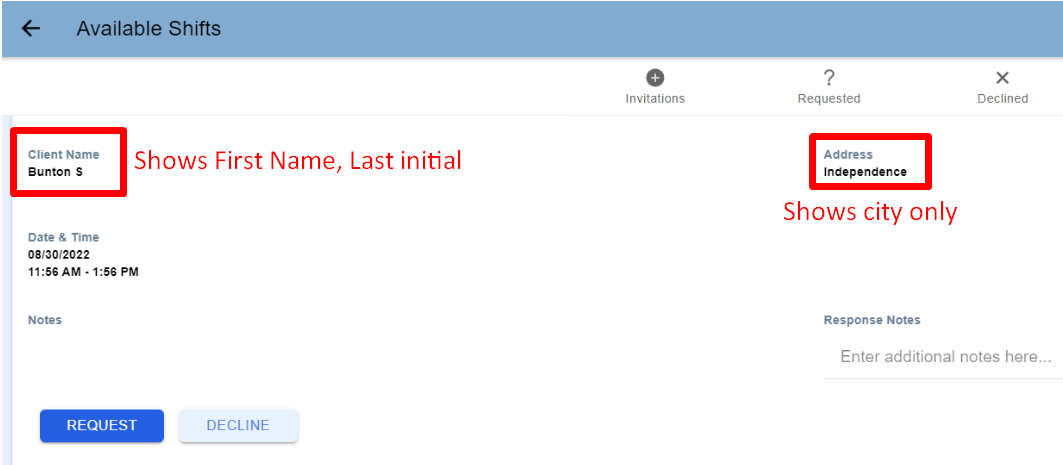
- Show only client's first initial, last name, and city
The rules which govern available shifts are similar to the more general Find Matching Caregivers:
- The caregiver must be available at the time of the shift.
- Contiguous visits must be picked up as a block.
- The caregiver must have the skills for the shift(s). If the visits are contiguous (back to back), all skills will be taken into consideration.
- If the shift is sent to them in Find Matching Workers, the caregiver can see the shift.
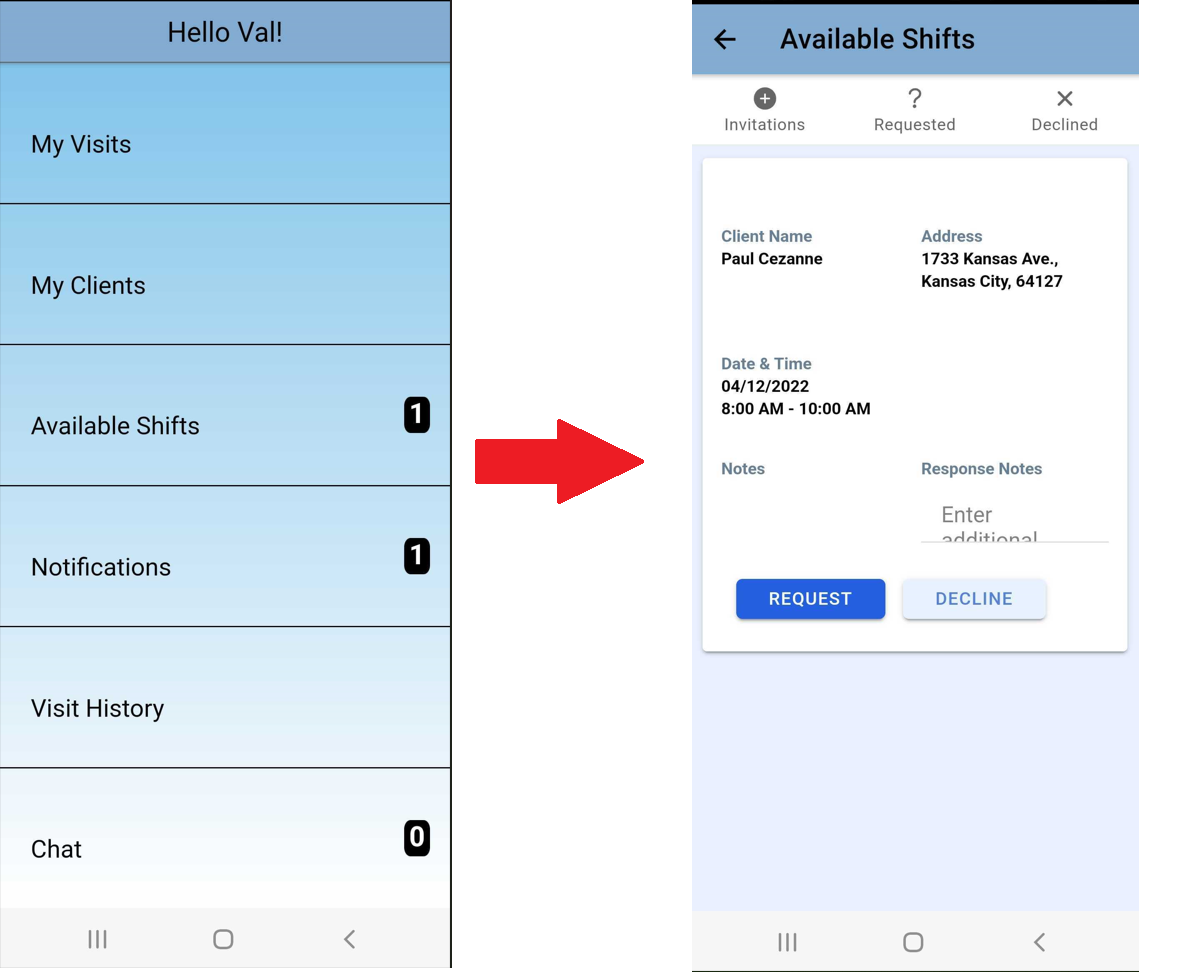
These shifts will be available under Available Shifts in the app. Caregivers can review available shifts, request, or decline them in this location.
Ankota has the option to show only first name, last initial, and city within the Available Shifts tab. For this function, please request via support@ankota.com.
Note: Assigned Caregivers are preapproved to accept any scheduled, unassigned visits for their approved clients. If you create a scheduled visit for a client that has an assigned caregiver but schedule the visit WITHOUT a scheduled caregiver, then the Assigned Caregiver will see the offer under Available Shifts and get the first opportunity to accept or decline it. The button will say Accept rather than Request because the visit will automatically be assigned to the caregiver if they click Accept.
Accepting Shift Requests Without Assigned Caregivers Functionality
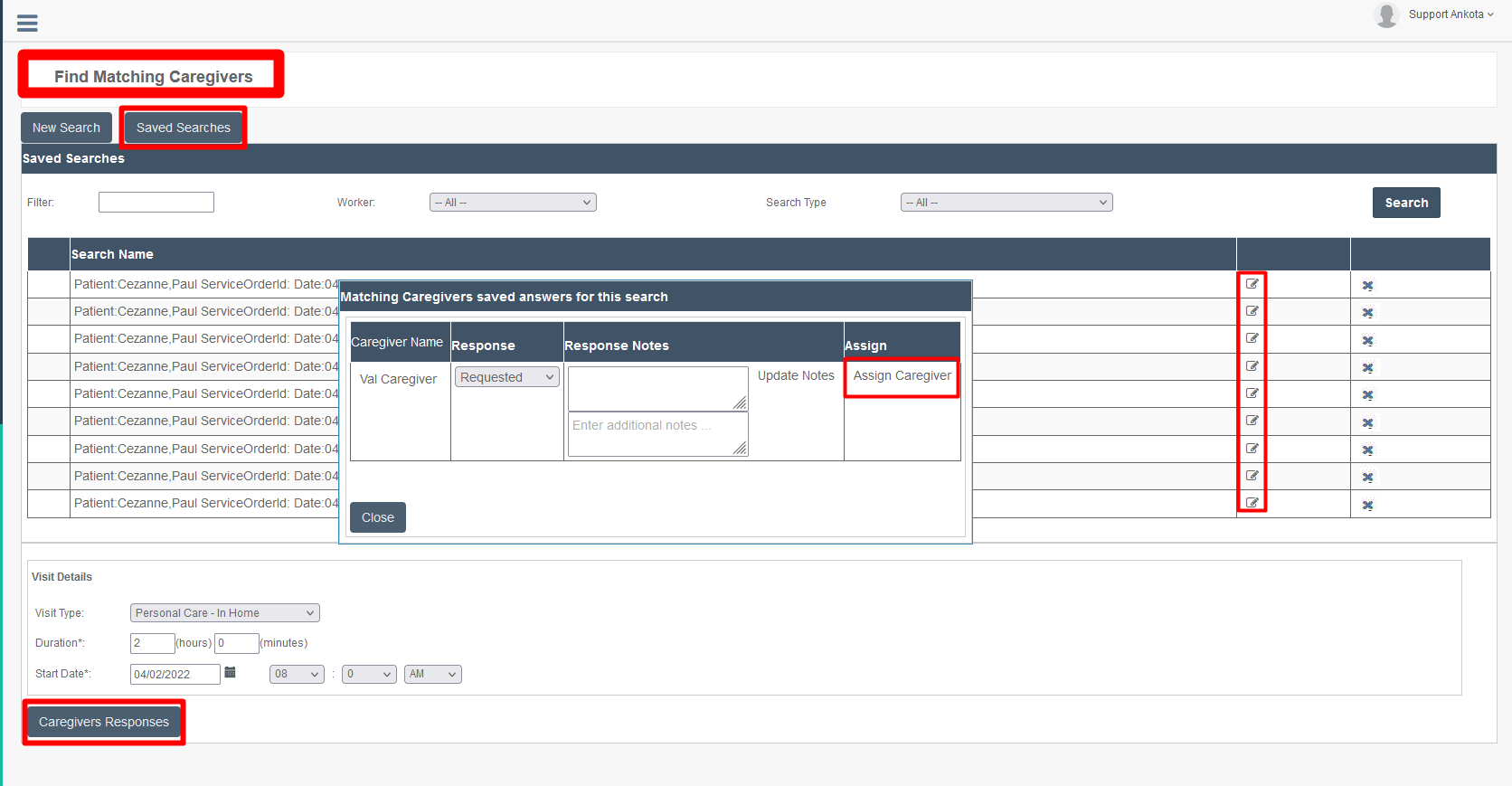
For caregivers that do not have the Assigned Caregivers functionality, shift requests can be accepted under the Find Matching Caregivers page as follows:
- Click Scheduling.
- Click Find Matching Caregivers.
- Click Saved Searches.
- Click the edit (pencil and paper) icon.
- Click Caregivers' Responses.
- Review the list of caregiver responses.
- Click Assign Caregiver next to the visit you would like to accept (along with any response notes you'd like to add).
Find Matching Caregivers Search/Offer Functionality
Find Matching Caregivers - Main Menu
To simplify the process of finding the best caregivers for uncovered visits, Find Matching Caregivers is a useful tool. It allows you to quickly find the best-matching caregivers for your visits and also accept shift requests by caregivers.
In the basic Find Matching Caregivers function, matches are suggested based on caregiver proximity, skills, and availability.
In addition to the default filters, you can adjust your options to view a larger or smaller group of caregivers. You also have the option to send out email or text offers for uncovered visits. The first acceptance will automatically be scheduled into the Ankota system. If additional caregivers attempt to pick up an already covered visit, they will be informed that the visit has already been taken.
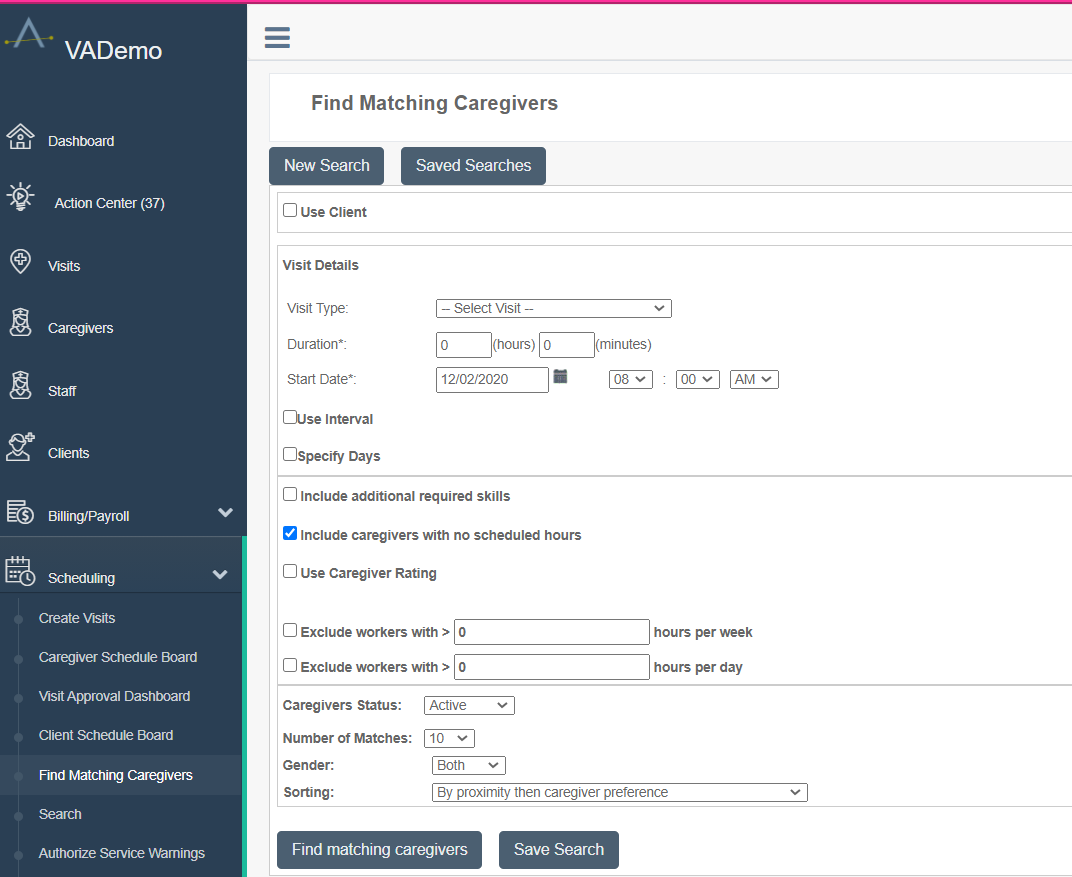
There are two points of access for the Find Matching Caregivers function. The first is in the Main Menu, to find caregivers as you are scheduling a visit using the historic scheduling option. This is less commonly used.
Find Matching Caregivers - Inside Visit Details
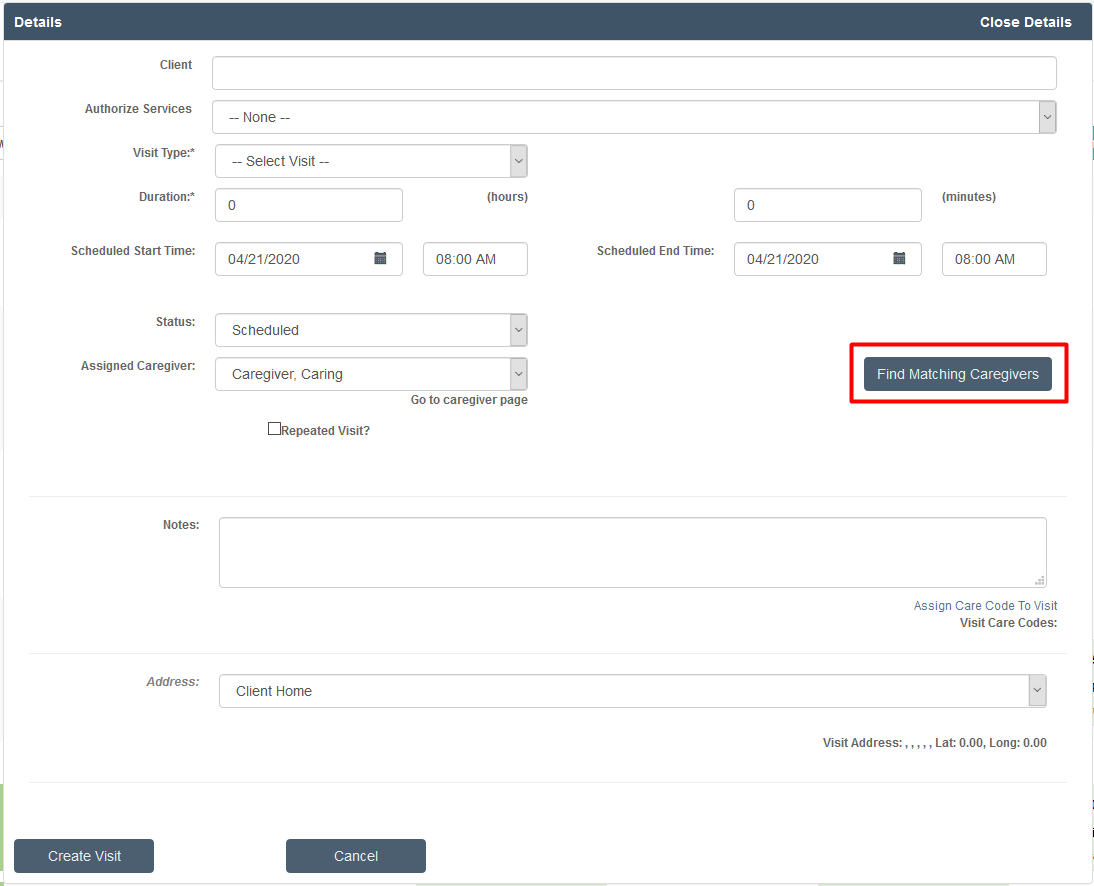
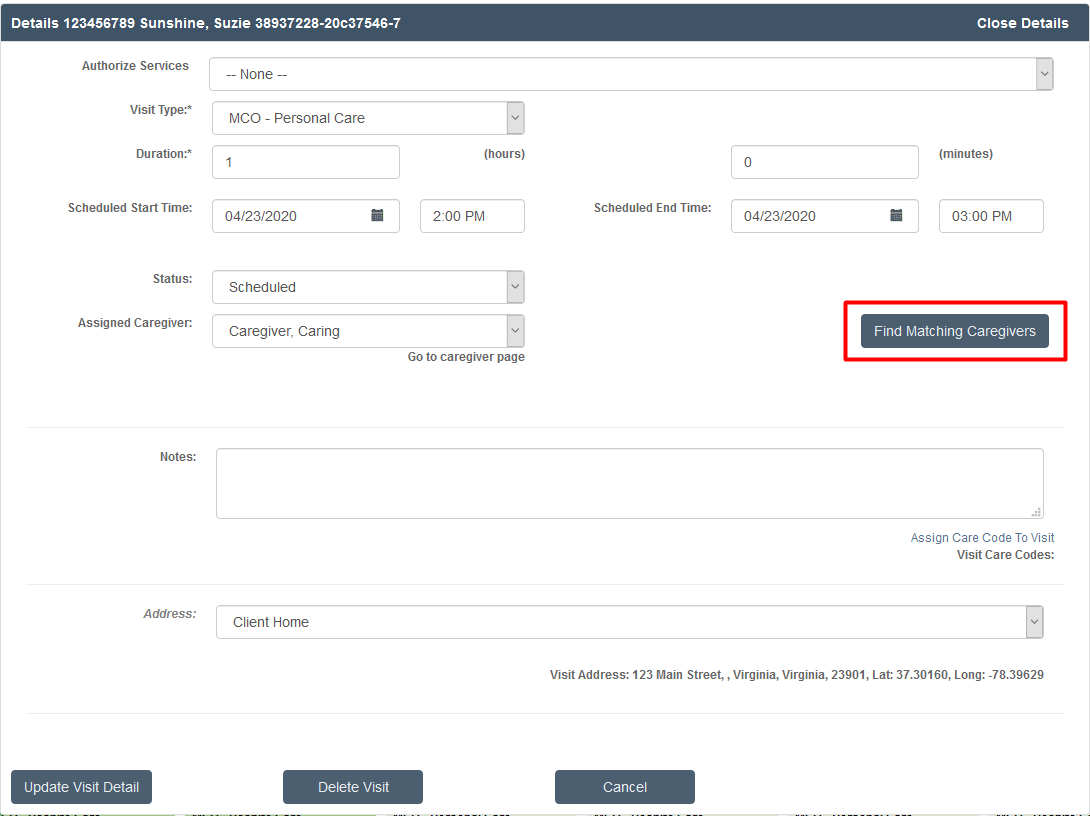
The Find Matching Caregivers button is available both on new visits as you're creating them and on previously built visits.
New visit:
Previously created visit:
Click the Find Matching Caregivers button to open the Find Matching Caregivers window.
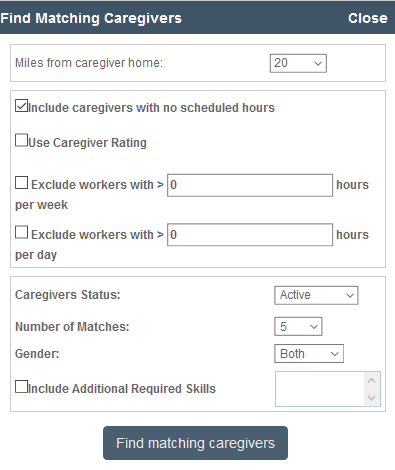
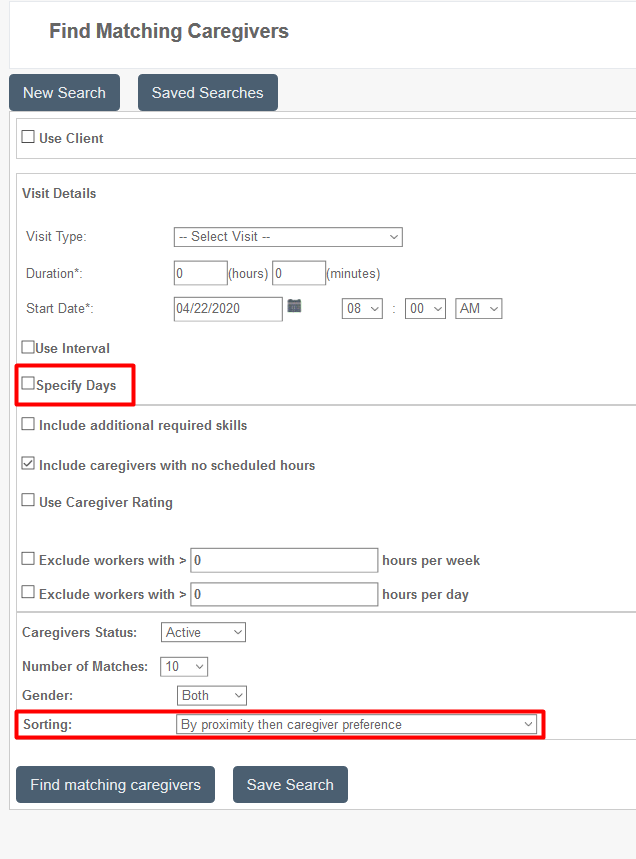
You'll see a number of filtering options on this page. Most are self-explanatory, but a few deserve additional explanation:
- Caregiver rating: If you use caregiver ratings inside caregiver profiles, you can filter according to rating. Check the box next to this rating and then select the correct rating from the drop-down list.
- Exclude workers with >x hours per week: To avoid overtime, you may wish to search for caregivers with less than a certain number of hours per week. Check the box and type in the number of hours.
- Exclude workers with >x hours per day: For states (such as CA) where overtime is applied after a certain number of hours per day (rather than per week), use this to avoid overtime by searching for caregivers with less than a certain number of hours per day. Check the box and type in the number of hours.
- Include Additional Required Skills: Skills are automatically searched on a matching basis between the caregiver and client, but you can check this box to see the list of all skills and override the skills search by selecting the skills you wish to search with.
Once your filters have been set, click the Find Matching Caregivers button, and a pop-up window will appear with caregiver options.
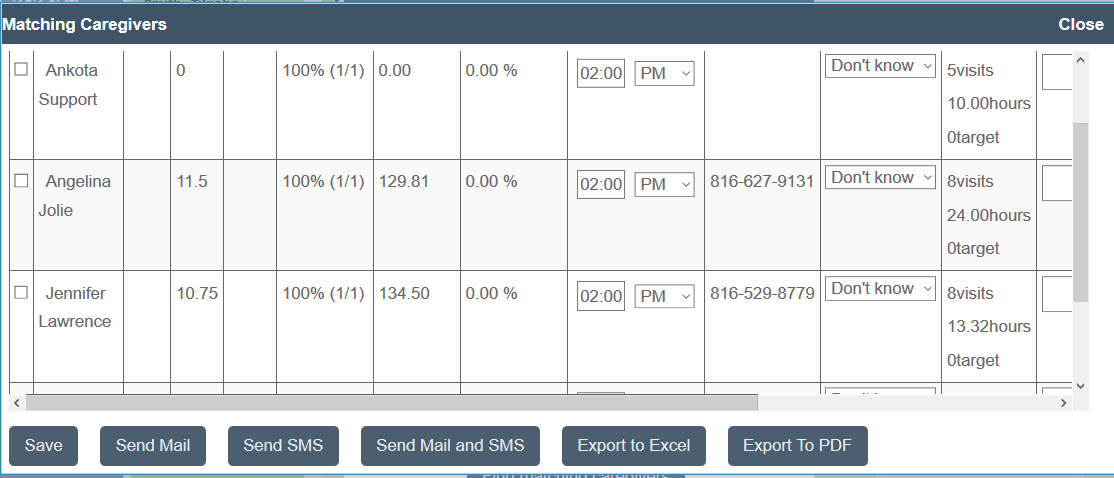
Several functions can occur on this page.
To assign a caregiver immediately, check the box next to the caregiver's name, then scroll right and click the Select button. This will immediately update the system and the new caregiver will be assigned.
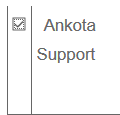
If you wish to explore your options or make an offer to multiple caregivers, some popular options include:
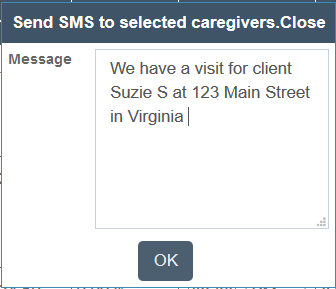
- Send SMS: If your company communicates primarily through text, check the box next to the caregivers' names you wish to make an offer to, then click the Send SMS button. This opens a new window with a pre-programmed message that can be edited as desired before sending.
- Export to Excel: Save this search to Excel to help you plan and evaluate long-term choices. You do not have to select any caregivers to export; it will include all caregiver options automatically.
- Export to PDF: Save this search to PDF to help you plan and evaluate long-term choices. You do not have to select any caregivers to export; it will include all caregiver options automatically.
The second access point is the Find Matching Caregivers function in the Main Menu, under Scheduling.
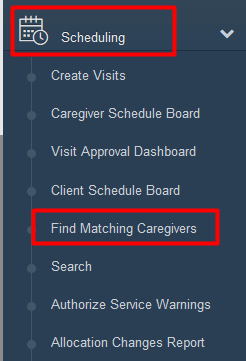
This function is for when you wish to create a visit and simultaneously find a caregiver to fill it. The process is virtually the same, but you have the additional option to specify days and to filter first by proximity or first by skill preference.