How to set 2 week authorizations
To set two week authorizations for your client follow these steps:
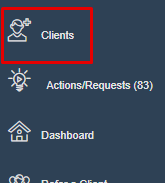
- Click on "clients"
- Search for you client by first or last name
- Click "Search"

- Click your clients name

- Click the "Authorize Units" tab

You first need to add the clients full authorization (ex: 4/4/19 - 4/4/20).
- Click "add new"

- Enter the full authorization information.
- Click "Save"
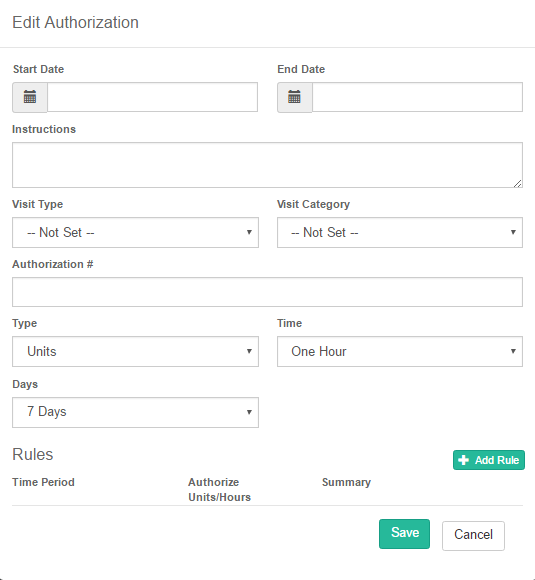
- Next to the authorization already in for this client click "Copy"

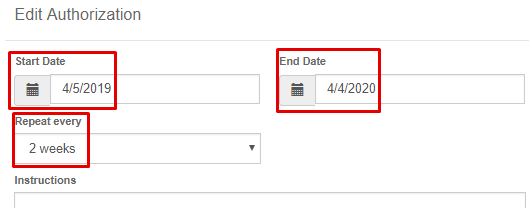
- You can now change the dates to what they need to be
- set "Repeat every" to "2 weeks"
- Click "Save"
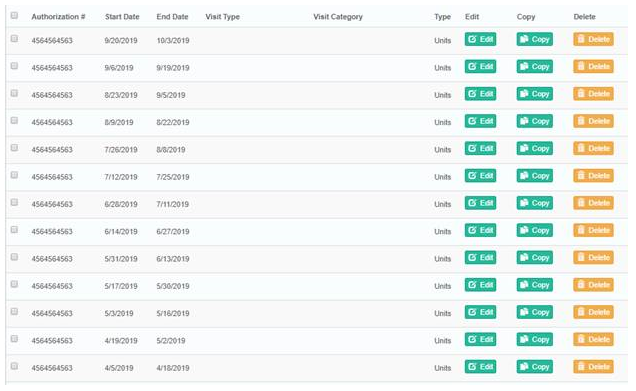
Authorizations will be created in 2 week increments until the end date you entered
Was this article helpful?