How to Set Authorized Service for Clients
A client may be sent a plan of care with authorized units from Cyber Access or another agency or if private pay your organization will have contracted hours with the client. After you have entered a client’s personal information, you will enter the authorized units.
- In the Patient screen, select the Authorized Units tab.

-
From the Cyber Access or other authorization source as your guide, enter the authorization information. A Patient may have one or several active authorizations.
-
Select “+ Add New”.
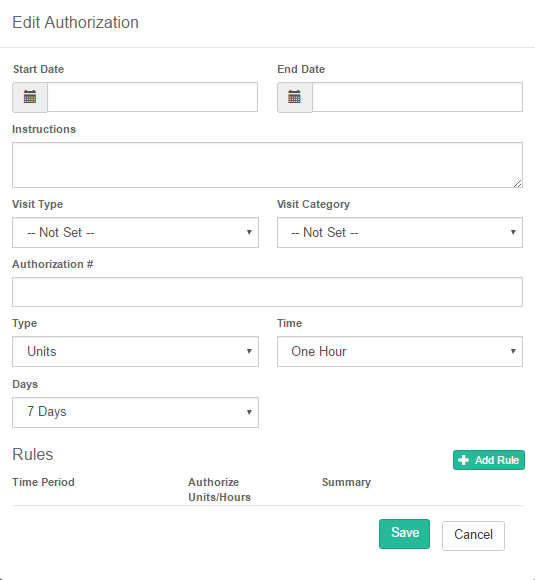
- Enter start Date and End Date.
: For a historical record, when a patient receives a new authorization, enter an end date in the previous authorization and begin a new authorization for the updated contract.
-
You can add any necessary instructions in the Instructions dialog box.
-
Select Visit Type.
-
The Visit Category will populate from the Visit Type.
-
Enter the Type. Options include Units, Mileage, Hours.
-
Enter appropriate time units.
-
Assign number of days per week.
-
After you have entered the basic authorization information, you can add additional rules.
-
Select “+ Add Rule”.
-
Enter the time period through the Drop down “Per Day Range”.
-
Enter the authorized units.
-
A summary of hours per day will be calculated based upon the data in the rules, the type and the time.

4. Save.
To edit units on active clients:
-
Click "Clients," select the client, click "Authorize Units," then click "Edit."
-
Scroll to the bottom and edit the number of units, press "tab" to see units per visit, then click "Save."
For your next step you will want to set up a one time assessment visit. To do this go to "Assessment Visit"