Master Contact Setting
Overview
Setting a master contact is helpful when adding new referral sources who have not been assigned to a client yet. For more on managing referral sources as Master Contacts, see "Adding a Referral Source." For setting a contact as a payer, see "Separating a Billing Address from a Service Address (Set Contact as Payer)."
This article reviews:
- Creating a Master Contact
- Adding a master contact to a client's profile
- Available Relationship Types
Creating a Master Contact
To add a master contact:
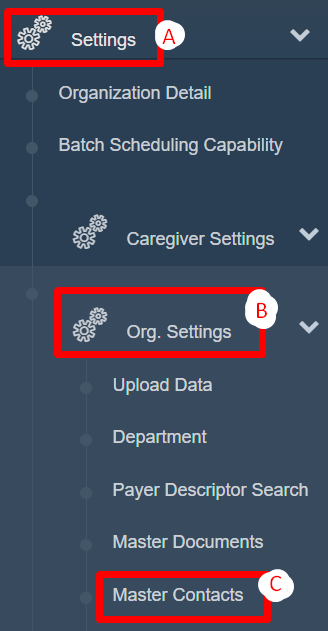
- Click Settings in the Main menu.
- Click Org. Settings.
- Click Master Contacts.
- Click Add New Master Contact.

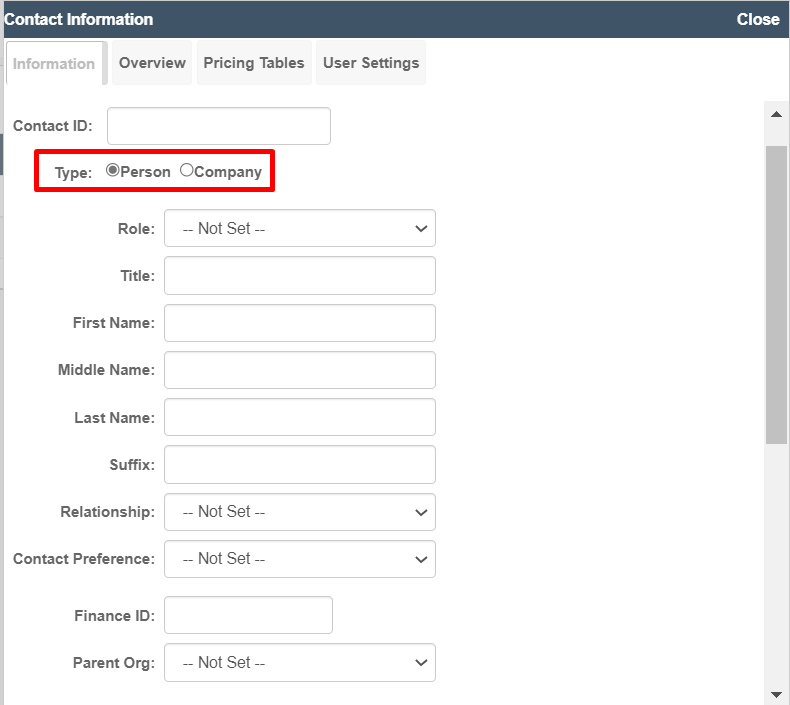
- Fill in information as applicable. A person or company can be created by selecting the Type.
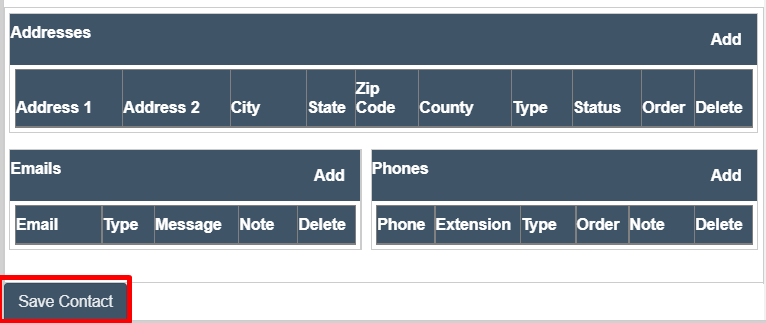
- Once all information is entered, click Save Contact.
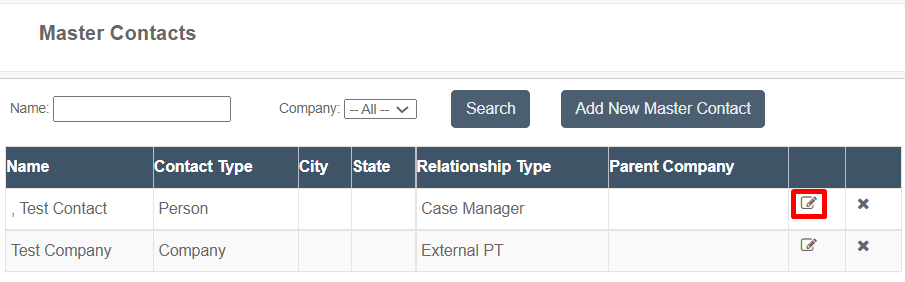
Once saved, an alphabetical list of Master Contacts will be displayed. Information can be edited by clicking the pen and paper icon.
Adding a Master Contact to a Client's Profile
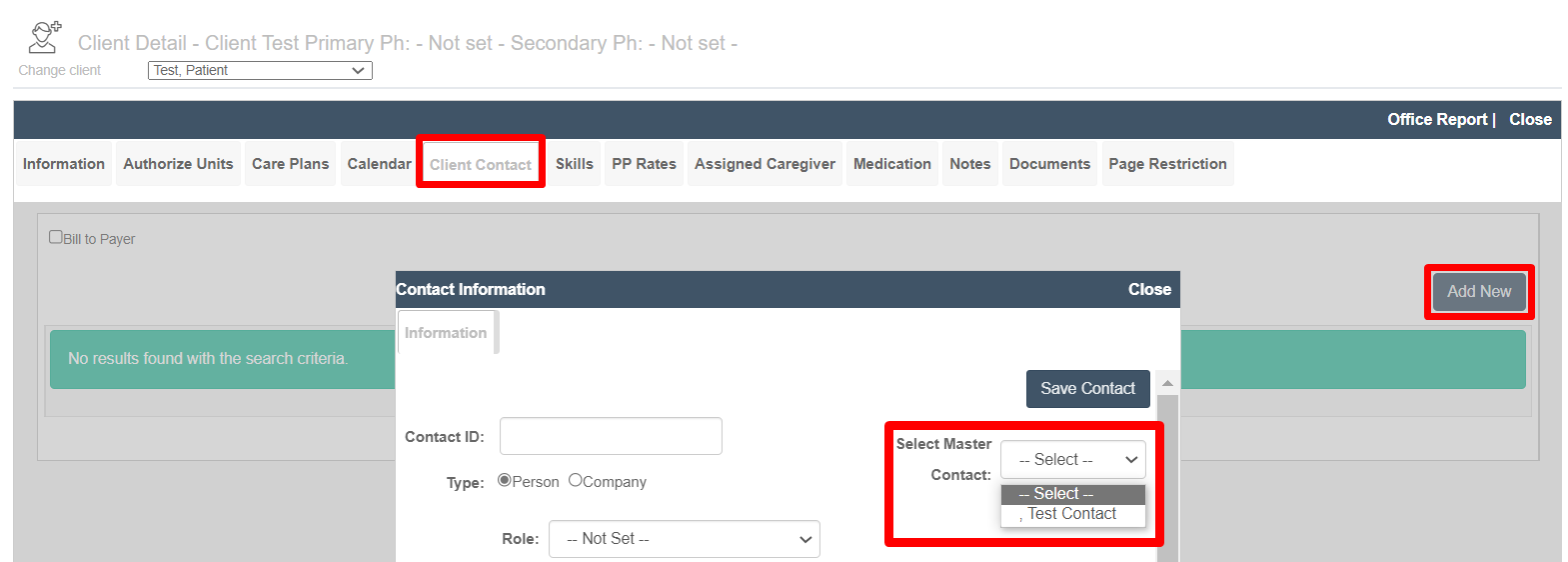
Once a master contact is created, attach it to a client by:
- Selecting the Client.
- Clicking the Client Contact tab.
- Clicking Add New.
- Selecting Master Contact.
Available Relationship Types
When adding a master contact, there is a field for relationship type. This list is customizable per environment. If a relationship type below would benefit the organization but is not currently in the environment, contact Ankota Support to configure it.

The full list of available relationship types:
- Mother
- Father
- Sister
- Brother
- Son
- Daughter
- Spouse
- Significant Other
- Caretaker
- Social Worker
- Physician
- Therapist
- Network Contact
- Other
- Case Manager
- Nurse
- Pharmacy
- Payer
- External PT
- External OT
- Referral Source
- Neighbor
- Emergency Contact
- Government Billing
- Patient
- Accountant
- Caller
- Daughter-in-law
- Granddaughter
- Grandson
- Long Term Care Insurance
- Responsible Party
- Parent/Guardian
- Friend
- Primary Care Physician
- Person to Call
- Family
- NHA
- SSD
- DON
- Psychiatrist
- BOM
- Receptionist
- Caregiver
- Grandma
- Grandpa
- Grandparent
- Domestic Partner
- Child
- Beneficiary - Not Related
- Power of Attorney
- Legal Guardian
- Son-in-law
- Personal Care Rep
- Authorized Rep
- Live in Caretaker
- Service Coordinator
- Conservator
- IHSS - in home support services
- ILS/SLS Provider - Independent living skills / Supported living services provider
- DOR Counselor - Department of Rehabilitation Counselor
- FMS Provider
- Job Coach
- Independent Facilitator