← All help articles

Mobile App Log-in

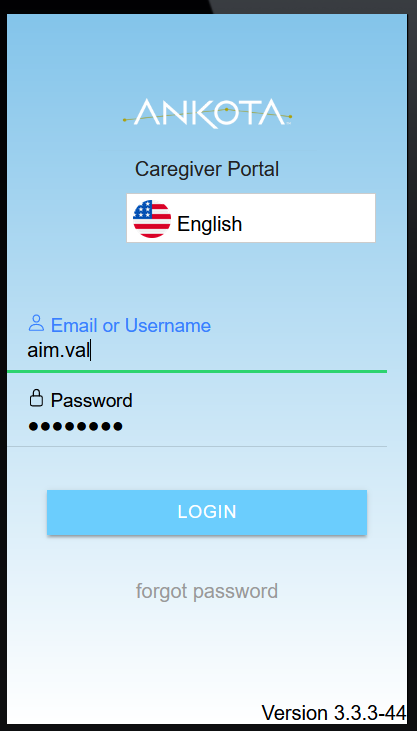
Log-in

  • Arrive at the service location
  • Open the Ankota Caregiver app
  • Change the language if needed
  • Enter your User Name and Password


The Ankota Caregiver Portal login screen displays a language selector set to English, input fields for email/username and password, a blue LOGIN button, and a "forgot password" link at the bottom.

  • Allow your phone to share your location or the app will not confirm location, which is required for EVV (this will be asked at your first log-in).

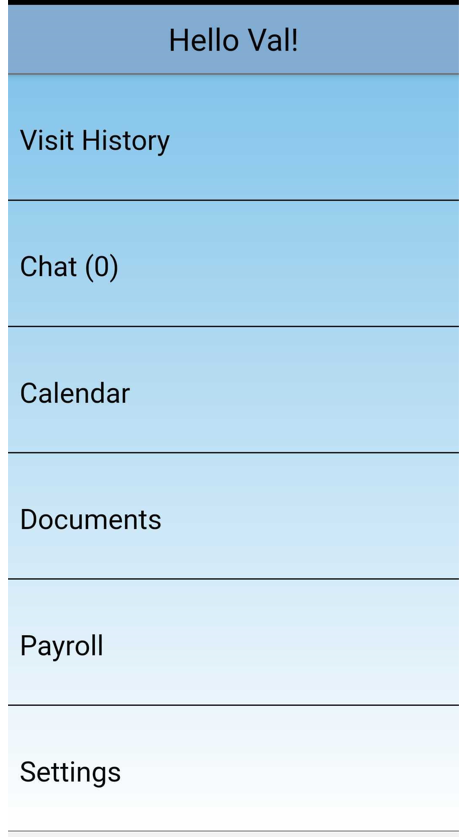
  •  On entering the Ankota Caregiver app, you will see several sections.  

    • These options may look different based on your organization's configurations.
    • If you have most or all of the available sections, you may need to scroll to see them all
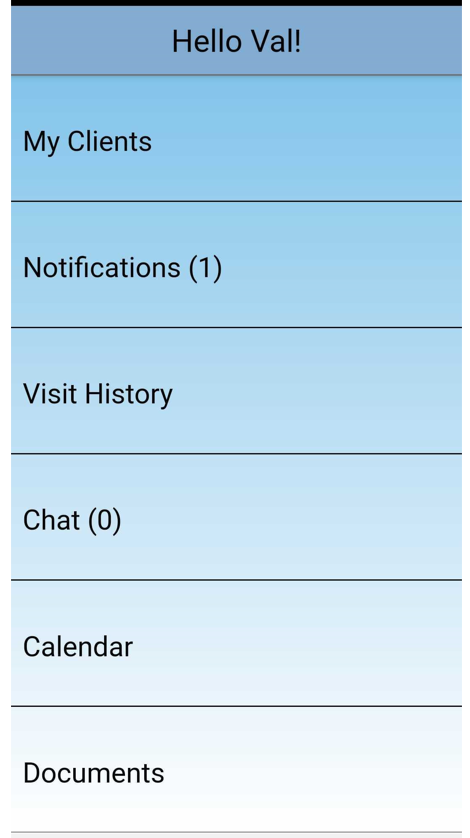
           

User dashboard welcome screen displaying a navigation menu with sections including My Clients, Notifications (1), Visit History, Chat (0), Calendar, and Documents, with a personalized greeting "Hello Vall!" at the top.

A mobile app navigation menu greeting "Hello Val!" with sections for Visit History, Chat (0), Calendar, Documents, Payroll, and Settings displayed as stacked blue buttons.

Was this article helpful?
On this page