Help Site›Mobile App Log-in

Mobile App Log-in

Log-in

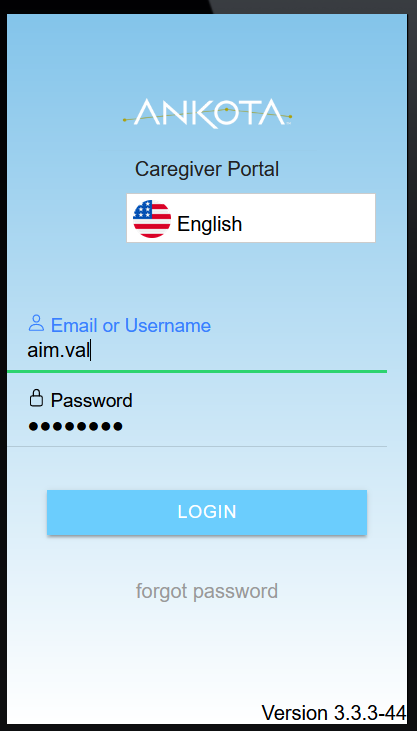
  • Arrive at the service location
  • Open the Ankota Caregiver app
  • Change the language if needed
  • Enter your User Name and Password


The ANKOTA Caregiver Portal login screen displays a language selector set to English, an email or username field containing "aim.val", a password field with masked characters, a blue LOGIN button, and a "forgot password" link at the bottom.

  • Allow your phone to share your location or the app will not confirm location, which is required for EVV (this will be asked at your first log-in).

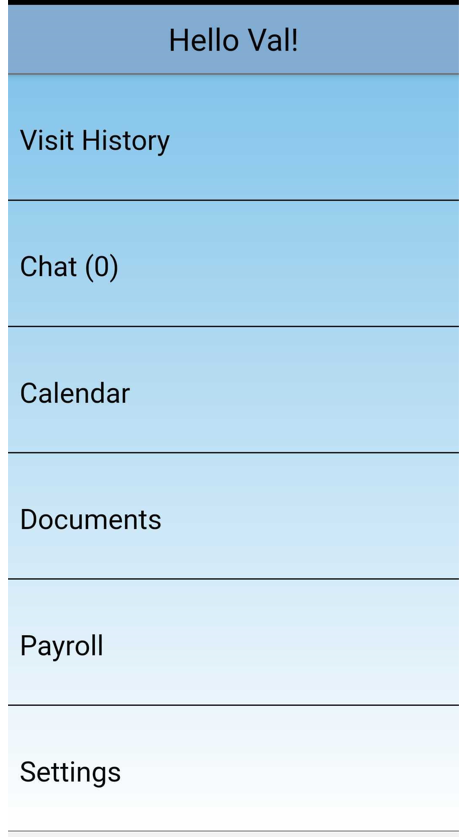
  •  On entering the Ankota Caregiver app, you will see several sections.  

    • These options may look different based on your organization's configurations.
    • If you have most or all of the available sections, you may need to scroll to see them all
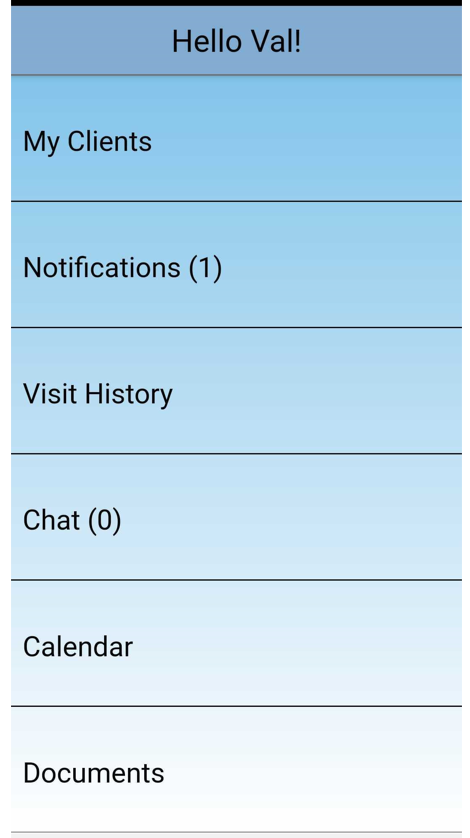
           

Mobile app dashboard for a user named Vall showing a menu with navigation options including My Clients, Notifications (1), Visit History, Chat (0), Calendar, and Documents.

A mobile app menu screen displaying a personalized greeting "Hello Val!" at the top, followed by navigation options including Visit History, Chat (0), Calendar, Documents, Payroll, and Settings arranged vertically in a light blue interface.

Was this article helpful?
On this page