Placing Clients On Hold / Hospitalization & Incident Reporting
Overview
In most agencies, there is a regular occurrence where clients are hospitalized and services are put on hold. During this time, service will need to be suspended, typically by placing the client on hold to prevent further scheduling, then cancelling visits as needed. The key things to know are:
To prepare for clients' hospitalizations and/or incidents, you will probably want to either:
- Make an incident and/or hospitalization form available on all visit types
- Set up a special care plan item to notify admins when this occurs, and then admins can take action as needed (such as assigning a special visit type with forms available)
If a client is hospitalized or has an incident, you will probably want to take action:
- Place the client into On Hold status (if hospitalized)
- Cancel visits if needed
- Possibly require a form to be completed by the caregiver to provide more information
Ankota best practices for these situations are outlined below.
This article includes:
- General Overview: Incident or Hospitalization Notifications & Forms
- Forms Available on Any/All Home Care Visit Types (easy/best practice)
- Forms Available on Special Visit Types Only + Question to Trigger Notification of Admin
- Flagging Clients as Hospitalized (by Caregiver)
- Mandatory Questions for Caregivers
- Flagged Red Warnings to Trigger Admin Review
- Managing On Hold Clients
- Setting Clients On Hold
- Canceling Visits
- Adding On Hold Notes
General Overview: Incident or Hospitalization Notifications & Forms
Forms Available on Any/All Home Care Visit Types
By request - EASY / BEST PRACTICE
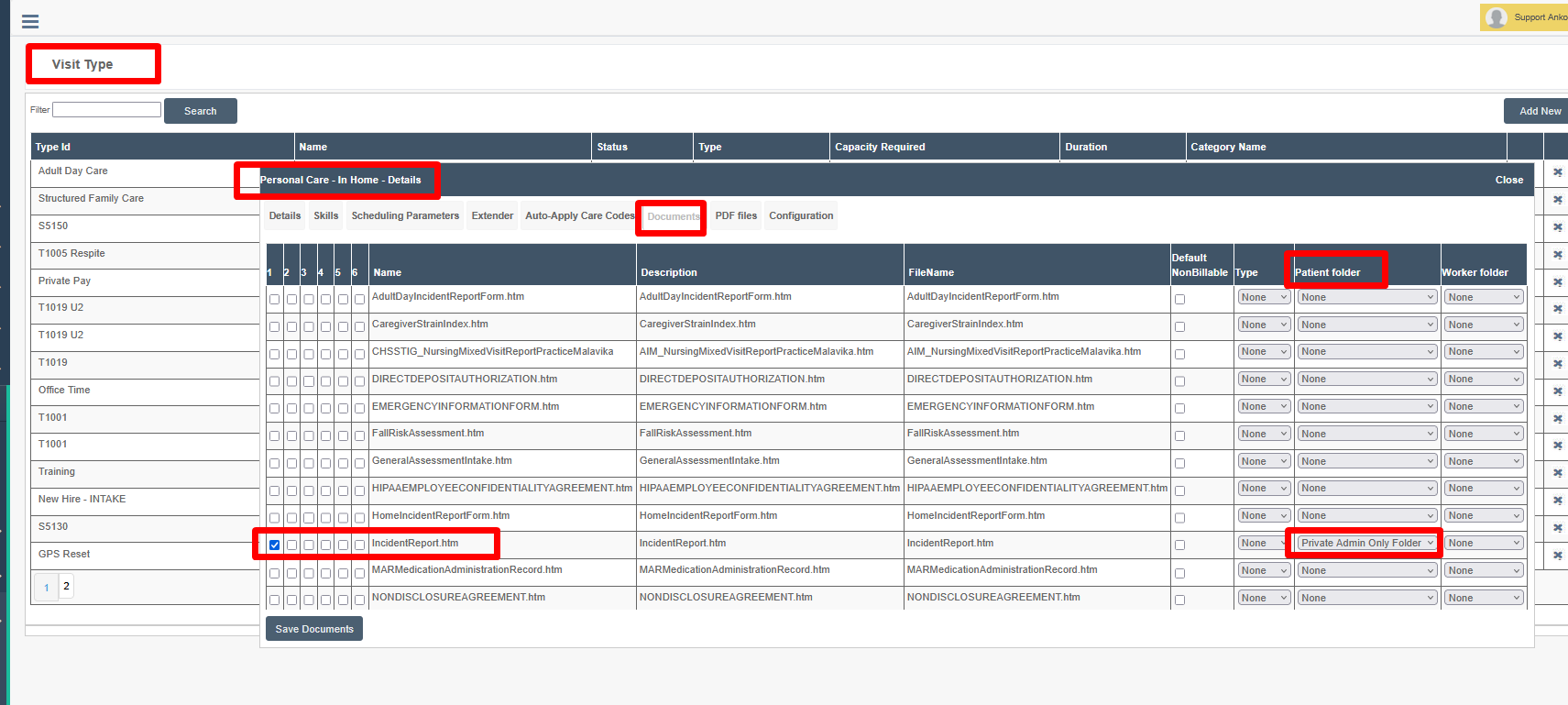
Some organizations prefer to have an incident or hospitalization form on every standard home care visit. In that case, caregivers always have the forms they need to report hospitalizations or incidents on designated visit types (after easy set-up). You can also request to have the setting to flag a visit for review if a document is attached turned on. If this is your preference, contact Support and they can assign forms to your visit types, default which folders these forms are copied to, and flag visits with documents for your attention.
Note a generic incident form is usually made available by default. You can request a hospitalization form.
Form Assigned to Regular Visit Types (Set Up Prior)
Note: you can configure forms to automatically upload to a client and/or caregiver Documents folder automatically if desired. This can also be requested from Support.
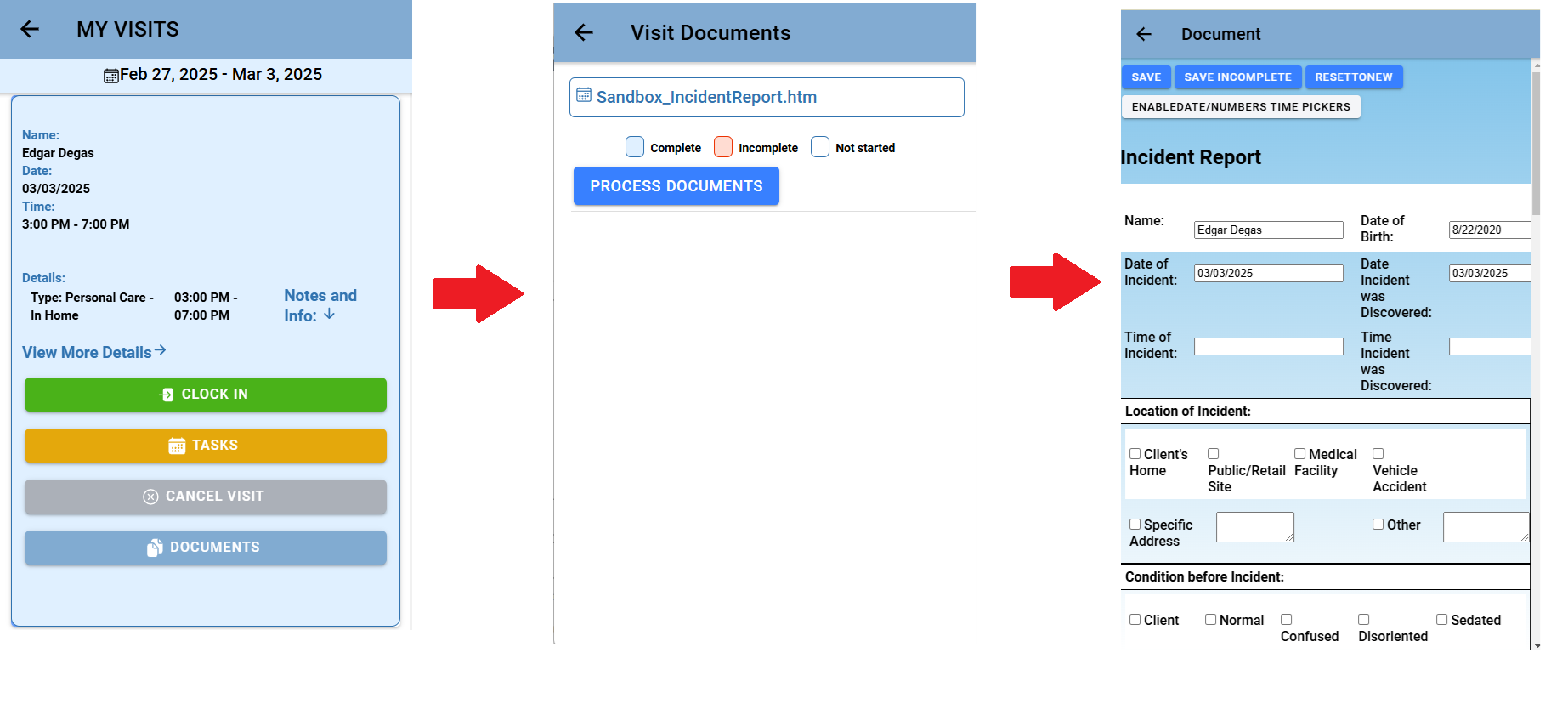
Form Always Available on Visit Type (Caregiver Uses as Needed)
Forms Available on Special Visit Types Only + Question to Trigger Notification of Admin
By request.
Some organizations prefer to be notified with a red warning if a client has been hospitalized or had an incident. In that case, admins can take action after they are notified.
To use specific visit types with specific forms:
- Contact support and request a mandatory notification for hospitalization/incident. Only support can create a mandatory care plan item.
- Create a new visit type, such as Incident Report or Hospitalization Progress Notes (etc.).
- Review your existing forms and identify whether you have what you need. If you do not, contact Support to request a new form.
- On the visit type's Documents tab:
- Assign any forms you wish to appear
- Select any folders you wish the forms to go to
- Wait for the mandatory notification of an incident or hospitalization during regular clock-ins and clock-outs.
- When you are notified of an incident or hospitalization:
- Assign the specialty visit type to the caregiver
- Set a reminder to review the form when it is completed, or ask Support to flag all visits with documents
Contact Support if you need assistance with any of these steps.

Flagging Clients as Hospitalized (by Caregiver)
Mandatory Questions for Caregivers
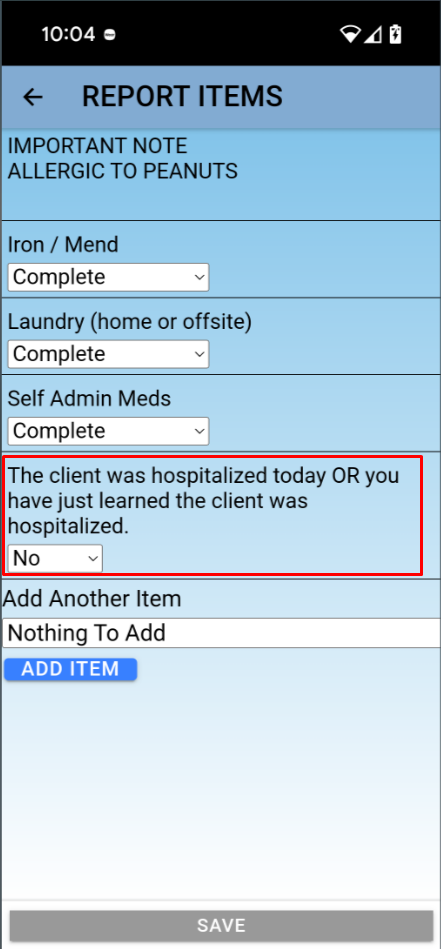
Some customers may wish to have a mandatory care plan item question along the lines of "Was your client hospitalized today, or did you just learn of a recent hospitalization?"
When the question is set up as mandatory, it is flagged red when the wrong answer is given, triggering administrative review.
Flagged Red Warnings to Trigger Admin Review
If that question is answered as YES, this mandatory care plan item question will be flagged as incomplete, resulting in a red warning for the missed mandatory warning, as well as the red care plan item itself.
The red warnings will ensure the visit is flagged for an admin's review. Then the admin will know to take action (cancelling visits, sending the caregiver a hospitalization form to provide further information, add notes in the client's profile, etc.).



Managing On Hold Clients
Setting Clients on Hold
First, place the client on hold. This means the client is no longer active and new visits cannot be scheduled for this client.
To place a client on hold:
- Click Clients in the Main Menu
- Filter for a client as desired, then click the client's name
- Change the client status to On Hold
Note this will not unassign visits, simply prevent additional visits from being scheduled.
Canceling Visits
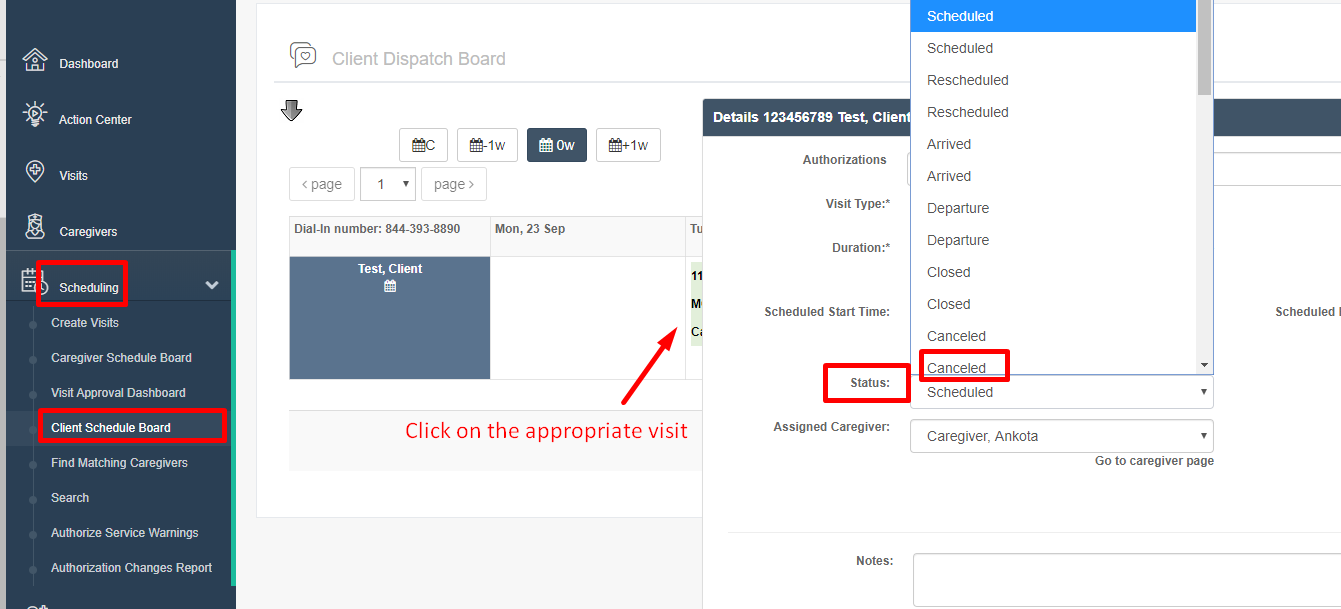
The next step would be to cancel visits. Visits can be canceled in a number of ways, but we recommend the following:
- Click Scheduling in the Main Menu
- Click the Client Schedule Board
- Scroll down to the client
- Click on the visits that should be cancelled one at a time
- Change the visit status to Cancelled
Adding On Hold Notes
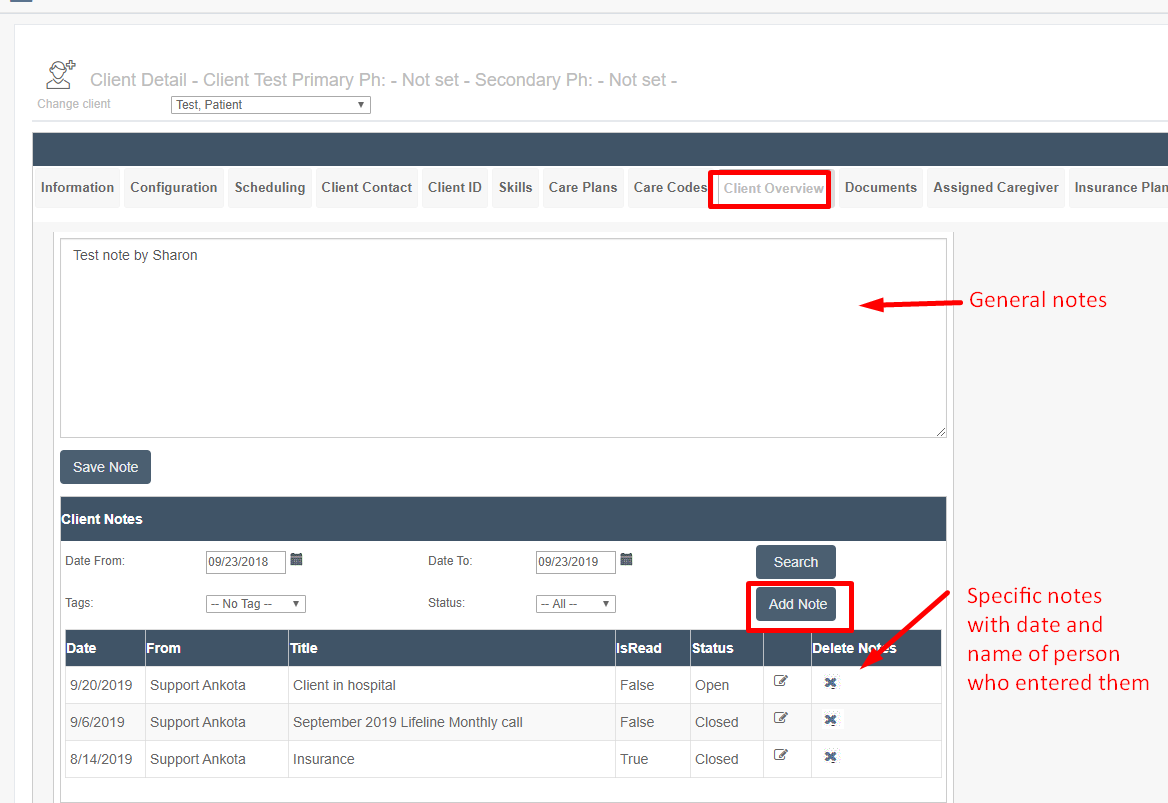
Finally, you may wish to put a note in the Client's Overview for recordkeeping.
To add a note:
- Click Clients in the Main Menu
- Filter for a client as desired, then click the client's name
- Click the Client Overview tab
- Click Add Note for a specific recorded note with the user's name and the date the note was added in recordkeeping
- Alternately, click in the main Notes window for a simple standing note (not recorded with date/user's name who entered note)