Primary Diagnosis Code
Overview
The primary diagnosis code is commonly required for Medicaid patients, though this may vary depending on the state and program. During typical Medicaid client registration, the primary diagnosis code is entered and this data is automatically provided in data exports. Sometimes this code may need adjustment or double checking, particularly as the code list is typically updated annually around October 1st, and some codes may become outdated and no longer billable.
This article includes:
- Assigning a Diagnosis Code
- Confirming a Diagnosis Code
- Diagnosis Code Rejections
Assigning a Diagnosis Code
New Client - Diagnosis Code Assignment
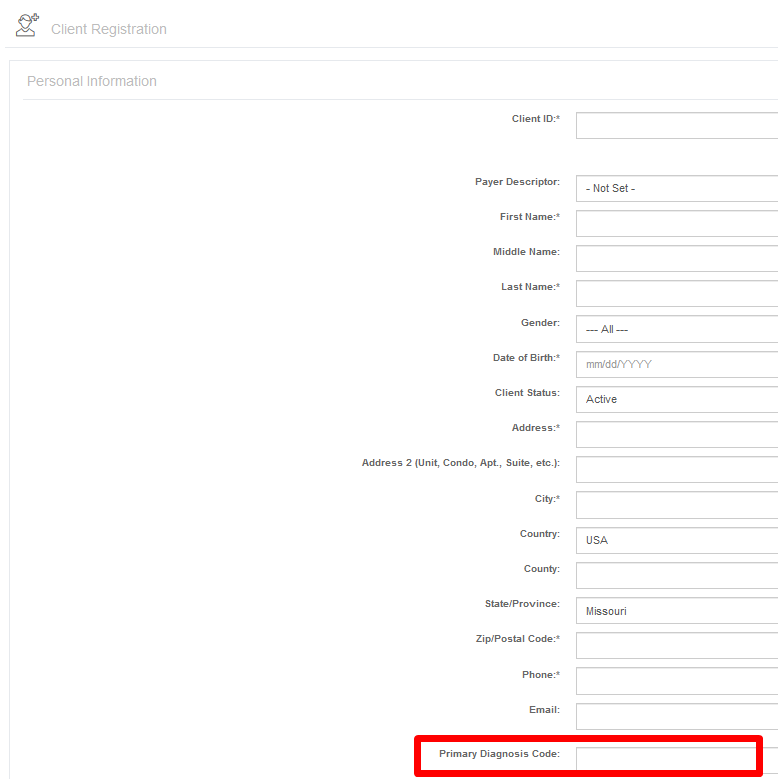
For new clients, the primary diagnosis code is typically added during the client registration process. Simply add the code in the appropriate field during registration.
Existing Client - Diagnosis Code Assignment
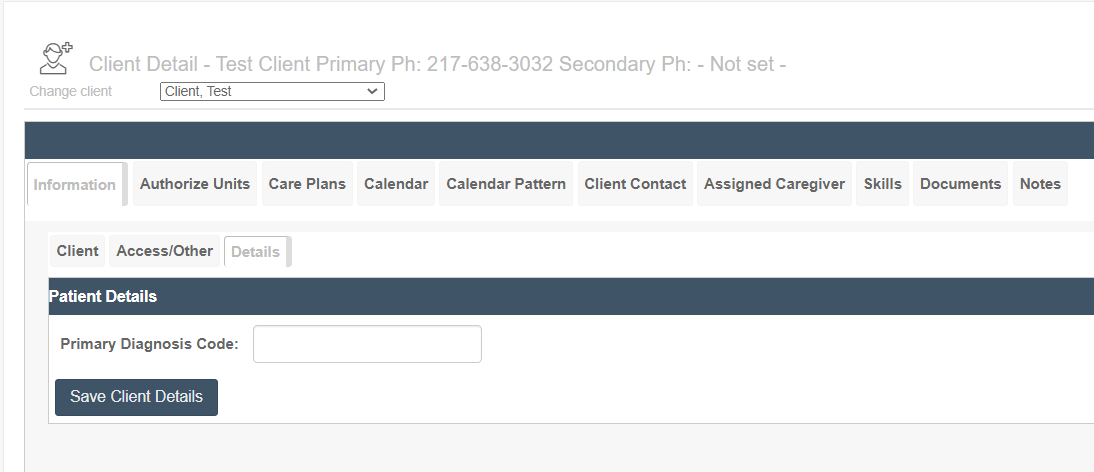
To assign a diagnosis code to an existing client, open the client's profile. On the main Information tab, click the Details subtab and enter the primary diagnosis code. Remember, this must be a code (such as I9) for billing purposes.
NOTE: If a text description is entered (such as Hypertension, Lung Cancer, Dementia, etc.), this will usually cause a billing issue.
Confirming a Diagnosis Code
The code must be a billable code. Typically a billable code will be provided, but to confirm, check a verified list of diagnosis codes, such as https://www.icd10data.com/
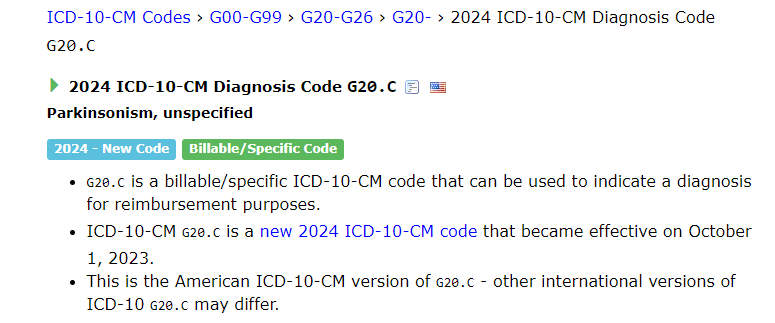
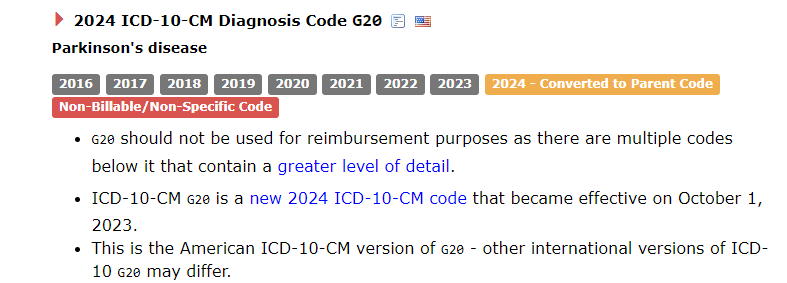
It is important to remember that a code may be in the list but may no longer be billable. Be sure to click on the diagnosis code being researched for details. In the example below, one of these diagnosis codes for Parkinson's is billable, but the other is not.
Diagnosis Code Rejections
The first step in managing a diagnosis code rejection is to check whether the code is current and billable as described above.
If the code is billable, one of the following may have occurred:
- The wrong diagnosis code was provided on the authorization (check in https://www.icd10data.com/ and then reach out to case manager/authorization source)
- The diagnosis code was mistyped in Ankota (correct and re-send)
- The diagnosis code was entered after the visit was billed and the rejection was received (re-send)
- The authorization arrived prior to the state having updated its record with the new authorization (wait 2 weeks after authorization and re-submit)
Review and adjust as needed. If none of the above resolve the issue, reach out to Support for assistance.