← All help articles

Reporting Arrival in the Ankota Caregiver App

Reporting Arrival

To report arrival, follow instructions below:

  • Go to My Visits (also known as Scheduled Visits).
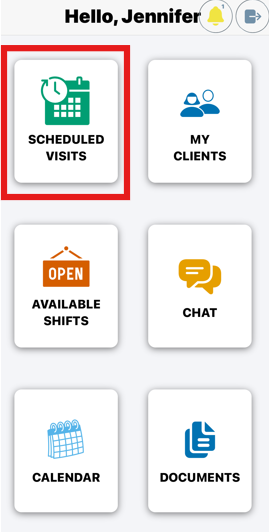
The Ankota Caregiver App home screen displays a personalized greeting "Hello, Jennifer" at the top with six main navigation tiles: "SCHEDULED VISITS" (highlighted with a red border), "MY CLIENTS," "AVAILABLE SHIFTS," "CHAT," "CALENDAR," and "DOCUMENTS," each with corresponding icons.

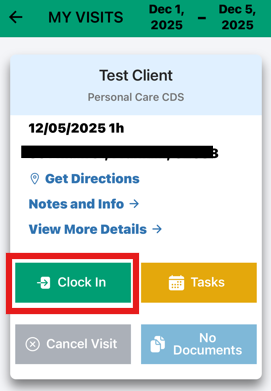
  • Click theClock In button.

The screenshot shows a visit details card for Test Client's Personal Care CDS appointment scheduled for 12/05/2025 at 1 hour duration. The card displays options including "Clock In" (highlighted in green), "Tasks", "Cancel Visit", and "No Documents", along with links for "Get Directions", "Notes and Info", and "View More Details".

> [!NOTE] <!--auto-->
> Depending on the administrator’s settings, the remaining authorization may also display on this page

-   If visits show in red, this means they are On Hold Visits. You will need to complete those before reporting arrival.
  • After clicking Report Arrival, you will be prompted to confirm the time.
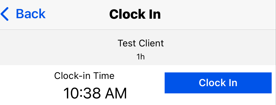
The Clock In screen displays the current time (10:38 AM) under "Clock-in Time" and shows "Test Client" as the selected client, with a blue "Clock In" button on the right to record arrival.

  • A confirmation message will then appear, showing your arrival and expected departure time.
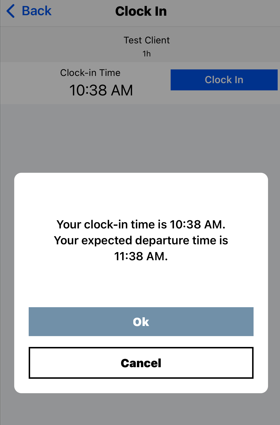
Clock In confirmation dialog showing a clock-in time of 10:38 AM for Test Client with an expected departure time of 11:38 AM, and Ok and Cancel buttons to confirm or reject the entry.

  • Once you accept, a green check mark will confirm that your arrival has been successfully recorded.
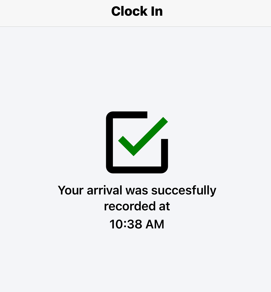
The Clock In confirmation screen displays a large green checkmark icon with text stating "Your arrival was successfully recorded at 10:38 AM" below it, confirming that the caregiver has successfully clocked in to the Ankota app.

On this screen you may get an Offline Warning. Please review how to sync Offline visits for more.

Adding a Break

Breaks can only be added if this feature has been enabled by the administrator.

If available, you will see the option to record a break during your visit.

After clock in you can add a break by doing the following

  • Go to My Visits

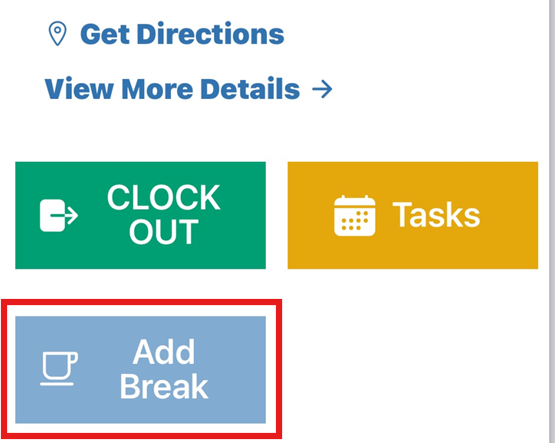
  • Select Add Break button

The screen displays action buttons for a caregiver app interface, including "Get Directions" and "View More Details" links at the top, followed by three colored buttons: a green "CLOCK OUT" button, a gold "Tasks" button, and a blue "Add Break" button with a red border highlight.

  • Enter the number of minutes used and Save
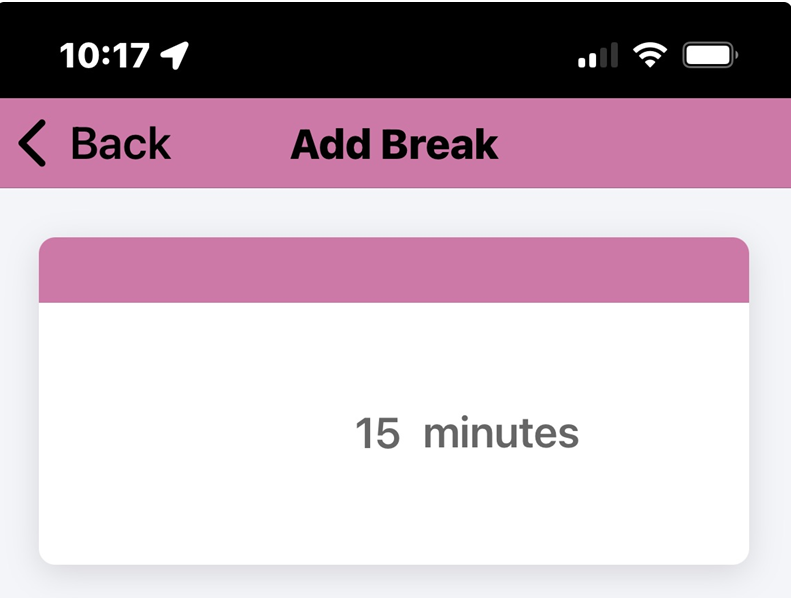
The Add Break screen in the Ankota Caregiver App displays a pink header bar with "Back" and "Add Break" labels, and a card below showing "15 minutes" as a preset break duration option.

Was this article helpful?
On this page