← All help articles

Reporting Departure on the Ankota Mobile App

Reporting Departure

To clock out, click on Visits and then Report Departure button.
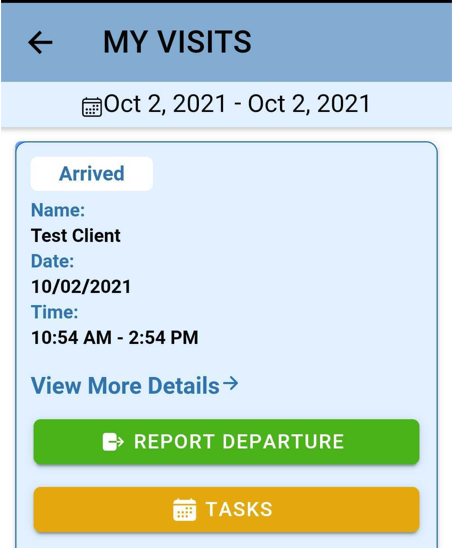
 

The MY VISITS screen displays a visit record dated Oct 2, 2021 for "Test Client" with arrival time 10:54 AM - 2:54 PM, featuring a green "REPORT DEPARTURE" button and yellow "TASKS" button below a "View More Details" link.

Once you Report Departure you will be asked to accept the time.
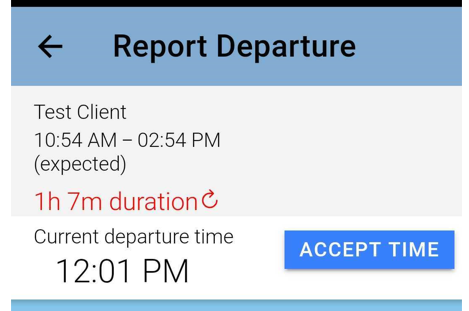
   

The Report Departure screen shows a scheduled trip for "Test Client" with expected times of 10:54 AM – 02:54 PM and a duration of 1h 7m, with the current departure time recorded as 12:01 PM and an "ACCEPT TIME" button to confirm.

You will then see a message confirming your arrival and telling you your expected departure time.
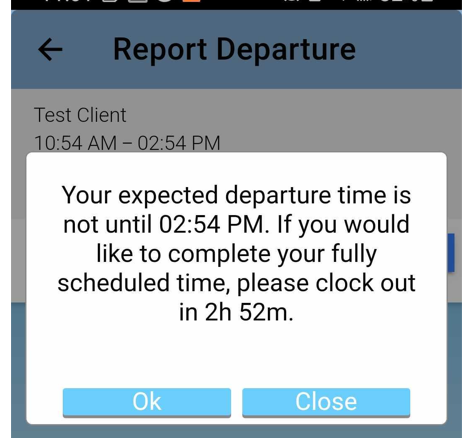
The Report Departure screen displays a modal dialog informing a Test Client (scheduled 10:54 AM – 02:54 PM) that their expected departure time is not until 02:54 PM, with a message indicating 2 hours 52 minutes remain to complete the fully scheduled time. Two action buttons, "Ok" and "Close," are presented at the bottom of the dialog.

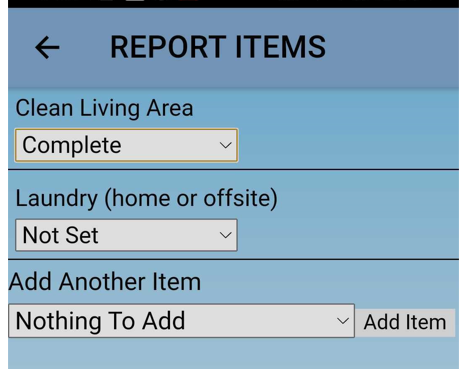
Report care plan items as needed.


The Report Items screen displays a checklist of tasks with dropdown status selectors for each item. "Clean Living Area" is marked as "Complete," "Laundry (home or offsite)" is set to "Not Set," and there is an "Add Another Item" section with a dropdown menu and "Add Item" button at the bottom.

Collect signatures and report concerns if needed.

Please note it is not required to click Accept to collect the signatures. If you click Accept it will save the signature and you will no longer be able to edit it. This is helpful if you are having trouble scrolling up and down on the screen without accidently writing in the signature windows. 
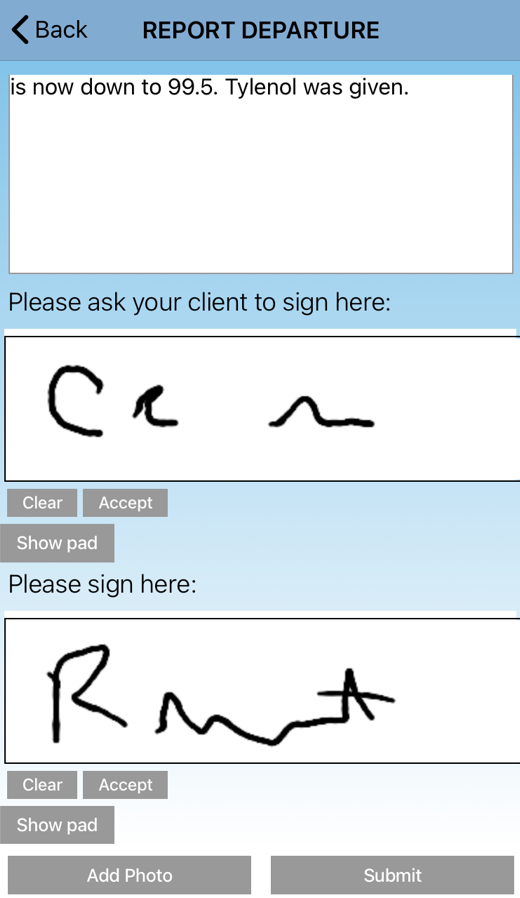
The "Report Departure" screen displays a notes section describing a client's condition, followed by two signature capture areas—one labeled "Please ask your client to sign here" and another labeled "Please sign here"—each with Clear, Accept, and Show pad buttons, along with Add Photo and Submit buttons at the bottom.

Some organizations will also require client concerns reporting. In this section, extra concerns may be reported. This separate section is usually required either because regular notes are ignored and client concerns are flagged, or because client concerns are flagged for specific roles to review. This sections appears as a notes box, with the question "Do you have client concerns?" in gray inside it.
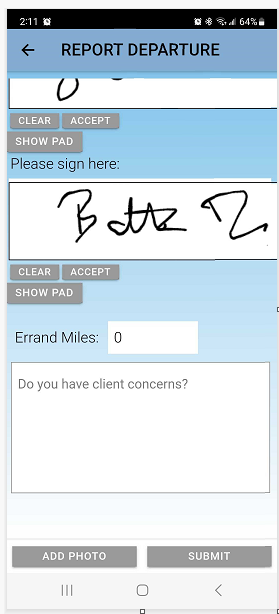
The Report Departure screen shows signature capture areas with "Please sign here" prompts, Clear and Accept buttons, a Show PAD option, an Errand Miles field set to 0, and a text area for client concerns, with Add Photo and Submit buttons at the bottom.

When you have completed all the sections above, click submit.

You will then be asked if you are sure you want to report departure at this time. Click Submit if you would like to continue with your clock out; if not, keep working and complete the visit at the appropriate time.
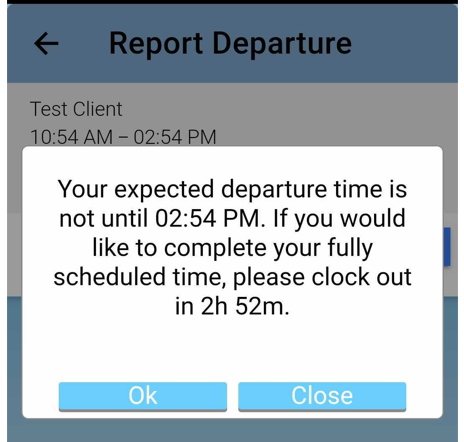
   

The Report Departure screen displays a modal dialog informing the user that their expected departure time is not until 02:54 PM, with a message suggesting they clock out in 2 hours 52 minutes to complete their fully scheduled time. The dialog includes "Ok" and "Close" buttons at the bottom, while the background shows a timesheet entry for "Test Client" with hours 10:54 AM – 02:54 PM.

Once you see the success message you can navigate back to the home page.

Was this article helpful?