Send Message or Text to Client Contact from the Master Contacts Page
Overview
In addition to the ability to message caregivers and administrators from Find Matching Caregivers and the Action Center, client contacts can be sent direct messages via the Master Contacts page. This function may not be defaulted in your environment; if you do not see it and wish to use it, reach out for an Ankota specialist to configure this option for your organization.
This article includes:
- Use
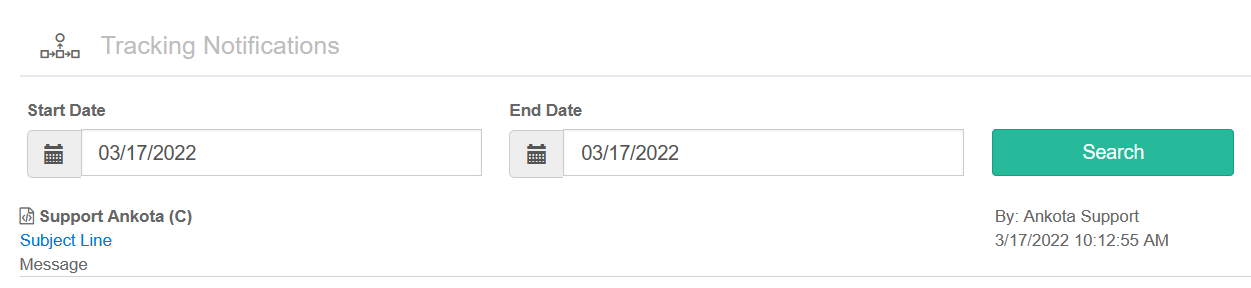
- Message Log
Use
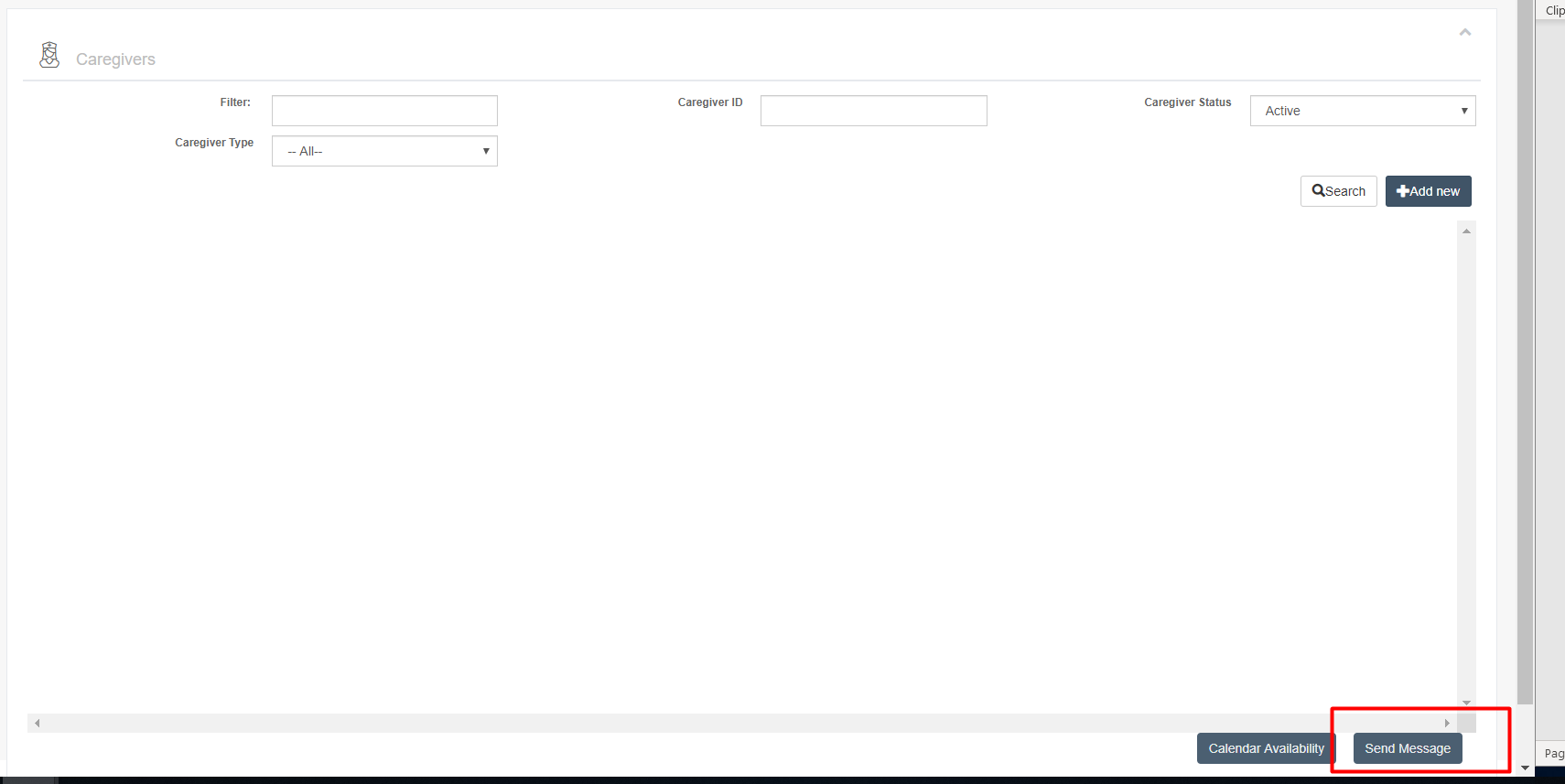
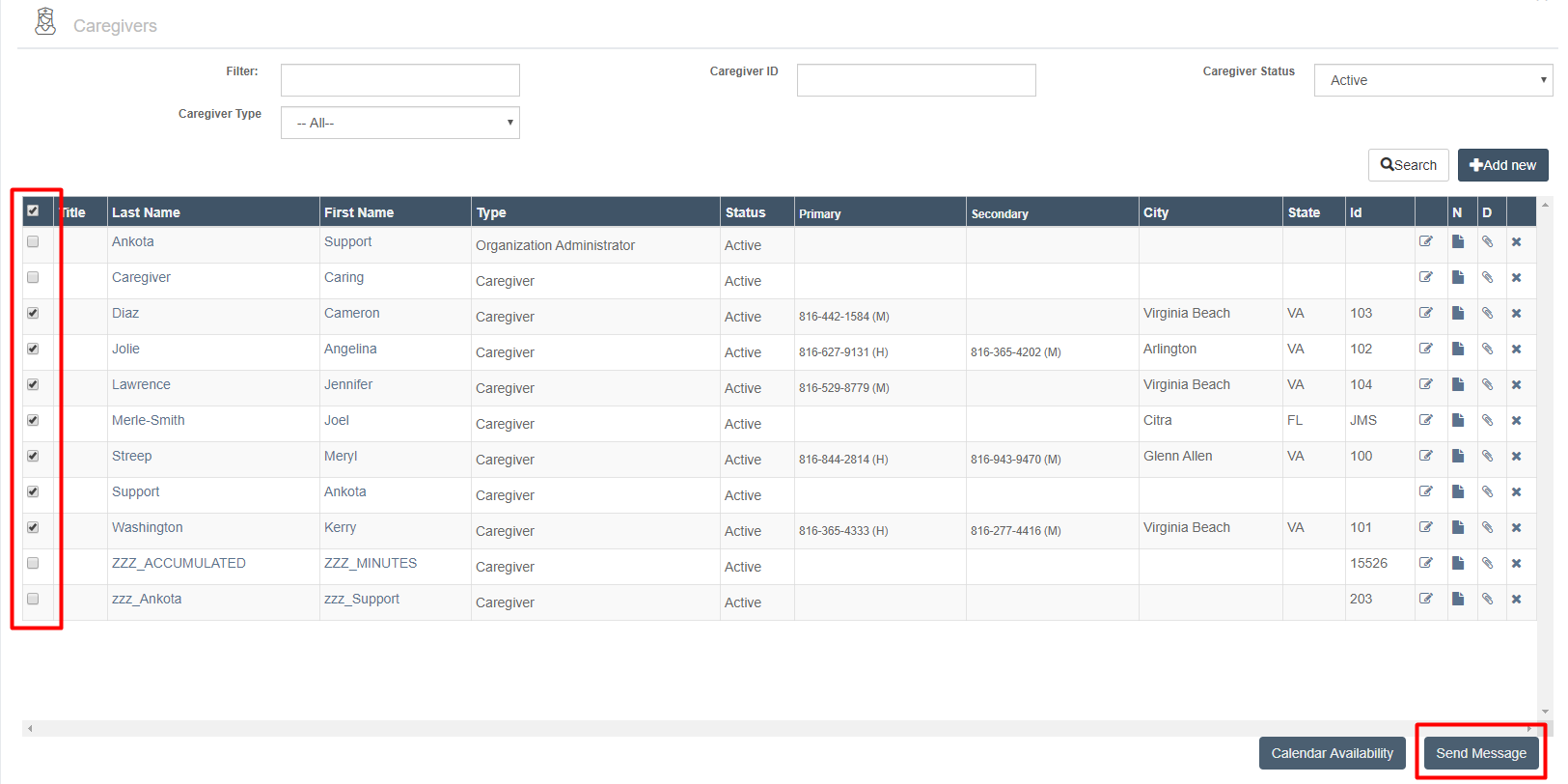
To access the Send Message function, go to the Master Contacts from the Settings - Org Settings - Master Contacts page. At the bottom of the page, you will see a button that says Send Message.
NOTE: You will want to make sure that the contacts' profile reflects they have consented to receive text and/or visit reminders under email.
To enable this setting:
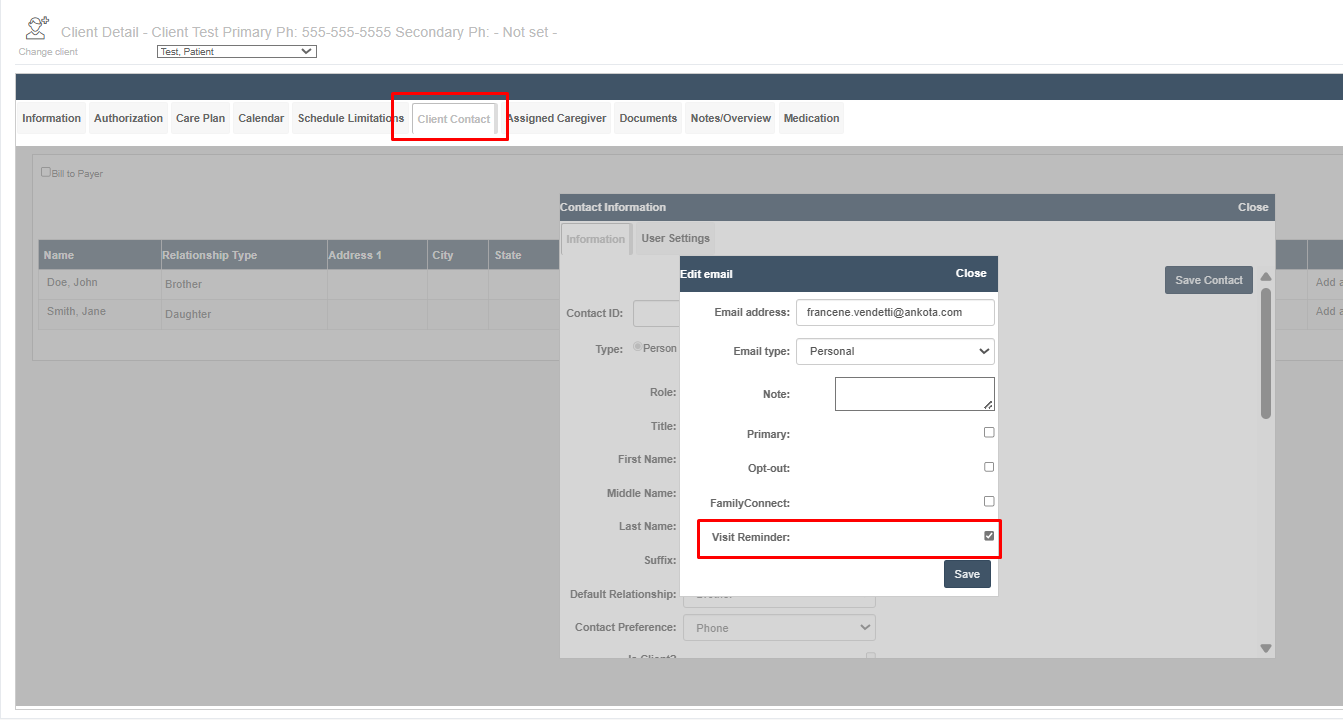
Go to client contacts from the client's profile:
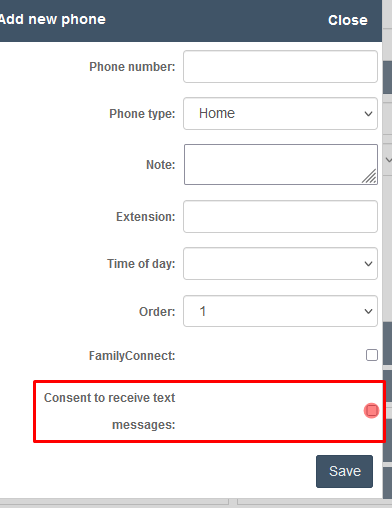
- Search for the contact whose number you wish to receive the text message
- Click on their phone number
- Check the box next to "Consent to receive text messages"
- Click "Save"
AND/OR
- Click on their email
- Check the box next to "Visit Reminder"
- Click "Save"
Search for the client contact(s) you wish to message, then check the boxes next to their names before clicking the Send Message button. Note you may wish to uncheck some contacts which are placeholders for testing or other functions, such as Ankota Support and Accumulated Minutes.
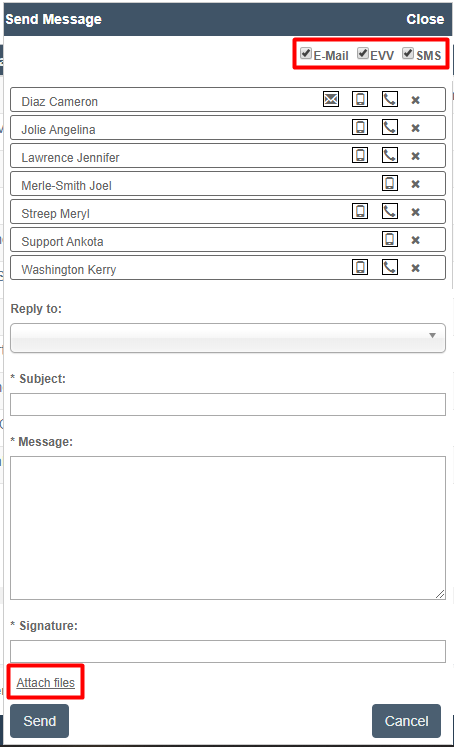
Once you click Send Message, a new window will open. This window allows you to select email or SMS text messaging functions. There is also an attachment option.
To add or remove the ways in which you wish to message, check or uncheck the options at the top of the window for e-mail and SMS (text) messaging.
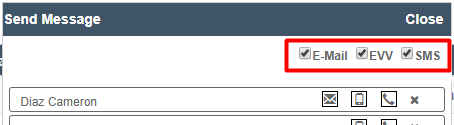
Beneath these options, you'll see each contact has icons next to their names indicating the form of communication that are available to them.
The letter icon indicates an email is available for this contact.
The phone icon indicates a phone number is available for this contact.
To send a message, work from top to bottom:
- Select the message type you wish to use
- If you selected too many contacts, you may unselect additional ones at this point
- Select which administrator will receive the email under Reply to. The administrator must have an email to be presented as an option
- Enter a subject line
- Enter a message
- Enter a signature
- Attach a file if desired
- Click Send
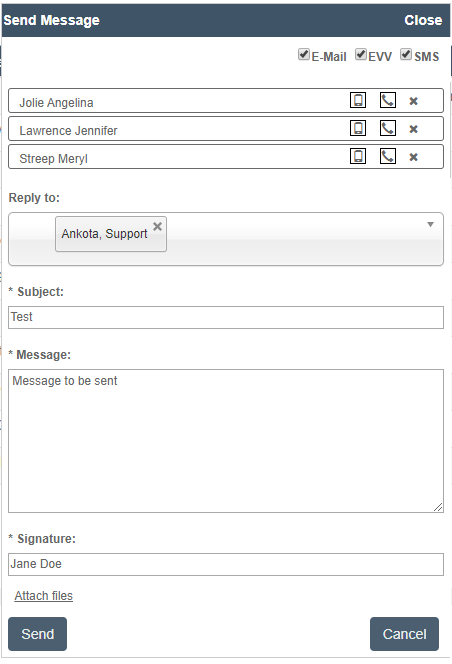
These messages will be sent according to the available selected options. Any response from text or email will be sent to the selected administrator's reply-to email. Please note if you do not select a response email, no response will be sent.
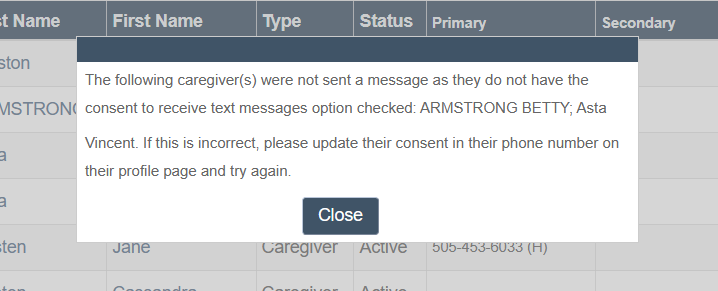
A message will appear, notifying Administrators of which contacts do not have consent to receive messages. If this appears, go to the caregiver's profile and check the box Consent to Receive Messages after clicking on the caregiver's phone number.
NOTE:
- The first 25 text messages per client are free of charge at Ankota; after this there is a standard billable rate (please inquire for current pricing). Please note caregivers may be subject to SMS fees by their cellular provider depending on their plan.
- Sometimes the email will be misidentified as junk mail/spam. If your organization plans to use email primarily for caregiver communication, be sure to perform a test and ensure that all caregivers can find their emails.
Message Log
This report, listed as a page under Reporting, tracks all outgoing messages. If you'd like this report added to your environment, please reach out to Ankota Support.