Skills
Overview
In the Ankota system there is a series of skills that can be assigned to clients and caregivers. These skills can then be used to filter, trigger warnings, and match clients and caregivers using the Find Matching Caregiver function. These skills are the same for both caregivers and clients.
For example, a client who smokes and needs someone who is comfortable caring for a smoker could have "Smokers OK" assigned to them under their skills section. A caregiver who is comfortable with smokers could also be tagged "Smokers OK." On the other hand, if the client is given the skill "Smoker" and the caregiver the skill "Smokers OK," those terms do not match and so the client and caregiver would not be matched up.
Alternately, a form of skill called tags can be used to search for specific attributes. For example, some organizations "tag" all caregivers who are willing to work overnights, whether for regular pay or overtime, with "overnight ok" under their skills. If there is an overnight job that cannot be covered, they sort for the "overnight ok" tag and then offer to those caregivers, avoiding "spamming" caregivers who have no interest in overnight jobs.
Finally, skill filters can be set up that apply across the board (Visit Approval Dashboard, Schedule Board, Patient Dispatch Board, Update Visits, and Visits). In this way, all clients could be assigned to Team 1, 2, or 3, and schedulers could choose to work from a certain viewpoint so they only saw the clients on their applicable team.
Creating a Skill
Ankota specialists can assist with adding skills into the system. Alternately, users can create their own.
To create a skill:
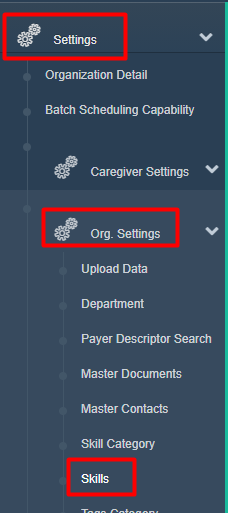
- Click Settings
- Click Org. Settings (if categories are present)
- Click Skills
- Click Add New
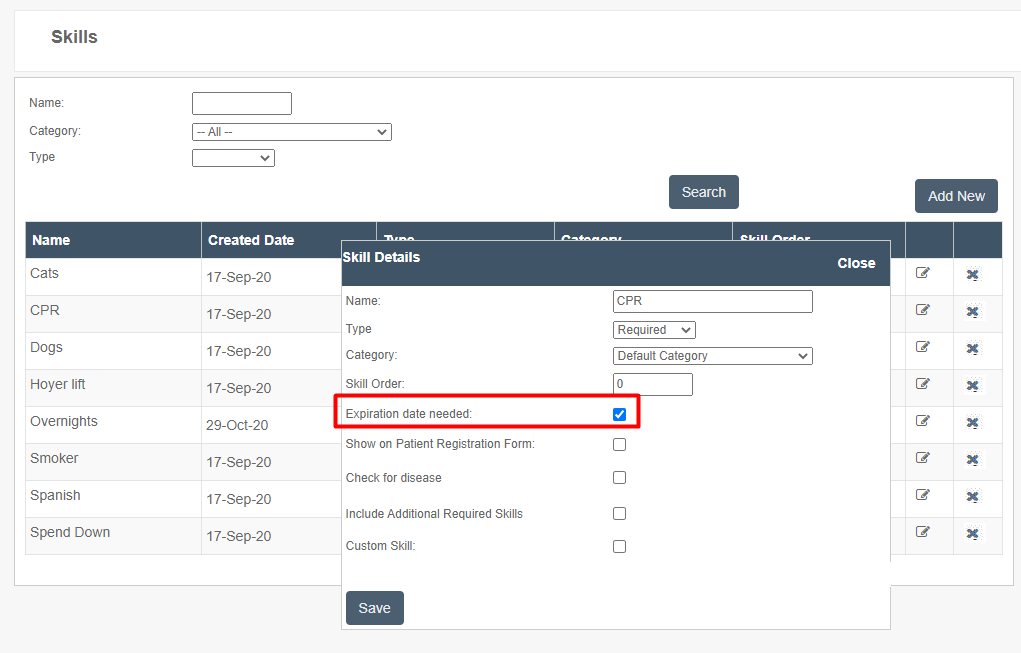
Once Add New is clicked, a number of options can be set. At minimum, a name, type, and category are required. Other options are not required.
- Name: each skill must have a name.
- Type: Select Required or Tag. To explore other options, work with an Ankota specialist.
- Category: typically use Default.
- Skill Order: to create a list order, number the skills here.
- Expiration Date needed: to set an expiration date, add a date here.
- Show on Patient Registration Form: to make the skill available on the patient registration page, check this box.
- Check for disease: To explore this option, reach out to Ankota.
- Include Additional Required Skills: To explore this option, reach out to Ankota.
- Custom Skill: To explore this option, reach out to Ankota.
Assigning a Skill
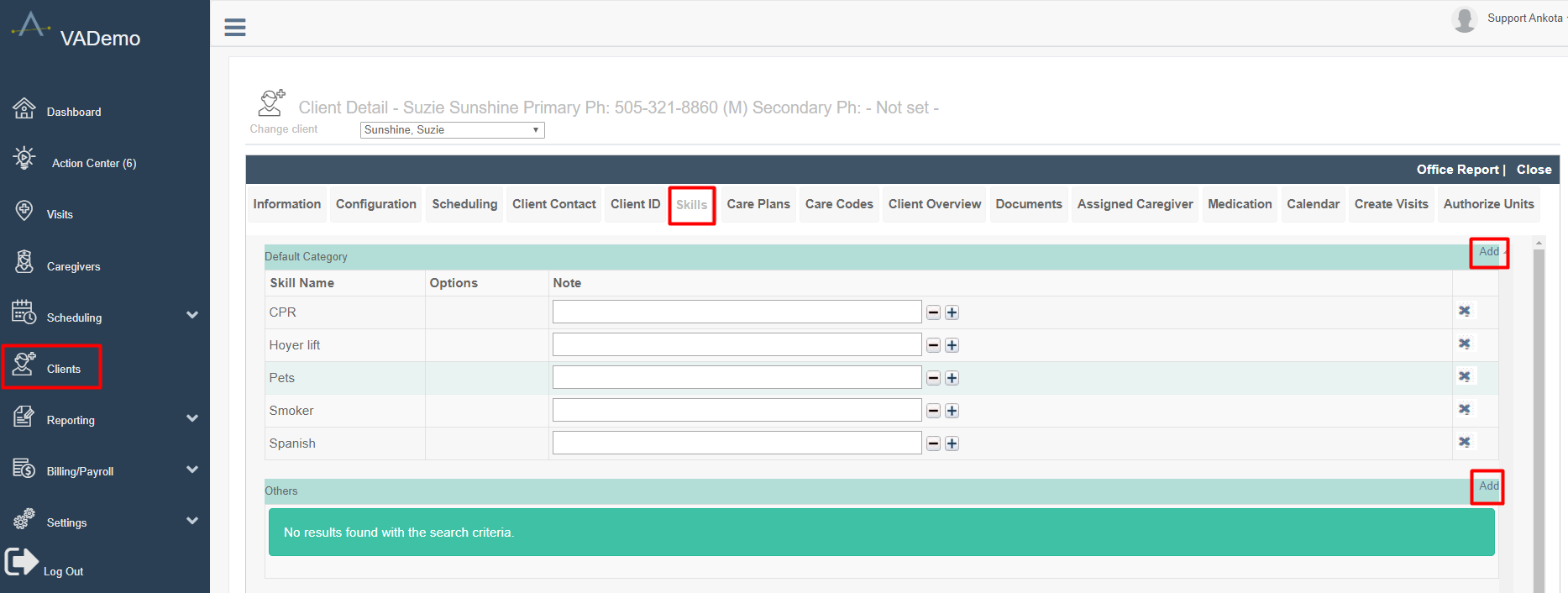
Any user with access to a client or caregiver can assign a skill. Open the caregiver or client profile, click the Skill tab, click Add, check the appropriate skills, and click Save. In order for the client and caregiver to match, both the client AND caregiver must have the same skill assigned.
The option to add notes to skills is a configurable option. If not present and wanted, it can be requested. Alternately, it can be removed if not wanted.
Warnings
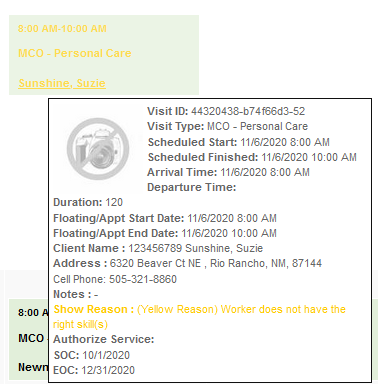
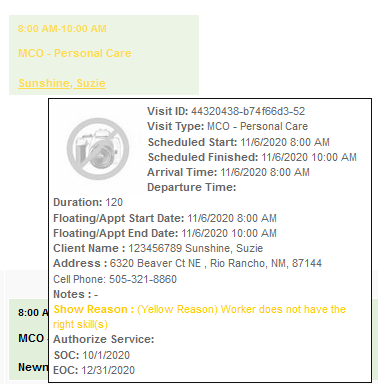
Sometimes a caregiver who does not have the appropriate skill match will be assigned, accidentally or intentionally. To help track this, the caregiver's name will turn yellow on the scheduling calendar if there is a skill mismatch. Hovering over the caregiver's name displays a more complete rundown of the issue.
If a visit is late, the yellow text color will be overridden by the red late warning text color.
Tags
Tags are a special kind of skill. Tags are generally used so that caregivers can be searched for based on that attribute, but will not be used on a matching basis. A tag form of a skill must be requested specifically from an Ankota specialist.
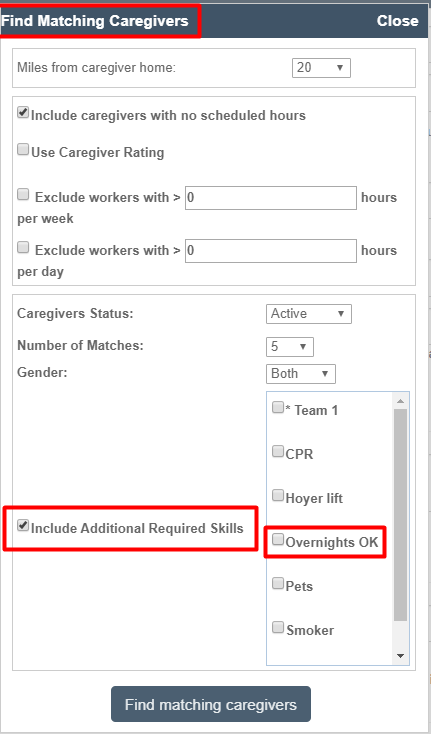
For example, to offer an overnight shift only to caregivers who are willing to work overnights, a skill tag called "Overnights OK" can be requested and assigned to willing caregivers. When performing a search using the Find Matching Caregivers feature, this "Overnights OK" tag can then be turned on and used when desired.
HR Requirements Linked with Skills
Skills can be directly linked to HR requirements by request. The advantage is that as the HR requirement expires, the associated skill can be automatically unassigned from the caregiver. Assuming the client is also assigned this skill as a requirement, the caregiver losing this skill triggers not only the standard Action Center notification of the expiring HR requirement, but also turns the visit type text to a warning yellow color on the scheduling board. The text shows the mismatch between the client's requirement for the skill and the caregiver lacking the skill. (Hover over red or yellow warning text for a description of the issue.)
Searching with Skills
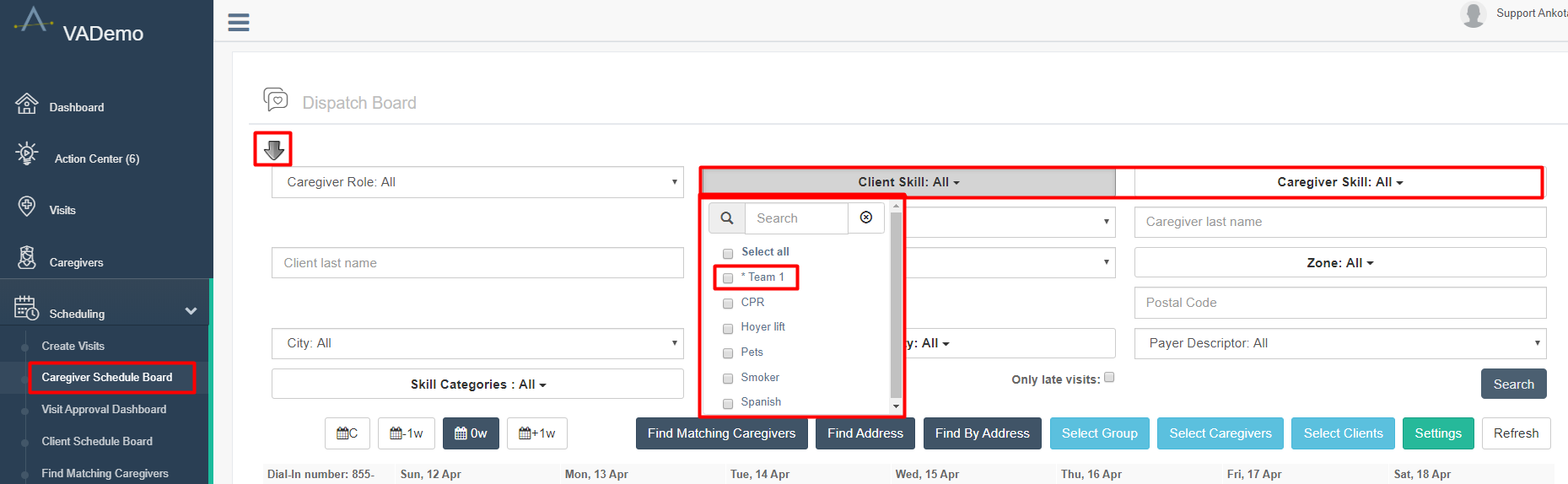
Skills can be used to filter in two main locations: the Client and Caregiver Schedule Boards, and the Find Matching Caregivers function.
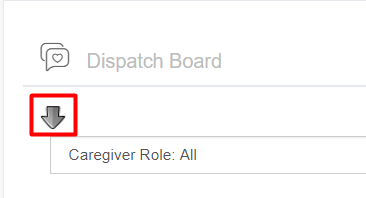
When working on the main Schedule boards, open the filter at the top by clicking the arrow.
This opens the full range of filters. At the top are two skill filters, one for clients and one for caregivers. Click the downward arrow to open a list of skills. This is particularly useful for teams that work with tags, where a scheduler might only want to see Team 1 clients, for example.
Similarly, when searching with Find Matching Caregivers, the clients' required skills will be automatically applied to the search.
Settings
Typically, an Ankota specialist will set up skills. To add skills or adjust the settings (for example, adding an expiration date option), superusers can go to Settings, then Org. Settings, then Skills. Clicking on the skills allows their functionality to be adjusted. Unless the options are clear, it is recommended to work with an Ankota specialist to adjust or add skills.