The Ankota Family App: Connecting Loved Ones to Your Organization
Overview
For family members, authorized representatives, and guardians, staying connected to a loved one's home care can bring peace of mind. The Ankota Family App is designed to ensure clients' loved ones have a secure and transparent window into the services the organization provides.
It empowers loved ones to monitor schedules, view real-time visit statuses, review completed tasks, and view new posts and updates from the agency.
The Ankota Family App is an essential tool for oversight and engagement:
-
Secure Access: Provides a straightforward login process and offers biometric authentication for quick, secure access.
-
Real-time Visibility: See when caregivers clock in and out, and the current status of ongoing visits.
-
Comprehensive Scheduling: Access a clear calendar view of all scheduled visits.
-
Detailed Visit History: Review past visits, including specific tasks performed.
-
Direct Communication: Utilize the Feed page to view any new activity or event by the home care agency.
The following article includes:
-
Using the Family Mobile App
-
Login
-
The Home Screen
-
Care Screen
-
Services
-
Calendar
-
Feed Screen
-
Profile Screen
-
Additional Resources
Note: the following article is directed to the user of the mobile app for easy copy-and-paste to users.
Using the Family Mobile App
Login
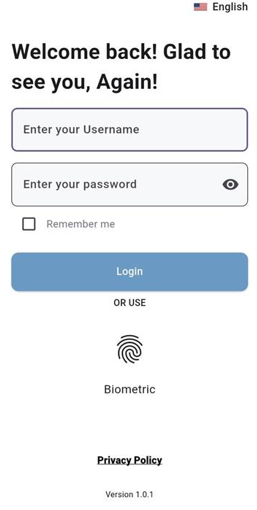
The journey with the Ankota Family App begins with a straightforward login process, ensuring the security of personal and service information.
-
Enter Your Credentials: You will be prompted to "Enter your username" and "Enter your password." These credentials are provided to you by your organization.
-
Biometric Login: Once "Remember Me" is enabled, the app offers the option for biometric authentication. This allows for quick and secure logins on subsequent visits without needing to re-enter your username and password.
-
Privacy Policy: Access to the app's privacy policy is also provided for your review.
The Home Screen
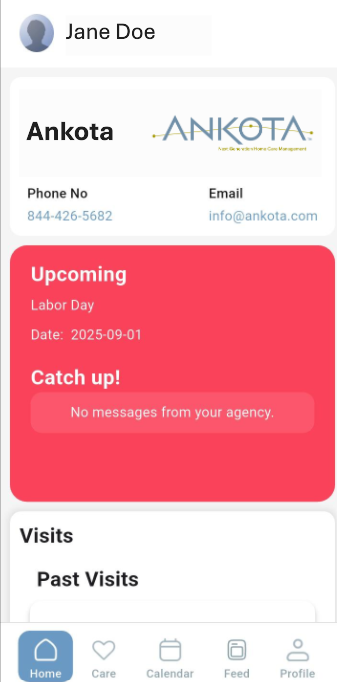
Upon successful login, the Home screen provides an immediate overview of your loved one's care.
-
Client Name: At the top of the screen, you'll clearly see the name of the client you are monitoring (e.g. Jane Doe).
-
Contact Information: You can directly dial Ankota's helpline from the homepage, as well as reach out via email.
-
Upcoming events: Here you can see all announced public holidays, and any new event scheduled by the care agency.
-
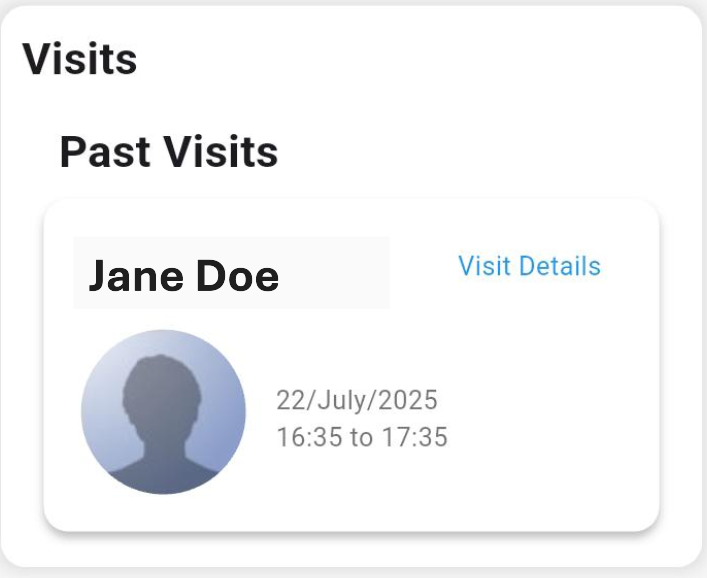
Visit Summary: For each visit, you'll see key details at a glance, including the caregiver's name and the scheduled time.
If you navigate to the visit details button, you will be able to see a breakdown of all the tasks performed during the visit.
-
Detailed Task Overview: Each specific task performed by the caregiver during the visit is listed.
-
Task Status: For each task, you'll see its completion status, such as "Complete," "Not Needed Today," or "Refused by Client." This offers transparency on the delivery of the care plan.
Care Screen
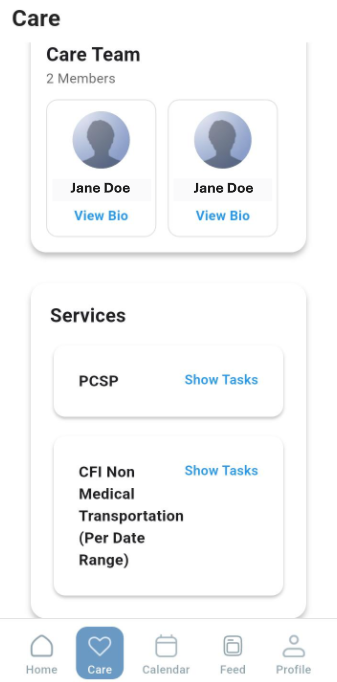
The Care screen serves as a central hub for understanding both the individuals providing care and the specific services being delivered to your loved one.
-
Team Members: Each card represents a service provider, displaying their name.
-
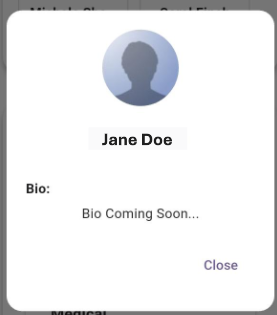
View Bio: Below each service provider's name, a "View Bio" link is available. Tapping this link will open a dedicated screen providing a brief biography of the service provider.
In cases where a service provider's biography is not yet available in the system, a "Bio Coming Soon" message will be displayed.
Services
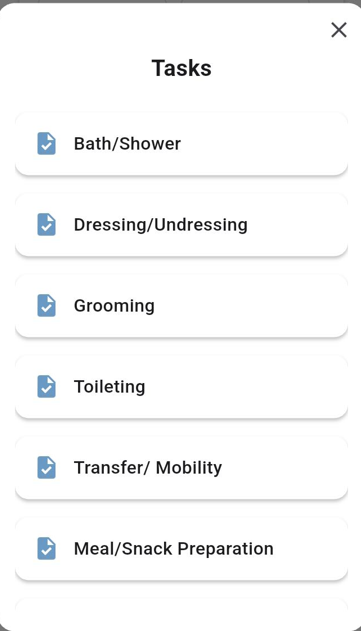
Below the "Care Team" section, the "Services" area provides a breakdown of all the specific services authorized for your loved one.
- Service List: Each card in this section represents a distinct service category (e.g., "PCSP"). When you click on a service, you can view a list of all the individual tasks that fall under that particular service.
Calendar
The Calendar feature offers a clear and organized view of all scheduled care.
-
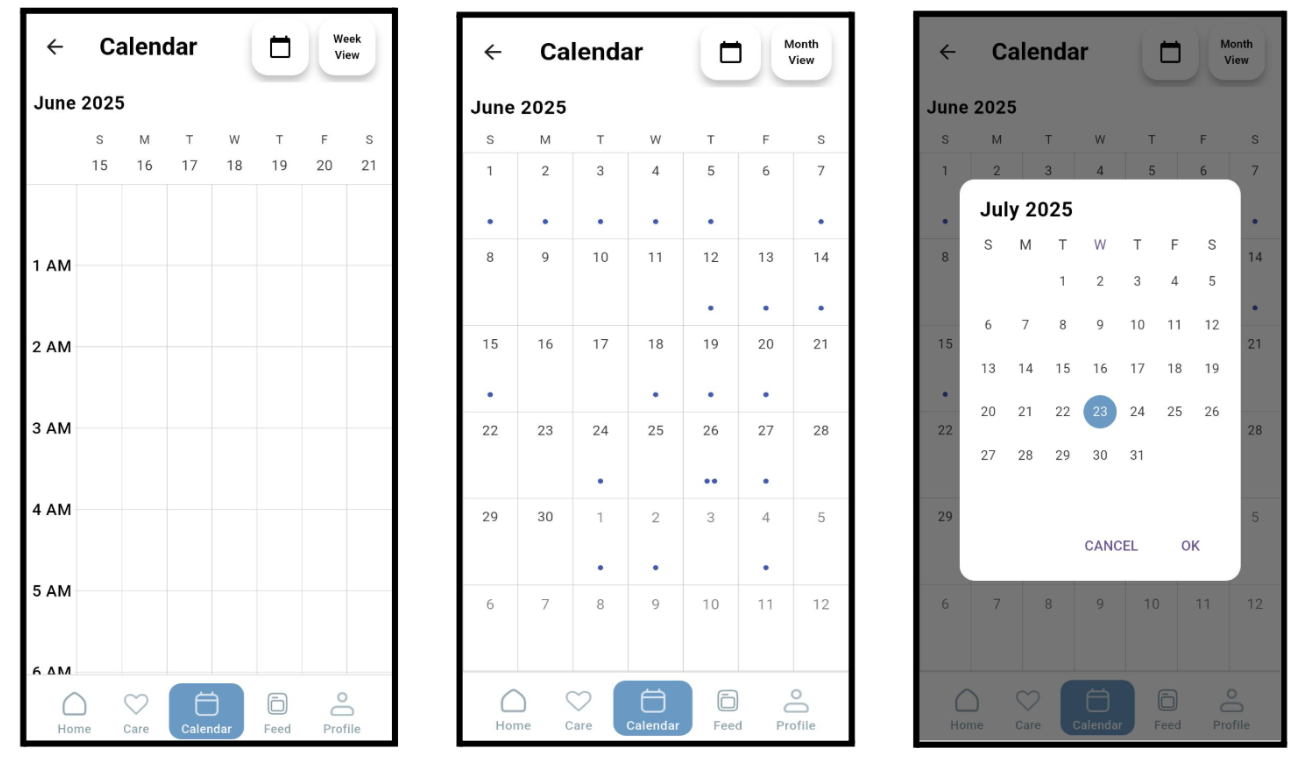
Monthly View: The default view presents a month-by-month calendar. You can also switch to day view and week view.
-
Scheduled Visits: Days with scheduled visits have blue dots on that particular date.
-
Detailed Day View: Tapping on a specific day reveals the visits scheduled for that date, including times and assigned caregivers.
-
Date Picker: The calendar icon allows you to view the scheduled visits on a particular date.
Feed Screen
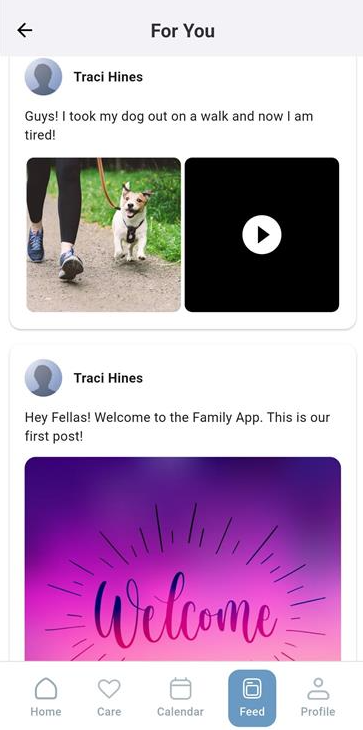
This screen serves as a dedicated channel for receiving important news and announcements directly from the agency. This feature ensures users stay up-to-date with any broadcasts relevant to their loved one's care or general agency updates.
-
View-Only Access: The Feed is a view-only section, designed for efficient dissemination of information from the agency.
-
Rich Media Support: Agency broadcasts on the Feed are not limited to text. This dynamic feature supports multiple image and video items.
-
Text Captions: Each image or video can be accompanied by a detailed text caption.
Profile Screen
In the profile section, users have the option to change their password and enable biometric verification.
- Log Out Button: Located at the top right of the screen, this button provides a quick and secure way to log out of the application.
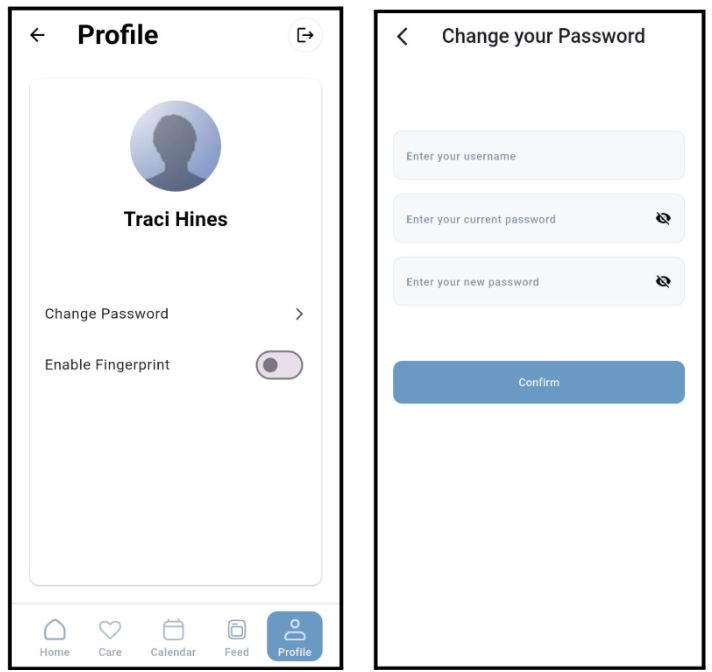
The app is designed to automatically log the user out after 10 minutes of inactivity.
Additional Resources
For further information on managing caregivers and family access within the Ankota system, refer to these articles:
-
Adding a Caregiver to the Family Mobile Application
-
Family Access: Authorized Representative Access