Scheduling›The Scheduling Board

The Scheduling Board

Overview

The Scheduling Board (also known as the Dispatch Board) is a versatile tool in Ankota used daily to update schedules and review flagged visit issues. The main schedule board has two versions: the Caregiver Schedule Board and the Client Schedule Board. They have equal functionality but are organized in opposite ways—by caregiver or by client.

Sections in this article:

  • General Functionality
  • Display Scheduled/Actual Time + Duration
  • Calendar Alerts
  • Shortcuts

General Functionality

Accessing the Board

Access this board from the left-hand menu: select Scheduling, then click Scheduling Board. On a macro level, the screen presents a color-coded schedule of each client and caregiver's visits for the week. On the top left section of the board is the dial-in number the team will use to report visits.
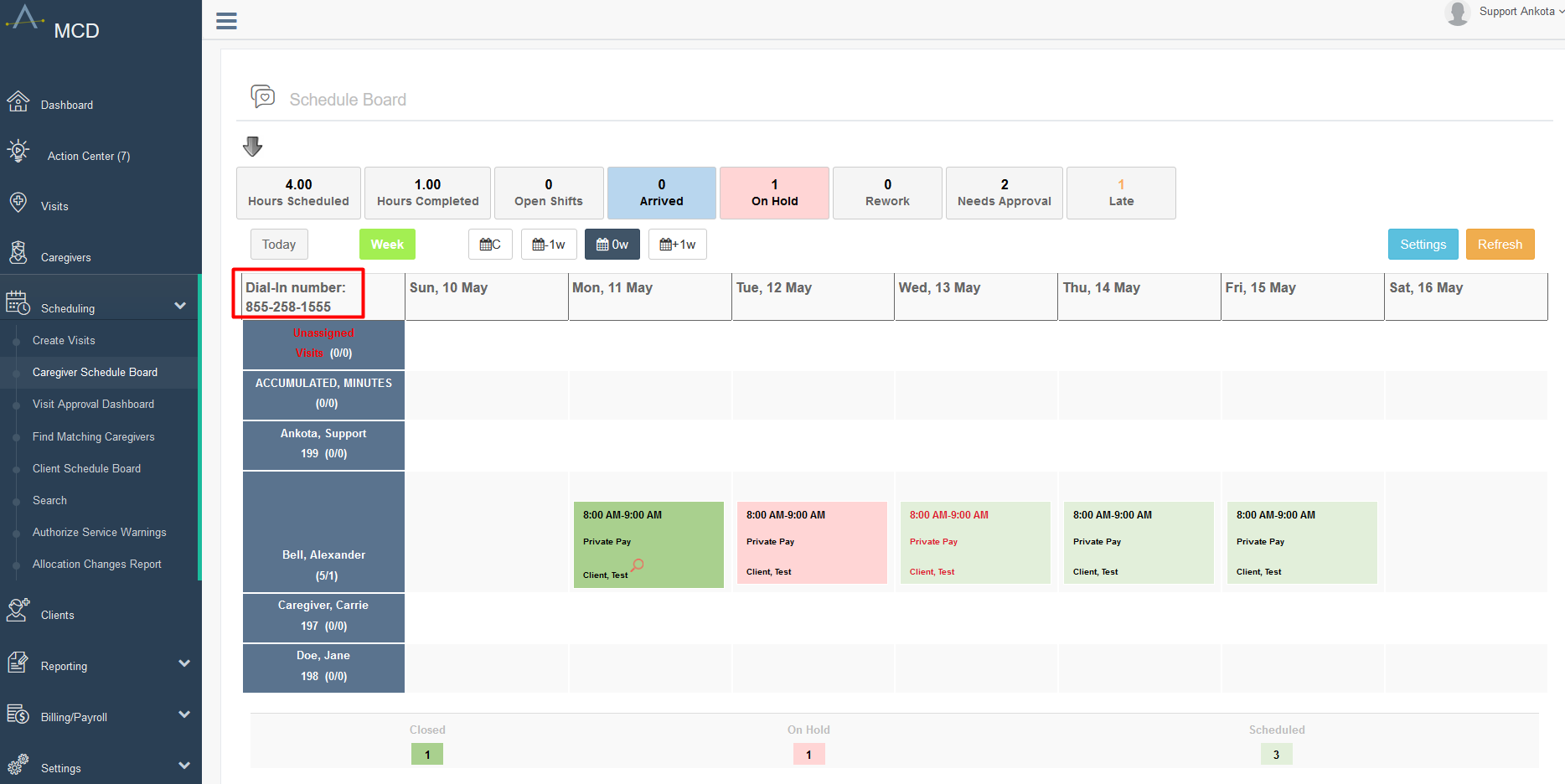
The Schedule Board displays a weekly calendar view with scheduling metrics at the top showing 4.00 Hours Scheduled, 1.00 Hours Completed, 0 Open Shifts, and other status indicators. The board lists caregivers including Ankota Support, Bell Alexander, Carger Carrie, and Doe Jane with their assigned shifts displayed in color-coded time blocks across the week of May 10-16, with a dial-in number (855-258-1555) highlighted in red on the left side.

Move forward or back a week using the -1w/+1w function, or use the calendar icon to pick a specific time frame.
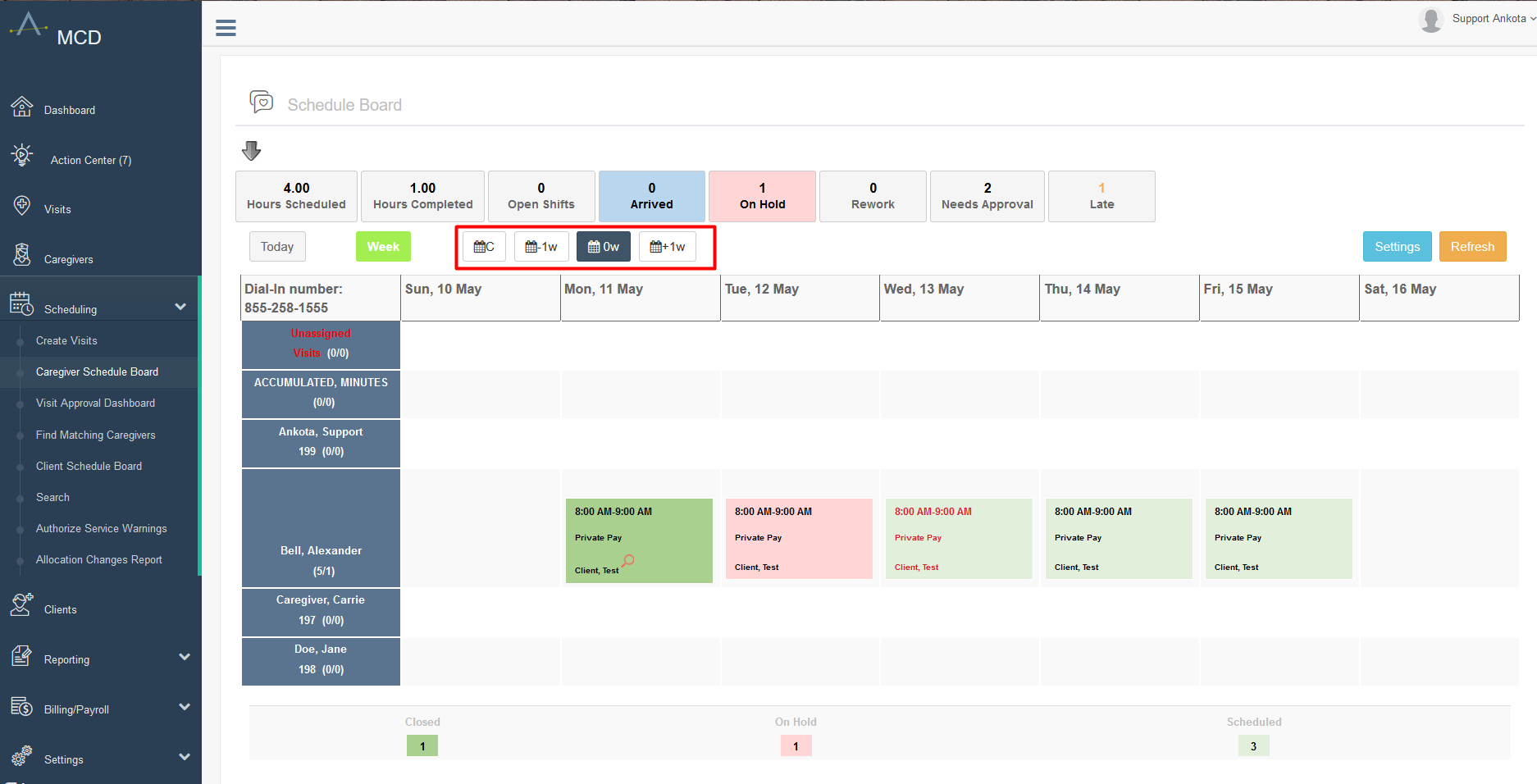
The Schedule Board displays a weekly caregiver schedule with status metrics at the top showing 4.00 hours scheduled, 1.00 hours completed, 0 open shifts, 0 arrived, 1 on hold, 0 rework, 2 needing approval, and 1 late visit. The calendar view shows multiple caregivers (Ankota Support, Bell Alexander, Caregiver Carrie, and Doe Jane) with their assigned shifts displayed as colored blocks for each day from May 10-16, with time slots showing "8:00 AM-9:00 AM Private Pay" for various client visits.

Filters can be accessed by clicking the arrow button to unveil a section of filters.
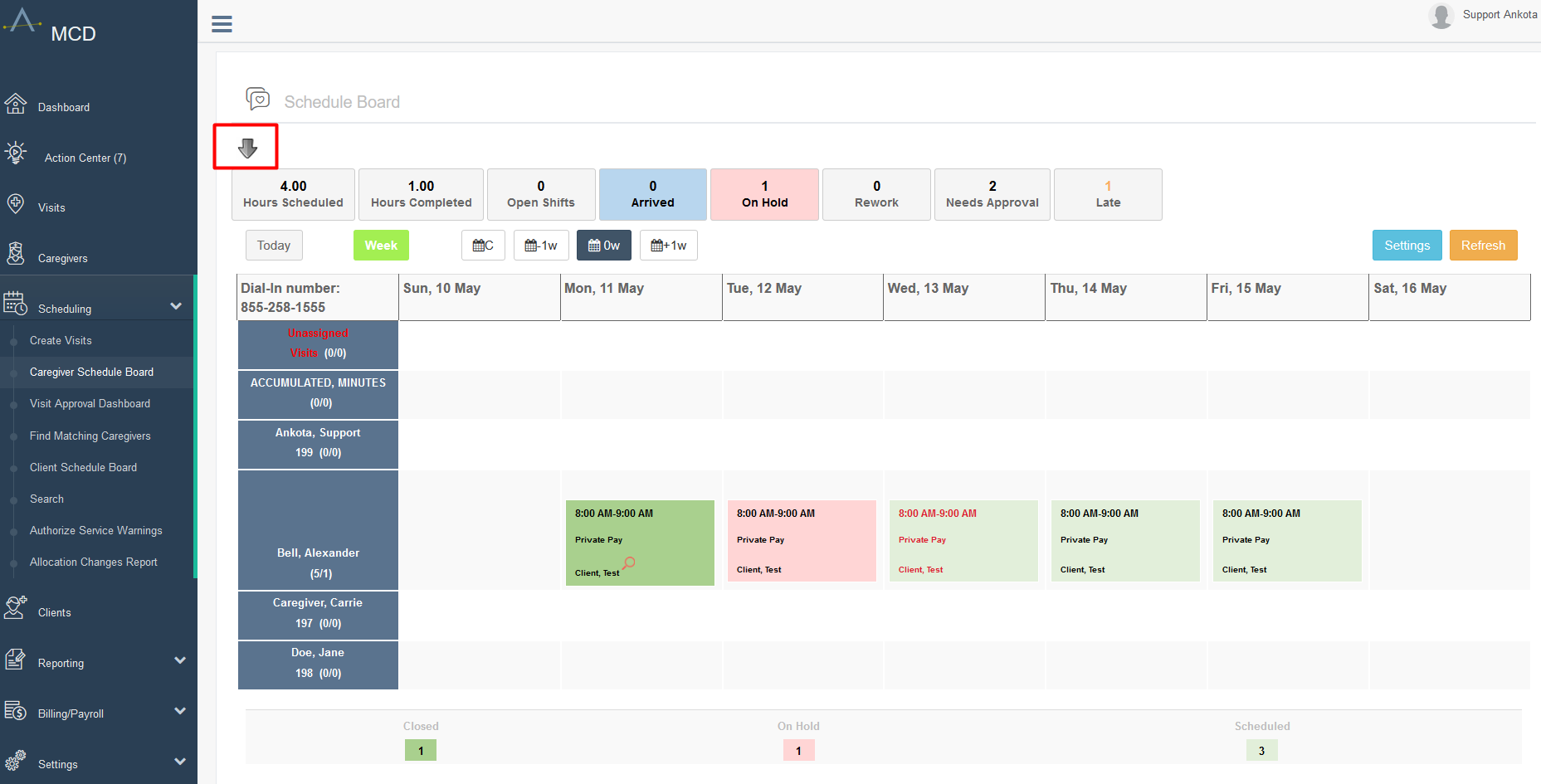
The Schedule Board displays a weekly calendar view showing scheduled visits for multiple caregivers across May 10-16, with status metrics at the top (4.00 Hours Scheduled, 1.00 Hours Completed, 0 Open Shifts, 0 Arrived, 1 On Hold, 0 Rework, 2 Needs Approval, 1 Late) and a left sidebar listing caregivers including Ankota Support, Bell Alexander, Carrie (Caregiver), and Jane Doe with their associated visit counts.

Filters

The filter section is particularly useful for larger organizations, which may wish to separate scheduling by team tags. The filters available under the arrow allow viewing only the visits on the screen selected.
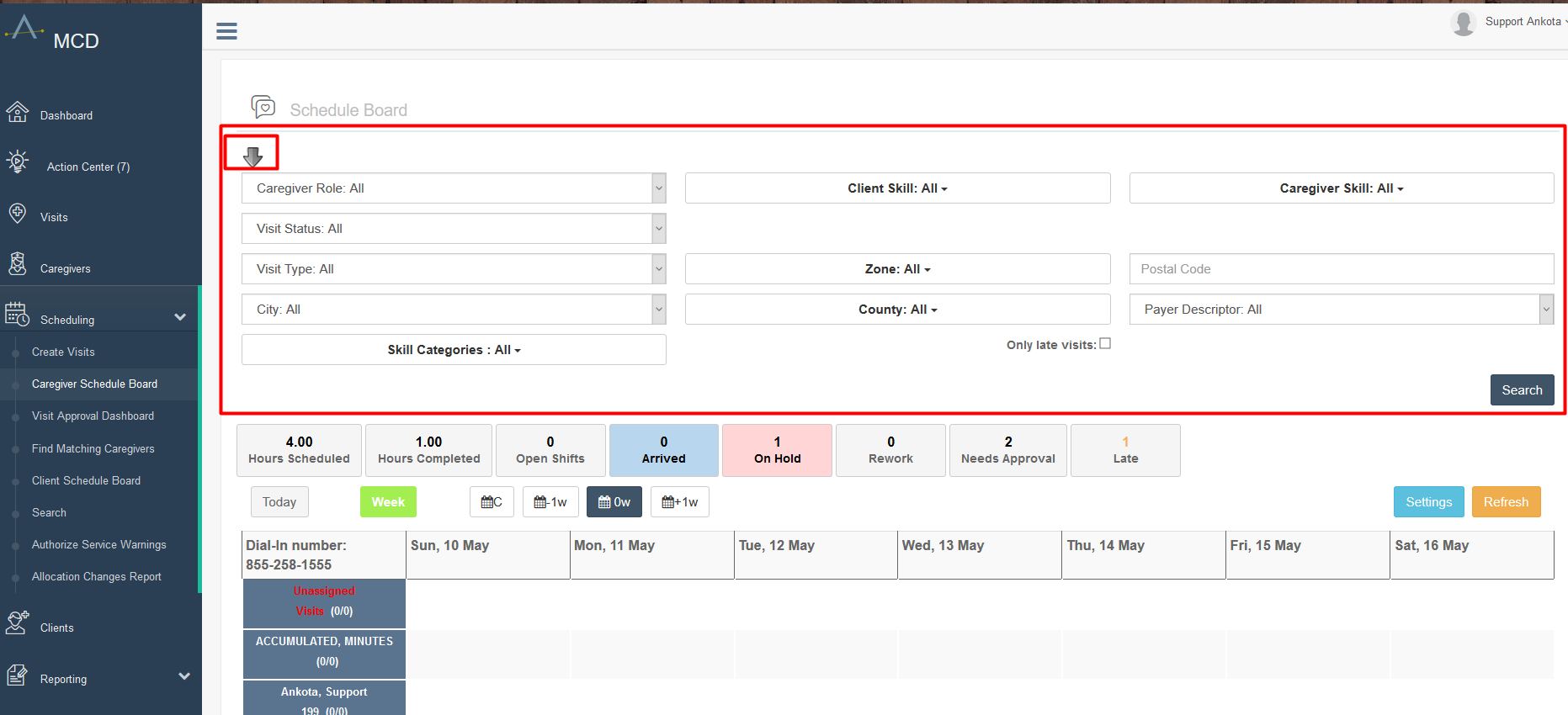
The Caregiver Schedule Board in MCD displays a weekly scheduling view with multiple filter options including Caregiver Role, Visit Status, Visit Type, City, Client Skill, Caregiver Skill, Zone, County, Postal Code, and Payer Descriptor, along with summary metrics showing scheduled hours, completed hours, open shifts, and visit statuses across the week of May 10-16.

Below the arrow group of filter options there is also a dashboard summary of the scheduling board.
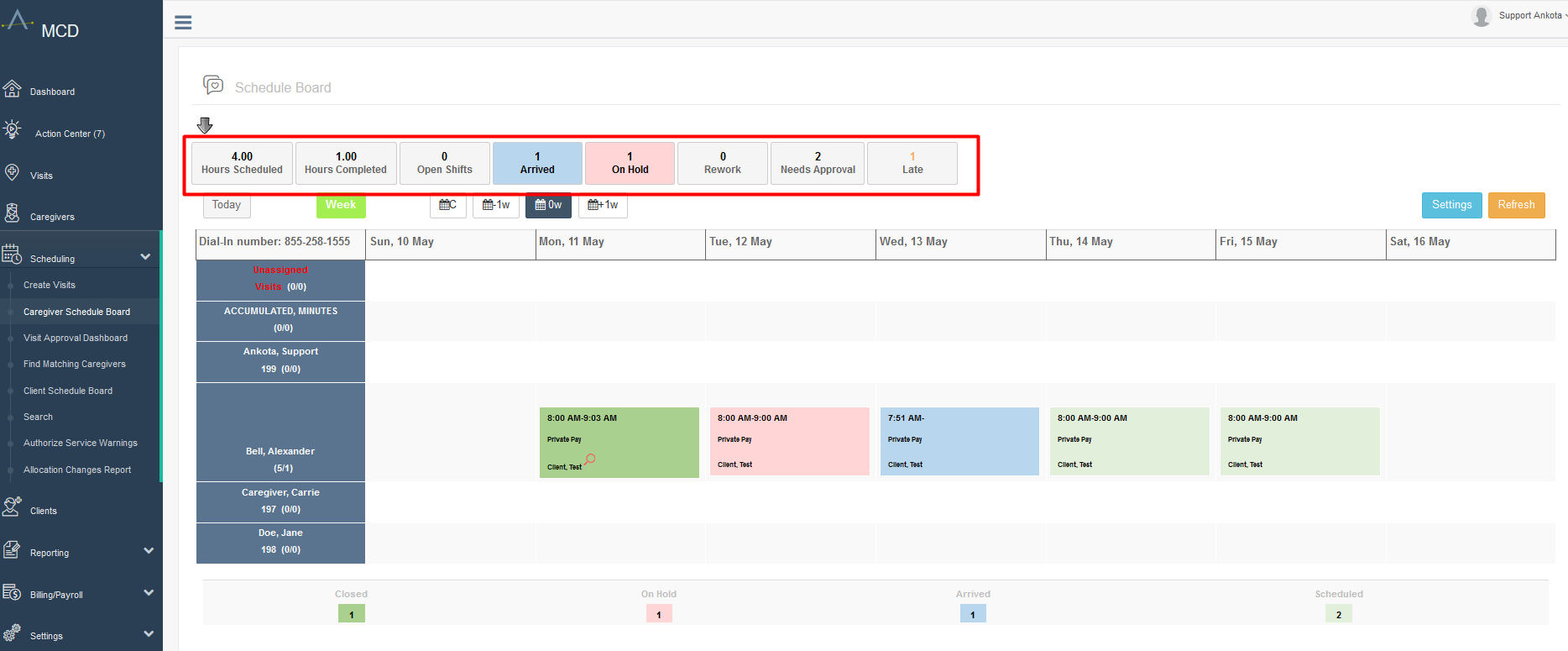
The Schedule Board displays a weekly calendar view showing scheduled visits and caregiver assignments from May 10-16, with summary metrics at the top including 4.00 hours scheduled, 1.00 hours completed, 1 arrival, 1 on hold, and 2 needs approval. The left panel shows a list of caregivers (Ankota Support, Bell Alexander, Cargeiver Carrie, and Doe Jane) with their accumulated minutes, while the main calendar area shows color-coded visit blocks representing private pay and client test visits scheduled throughout the week.

In addition to providing a general summary of statuses, each of these blocks can be turned on or off by clicking on them, which hides all visits that were not in that category. Filtering aspects of these blocks can be combined if desired.
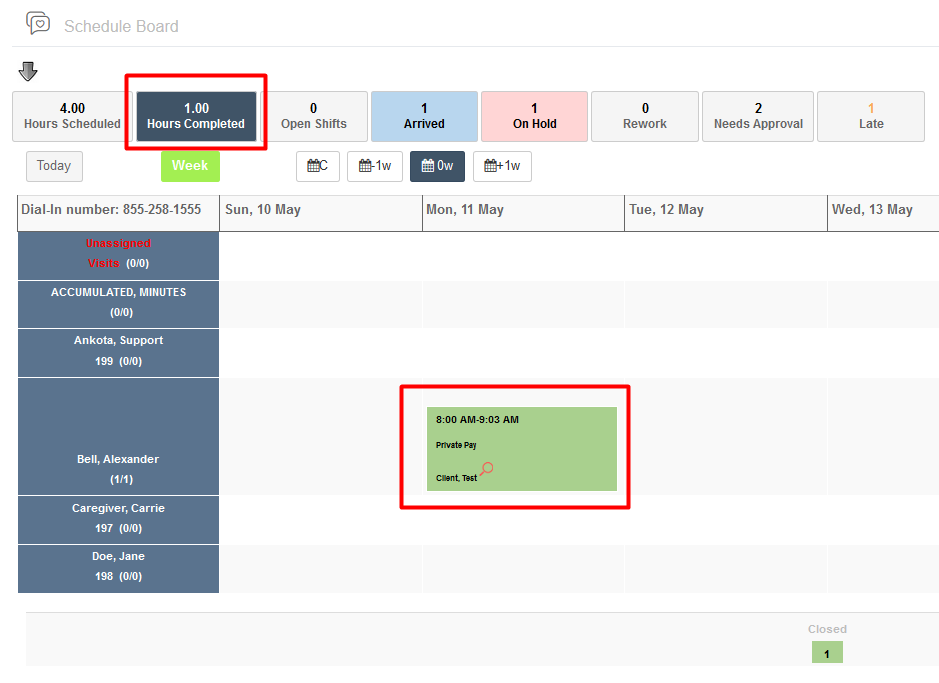
The Schedule Board displays a weekly view with status columns including Hours Scheduled, Hours Completed (highlighted in red), Open Shifts, Arrived, On Hold, Rework, Needs Approval, and Late. The left sidebar lists staff members with their accumulated minutes and shift counts, while the main calendar shows a scheduled shift for "8:00 AM-9:03 AM" with "Private Pay" and "Client: Test" details highlighted in red on Monday, May 11.

Clock-In Times

Once a caregiver clocks in, the actual clock-in/clock-out times are visible rather than the scheduled times for the visit (if any). The times are adjusted as the caregiver clocks in as well as when they clock out.
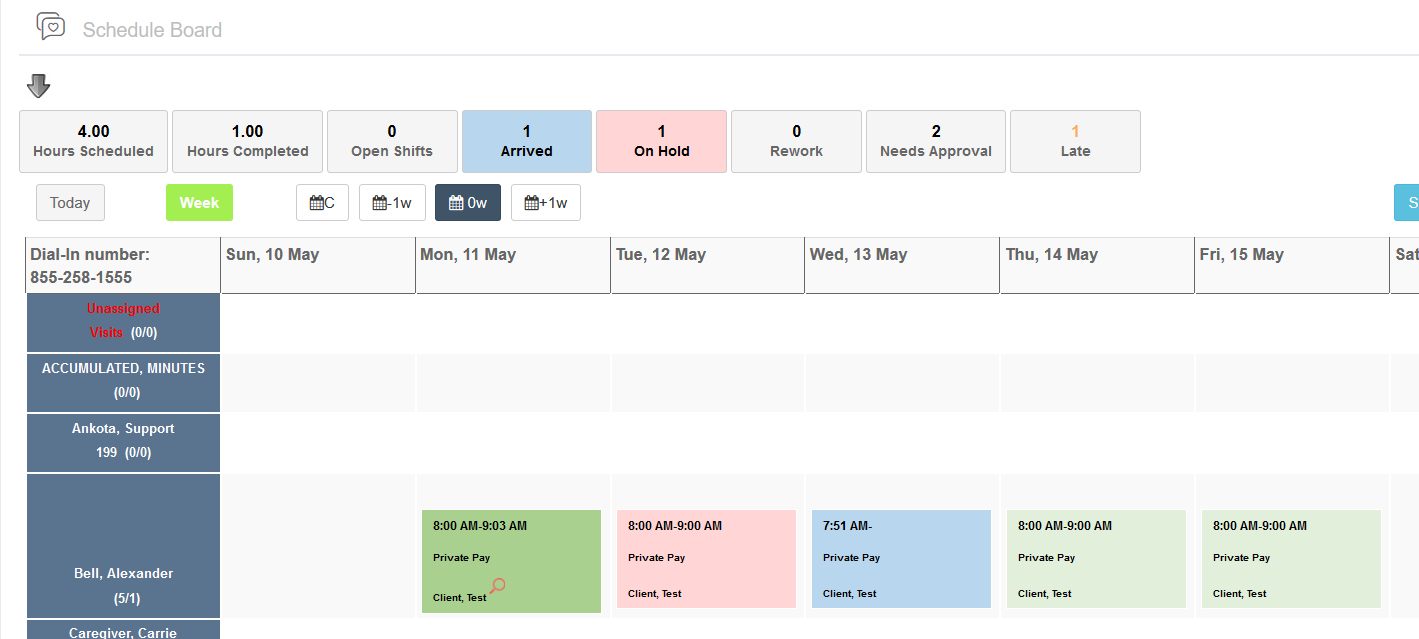
The Schedule Board displays a weekly view showing staffing metrics and scheduled shifts. The top shows summary statistics including 4.00 Hours Scheduled, 1.00 Hours Completed, 0 Open Shifts, 1 Arrived, 1 On Hold, 0 Rework, 2 Needs Approval, and 1 Late, with a calendar grid below showing individual employee shifts (Bell, Alexander and Caregiver, Carrie visible) color-coded by status across May 10-15.

Color Key

Scrolling to the bottom of the screen shows a color-coded count (in real time) of the status of each visit. It illustrates the count of all statuses in use, such as Arrived, Departed, Closed, Cancelled, Door Tag, On Hold, etc.

Status summary bar displaying ticket counts across four categories: Closed (1), On Hold (1), Arrived (1), and Scheduled (2), with color-coded badges for quick visual reference.

If the caregiver's name is in red, there are overlapping visits on their schedule.

Display Both Scheduled/Actual Time + Duration on the Calendar

Some customers prefer a visual of scheduled and billable times on their schedule boards. This must be done for each visit type.

To turn on this setting:

  1. Login to the environment.
  2. Click Settings.
  3. Click Service Settings.
  4. Click Visit Type by selecting Type ID or the edit button.

The Visit Type management page displays a table with visit type records including columns for Type Id, Name, Status, Type, Capacity Required, Duration, and Category Name. Each row has an edit icon (pencil) on the right side that can be clicked to edit the record, as indicated by the red arrow labeled "click to edit."

  1. Click the Details tab and scroll to the bottom.
  2. Select the checkbox Calendars - Display Schedule Times and Duration.
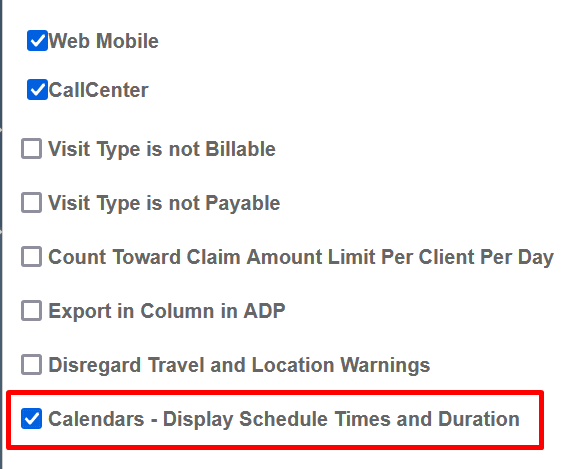
A settings configuration screen displaying checkboxes for various system features, with "Web Mobile" and "CallCenter" checked at the top, and "Calendars - Display Schedule Times and Duration" highlighted with a red border at the bottom.

  1. Save.

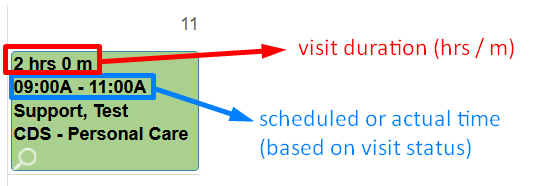
On the schedule board, it will look like this:
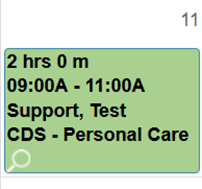
A calendar event block displaying a 2-hour appointment from 09:00A to 11:00A labeled "Support, Test CDS - Personal Care" with a green background indicating the event type or status.

This screenshot shows a calendar event block displaying a visit duration of 2 hours and 0 minutes, with the scheduled time slot from 09:00A to 11:00A, and the visit type labeled as "Support, Test, ODS - Personal Care." The diagram illustrates how visit duration appears in red at the top and how the scheduled or actual time is displayed based on the visit status in the calendar interface.

Calendar Alerts

Warnings

If a client's name appears in red in the calendar section, this is an alert indicating something to investigate.

Hover over the name to see information about the visit, including the specific reason for the alert.

Screenshot.

Other issues may include:

  • (Yellow Reason) Work not authorized for patient
  • (Yellow Reason) Worker does not have the right skill(s)
  • (Yellow Reason) Assignment time is outside required window
  • (Yellow Reason) Patient not available that day
  • (Red Reason) Worker has overlapping visits
  • (Red Reason) Late finish
  • (Red Reason) Late Arrivals

Closed Visits with Identified Issues

When a visit is closed but there is an issue that violates a business rule, a magnifying glass appears after the client's name in the visit block. A visit with a magnifying glass links to the Visit Detail Report. From there, this feature allows selecting either Approve Billing and Payroll, Approved for Payroll, or Approved for Billing.

A red magnifying glass represents a minor records issue that needs correction, such as a change in telephone number. A black magnifying glass represents a major issue that needs correction, one that would prevent billing.

Common reasons for flagged issues include:

  • The duration is +/- minutes from scheduled duration. The actual duration was different from the expected duration.
  • GPS/location error. If the GPS location did not meet the previously defined parameters, it will need correction. When check-ins are outside expectations (usually referred to as "tolerance"), it will be flagged and needs review.
  • The phone number was different from the expected value.

To review the issue, click on the magnifying glass.
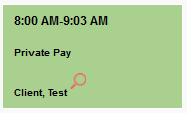
The screenshot shows a calendar event card displaying a time slot from 8:00 AM to 9:03 AM labeled "Private Pay" with a client name "Client, Test" and a green location pin icon.

A new tab will open with all the details of the visit.
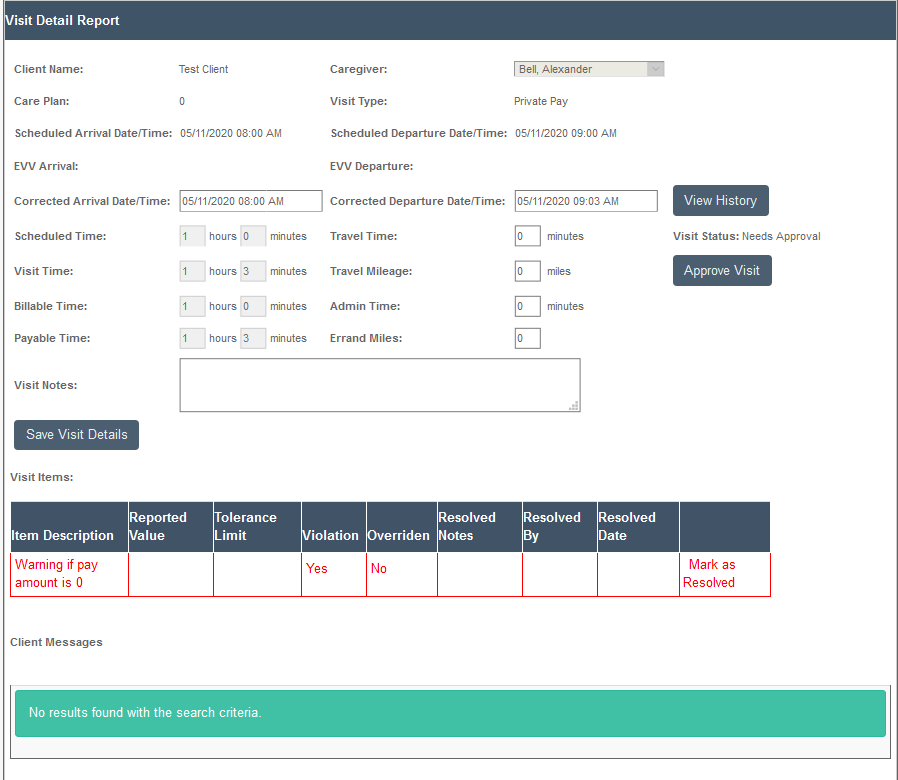
The Visit Detail Report page displays comprehensive information for a client visit, including client name "Test Client," caregiver "Bell, Alexander," scheduled and actual arrival/departure times, visit duration metrics (scheduled time, visit time, billable time, payable time), and travel details. The page includes a Visit Items section with a table showing reported values, tolerance limits, violations, and resolution status, along with a Client Messages section indicating no results found.

Red line items are calls to action. Clicking each one and marking them as resolved is for recordkeeping purposes only; a separate action is still required to resolve the issue. For example, if a warning shows that the pay amount is zero, correct it by opening the caregiver's profile, entering a new pay rate, saving, and then returning to mark this item as resolved.

This process can also be completed as part of the standard Visit Approval Dashboard review.

Shortcuts

Several shortcut options are available in the Scheduling calendars. At the top of each visit detail window, the client's name and the caregiver's name will both open new tabs when clicked.
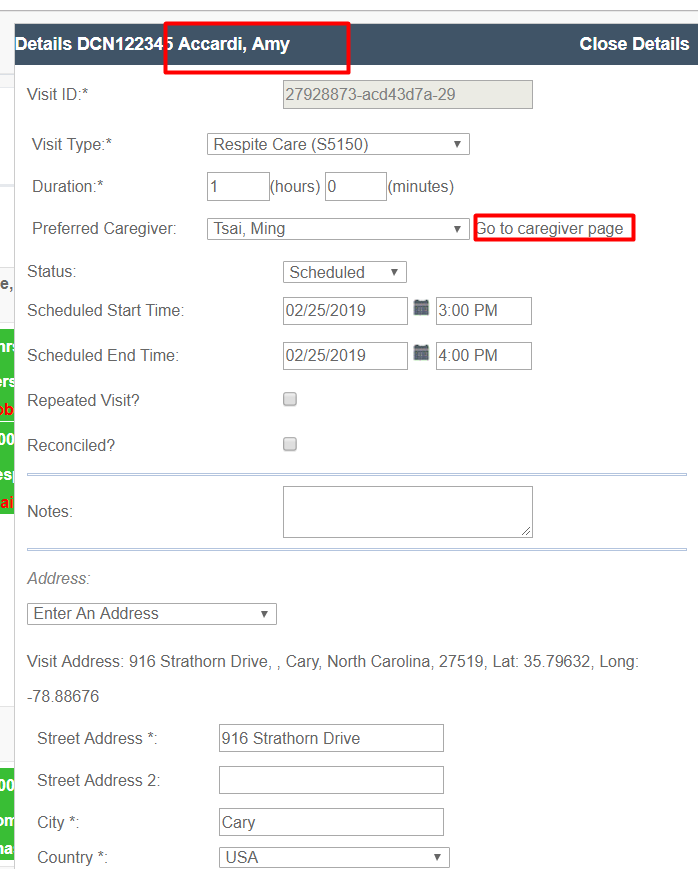
This is the Details page for visit DCN122345 showing a respite care visit scheduled for 02/25/2019 from 3:00 PM to 4:00 PM with preferred caregiver Tsai, Ming. The page includes fields for visit information, duration (1 hour, 0 minutes), status (Scheduled), notes, and address details including 916 Strathorn Drive in Cary, North Carolina.

The Caregiver Calendar can also be accessed when on the Caregiver Schedule Board by clicking the calendar icon.
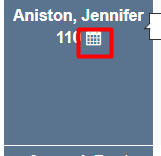
The Contact Us page displays a contact card for Jennifer Aniston with phone number 110 and a red phone icon button for initiating a call or viewing contact details.

Was this article helpful?
On this page