Travel Time, Travel Mileage, and Errands in Ankota
Overview
Ankota offers many features regarding travel tracking. There are three main flavors: travel time tracking, travel mileage tracking, and errands tracking.
-
Travel time tracks time between visits (as well as on the way to work and home from work if desired). This is set at a payable single travel time rate.
-
Travel mileage tracks distance between visits (as well as on the way to work and home from work if desired). This is set at a payable single mileage rate.
-
Travel errand miles tracks errand miles completed by the caregiver during the visit. These are manually entered numbers and can be flagged for review (errand miles over X number) in the Visit Approval Dashboard if desired.
Billing per mile may also be set up.
Note: In order to use any of these functions, Ankota must turn them on first. It is generally recommended that travel time, travel mileage, and travel errand miles be turned on as part of a conversation with an Implementation Specialist. Contact Ankota Support if you are past implementation and would like to connect with an Implementation Specialist on this subject.
Travel Time
Travel time tracks time traveled by the caregiver. When turned on, the system will track time spent between clock-ins.
The travel time rate for caregivers can be set as follows:
-
Click Settings
-
Click Organizational Settings
-
Click Billing
-
Click the Billing Configuration tab
-
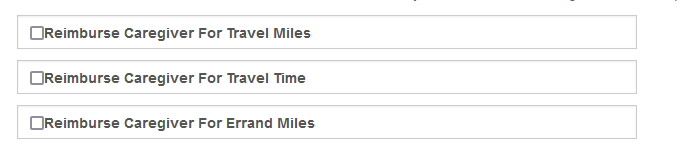
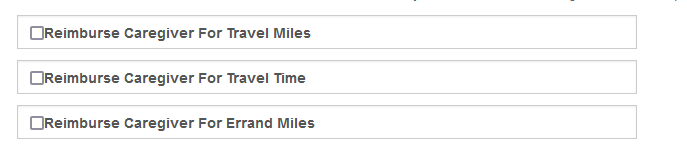
Check the box next to Reimburse Caregiver for Travel Time
-
A new section will appear
-
Check the box next to additional options as desired
-
Click Add New under Reimburse Caregiver for Travel Time
-
Enter the rate in the pop-up window along with the start/end date
Travel Mileage
Travel mileage tracks miles traveled by the caregiver. When turned on, the system will track miles between clock-in locations.
The travel mileage rate for caregivers can be set as follows:
-
Click Settings
-
Click Organizational Settings
-
Click Billing
-
Click the Billing Configuration subtab
-
Check the box next to Reimburse Caregiver for Travel Miles
-
A new section will appear
-
Check the box next to additional options as desired
-
Click Add New under Reimburse Caregiver for Travel Miles
-
Enter the rate in the pop-up window along with the start/end date
Note: Calculate Travel Time Automatically must be turned on in the environment in order for miles calculations to function.
Errands
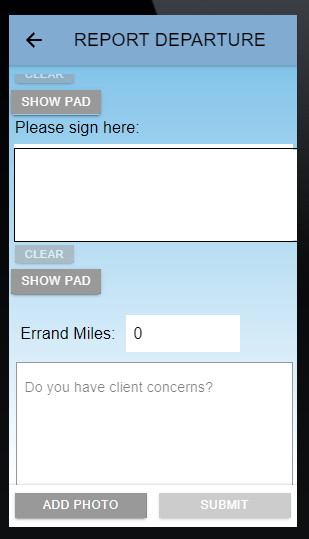
Errand miles are a function whereby caregivers can enter the errand miles covered during a visit. When turned on, the system will add an Errand Miles option that allows caregivers to report errand miles during departure.
Caregiver Viewpoint
Errand miles are reported in the mobile app during departure underneath the client signature (manually entered, not automatically recorded like travel time/travel miles):
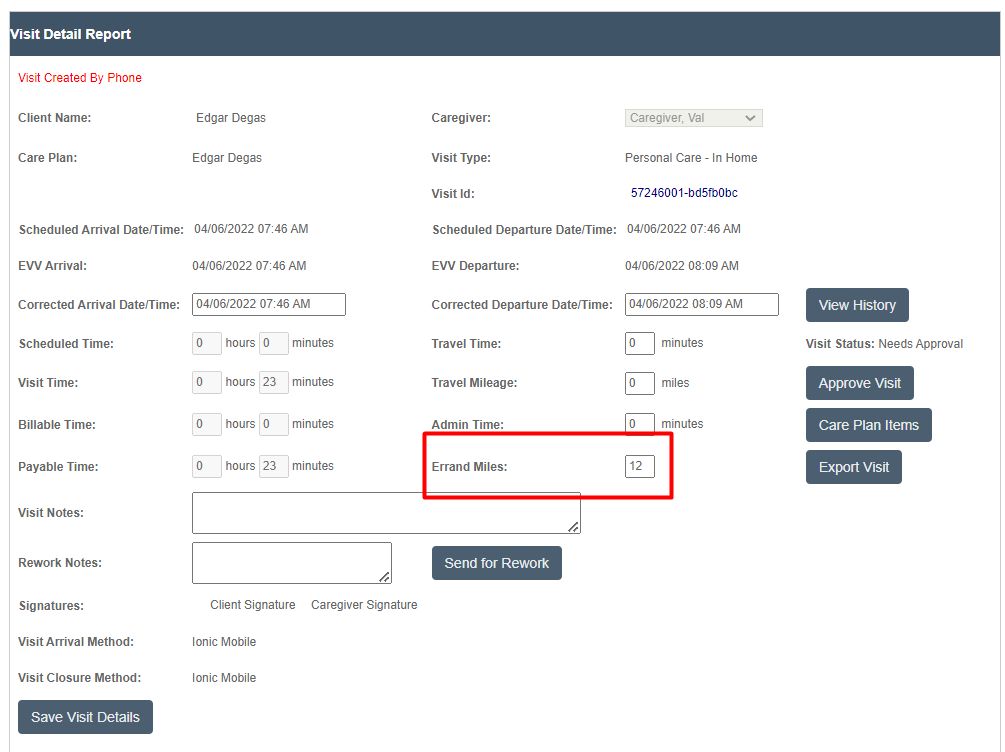
These errand miles are visible in the Visit Approval Dashboard, and can be flagged for review (for example, set a flag on the VAD if there is more than 0 miles, 10 miles, 20 miles, etc.).

Admin Set-up
The errand miles reporting option for caregivers can be set as follows:
-
Click Settings
-
Click Organizational Settings
-
Click Billing
-
Click the Billing Configuration subtab
-
Check the box next to Reimburse Caregiver for Errand Miles
-
A new section will appear
-
Check the box next to additional options as desired
-
Click Add New under Reimburse Caregiver for Travel Miles
-
Enter the rate in the pop-up window along with the start/end date
TROUBLESHOOTING - If mile aren't calculating, please make sure the Disable Travel and Location warnings is disabled as this setting prevents the mileage from displaying on the Visit Details Page
Billing Miles
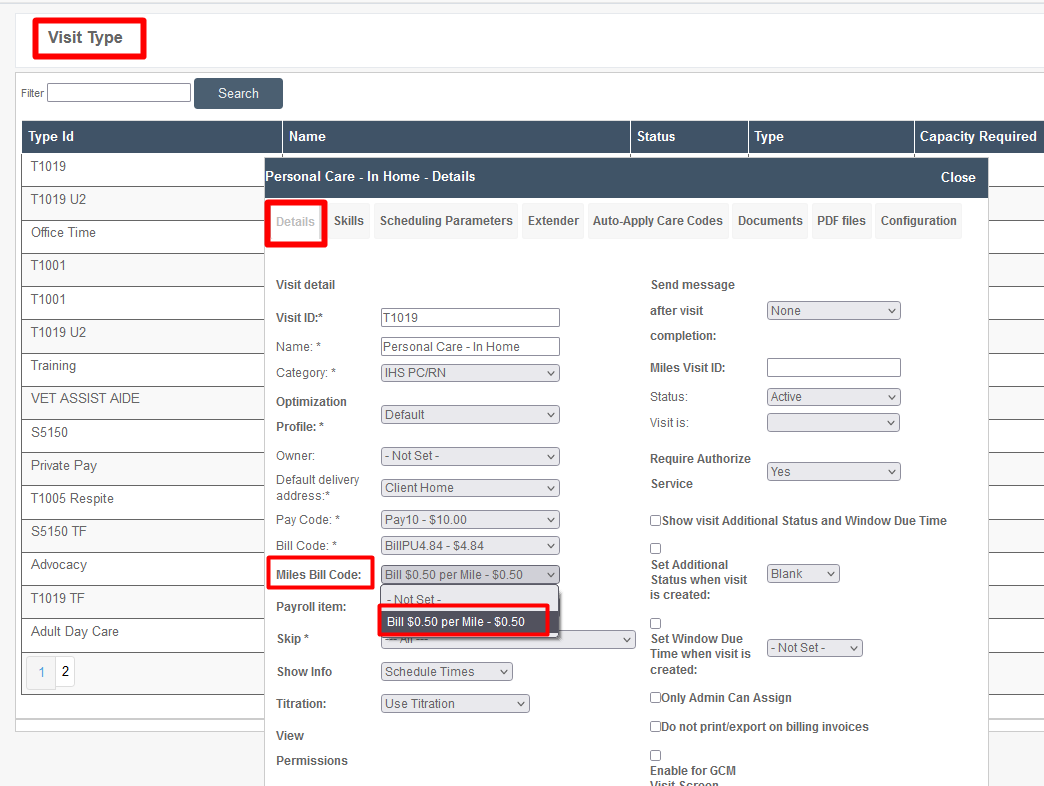
Billing miles can be done by creating a Bill Miles code and then assigning it to the visit type.
Create a billable mile code
-
Click Settings
-
Click Organizational Detail
-
Click Billing
-
Click the Bill Code subtab
-
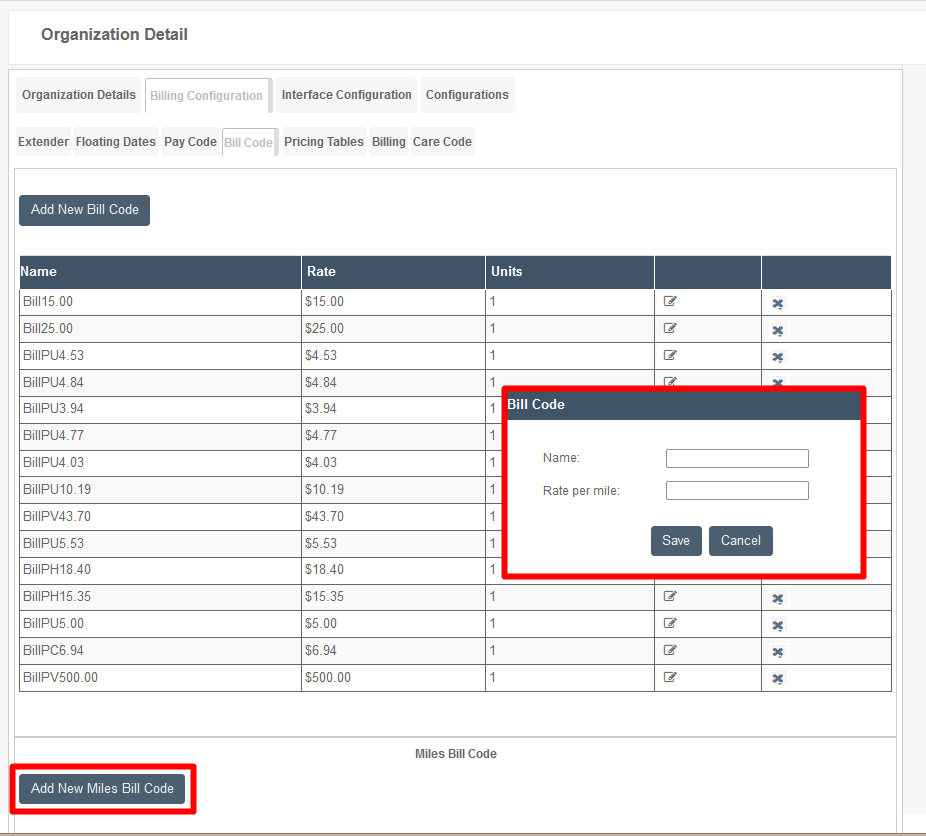
Click Add New Miles Bill Code (at bottom)
-
A pop-up will appear
-
Enter the name
-
Enter the Rate per Mile
-
Click Save
Assign a bill code to a visit type
-
Click Settings
-
Click Services Settings
-
Click Visit Type (may appear as Service Type in your environment)
-
Open the visit type you wish to adjust
-
On the Details tab, next to Miles Bill Code, pick the new bill code you created