← All help articles

Two - Factor Authentication

Overview

Some organizations wish to require two-factor authentication during the mobile app log-in.

Functionality

Once set up, two-fact authentication works as follows:

  • During log-in, caregivers will enter their username and password as usual
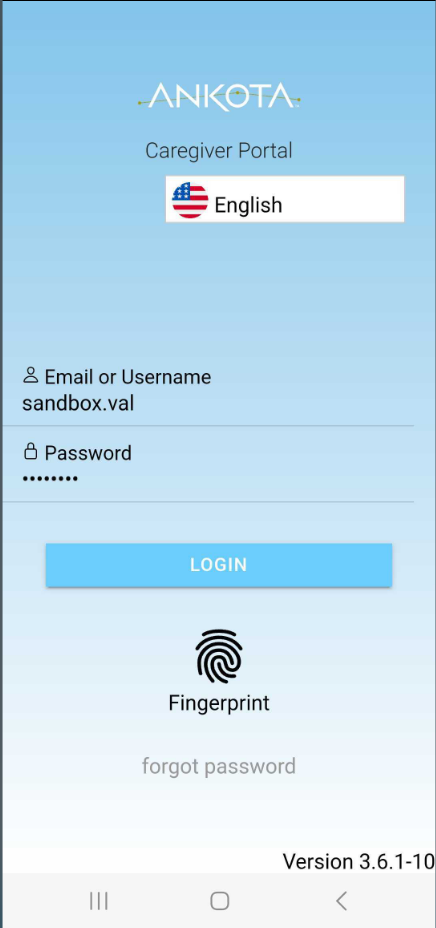
The ANKOTA Caregiver Portal login screen displays a language selector set to English, email/username field populated with "sandbox.val", a password field with masked characters, and a blue LOGIN button. Below the login fields are options for Fingerprint authentication and a "forgot password" link, with the version number 3.6.1-10 shown at the bottom.

  • Then they will receive a text message with a code
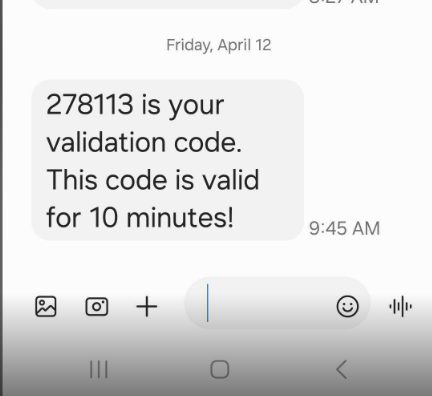
A text message notification displays a validation code "278113" with instructions that it is valid for 10 minutes, dated Friday, April 12 at 9:45 AM. The message appears in a messaging application interface with media attachment buttons and navigation controls at the bottom.

  • That code must be copied from the text message and entered in the Code box within the Ankota App
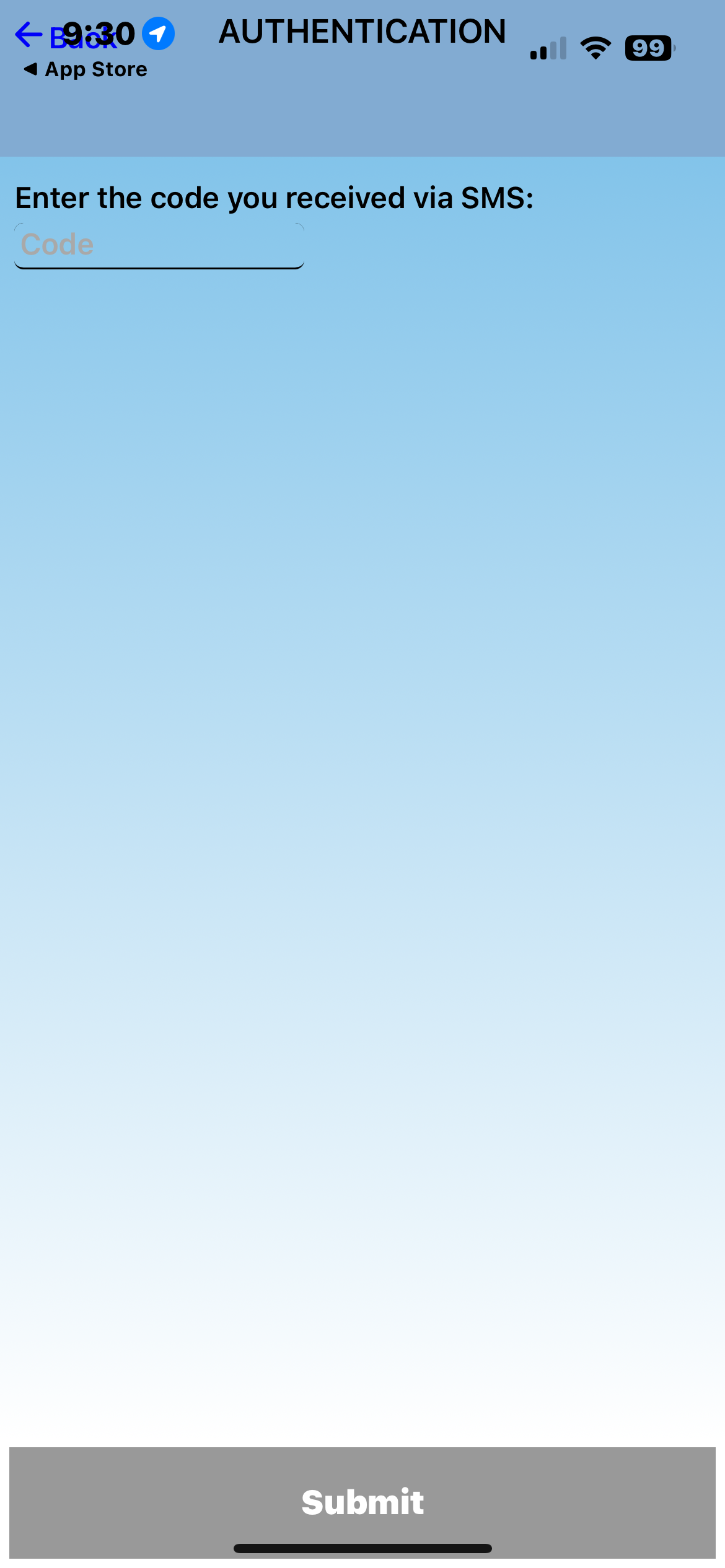
The Authentication screen displays a text input field labeled "Code" with placeholder text prompting users to "Enter the code you received via SMS:" and a Submit button at the bottom to confirm the SMS verification code.

  • Then the user can work in the mobile app as usual
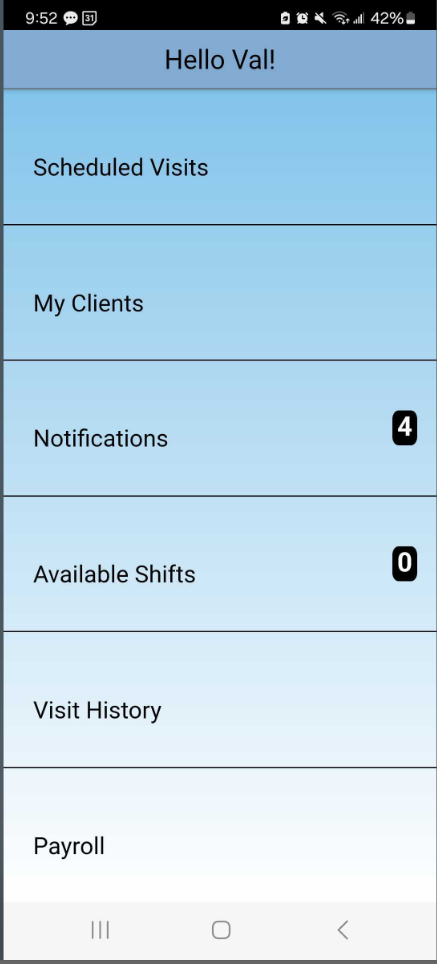
Mobile app home screen displaying a user dashboard with navigation menu items including Scheduled Visits, My Clients, Notifications (showing 4 unread items), Available Shifts (showing 0), Visit History, and Payroll.

If the caregiver receives an error message, please contact your administrator. The cell number may not be entered correctly within your caregiver profile.

Was this article helpful?
On this page