Visit Type Options
Overview
Visit types are very powerful in Ankota. There are dozens of options and special features available in this location. The sections below describe several of these options.
Topics covered:
- Allow caregivers to clock in/out ONLY on certain scheduled visit types
- Calendars – Display Schedule Times and Duration
- Simultaneous Multiple Client Clock Ins
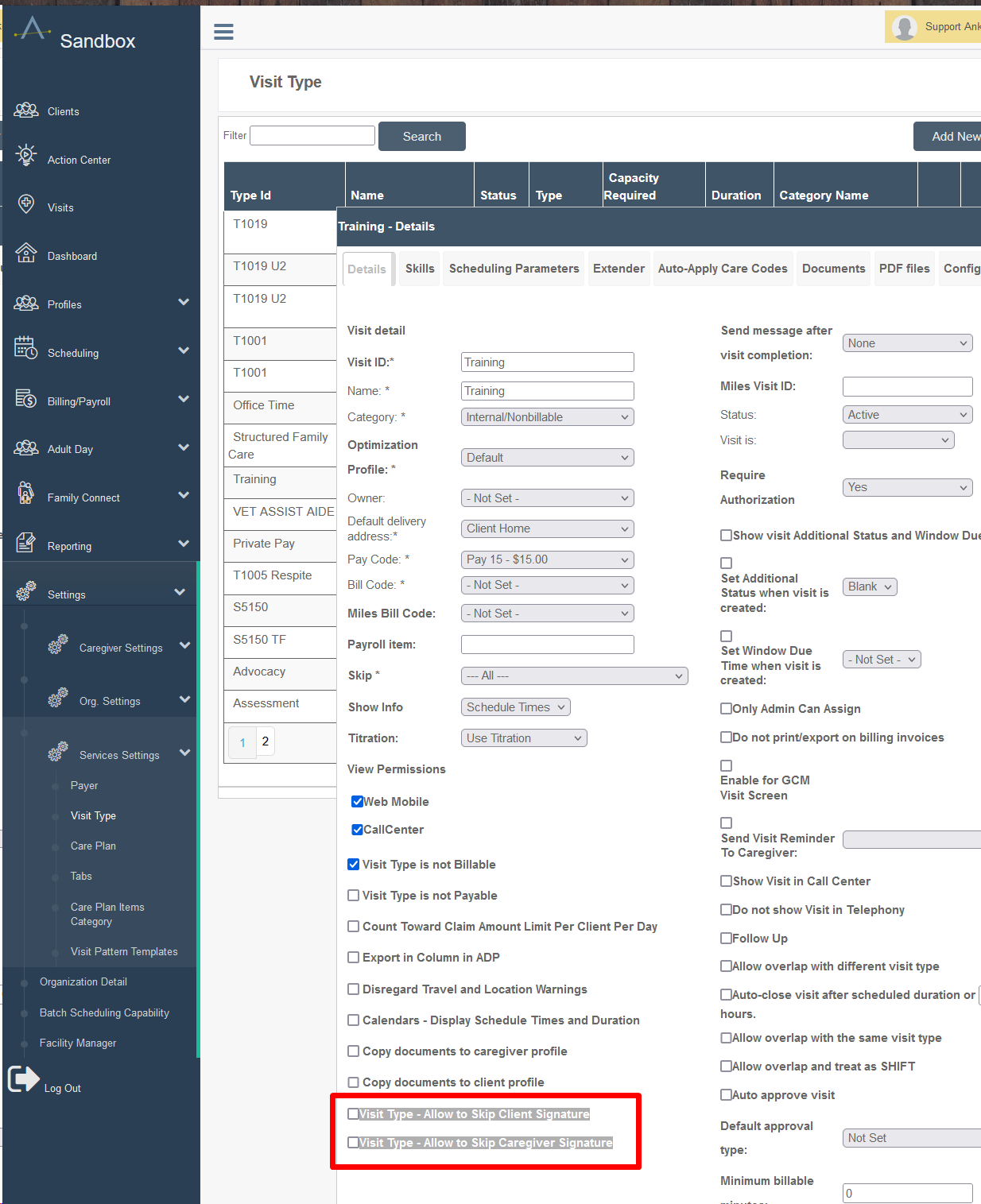
- Visit Type - Allow to Skip Client Signature & Allow to Skip Caregiver Signature
- Visit Type - Disregard Duration Warnings on Visit Type
Allow Caregivers to Clock In/Out ONLY on Certain Scheduled Visit Types
Some customers want caregivers to clock in/out on only certain visit types. When configured for clock out only, the caregiver clocks out and the arrival time is set as the clock out time minus the duration of the visit. When configured for clock in only, the caregiver clocks in and the departure time is set as the clock in time plus the duration of the visit.
To configure:
- Log in to the client's environment.
- Click Settings.
- Click Service Settings.
- Click Payer.
- Click on the applicable visit type.
- Scroll down to Overwrite Clock Type.
- Select Report Arrival Only, Report Departure Only, or Report Arrival & Departure.
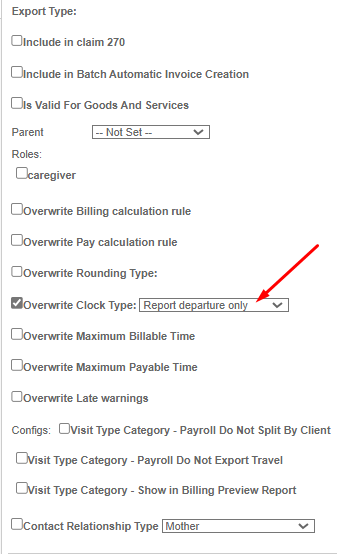
To remove this function, uncheck the box instead.
Calendars - Display Schedule Times and Duration
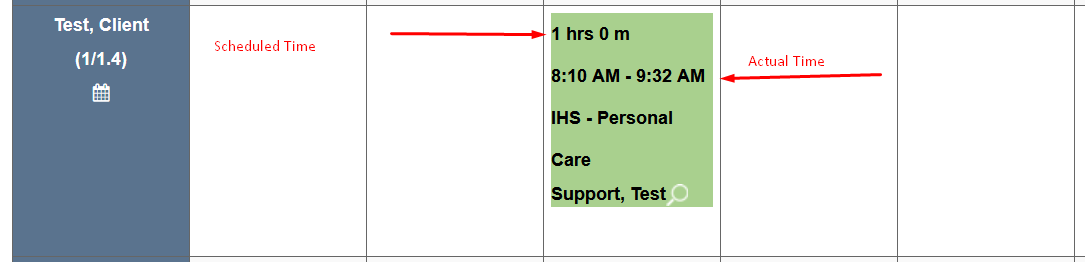
Some customers want a visual of scheduled and billable times on their schedule boards.
To turn on this setting:
- Log in to the environment.
- Click Settings.
- Click Service Settings.
- Click Visit Type.

- Open each Type (e.g., T1019).
- Scroll to the bottom of the Details tab and check the box next to Calendars - Display Schedule Times and Duration.
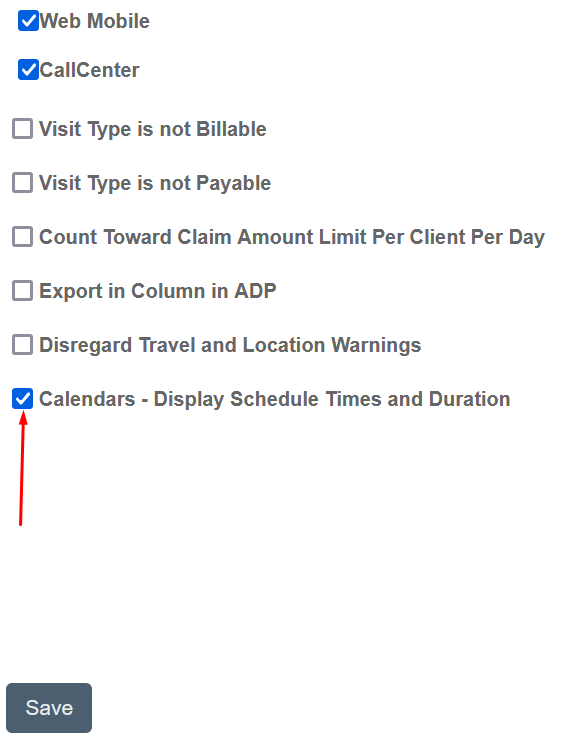
- Save.
This enables the display of both schedule and duration, as shown below.
Simultaneous Multiple Client Clock Ins
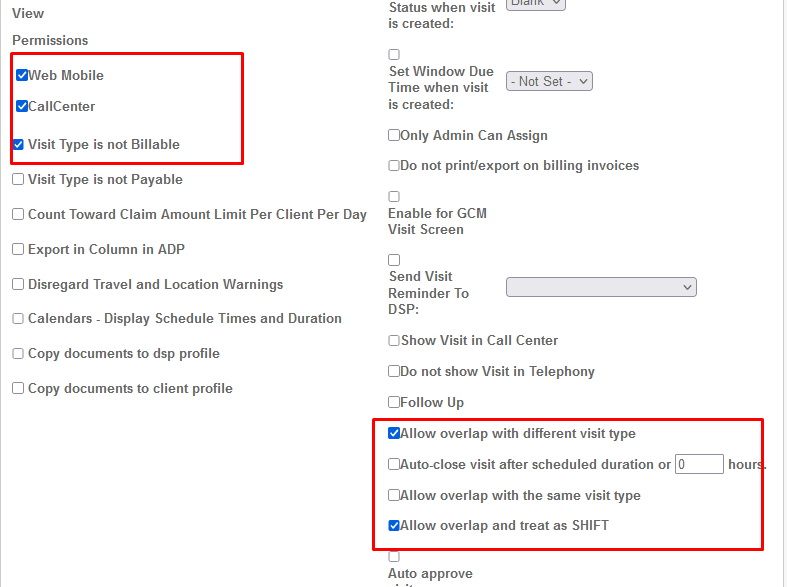
Some companies want workers to be clocked into multiple clients at once. Each visit type using this function must be enabled to allow overlapping clients. The system will ignore the overlap between clients.
To configure:
- Log in to the client's environment.
- Open each visit type you wish to enable.
- Click the Details tab.
- Check the box next to Allow overlap and treat as SHIFT.
Visit Type - Allow to Skip Client Signature & Allow to Skip Caregiver Signature
Some organizations do not need signatures on certain visit types. Either or both signatures can be skipped by checking the appropriate box in the visit type.
Visit Type - Disregard Duration Warnings on Visit Type
When this option is selected, no Visit Approval Dashboard warnings will be issued for that visit type when a duration breaks the system duration limits. This is useful for Training and/or Office visit types. To configure this for a specific visit type, contact Support at support@ankota.com.