Action Center Communication: Notes for Profiles and Messaging Staff
Overview
Communication is key. With the Action Center, you can do any of the following:
- Message administrators through the Action Center board
- Send a note to a caregiver or client's profile, with the option to show the note in the Action Center to administrators
- Message nurses with their assigned client's patient concerns (requires configuration; speak to your Ankota specialist)
Core Functionality
Prior to using the Action Center messaging system, there are a few core functionalities to understand.
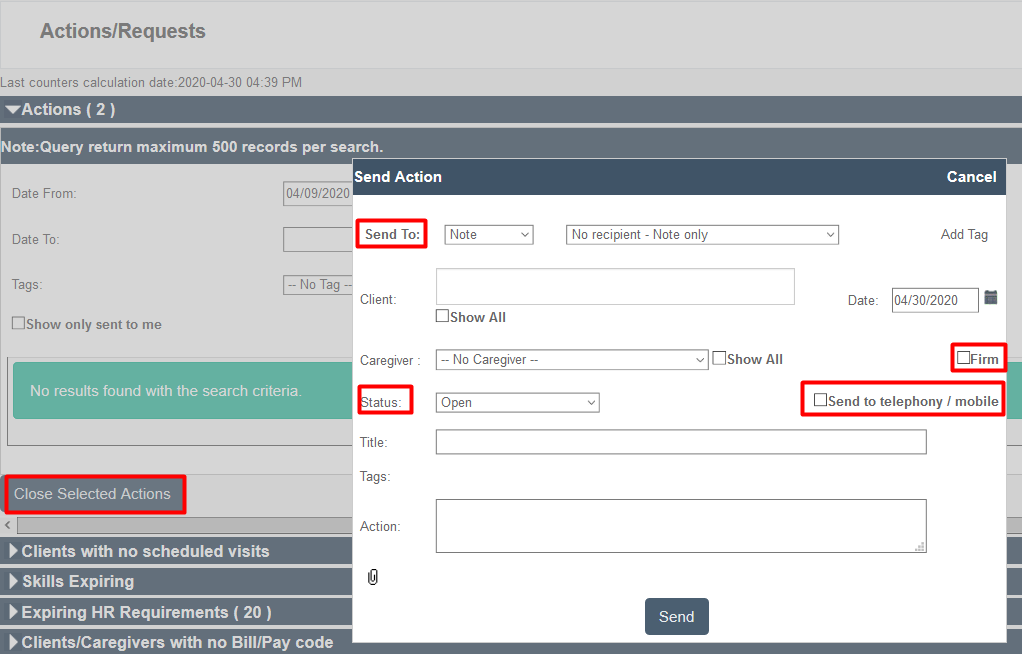
Send To: This function determines the kind of action created, and where the note or message is sent.
- If you send to a Note, it will go to the client or caregiver profile.
- (Caregivers are listed as a legacy option, but Mobile Chat or Send Message are the expected options)
- If you send a message to an Administrator, it will go to their Action Center.
- Marketer, Payer Descriptor, and Role configuration will depend upon your organization.
Status: Open versus Closed
- Notes in the status of Open will be visible in the Action Center.
- Notes in the status of Closed are treated as recordkeeping only, so they will only show in the profile and the Action Center will not be copied.
Send to telephony/mobile: This is a legacy option for caregivers. Generally, opt for Mobile Chat or Send Message.
Close Selected Actions: To close an action, select the open actions by checking the box next to them, then clicking the Close Selected Actions button.
Messaging Administrators in the Action Center Board
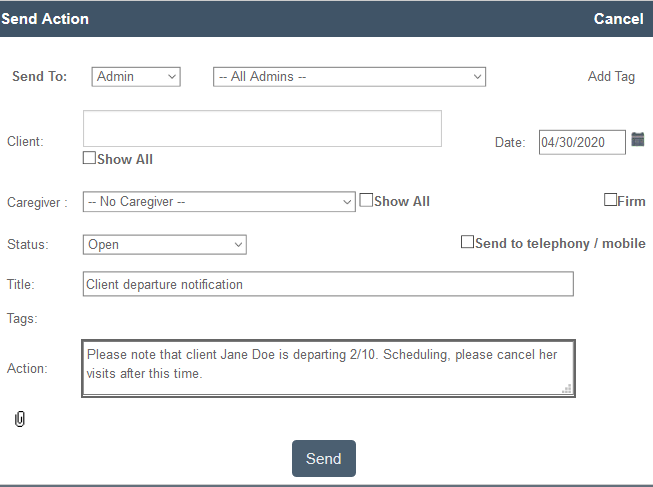
To send a notification to administrators' Action Center:
- Go to the Action Center in the Main Menu.
- Click the Create New Action button.
- Choose or cancel the tag.
- Select Admin: next to Send To:.
- If you select a Caregiver next to Caregiver: as well, it will send a copy of this note to the Caregiver's Notes tab.
- Select All Admins or a specific admin.
- Choose a status of Open for it to be visible in the Action Center; Closed to be filed for recordkeeping.
- Enter a title.
- Enter a message next to Action.
- Click Send.
Sending Notes to Caregiver Profiles
To send a note to a caregiver profile:
- Go to the Action Center.
- Click the Create New Action button.
- Choose or cancel the tag.
- Select Note: next to Send To:.
- If you select a Client next to Client: as well, it will send a copy of this note to the Client's Client Overview tab.
- Choose a status of Open for it to be visible in the Action Center; Closed to only appear in the caregiver and/or client profile.
- Enter a title.
- Enter a message next to Action.
- Click Send.
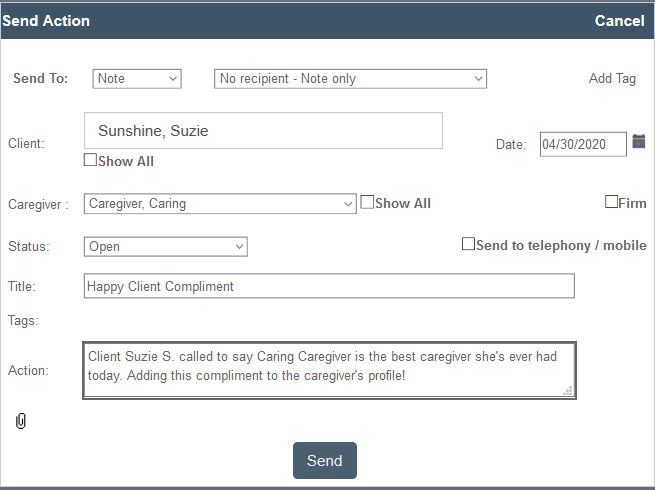
These are the same types of notes which can be created directly from the client or caregiver profiles.