How To Message A Caregiver Via Telephony Or Mobile App
Communicating with your workers in the field while you are in the office via telephony or Ankota’s mobile app is a convenient way for your agency to keep in touch with your caregivers.
To message your Caregiver, follow these steps:
Step 1
Login into your organization account, using code of your organization.
Step 2
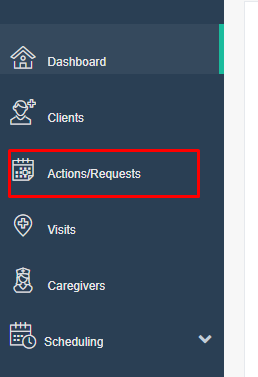
Click on "Actions/Requests" tab on the menu bar located on the left side of your screen.
Step 3
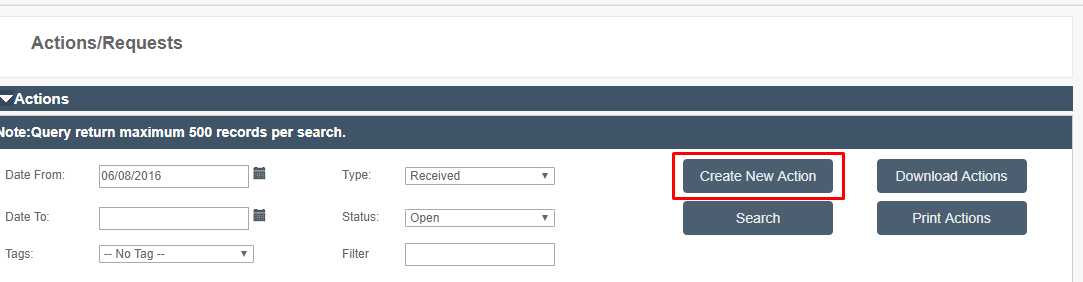
On the next screen, click on "Create New Action" button.
Step 4
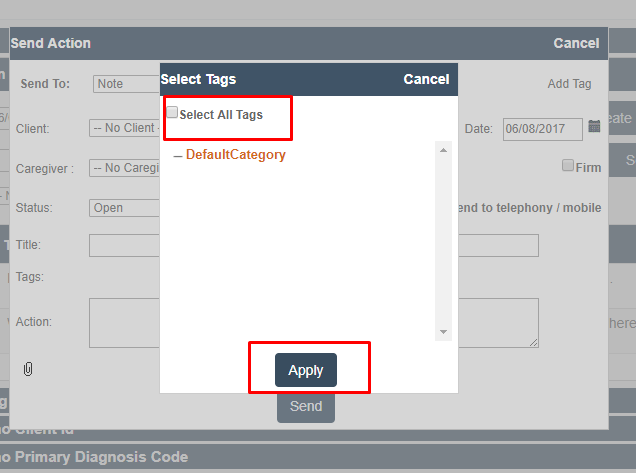
Once a new window pops up, cancel the "tags" (“Select All Tags” should not be selected) and click “Apply”.
Step 5
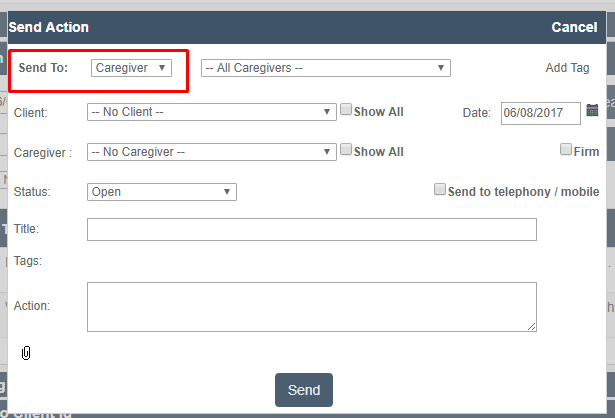
On the next screen, choose "Send to Caregiver" from the send to drop-down list.
**
**
Step 6
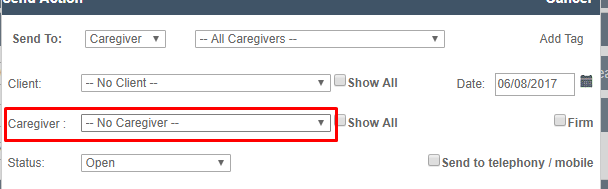
Next, select a Caregiver to send the message to from the Caregiver drop-down list highlighted on the picture below:
Step 7
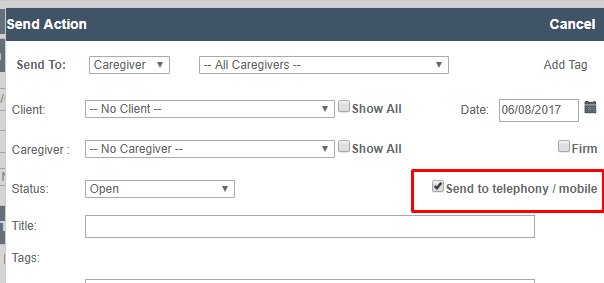
Next, check the box "Send to telephony/mobile”.
Step 8
Lastly, write your note to the Caregiver in the “Action” field. Additionally, you can add title to your message in the “Title” field.
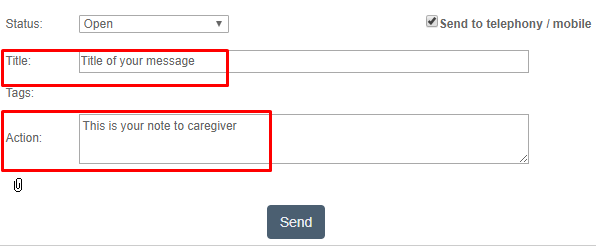
Put the note in “Action” field, rather than “Title” field.
Step 9
Click “Send” once you are ready to send your message.
Viewing the Message
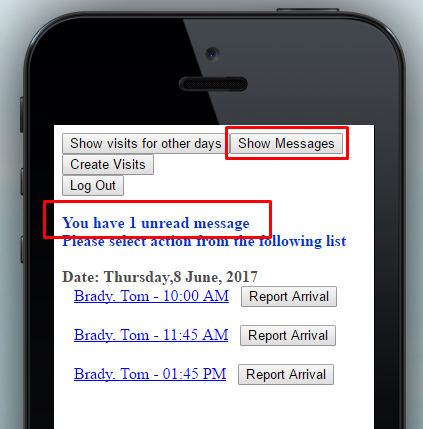
To view your message, your Caregiver will need to login with his/her ID into ankota.net/yourorganization (for example, ankota.net/mo). Notification of a new message will appear on a home screen.
Next, your Caregiver will need to click “Show Messages”.
**
**
The message will appear on the screen:
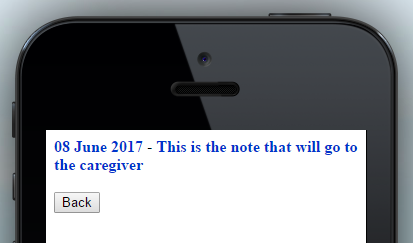
After the message has been read, and the Caregiver has pressed “Back” the message will disappear from the Caregiver's device.