Caregiver Training›Activity Management

Activity Management

Overview

Activity Management in Ankota Caregiver supports two modes of reporting on client activities and care plan items: individual daily activity management and group daily activity management. At this time, either group activity reporting or individual activity reporting can be used, but not both.

Individual Daily Activity Management

Clients' activities and care plan items can be viewed by clicking the "list" icon next to a client on the main check-in page:
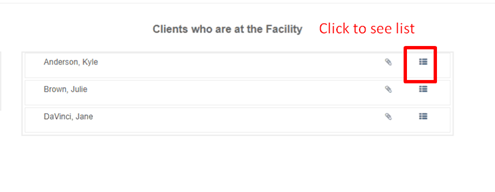
The "Clients who are at the Facility" list displays three client names (Anderson, Kylie; Brown, Julie; DeVinci, Jane) with action icons on the right side, including a highlighted red delete button and a blue details button for each entry.

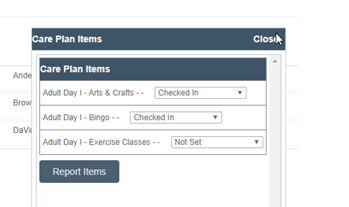
The Care Plan Items dialog box displays a list of scheduled activities for Adult Day I, including Arts & Crafts (Checked In), Bingo (Checked In), and Exercise Classes (Not Set), with a "Report Items" button at the bottom to generate reports based on the selected items.

Using this feature, activities can be reported one by one for each client.

Group Daily Activity Management

Activities can also be managed at a group level for each facility via the Activity Attendance page. To manage activities as a group:

  1. Select a facility.

Dropdown menu labeled "Aim, Facility" with a text field for selecting or filtering facility options in the Ankota Caregiver application.

  1. Select a tag, if desired, to pull up a specific group of clients.

  2. Select participant(s). If more than one participant is selected, the activity will be updated for everyone selected.
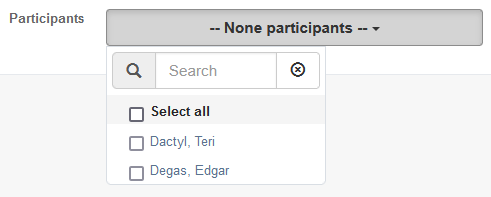
The Participants dropdown menu showing "-- None participants --" with a search field and a list of selectable participant options including checkboxes for "Select all," "Dactyl. Teri," and "Degas. Edgar."

  1. The activity list will appear.

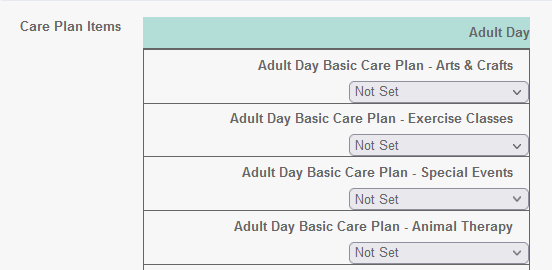
The Care Plan Items screen displays the Adult Day Basic Care Plan configuration with four care plan categories (Arts & Crafts, Exercise Classes, Special Events, and Animal Therapy), each with a dropdown menu currently set to "Not Set".

  1. Select a status. The same status will apply to every client selected.
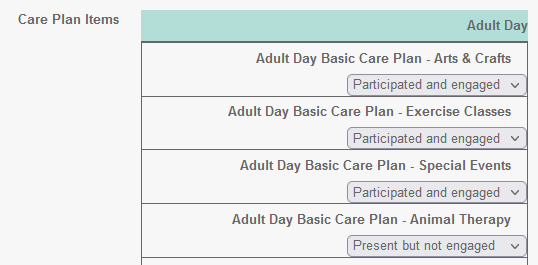
The Care Plan Items section displays four Adult Day Basic Care Plan categories with their participation status: Arts & Crafts (Participated and engaged), Exercise Classes (Participated and engaged), Special Events (Participated and engaged), and Animal Therapy (Present but not engaged). Each item has a dropdown menu showing the current engagement status.

  1. Add notes if desired.

Notes section displaying a sample note entry that reads "Edgar and Teri had a lot of fun together today."

  1. Select your name.

The Admin section header with a dropdown menu labeled "Support, Ankota, Support" displaying navigation options for the Ankota Caregiver application.

  1. Save.

A status does not need to be set for every care plan item in the group activity manager. Activities can be updated one at a time.

Example

  • Clients A, B, and C are participating in Arts & Crafts, but Client D is not actively participating.
  • Select clients A, B, and C and update their Arts & Crafts status to "participating," then Save.
  • Select client D and update their Arts & Crafts status to "present but not engaged," then Save.
Was this article helpful?
On this page