Add Care Plan Items in the Mobile App
Add Care Plan Items as Needed
This feature gives the caregiver the option to add on to the care plan, or by code to the visit. It is primarily used for Private Pay and Virginia.
-
In the mobile app, use the drop-down list to report any care plan items.
-
For telephony, use a special code (see Virginia Respite Reporting for details).
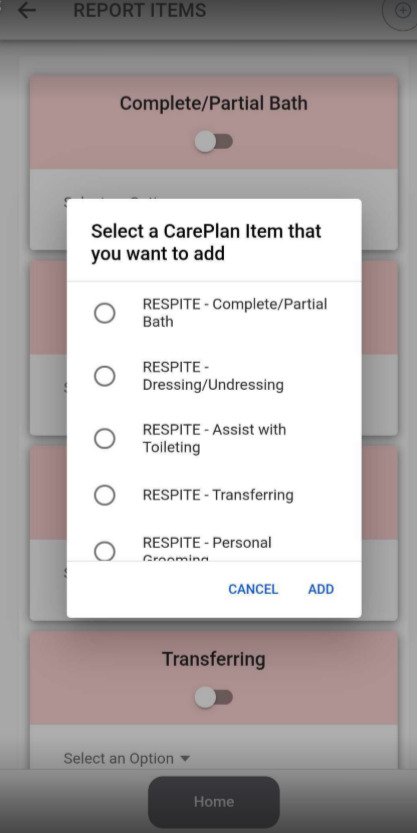
The process of reporting (for example, Respite) in the mobile app is effectively the same as with any visit type. The only difference is that the drop-down option is used to report the as-needed care plan items for Respite during departure.
Note: If a task has already been selected and marked as complete/not needed, it cannot be selected again as an additional item. Double-check tasks already completed before trying to add the same item twice.
Reporting Arrival
-
To clock in, click the Report Arrival button.
-
When prompted, accept the time.
-
A message will confirm arrival and display the expected departure time.
Reporting Departure
-
To clock out, click Visits, then Report Departure.
-
When prompted, accept the time.
-
A confirmation message will appear.
Report Care Plan Items as Needed
When providing Respite services, report any additional care plan items by selecting the plus sign at the top right corner of the tasks page. Add the appropriate Respite care plan item(s) and mark each as complete, not needed, or refused.
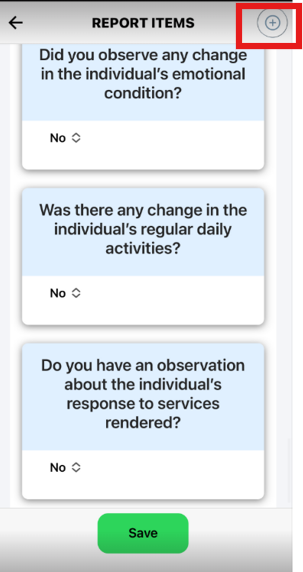
As many items as needed can be added.
Complete the Visit
-
Collect signatures and report any concerns if needed.
-
When asked to confirm the departure time, click Submit to continue clocking out.
-
Once the success message appears, navigate back to the home page.