Authorized Service Warning Report (Titration)
Overview
In order to help manage client authorizations, Ankota has designed a dashboard that allows users not only to review units that may be over- or under-delivered, but also to "Titrate" them according to a recommendation. "Titration" simply means to adjust something drop-by-drop, which in this case is the adjustment of the scheduled visits' lengths.
Note: titration works with split-month authorizations as of 2026.
Overview Video
Accessing the Report
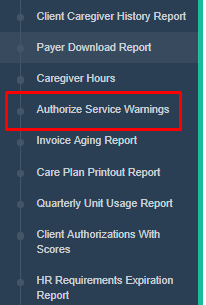
To review this report, access the Authorized Service Warning Report. (This is typically found under the Main Menu's Reporting tab, but may be under Scheduling or Billing for your organization.)
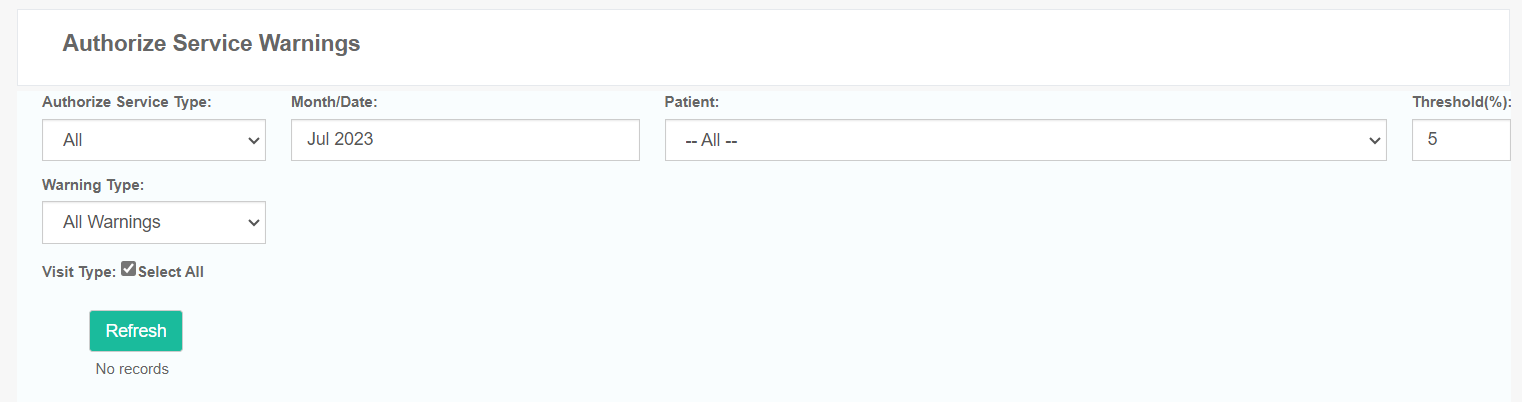
Select the month you wish to review and click the turquoise Refresh button. By default, this report will look at all clients; however, you can filter by client as needed. Under the turquoise Refresh button, it will notify you of how many records there are for that month.
NOTE: for weeks crossing two months, please switch to the WEEK view to avoid any confusion about the usage. If a visit is authorized for 4 days/week, and the week you are looking at has 2 in April and 2 in May, it will show only 50% usage for that week unless you switch to week view.
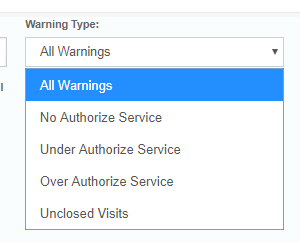
Additional filters that you can utilize are the following Warning Types.
After selecting your filters and pressing the Refresh button, the following report will display. It will list the client Name, authorization start and end date data, visit type, the period of the authorization, units authorized, how many units over or under the schedule/closed (and includes unclosed visits), along with a recommendation on adjusting the schedule.
In this example, the client is overscheduled by 59 units for Personal Care. The recommendation is to subtract 30 minutes from 28 Personal Care visits and to subtract 15 minutes from 3 Personal Care visits.


Applying the Titration
If you would like to take the recommended suggestion, simply check the box by the client's name, scroll to the bottom, and click the Titration button. This will adjust the visits and allow the schedule to be 100%.
Before Titration:

After Titration:

If you wish to make the adjustments, this report is best to run prior to an existing month so that adjustments can be made prior to the month's start. (Contact Ankota support if you wish to have this set as an automatic process.) It is also valuable to run the report manually during the current month to view suggestions and stay informed.
Be sure to communicate any schedule changes with the caregiver to ensure they understand the changes in time. Keep in mind this may not be helpful in some cases, where only a small window of service is needed, and additional time cannot be used. For example, if assistance is needed in the morning for a child before school, that visit cannot be extended as the school start time is a set time.
Not Required for this Patient Button
The Not Required for This Patient button is commonly used for clients that do not need authorizations and do not need to be in the Authorized Service Warning Report. Some environments use client Office for Administrators to clock in and out.
When the button is pushed, the client will be removed from this report.
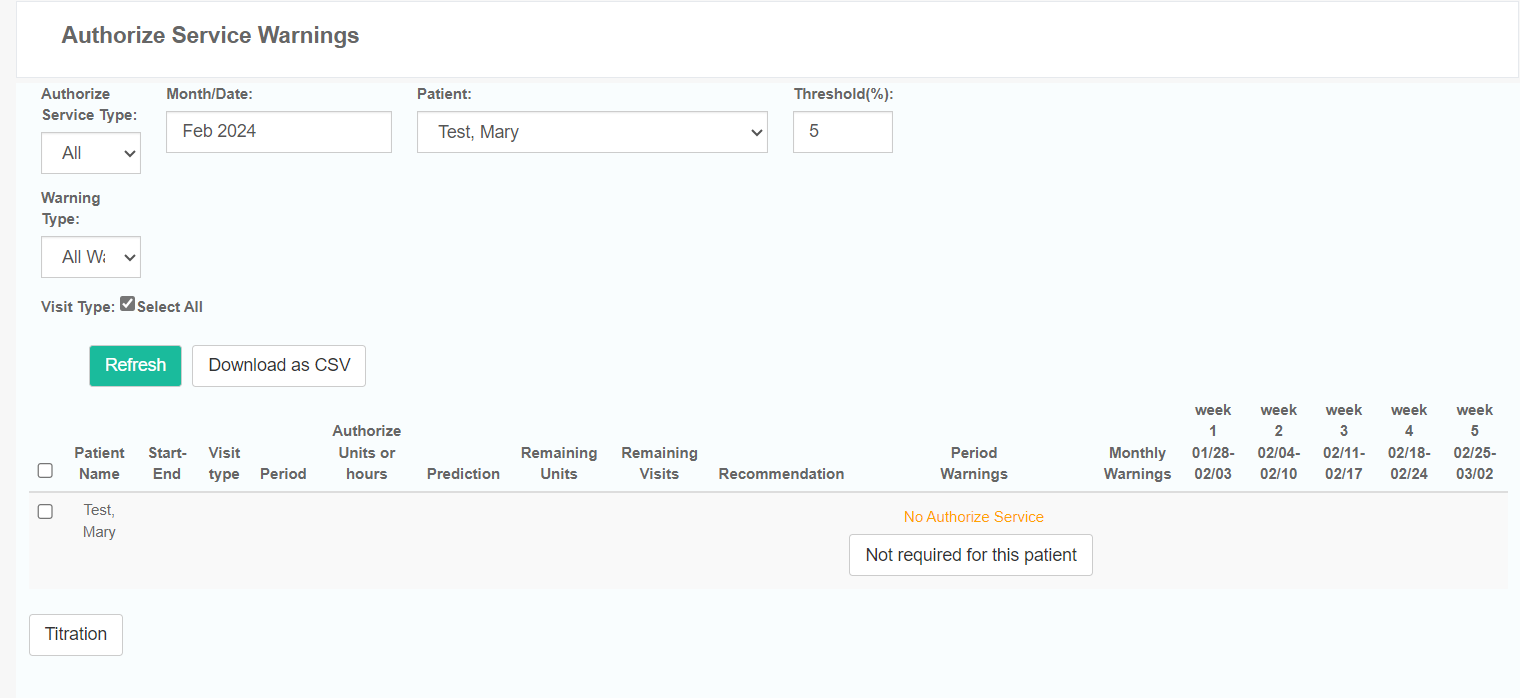
If you would like to add the client back to the Authorized Service Warning report, do as follows:
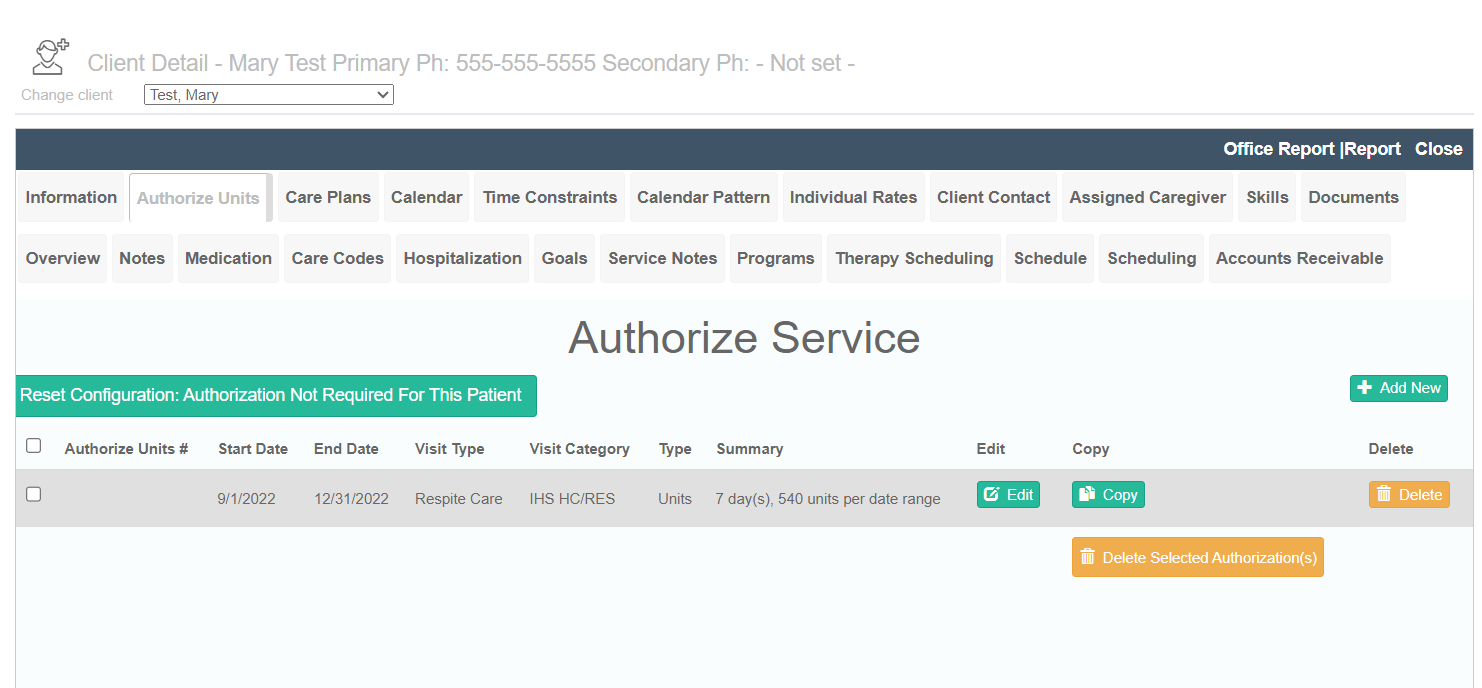
- Go to Client Profile.
- Select the Authorized Units tab.
- Select the green Reset Configuration: Authorized Not Required for This Patient button.
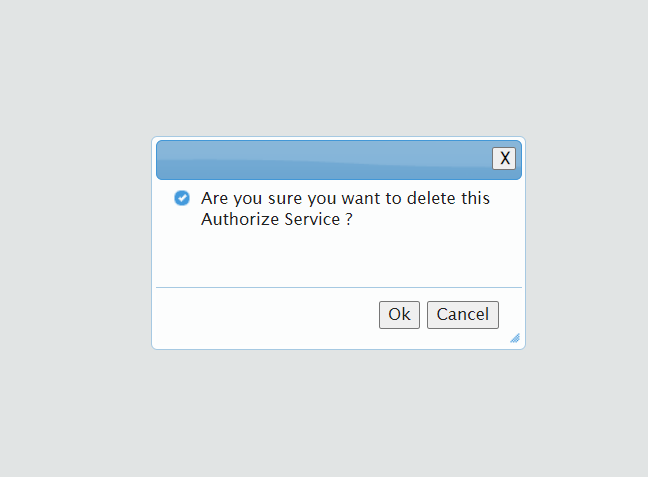
It will ask if you are sure you want to delete authorized services. Select OK.
Related Reports
For a report comparing authorized services to delivered services, see the Authorized vs. Delivered Services report article.