Authorized vs. Delivered Services Report
Overview
To ensure authorizations are being committed to their fullest, the Authorized vs. Delivered Services Report can be run as a double check.
Running the Report
To run this report:
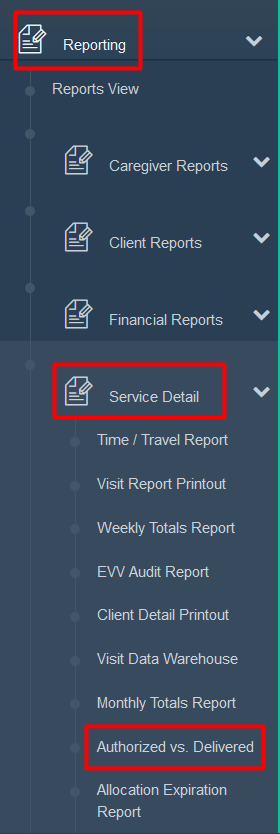
- Click Reporting in the Main Menu
- Click Service Detail
- Click Authorized vs. Delivered
Note: Some organizations may have this under New Reports in the Billing section.
Filters
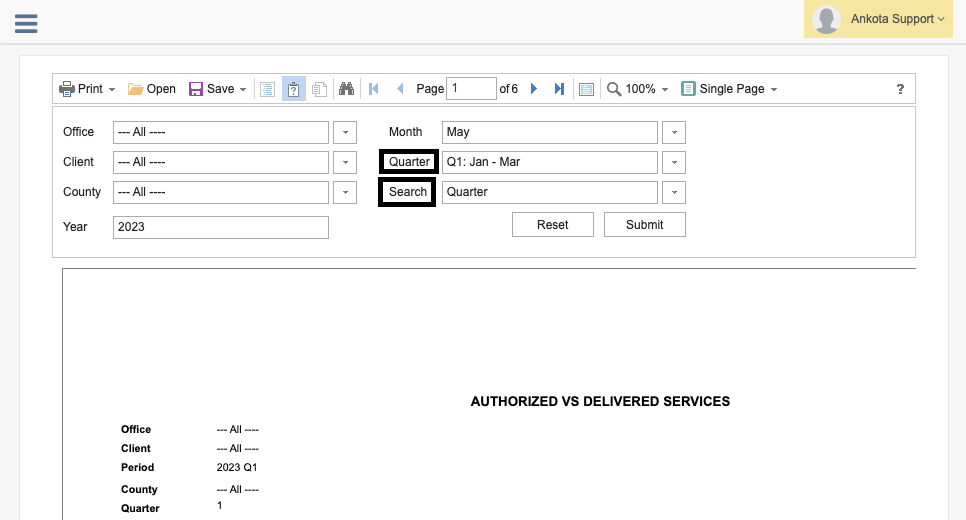
Like most Ankota reports, this report has a variety of filters to further define the search. By default, it will choose All.
Select the date range, select whether searching by quarter or month, specify which office or leave as all, adjust any other filters as desired, and click Submit. A preview will then be visible.
To select by Quarter: select the Search drop-down and choose quarter. Then choose one of the four quarters and the year, and click Submit. Note: The month search tab will be disregarded if searching by quarter.
Report Contents
The report will record the office and client name along with their DCN/Medicaid ID, the count (if entered), Visit Type, the authorized units, and delivered units. It also defines the Billed Units and Billable Units Not Billed, along with the variance and compliance of the authorization.
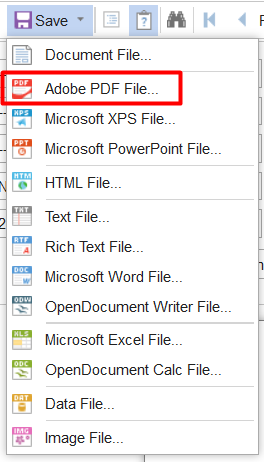
To export a full copy of the report, click the drop-down arrow next to Save and select the desired export format (typically PDF), then save to the desired location.
Variance Column
The variance column (next-to-last column, before compliance) requires some explanation. Usually there are authorized units. Variance is simply authorized units minus billed units. For example, if 100 units were authorized but 90 billed, the variance would be 10 units. Alternately, if 0 units were authorized but 14 were delivered, the variance would be -14.
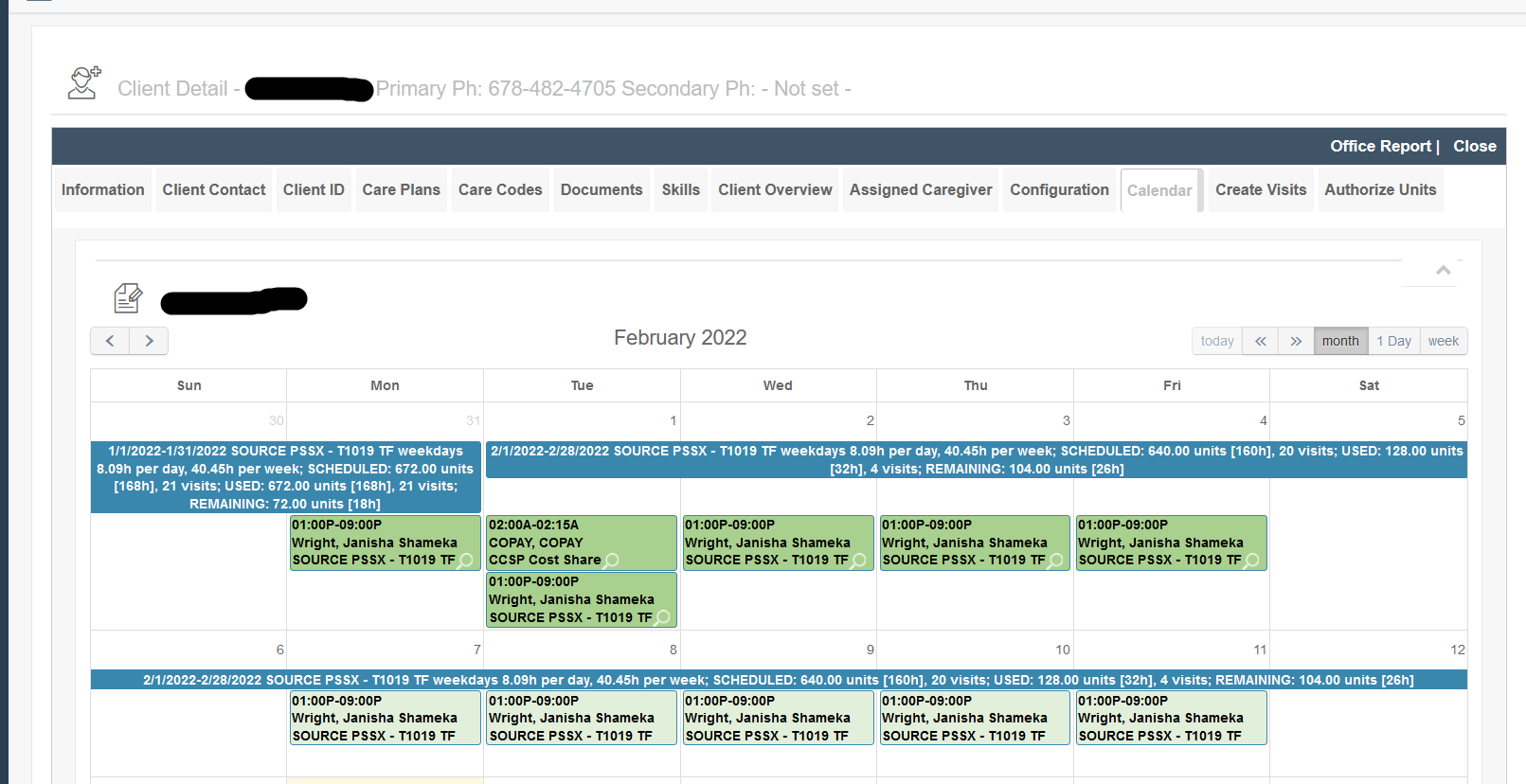
Authorized vs. Delivered Banner on Client Calendar
Some customers wish to have clear visuals on their client's calendar of their running authorization, similar to the authorization tracker that is now defaulted in the VAD for most customers. To view authorized and delivered units as a special entry on the client calendar, contact Support and request this option be configured.