Calculating Payroll
Overview
Ankota users will calculate payroll regularly as part of the process of ensuring their caregivers are paid on a timely and accurate basis for their services. In order to calculate payroll, first ensure that caregivers and pay codes are entered, visits are closed and approved, and any exceptions have been addressed.
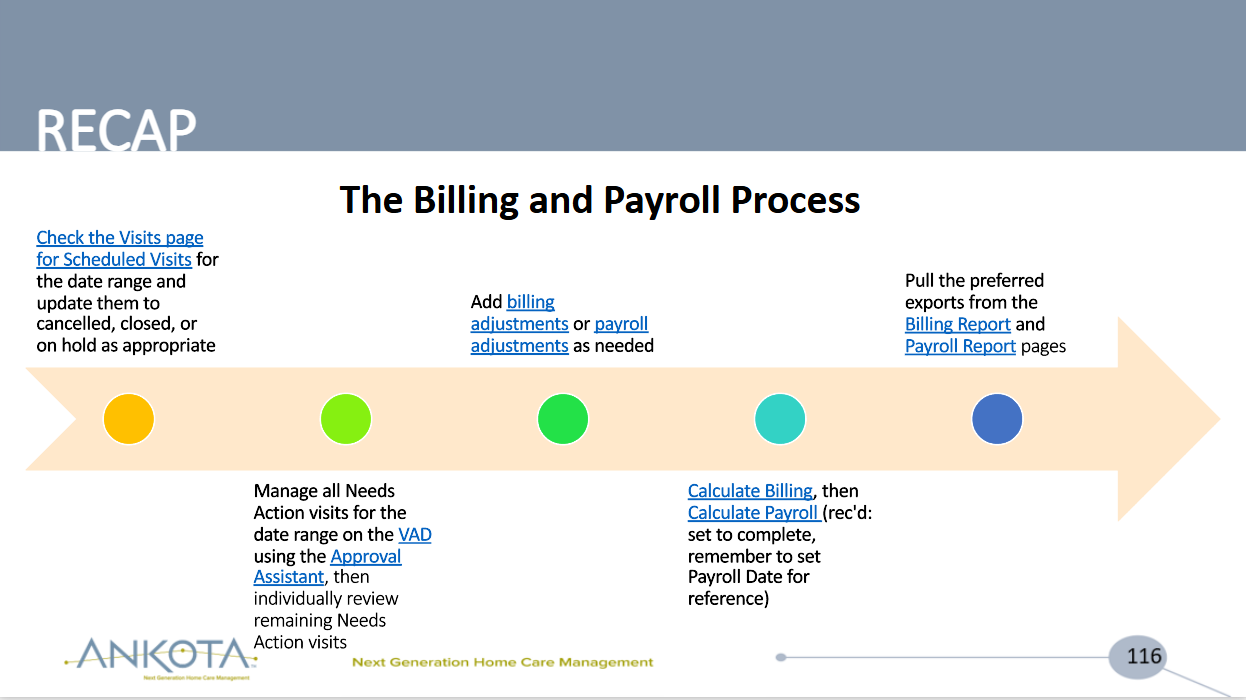
PDF Download: Billing and Payroll Process - RECAP.pdf
Calculate Payroll
To calculate payroll, go to the Main Menu, click Billing, and then click Calculate Billing and Payroll.
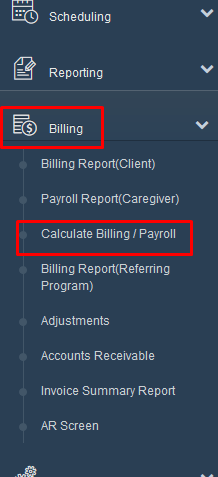
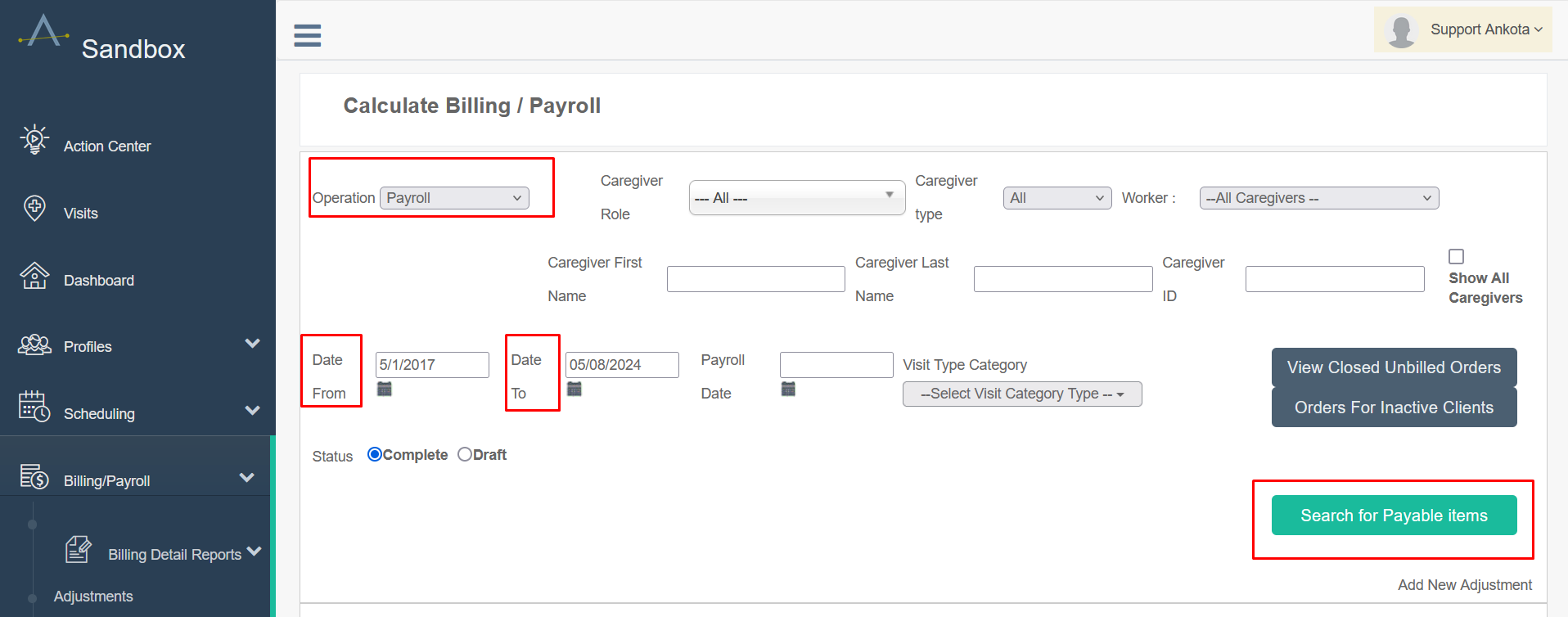
You'll now be on the Calculate Billing/Payroll screen. First, filter:
- In the drop-down menu next to Operation, select Payroll
- Next enter the date range
- Optionally you can do one caregiver in payroll, which can be useful if you need to re-do a check
- Ankota recommends you put the start date as the date you began with Ankota for each round of payroll processing. This way you will ensure that any visits that were not previously closed will be included in this round of payments — only payable visits are listed
- Add additional filters if desired
- Then click the Search for Payable Items button
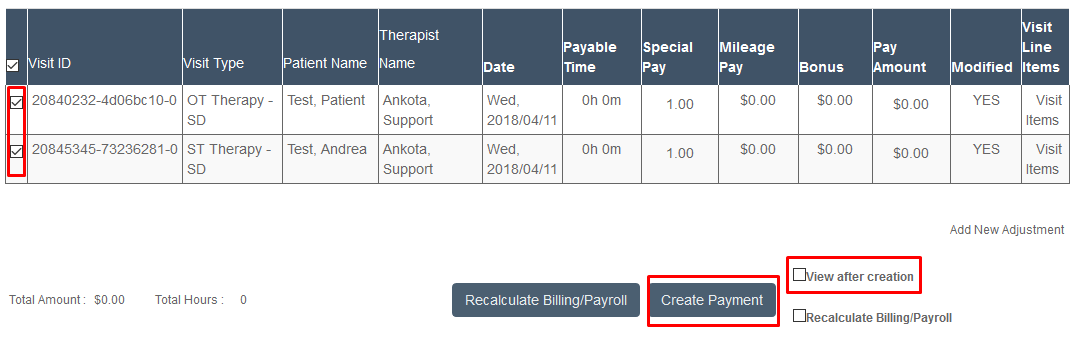
You will see the individual visits that will be in the payroll report. Now select the visits you wish to pay:
- Check the box next to each desired visit (or select all). Check the View after Creation box if you wish to skip to the Payroll Report page
- Click the Create Payment button to build the payroll reports
- Your payroll reports will be built
Troubleshooting
General
If you see obvious issues, such as $0 pay, click Recalculate Billing/Payroll to pick up any changes. If you still don't see rates, the visit could have 0 billable/payable minutes or the caregiver may be missing a pay rate. If you cannot find the issue, contact Support.
Payroll - New Rates
NOTE: If caregivers have changed pay rates during this period, filter for the specific date range of the NEW pay period, filter for the caregiver, and then click Recalculate to apply the new rate to this period. Make sure you do NOT include the dates of the old pay rate when recalculating a caregiver's pay, or you will apply the new pay rate to the old pay period.
Next Step
For the next step in this process, see Payroll Reports - Completing Payroll.