Conduent Clearinghouse Functionality with Ankota Files
Overview
Conduent is the chosen clearinghouse for straight Medicaid in Virginia. To successfully use Conduent's clearinghouse services, complete the steps below.
Note: If submitting straight Medicaid to Conduent via Availity in Virginia, enrollment with Conduent is not required and the enrollment form can be skipped. Obtain the sender/submitter ID from Availity.
The general process is:
- Enroll with Conduent
- Test
- Bill as usual in Ankota, then upload the Merged Health Care Claim to Conduent
Topics covered:
- EDI Enrollment Application
- Testing & Getting Approved for Production
- Live Production Uploads
- Remittance Advice (835s)
EDI Enrollment
To enroll with Conduent:
- Complete the Conduent EDI Enrollment Package.pdf and send it to Conduent at virginia.edisupport@conduent.com.
- Receive log-in and Sender/Submitter ID (wait time: approx. 2 weeks).
- Be prepared to send nudges; set calendar reminders.
- Provide Ankota the Sender/Submitter ID when received.
One section in the packet may require guidance. Under "Name of software vendor or billing agent," enter Ankota's information:
- Name: Ankota LLC
- Service center number: 2499
- Primary Contact: [Ankota specialist's name]
- Title: [Ankota specialist's title, likely Project Manager]
- Phone number: [Ankota specialist's phone number, at the bottom of their email]
- Email: [Ankota specialist's email]
Transactions available for Transmission — mark ADD on:
- Eligibility Req/Resp
- Eligibility Roster (834)
- Remittance Advice (835)
- Professional claims (837-P)
PAGE EIGHT: List the agency's OWN service center number on page 8 to ensure receipt of the 835 and other files in the Conduent portal.
Testing & Getting Approved for Production
To complete the first Conduent test, pull an Ankota file and upload it to Conduent.
Creating and Uploading a Test File
- Log in to Ankota.
- Go to Billing Report.
- Sort for Straight Medicaid.
- Select one invoice (check the box next to it).
- Click Export Merged Healthcare Claim and download the file created. Note where the file is saved (typically the download folder).
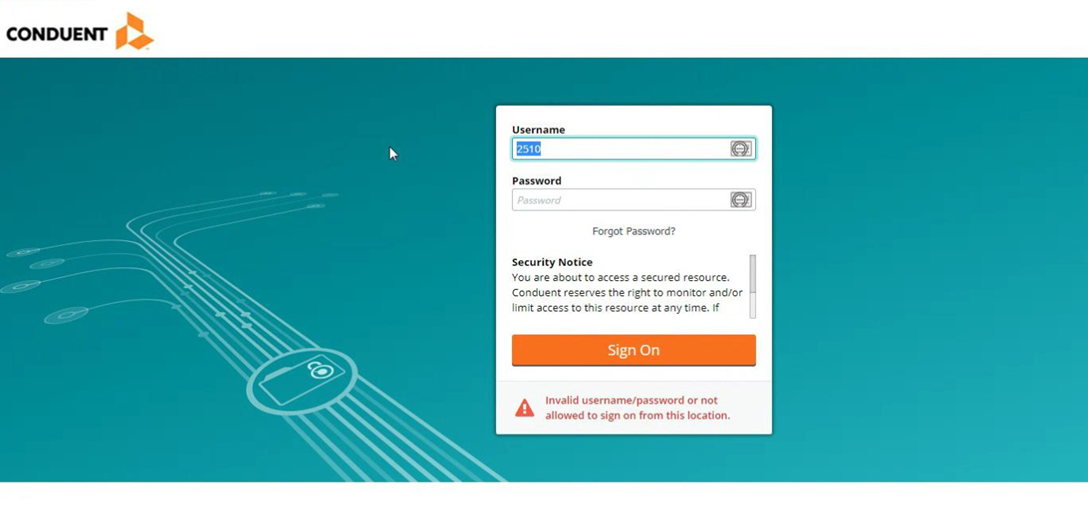
- Log in to Conduent at https://vammis-filetransfer.com/ with the company log-in received after submitting the enrollment packet.
- The user name is likely a number.
- If a password has not been set up, the button will say "Request Password." Clicking it sends a link to create the password.
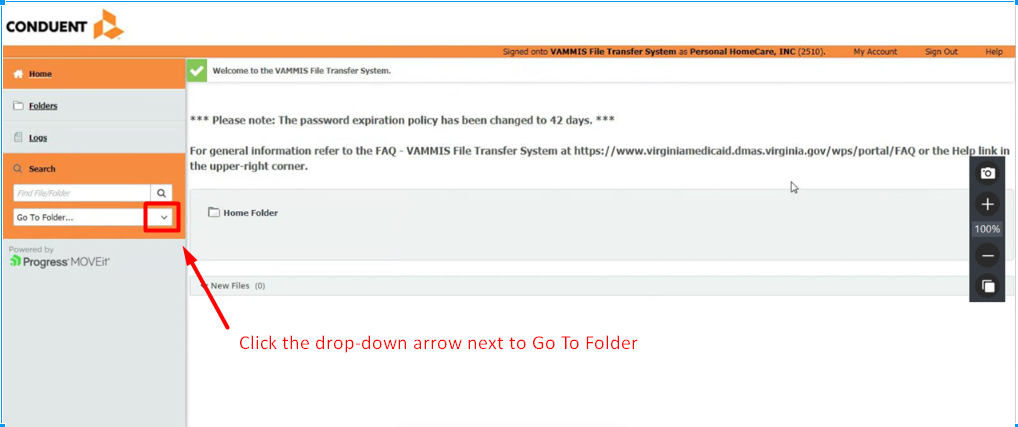
- Click the drop-down arrow next to Go To Folder.
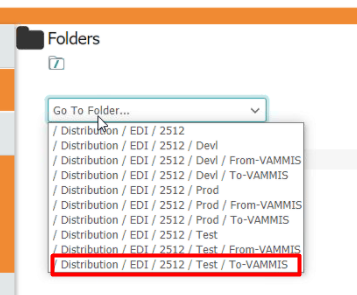
- Open the Test/To-VAMMIS folder.
- Open the downloaded Ankota file.
- Replace the letter P between stars (P) at the top of the file with the letter T for test file.
- Save the file and close it.

- Upload the test Merged HealthCare claim file with the P replaced by T.
- Wait 24–48 hours for processing.
Checking for the Test Response File
- Log in to Conduent.
- Go to the Test/From-VAMMIS folder.
- Look for the response file.
- Download a copy of the response file (typically titled SenderID#_ACK) to review and send it to the Ankota specialist.
- If there are rejection files — CER or CED files — send those to the specialist.
- Sort by date and only look at the most recent response files.
If the file looks good, the Ankota contact will reach out to Conduent for confirmation and to request the client be moved to production. Wait 2 weeks to be moved to Production. A confirmation should be received, but set a calendar reminder and inquire immediately at the 2-week point.
After the initial test file is approved, test with a true production file in the Production/To-VAMMIS folder. It is no longer necessary to replace the P with T after the initial test; simply upload the standard file.
Live Production Uploads
Once approved for production, claims can be uploaded regularly. The first time uploading a claim, upload a single invoice to confirm the process is successful before uploading whole batches.
Sending a Live (Production) File
- Log in to Ankota.
- Go to Billing Report.
- Sort for Straight Medicaid.
- Select the invoice(s) (check the boxes).
- Click Export Merged Healthcare Claim. Note where the file is saved.
- Log in to Conduent at https://vammis-filetransfer.com/ using the agency log-in.
- Click Go To Folder.
- Open the Prod/To-VAMMIS folder.
- Open the downloaded Ankota file.
- Upload the file to Conduent.
- Wait 24 hours for processing.
Accessing the Live Response File
- Log in to Conduent at https://vammis-filetransfer.com/ using the agency log-in.
- Click Go To Folder.
- Open the Prod/From-VAMMIS folder.
- Download the copy of the response file to review. The AK9, IK5 phrases confirm the file is good.
- Alternately, when a 999 and ACK are received without any CER/CED reports, the files passed.
- If there are rejection files — CER or CED files — send those to the specialist.
- Sort by date and only look at the most recent response files.
- If set up to receive 835s, download the 835 and upload it in the Ankota AR screen.
Remittance Advice (835s)
835s are provided in response to all production claims to Conduent clients who complete page 8 of the Conduent package, linking their NPI to the Service Center. These 835s are placed in the From-VAMMIS-PROD folder on Mondays and/or Tuesdays. All 835s are clearly labeled as 835s (e.g., 2499_835_etc.). Look for 835s the first week after the first live billing. If 835s do not appear within a week of live billing, contact Conduent immediately to clarify the situation.