Configuration Options for Organizations
Overview
During implementation, organizations can tailor their Ankota options to their needs through configurations. Below is a list of the most common configurations.
To request changes to the default configurations, review the list below, then provide the complete list of requests to the Ankota implementation specialist at the start of the implementation period. This list applies to current/new environments. Longstanding customers may have legacy configurations.
Note: For more information on mobile app features and configurations, see the Mobile App Admin Perspective.
This article includes information for configurations on:
- Action Center Management
- Adding a URL link to Ankota
- Available Shifts
- Billing & Payroll Rules
- Clock-in/out Management
- Mobile App Management
- Nurse Access
- Text Notification Management
- Visit Approval Dashboard
Action Center Management
Any of the Action Center notifications below (all defaulted) can be shown or hidden:
- Clients with no scheduled visits
- Skills Expiring
- Expiring HR Requirements
- Caregiver Birthday
- Client Birthday
- Clients with no Client ID
- Clients with no Primary Diagnosis Code
- Expiring Authorize Services
Adding a URL Link to Ankota
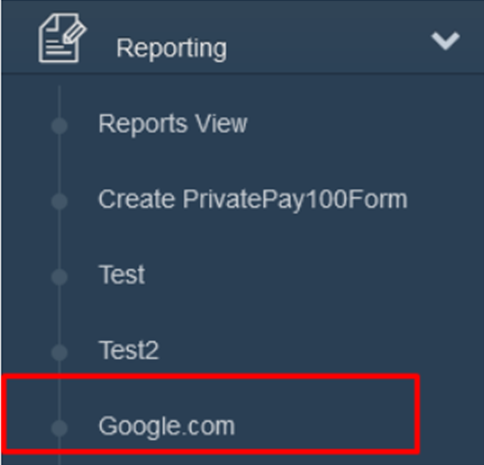
A link to the organization's website and/or other external data programs can be added to the system. Contact support@ankota.com to request this option.
Available Shifts
Available shifts, where caregivers can view uncovered visits for the next 3 days and pick them up, is a defaulted option in Ankota. Available shift options include:
- Available Shifts section is made available in the mobile app
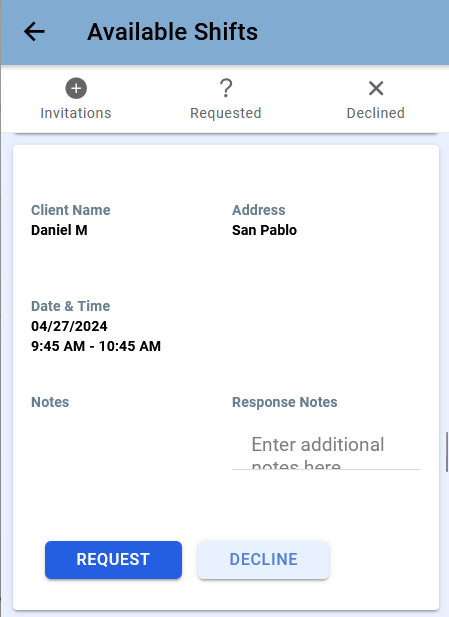
- Show open shifts only to assigned workers
- Show open shifts to workers within ___ miles (DEFAULTED TO 15)
- Show open shifts to workers with < ___ hours in the week (including this visit) (DEFAULTED TO 40)
- Show open shifts to workers with < ___ hours on the visit date
- Show open shifts to workers for the next ___ days (DEFAULTED TO 3)
- Show only client's first initial, last name, and city
- All workers can accept available shifts (DEFAULT ON)
- Show care plan tasks on open shifts
The rules which govern available shifts are similar to the Find Matching Caregivers feature:
- The caregiver must be available at the time of the shift
- The caregiver must have the skills for the shift
- If the shift is sent to them in Find Matching Workers, the caregiver can see the shift
Billing & Payroll Rules
Most billing rules for organizations with Medicaid will be set to match the state's requirements. In some cases, usually private pay, other options are available. These settings are decided by each organization in consultation with their implementation specialist.
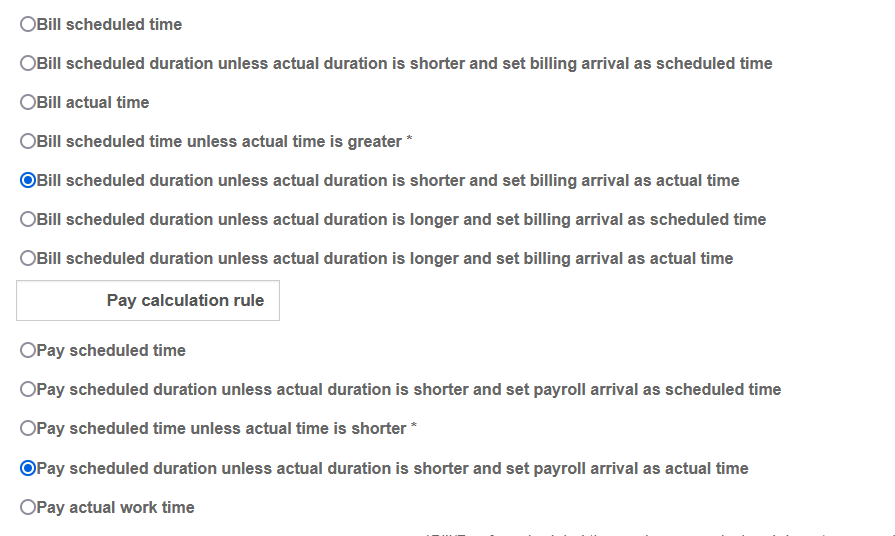
Bill / Pay No More Than Scheduled Duration or Bill Actual Time
Organizations can choose whether to bill or pay actual time, or only bill up to (no more than) the scheduled duration. This setting is typically configured by the implementation specialist and is a foundation setting.
Rounding Rules
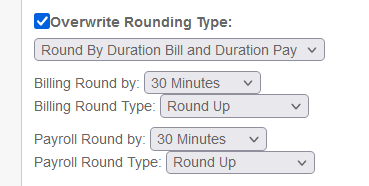
Billing and payroll rounding rules normally match the state's requirements and are set by Ankota. Where adjustments are needed, rounding rules can be set at an organization or visit plan category level.
For example, the state Medicaid rule may be to round to the nearest 15 minutes, so the system billing rounding rule will match that.
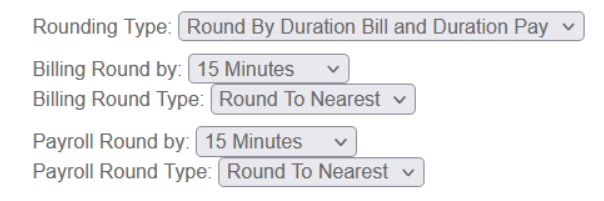
If the same organization also has private pay clients, they may request a unique billing and/or payroll rounding rule for that category, such as rounding up to the nearest 30 minutes for private pay clients (both bill and pay).
Billing / Paying by Authorization
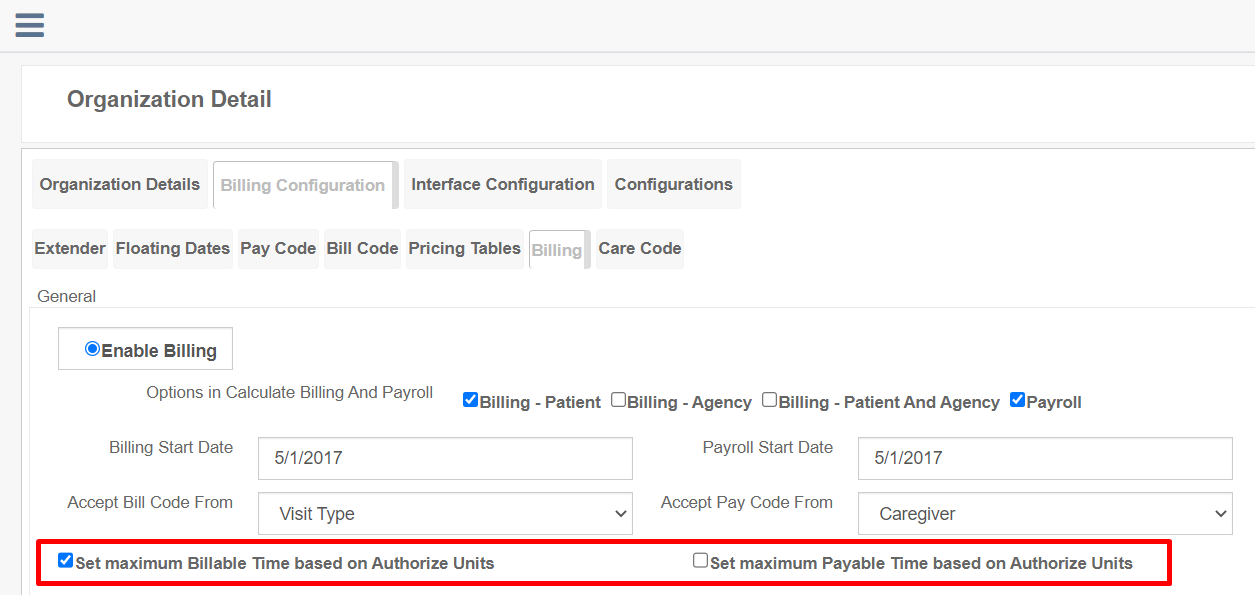
One common way to manage billing and/or payroll is to limit billing to the total authorization at a system level (affecting all payers). This is done through a system setting, typically by the implementation specialist. Exceptions can be made at a visit plan category level, so that there is an overarching rule for Medicaid, but an exception for private pay. Most often, only billing is limited by authorization.
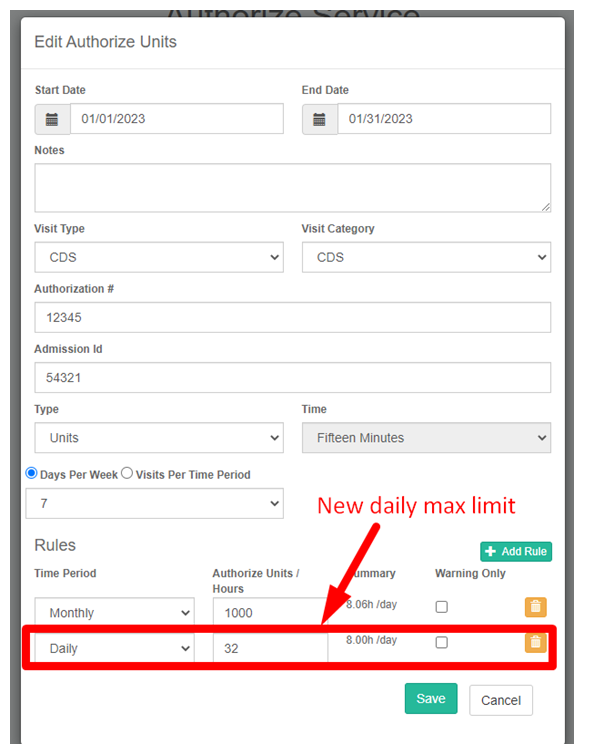
As a secondary layer of authorization management, additional authorization rules can be added at a client authorization level. This second layer ensures that if billing and/or payroll is limited by authorization, additional limits (daily, weekly, or monthly) can be added on top of the main authorization.
Billing/Payroll Exceptions
Additional billing and payroll adjustment options available:
- Adjusted bill/pay rates for holidays, nights, weekends, or specific time(s)
- Overtime rates
- Discounts on an amount or percentage basis
- Unique rates for specific durations
- Minimum billable or payable times
- Unique billing tables for payers or clients
- Travel or errand mile billing exemptions
- Single-visit bonuses, upcharges, or rate adjustments (typically for last-minute adds or caregiver incentives)
- Unique pay rates between a single client and caregiver (typically for temporary caregiver incentives)
- Maximum billable or payable times based on authorization — for applying to a single visit type
- Split visit at midnight
- Split billing by visit type
- Split billing by patient
- Split billing by visit category
- And more (inquire for specifics)
Clock-in/out Management
Clock-in/out management (caregiver clock-in/out) has the following options:
- GPS warning (defaulted): Warnings are issued when caregivers clock in or out too far from the designated service location. Allowed range varies by state/organization type. 0.1 miles is the default, but the distance can be tailored. (DEFAULT ON)
- GPS with 3 blocked attempts: Temporarily locks down the ability to clock out as a reminder to reach the right location. After 3 attempts, the caregiver is allowed to clock in regardless of location; a warning is registered for administrators.
- GPS lockdown: Locks down the ability to clock in or out. Caregivers can only clock in or out inside the allowed range.
- Prevent early clock-ins: Early clock-ins can be blocked; the number of minutes can be adjusted by request.
- Text notification for caregivers if late clocking in: Text notifications to all caregivers with phone numbers (with the Visit Reminder box checked). (DEFAULT ON)
- Text notification for admins if caregivers are late clocking in: Text notifications to specific admin phone numbers can be configured.
- Escalate client concerns/emergencies to admin: Change visit to "needs approval" and notify admin/office via email.
- Prevent caregiver from clocking in if previous caregiver hasn't clocked out.
- Don't allow login without GPS turned on: Prevents caregivers who deny location tracking from clocking in/out to a visit until they allow GPS. This default can be turned off.
- Flag visits with documents (DEFAULT ON)
- Flag visits with notes (DEFAULT ON)
- Only one caregiver can be clocked in: Prevents two caregivers from clocking in to the same client at the same time. Universal setting, but exceptions can be made on certain visit types (e.g., office shift visits can allow multiple caregivers).
Mobile App Management
The mobile app has many sections and options within those sections. Mobile app options can be adjusted to:
- Show/hide worker signature on mobile app (DEFAULT SHOW SIGNATURE)
- Show/hide patient signature on mobile app (DEFAULT SHOW SIGNATURE)
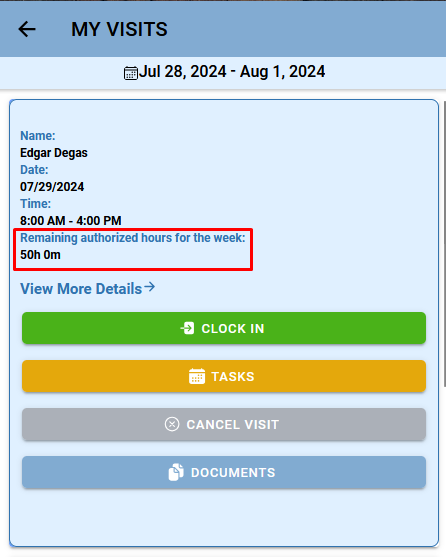
- Show/hide remaining authorization (DEFAULT SHOW REMAINING AUTH)
- Show/hide patient concerns
- Show/hide Availability for caregivers to set their schedules and time off (DEFAULT ON)
- Turn on/off mobile app sections as desired
- Available sections are Visits, My Clients (for Assigned Caregiver functionality), Visit History, Payroll, Chat, Calendar, Settings
- These sections can also be re-named
Critical features for the mobile app:
- On Hold manual caregiver closure (DEFAULT ON): Automatically returns visits that were scheduled and assigned but not completed back to the caregiver so they can turn in a digital timesheet for admin approval.
- Rework visits (DEFAULT ON): Allows caregivers to send a visit back to the caregiver in order to get more notes, signatures, or care plan items reported.
- Cancel Visit button (DEFAULT ON)
- Missed Visit button: For organizations where caregivers create their own visits and need a special button to create and report a visit in the past — like a digital timesheet.
Nurse Access
Nurse access has the following options:
- Add a fillable document — provide a clear copy of the form; Ankota will build a comparable version that can be filled out on the go.
- Make added documents available in the mobile app — designate which documents should be available on which visit type.
- Approve nurses to schedule their own visits on the fly in the mobile app.
Text Notification Management
Ankota has many text notification options in addition to chat via the mobile app:
- Text caregiver if they are late clocking in (DEFAULT ON)
- Text caregiver if they are late clocking out (DEFAULT ON)
- Text selected admins if caregivers are late
Visit Approval Dashboard
Visit Approval Dashboard warnings help administrators ensure that visits with issues can be reviewed and adjusted. Configurable warnings include:
- Outside GPS "fence" (with configurable distance) (DEFAULT ON)
- Duration +/- # minutes warning (with configurable minutes)
- Start time +/- minutes warning (with configurable minutes)
- End time +/- minutes warning (with configurable minutes)
- Visit duration < _ minutes from scheduled duration
- Visit duration > _ minutes from scheduled duration (DEFAULT ON TO 8 MINUTES)
- Notification of notes on visit (DEFAULT ON)
- Notification of errand miles more than # miles
- Notification of less than # percent of care plan items done (DEFAULT ON TO 1 PERCENT)
- Admission ID missing warning (DEFAULT ON IN MOST STATES)
- No SSN on employee warning (DEFAULT ON)
- No FCSR ID warning (DEFAULT ON IN MISSOURI)
- No Medicaid ID warning (DEFAULT ON, except for private pay only)
- No physician and physician NPI warning
- Visits closed by or arrived by admin warnings
- Visit has notes (DEFAULT ON)
- Visit has care codes
- Visit reported by another caregiver (rare configuration to allow caregivers to clock in by location)
- Client missing address (DEFAULT ON)
- Mandatory care plan items not completed
- Visit has documents (DEFAULT ON)
- No care plan on visit (DEFAULT ON)
- No client signature violation
- No client recording violation
- Violation — no care plan items (DEFAULT ON)
- Violation — mobile missed visit (DEFAULT ON)
- Violation — visit was on hold (DEFAULT ON)
- Mobile — allow on hold visit closing (DEFAULT ON)
- Violation — visit out of business hours
- Violation — mobile rework Visit Mobile (DEFAULT ON)
- Violation — mobile device was restarted during visit
- Violation — existing patient concerns
- Clock-in and clock-out use different methods
- Violation — no worker code (DEFAULT ON)
- Violation — no worker ID on worker (DEFAULT ON)
- Violation — missing payer descriptor on visit (DEFAULT ON IN MOST ENVIRONMENTS)