Connecting to GoToMeeting for Ankota Support
Overview
Sometimes the best way for the Ankota support team to resolve a question is through screen sharing. An Ankota support team member may ask the customer to connect to a GoToMeeting session.
Connecting to GoToMeeting - Impromptu
To connect with support staff via GoToMeeting:
- Go to https://www.gotomeeting.com/meeting/join-meeting
- Enter the code the support member provides.
- The Ankota support member will be waiting in the meeting.
Connecting to GoToMeeting - Calendar Invite
Typically, meetings are scheduled via calendar invite. Opening the calendar invite will display the GoToMeeting link.
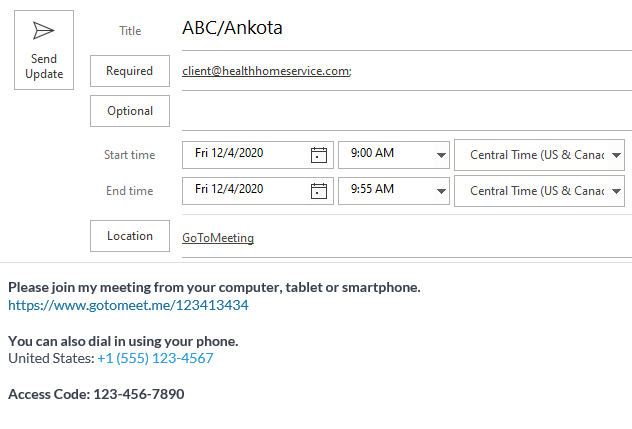
Click the link to be taken to the meeting. (This is a Zoom-like teleconference call.)
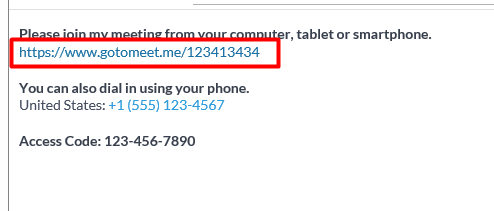
Downloading the GoToMeeting app is recommended, but the meeting can also be joined via browser.
Audio Troubleshooting
If there is no working microphone, or if audio quality is poor:
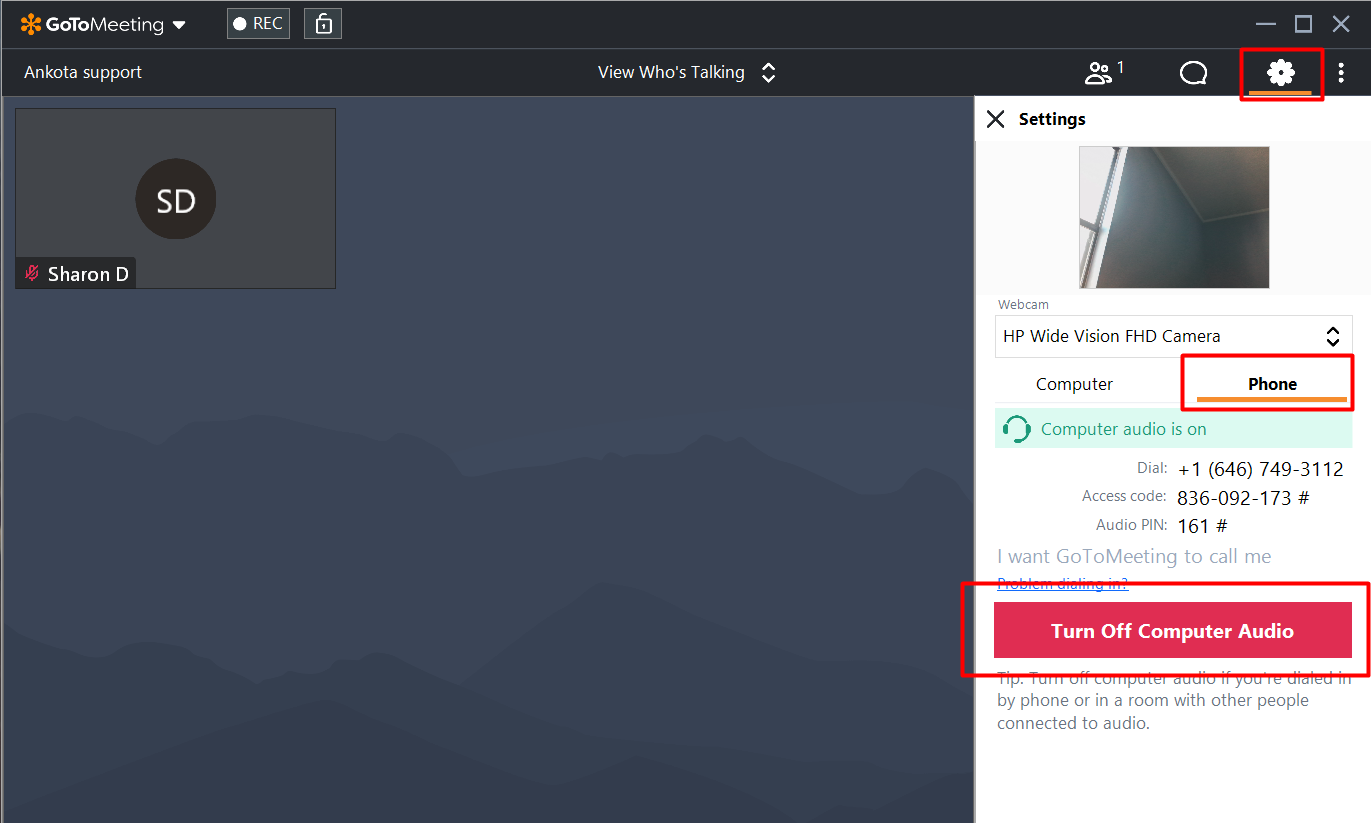
- Open Settings by clicking the cog-shaped icon.
- Turn off computer audio.
- Dial into the provided audio phone line.
- When prompted, enter the Access Code.
Was this article helpful?