Favorite Reports in Ankota
Overview
There are many reports in Ankota, but in terms of specific reports to evaluate closed visits, the following reports are likely the best options.
This article covers:
- Billing Reports: AR Screen - Client Detail Report, Collection Reconciliation Report, Download Billing Visits Report
- Caregiver Reports: Caregiver (Attendant) Report, Caregiver Calendar, Caregiver Closed Visits, HR Requirement Expiration Report, Skills Report, Recap by Caregiver, Visit Report by Mailing Address, Weekly Schedule Report
- Client Reports: Care Plan Printout, Visit Report Printout, EVV Timesheet/Care Plan Completion Report, Live Client Calendar with Monthly Email, Client Contacts Report, Client Census Report
- Data Reports: Visit Data Warehouse, EVV Audit Report, Visit Type Breakdown by Scheduler Report, Care Plan Item Status/Notes Export, Documents Download Options
- Private Pay Reports: Create Private Pay 100 Form
- Various: Reports View FOB Report, Message Log, Client Contacts Report, Reports View Clients with Assigned Providers and Visit Types, Visit Type Breakdown by Scheduler Report, Adult Day Attendance Report
Billing Reports
The AR Screen - Client Detail Report
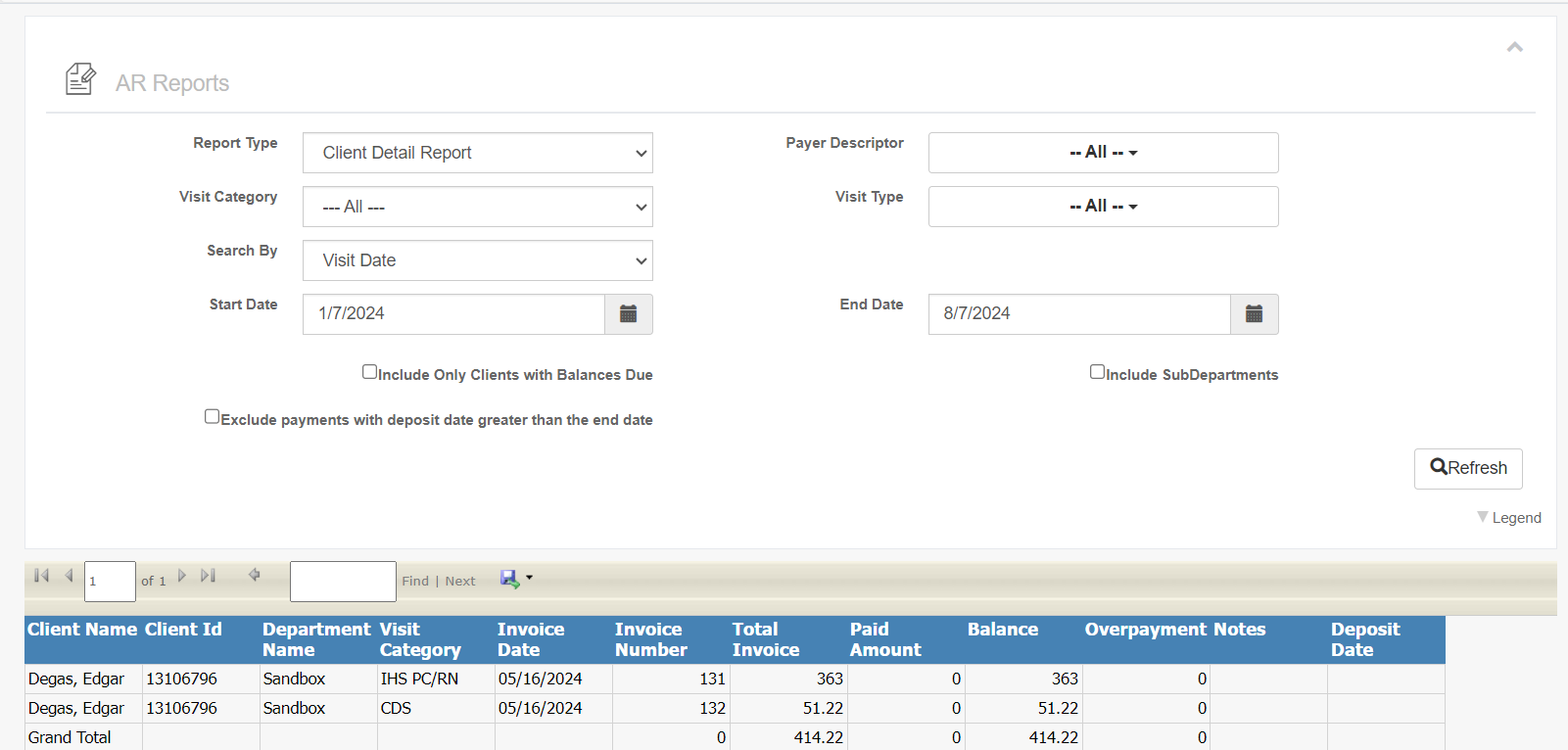
The AR screen has many report options, but the most detailed is the Client Detail Report, which provides payment status, deposit date, invoice number, and more.
To access the AR screen's Client Detail Report:
- Click Billing/Payroll
- Click AR Screen
- Click the AR Report button
- Select Report Type: Client Detail Report
- Make other selections as desired
- Click Refresh
Checkboxes allow the following options:
- View subdepartments
- Include only clients with balances due
- Create a historic report, where payments after the entered date are not included (so you can see what was owed in a certain time period)
Collection Reconciliation Report
The Collection Reconciliation Report (Billing/Payroll → Billing Detail Reports) features the exception codes provided in 835 response files along with payments.

Download Billing Visits Report
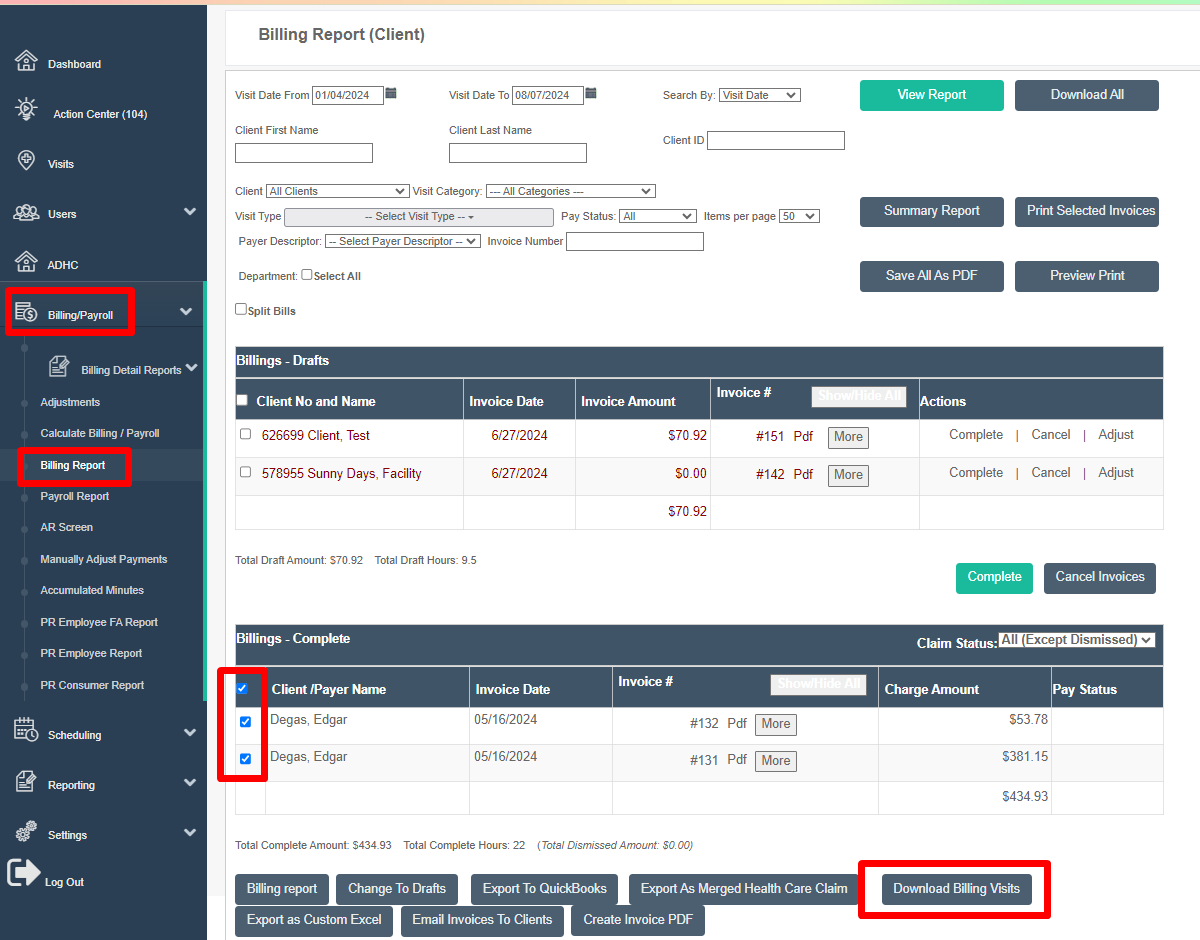
For a simple Excel breaking down each visit, go to the Billing Report page, select completed billings, and click the Download Billing Visits export.

Caregiver Reports
Caregiver (Attendant) Report
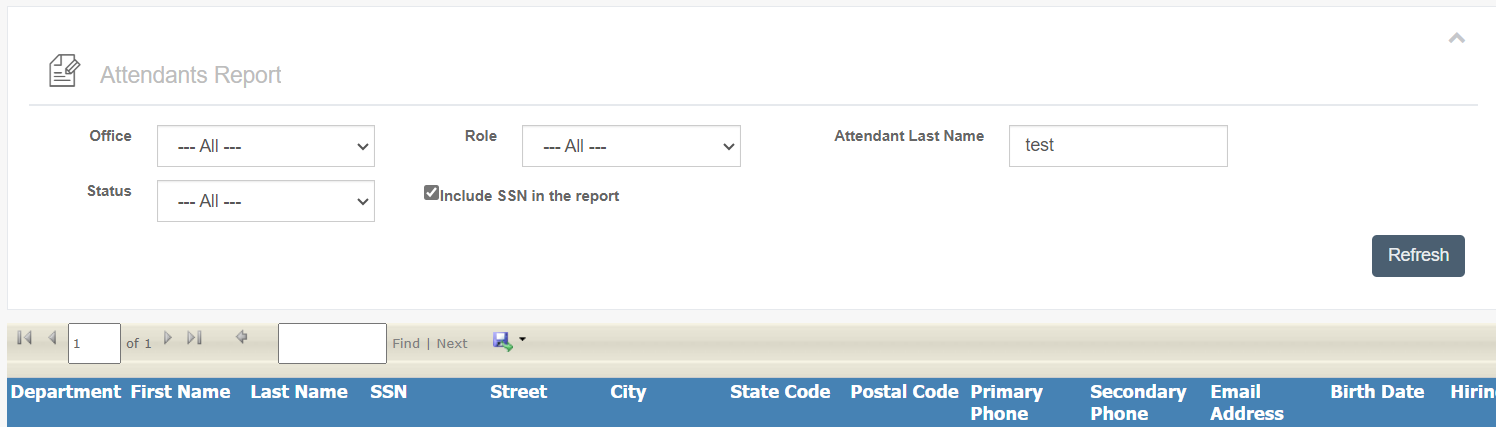
The Caregiver Report includes an overview of the caregiver's profile information, including Name, DOB, Address, etc.
Note: Contact Support to have the Social Security Number show on this report. It will only be added by request. To view SSN, check the box Include SSN in the Report.
To find the report:
- Click Reporting
- Click Caregiver Reports
- Click Caregiver (Attendant) Report
Caregiver Calendar
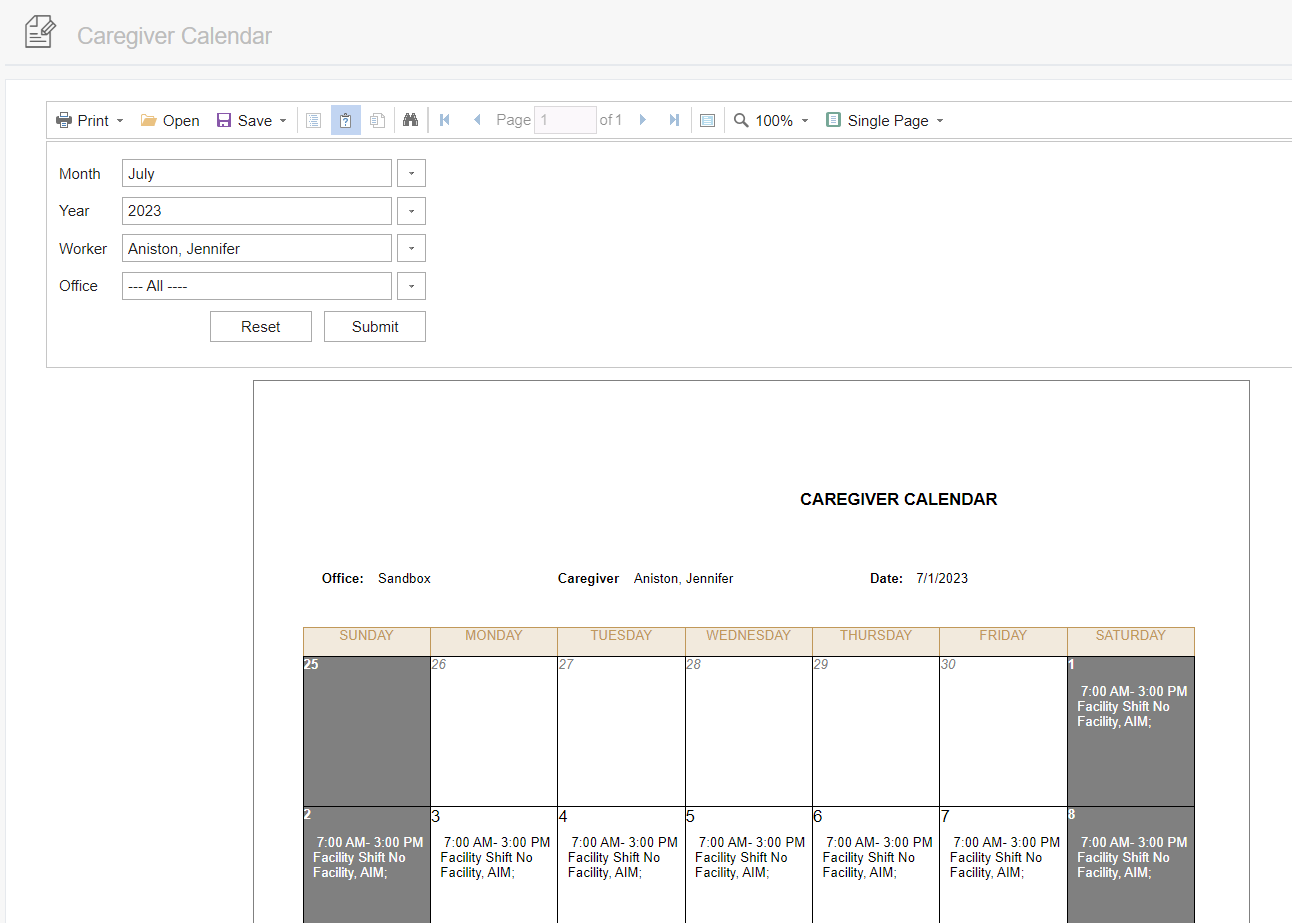
The Caregiver Calendar is commonly printed for caregivers so they have a paper sheet of the scheduled board.
Caregiver Closed Visits
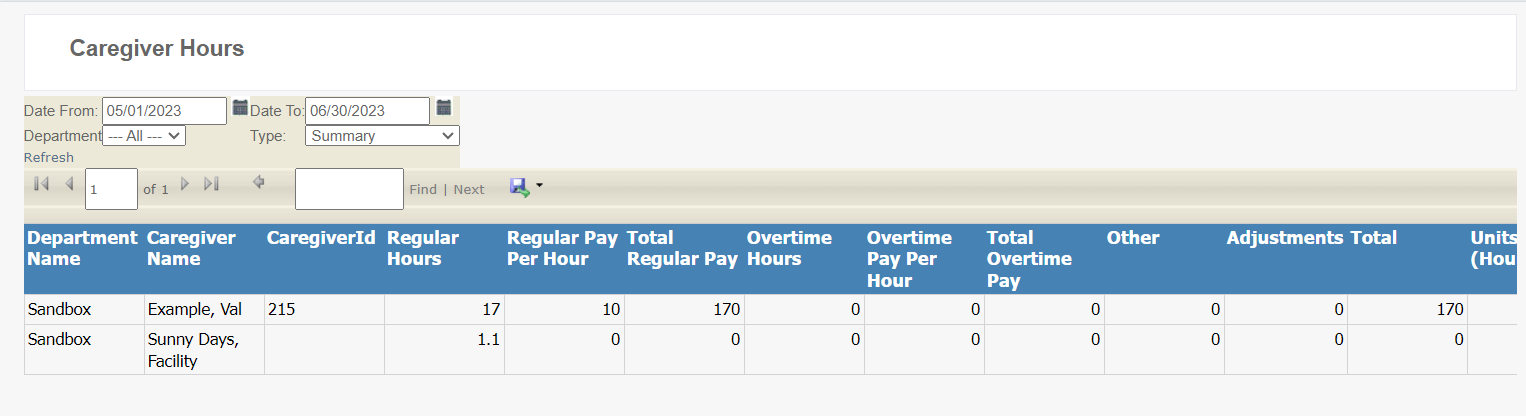
The Caregiver Closed Visits report shows total hours worked for closed visits including overtime and pay per hour by caregiver.
HR Requirement Expiration Report
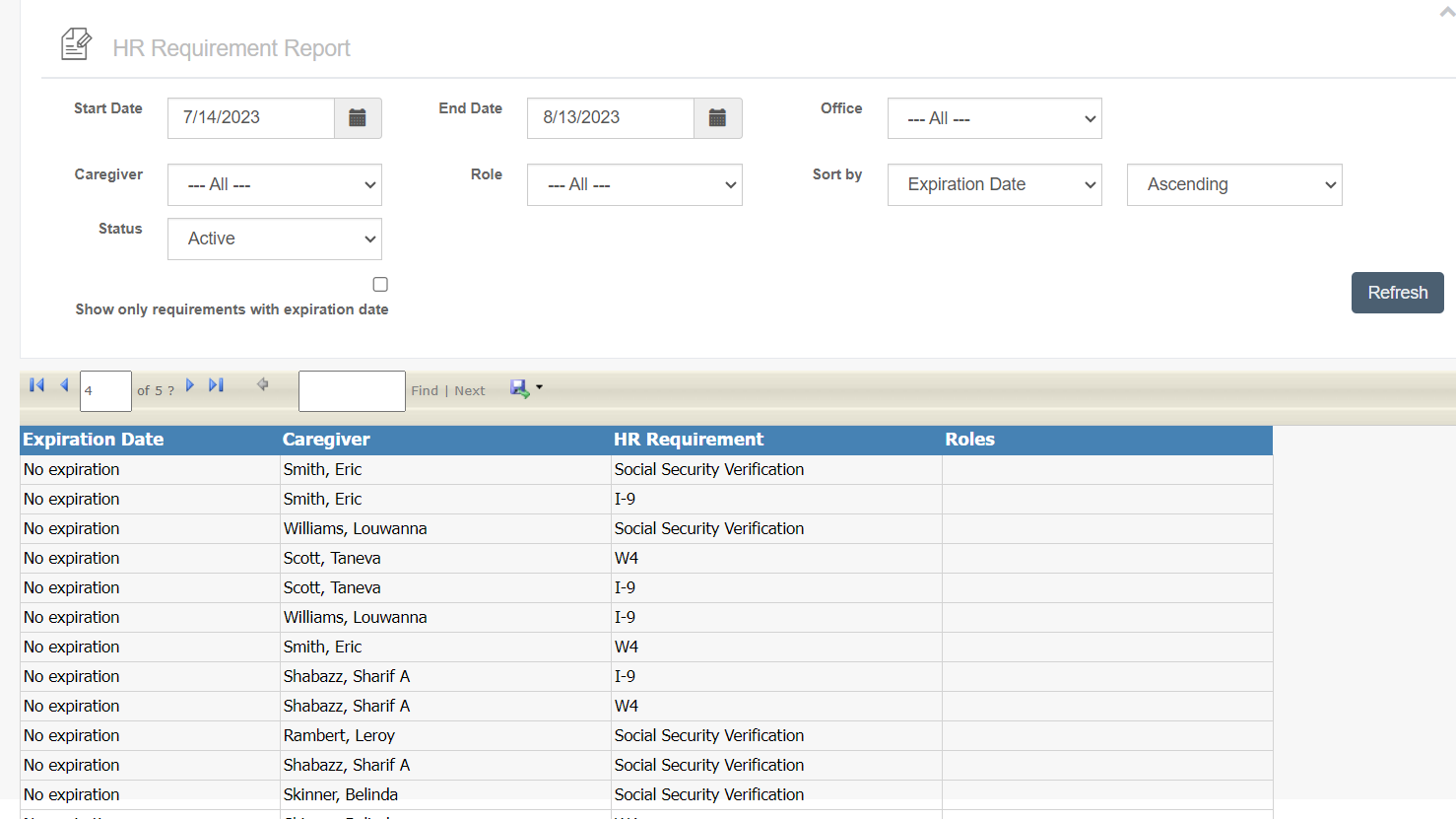
The HR Requirement Expiration Report shows requirements from HR that have expired, based on the caregiver's profile in the HR skills section.
Skills Report
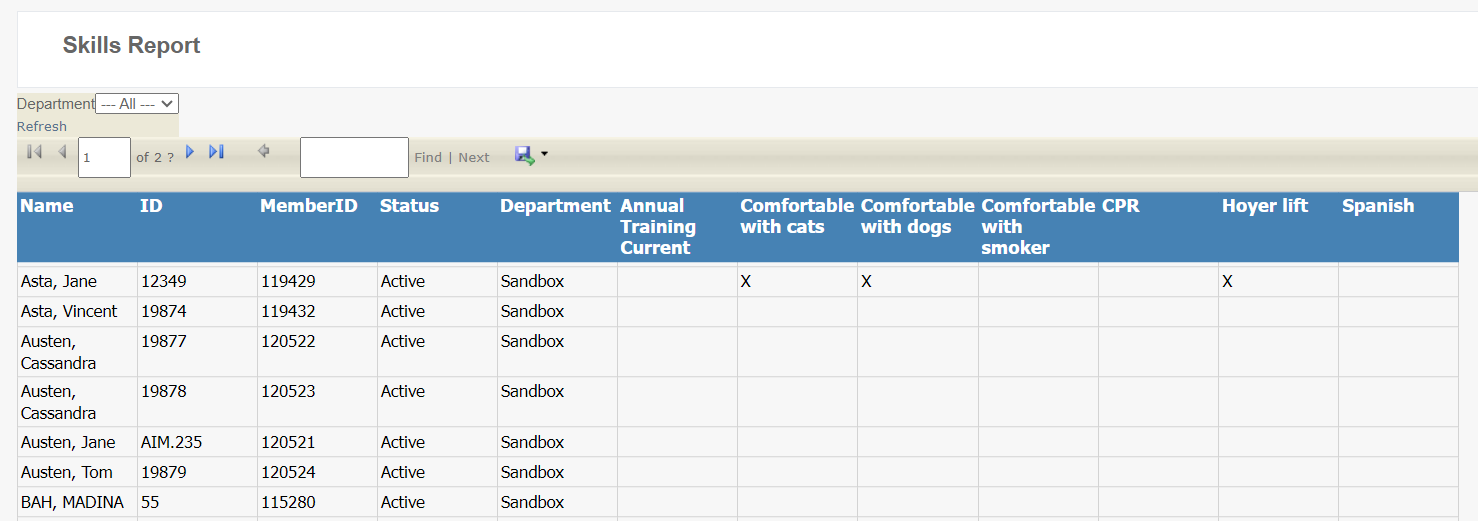
The Skills Report shows a list of caregivers and their skills, pulled from the Client's Detail/Profile. Skills such as experience with a Hoyer Lift, Spanish, etc. will show checked for caregivers that have those skills.
Recap by Caregiver
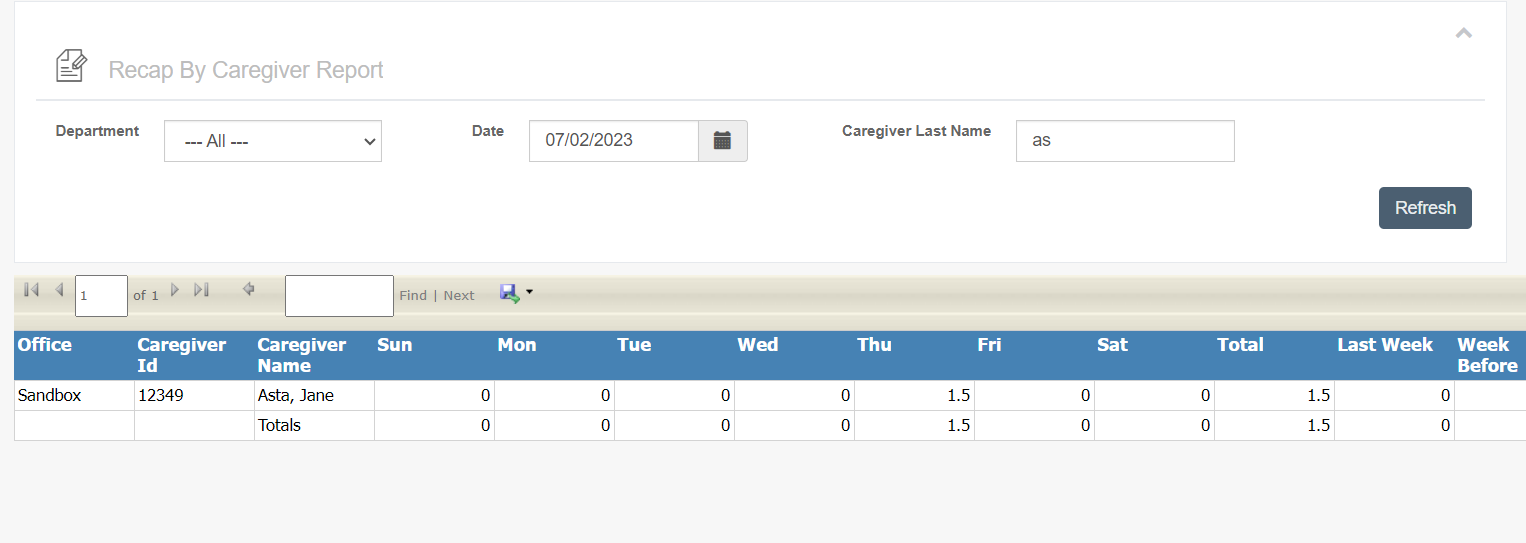
The Recap by Caregiver shows hours per week completed vs the hours of the previous week. Note: .25 means 15 minutes.
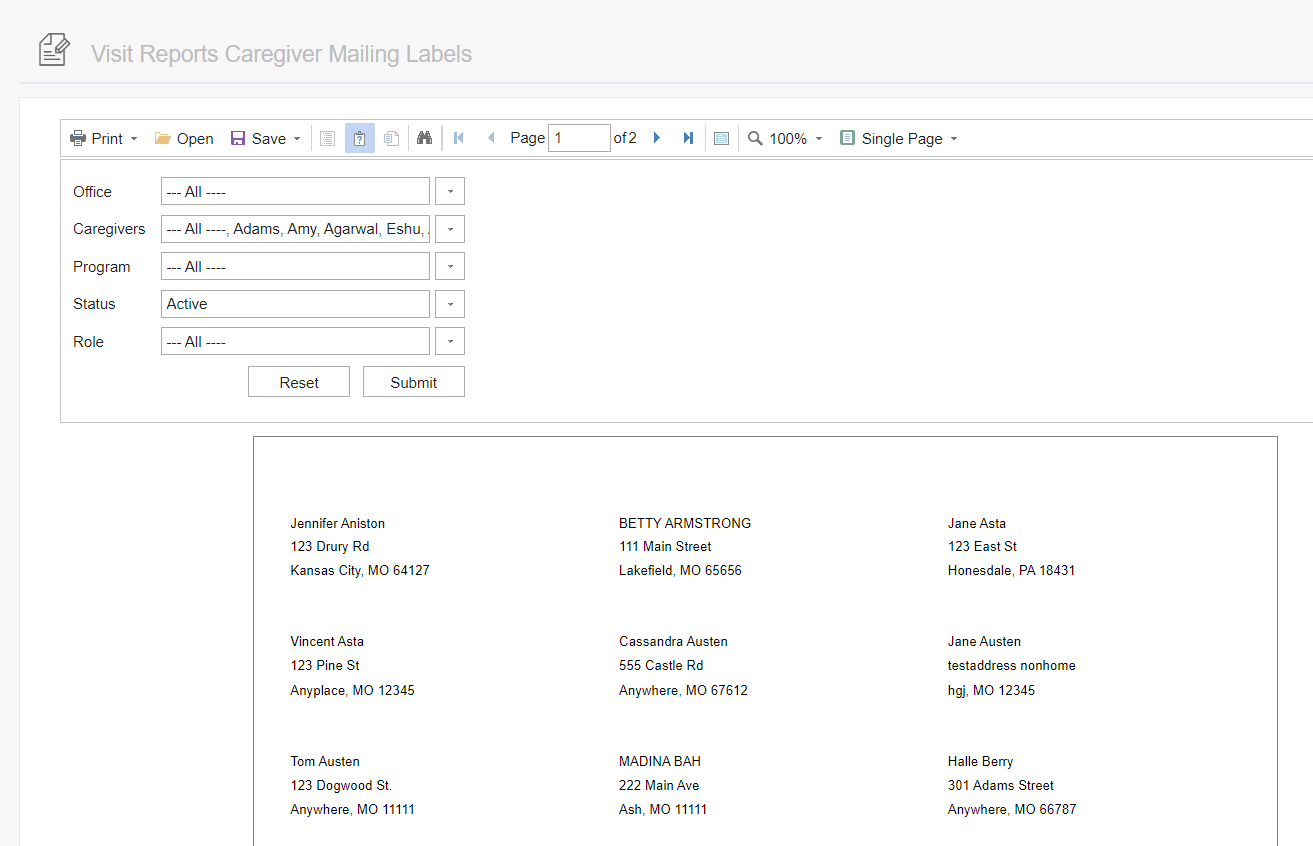
Visits Report Caregiver Mailing Address
Provides the caregiver's address in a list for mailing purposes. This address is updated in the caregiver's profile.
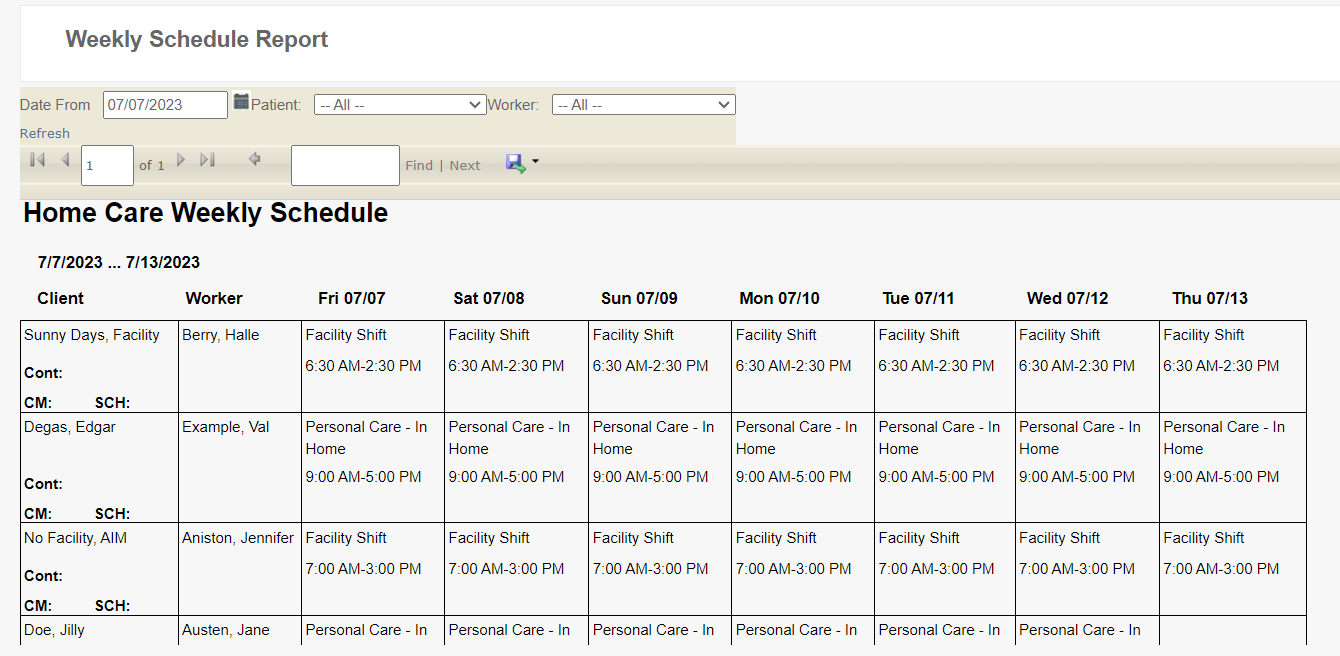
Weekly Schedule Report
The Weekly Schedule Report shows by week what caregivers are working, with which client and times. It is a more listed version of the Caregiver Calendar Report.
Client Reports
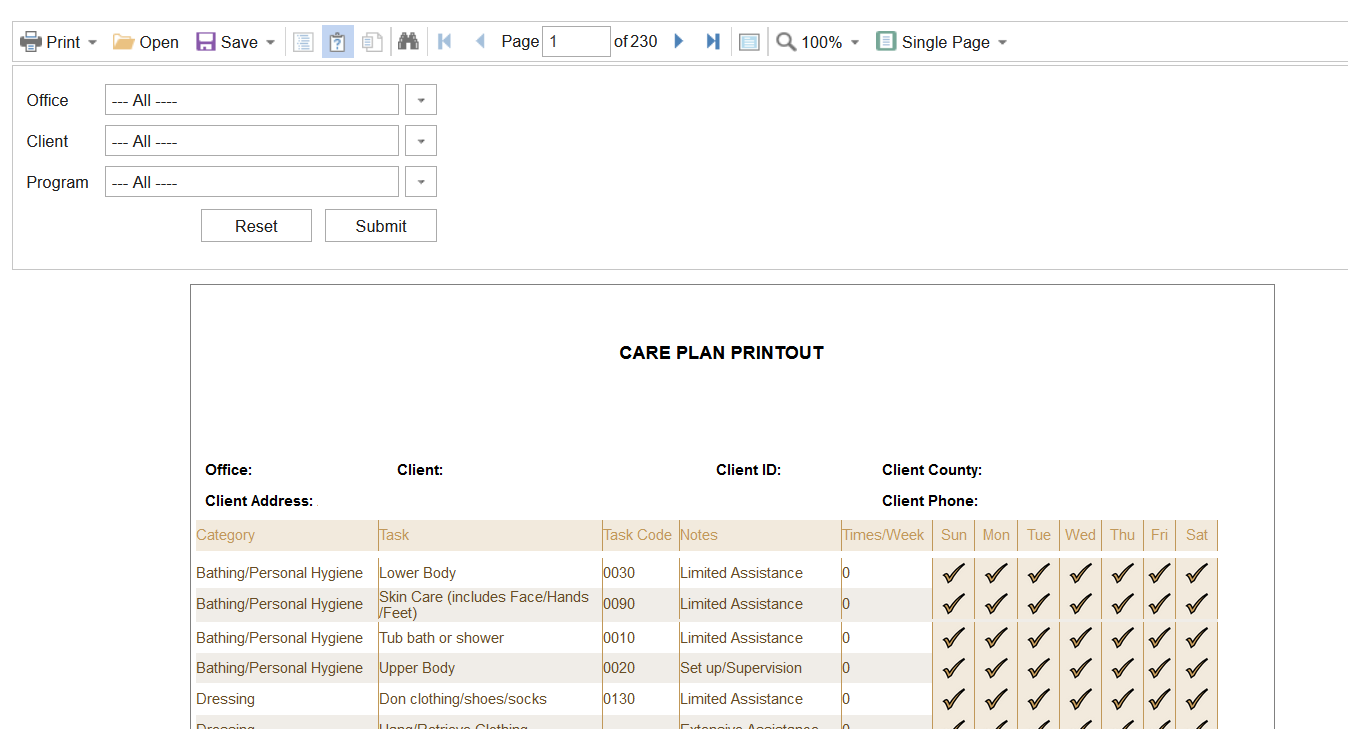
Care Plan Printout
Includes an overview of the client's care plan.
To find the report:
- Click Reporting
- Click Client Reports
- Click Care Plan Printout
Visit Report Printout
The Visit Report Printout (sometimes listed as the Report Printout) is a PDF showing basic visit data, closure method, visit approval reason and notes, and signatures (if provided).
To find the report:
- Click Reporting
- Click Service Detail
- Click Visit Report Printout
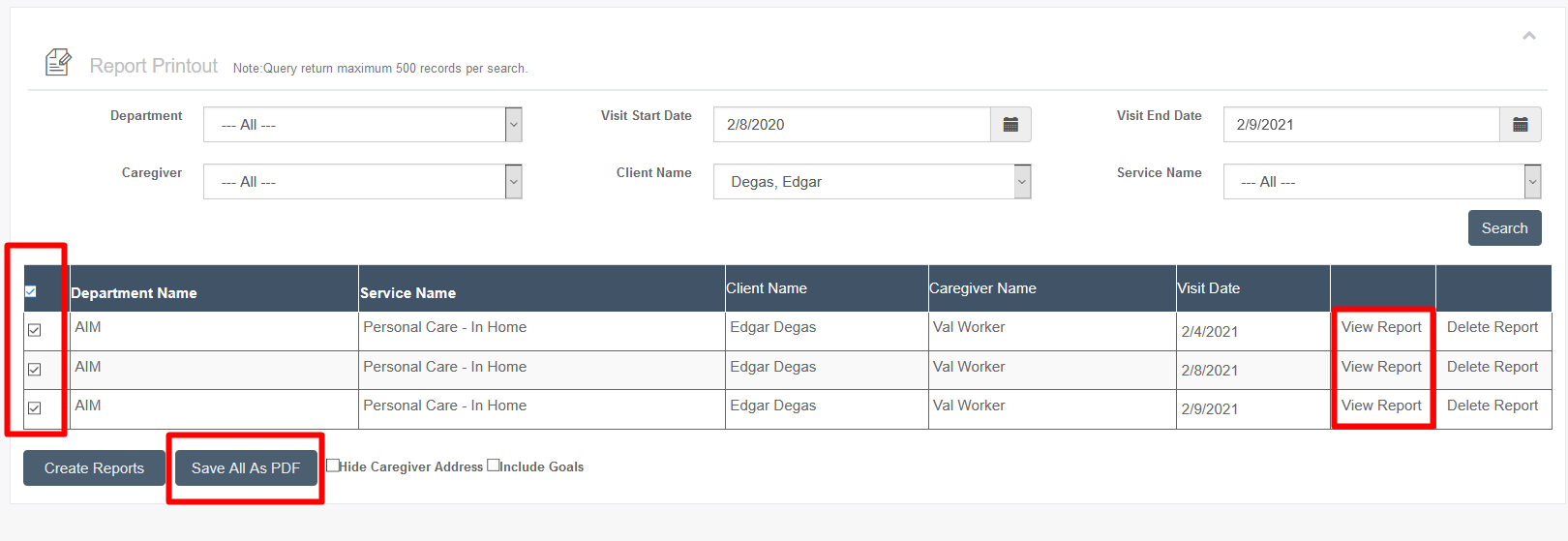
Filter as needed, select all, then click Create Reports.
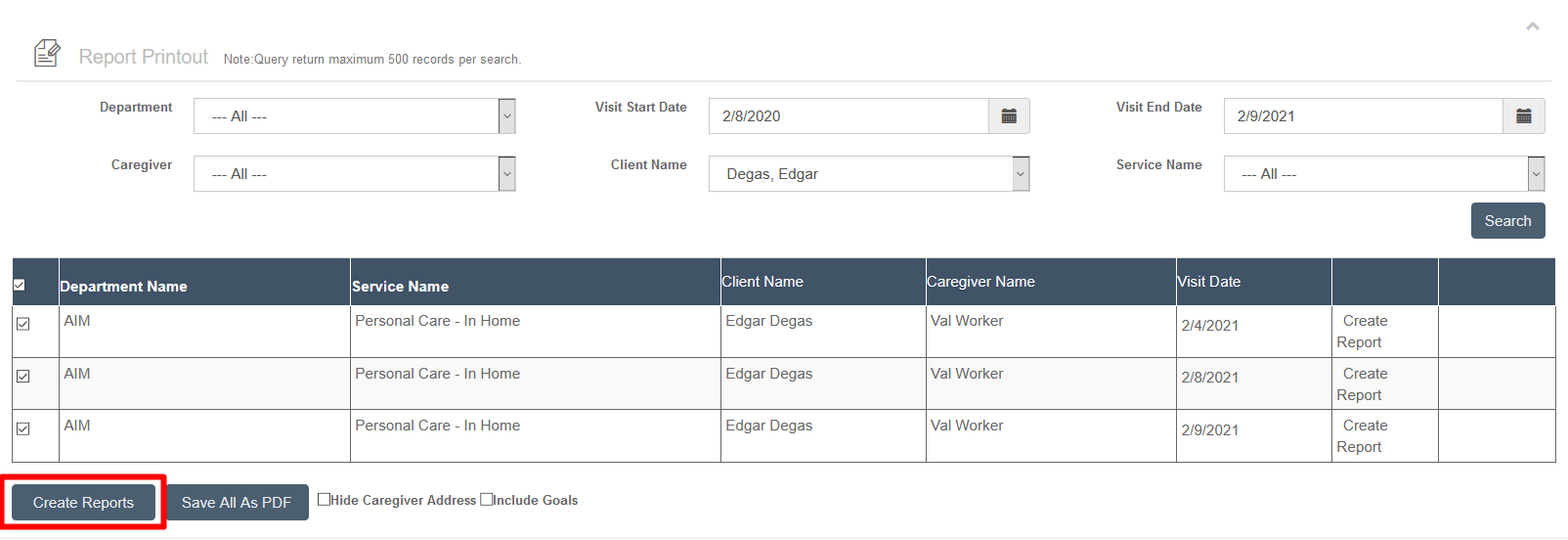
A separate form is built for each individual visit. Click View Report individually, or select all reports and export a single PDF of all Visit Report Printouts.
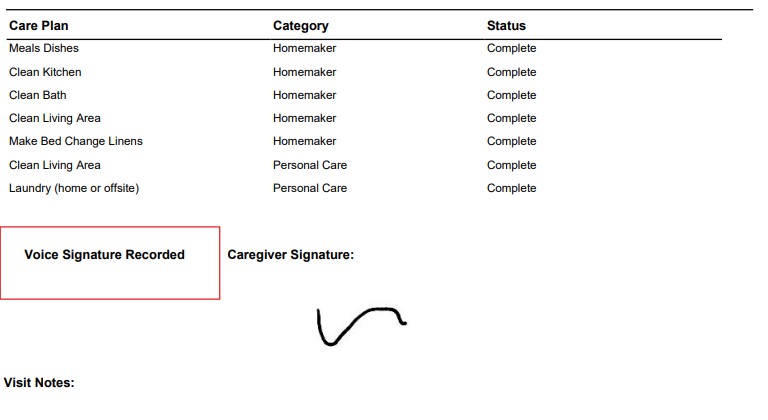
The report captures signatures (including voice signatures). A voice signature will read "Voice Signature Recorded" if captured. If the client signature was on the signature pad, it will show in the same spot.
EVV Timesheet/Care Plan Completion Report
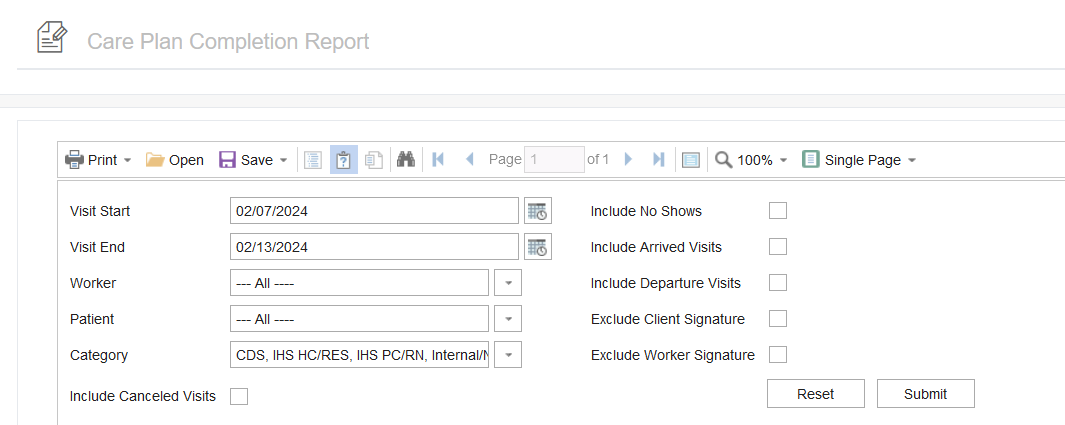
The Care Plan Completion Report breaks down all Care Plan data and notes on the visit in PDF format. This includes visit status, date and times, duration, worker name, visit type, billable units, EVV method, and care plan items. Options include:
- Include Canceled visits
- Include No Shows
- Include Arrived visits
- Include Departure visits
- Exclude Client Signature
- Exclude Worker Signature
- Include Approval Reason Notes
If the care plan item's optional "include value in care plan completion report" box is checked when the care plan item was created, the value (Completed, Not Needed, Refused, another drop-down value, or the write-in value) will be reflected in the report. Care plan item creation/adjustments can only be done by Ankota, so contact Ankota if values should be available in the report.
To find the report:
- Click Reporting
- Click Client Reports
- Click Care Plan Completion Report
PDF is the recommended format.
The voice signature will appear at the bottom of the visit; if the client's voice signature was captured, it will say "Voice Signature Recorded".

This report is not defaulted in all environments; contact Support if configuration is needed.
For information on retroactively reporting care plan items, see the article on Rework, Missed Visit, and On Hold Functionality.
Live Client Calendar with Monthly Email
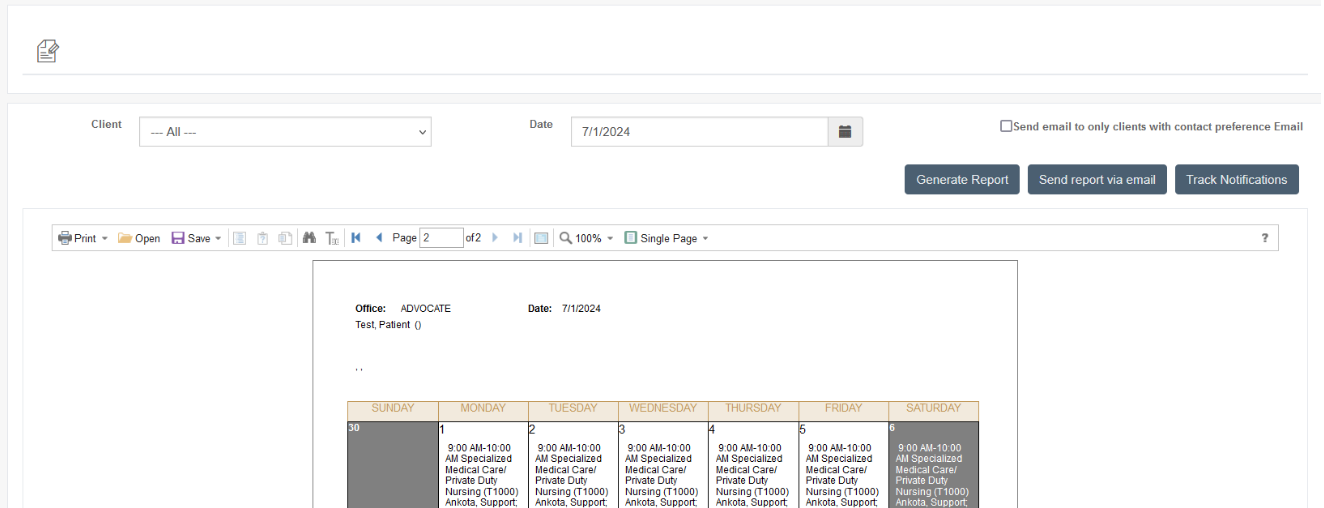
The live client calendar allows admins to email the monthly calendar to clients.
To find the report:
- Click Reporting
- Click Client Reports
- Click Live Client Calendar with Monthly Email
Clients must have emails assigned to them with consent selected to receive this email.
Client Contacts Report
The report Report_PatientContacts_CSV includes the contact's name, address, relationship, email, and reference patient ID. This will include Master Contacts.
Client Census Report
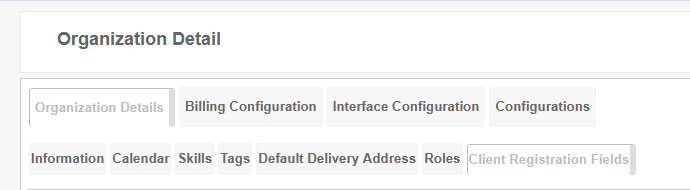
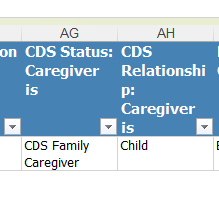
The Client Census Report allows creation and export of new fields and values via the Client Registration fields. For example, create new CDS tracking categories under the Client Registration Fields:
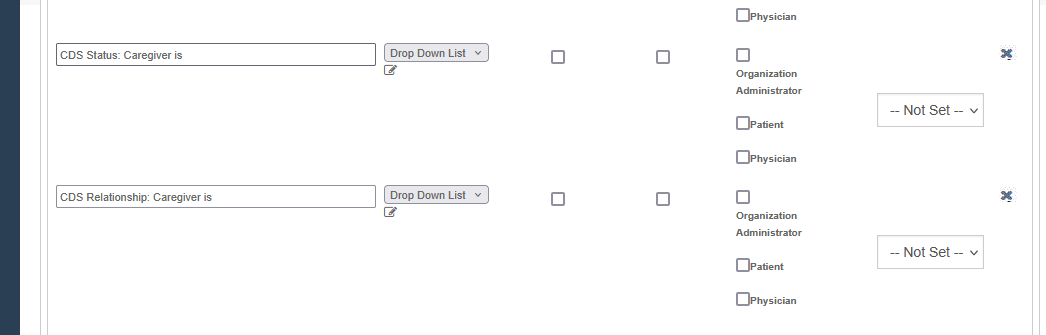
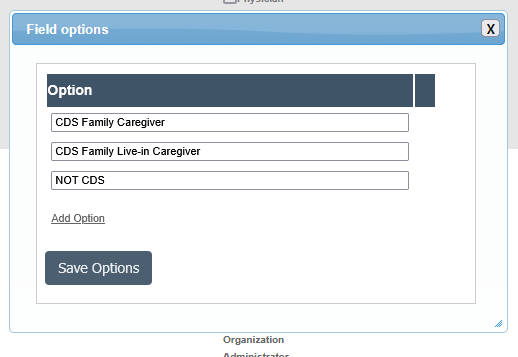
Provide either a text box or drop-down list options:
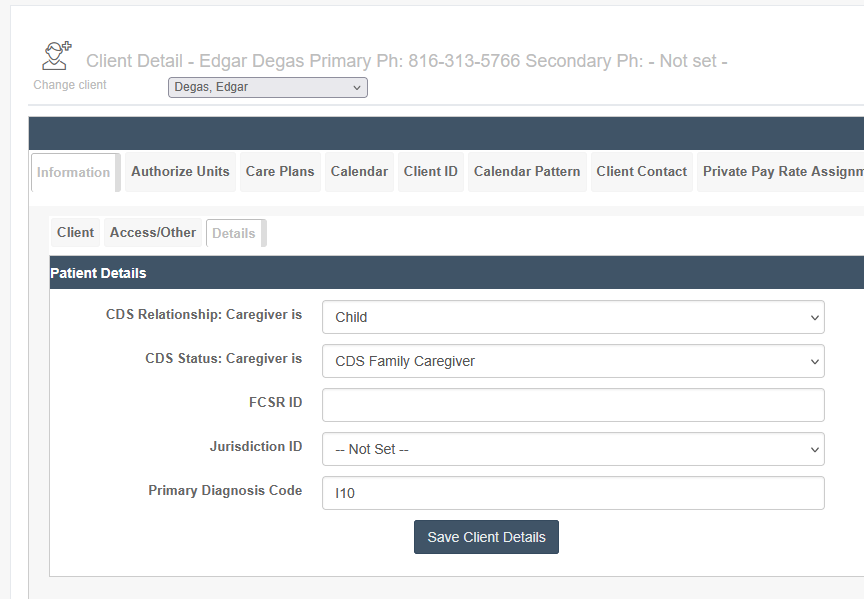
Assign as needed to clients:
Pull the Client Census report and scroll to the end to view the client registration fields and their values:
Data Reports
Visit Data Warehouse
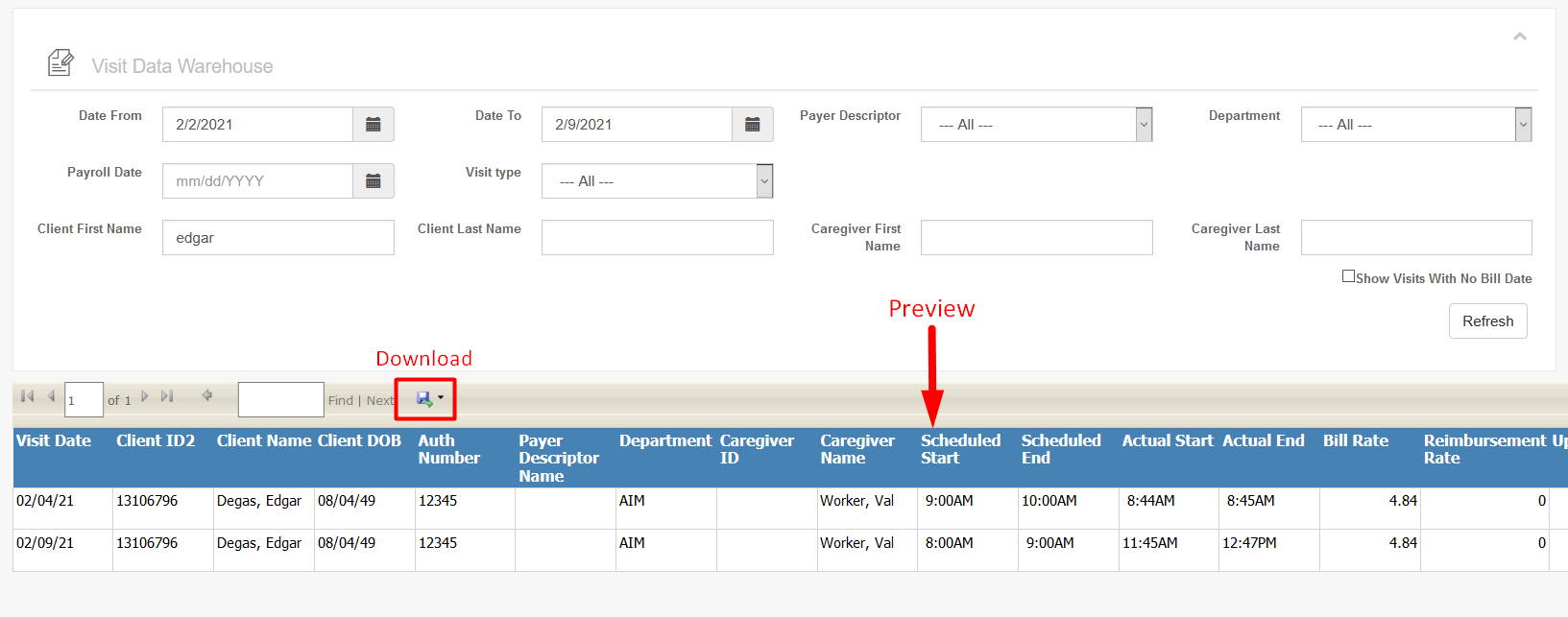
Use the Visit Data Warehouse when raw visit data is needed for billing purposes. This report is well-suited for pivot table use because of its extensive data.
To find the report:
- Click Reporting
- Click Service Detail
- Click Visit Data Warehouse
Excel is its best format.
EVV Audit Report
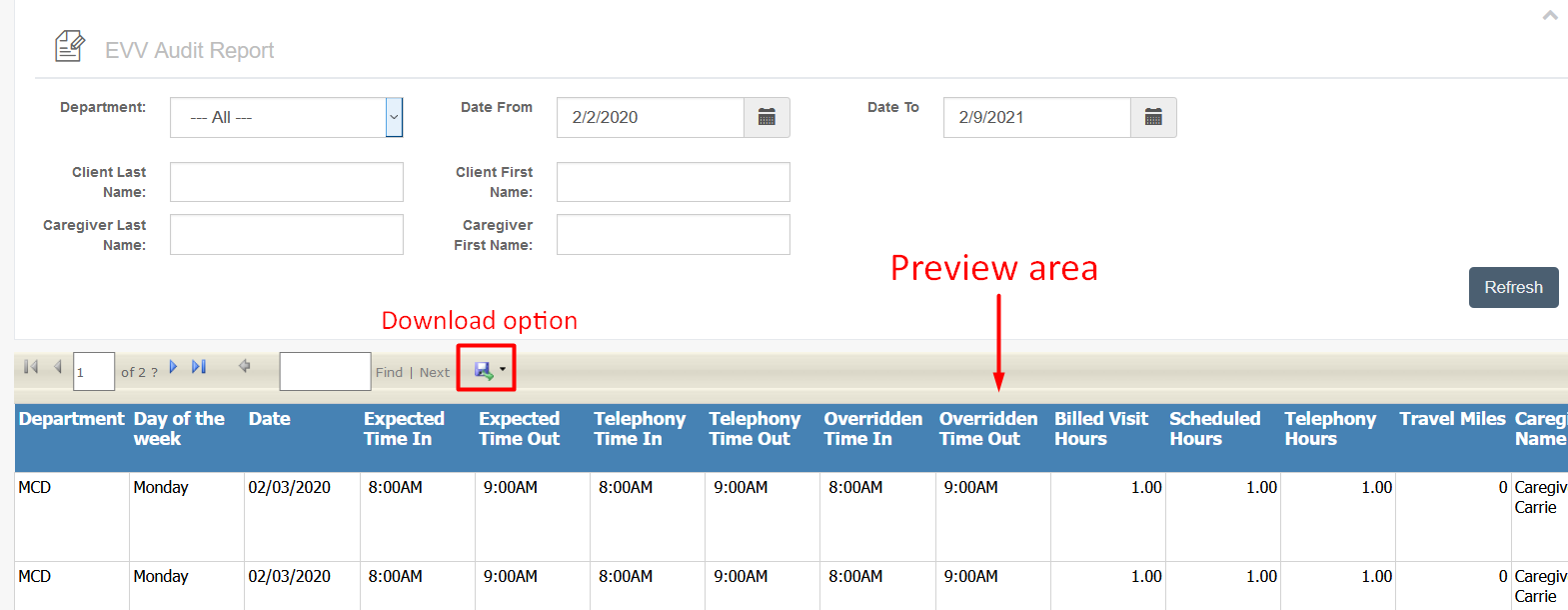
The EVV Audit Report (sometimes just called the Audit Report) breaks down all EVV data on the visit in Excel format. This includes department, day, date, times, durations, GPS data, EVV form (mobile app, telephony, or none/manual), modification information, error/violation details, approval information, and more.
To find the report:
- Click Reporting
- Click Service Detail
- Click the EVV Audit Report
Excel is its best format.
Note: This is excellent for pivot tables and filtering by caregiver name, expected duration, and actual duration to identify caregivers who tend to go long over their authorizations or underserve their clients.
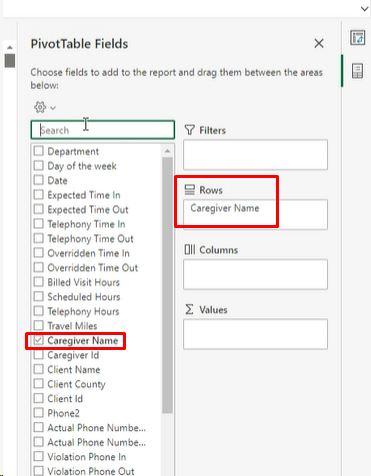
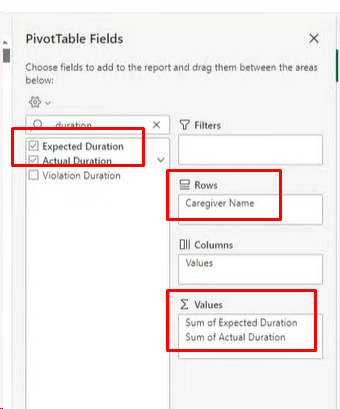
Pivoted Excel table:
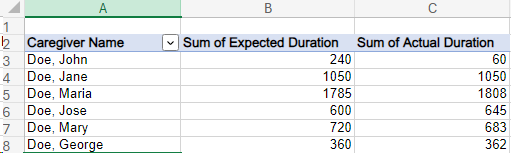
Visit Type Breakdown by Scheduler Report
Breaks down a scheduler's workloads. Any admin who schedules a visit will appear in this report, along with a total count of each visit type scheduled and a final total line.
Customers before July 2022 need to request the report. Later customers can find the report as follows:
- Click Reporting
- Click Service Detail
- Click the Visit Type Breakdown by Scheduler Report
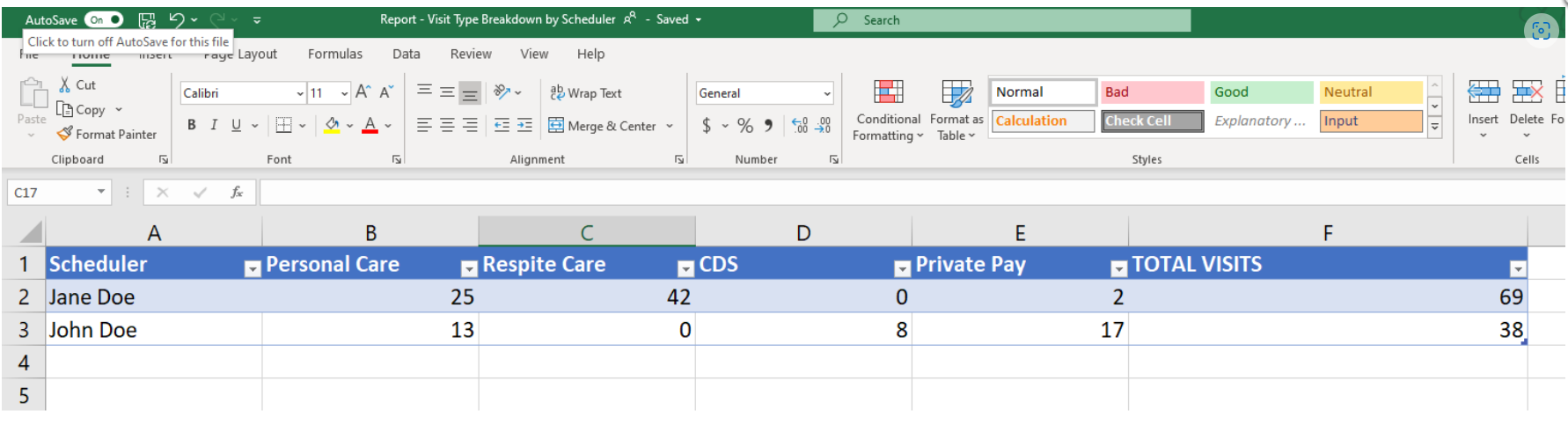
Care Plan Items Status/Notes Export
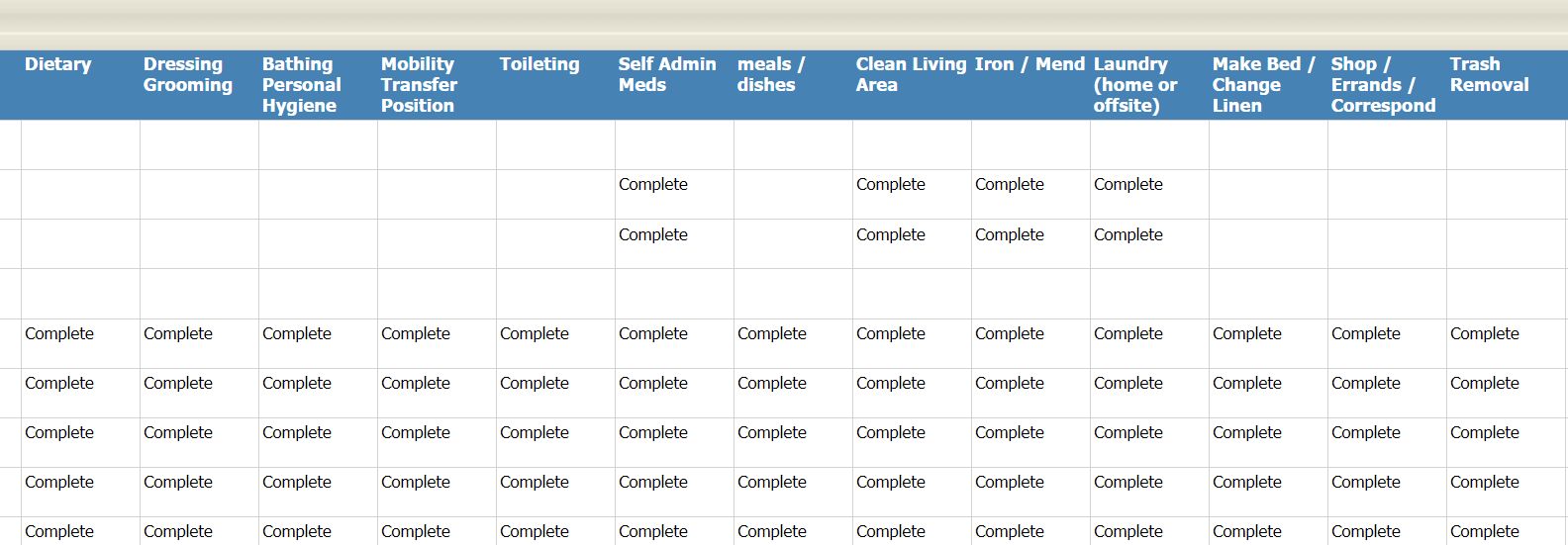
This report shows the client, caregiver, arrival and departure, and all care plan items and their values. The value could be "complete" or, for a textbox entry, the full text of the caregiver's entry (for example, in a "Blood pressure" textbox it might say 120/80).
Documents Download Options
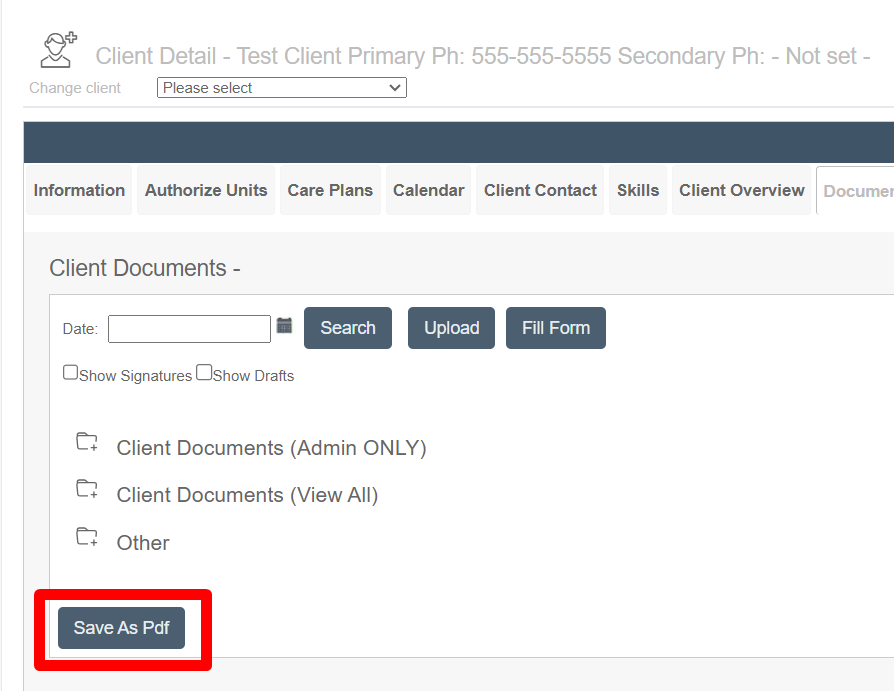
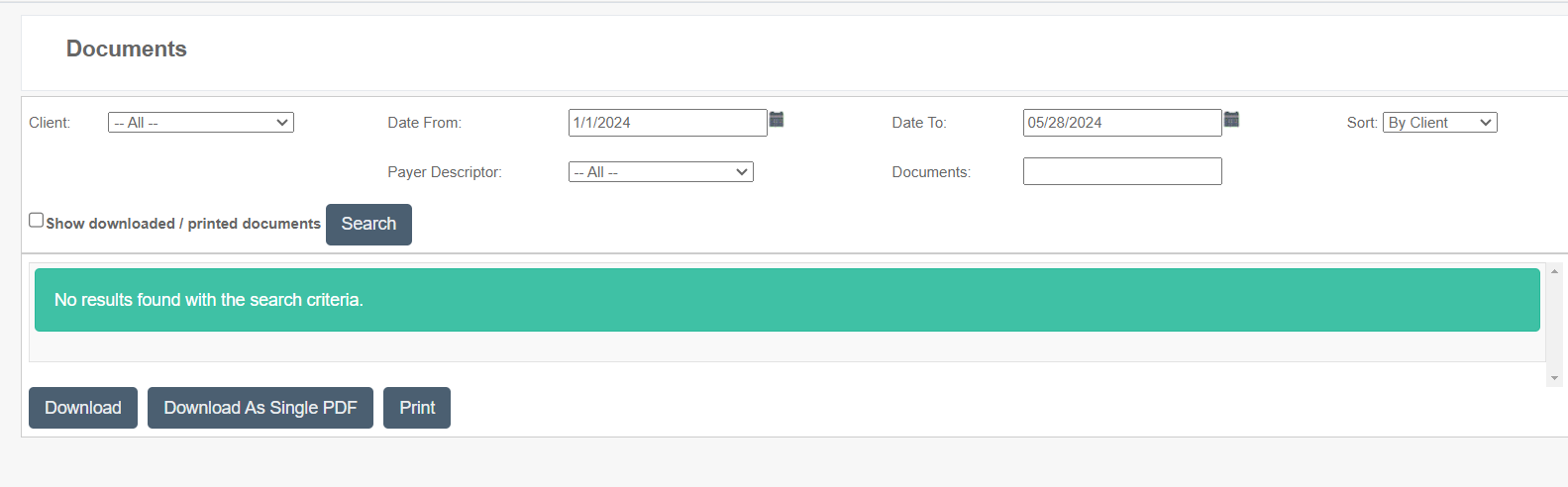
Completed documents can be viewed and downloaded by going to the client's Documents page and clicking the Save As PDF button on the Client Documents tab, or by going to the Agent Documents page and downloading as needed.
Client Documents Download Option:
Agent Documents (Complete List of Downloadable Documents):
Private Pay Reports
Create Private Pay 100 Form
Private pay customers may need an internal audit form or may be required to provide one to the state. The PrivatePay100 form serves this purpose and is excellent for nurse review of completed visits and care plan items. The nurse can review the week's form and sign it, and the document can then be saved to the client's Ankota profile on the documents tab.
To access this form, request the Private Pay 100 form to be added to your system.
- Log in to Ankota.net
- Click Reporting
- Create PrivatePay100 Form
- Complete all filters
- To preview the form (without nurse signature), select "create form"
- Download form and save
To include nurse signature:
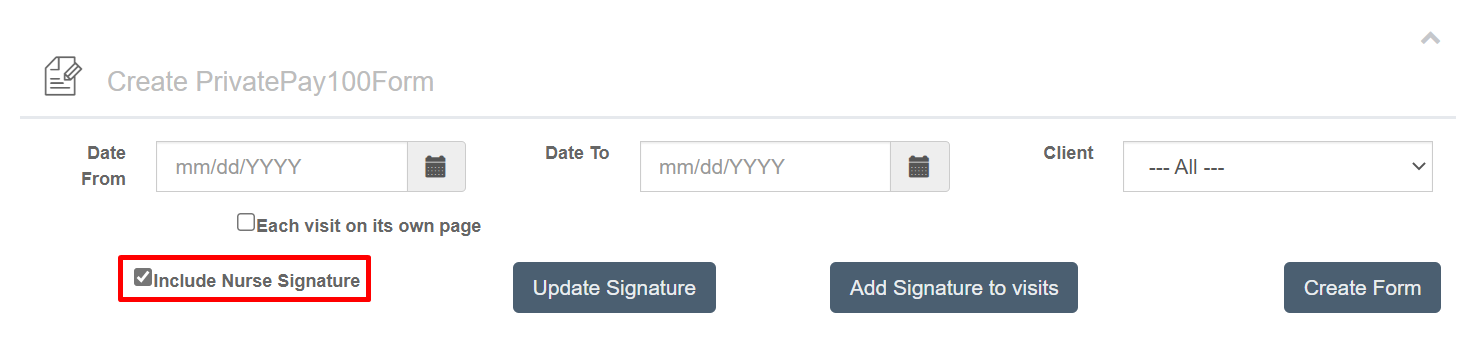
- Select "include nurse signature" – two buttons appear (Update Signature + Add Signature to Visits)
- To add a NEW (recent) signature, select "update signature"
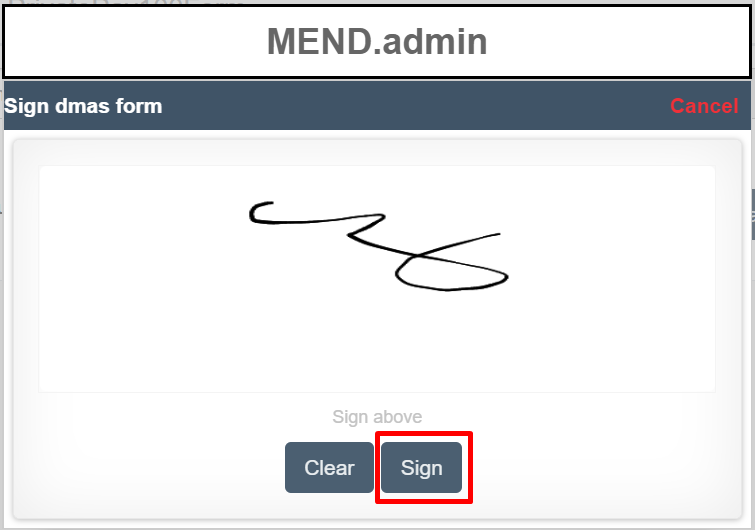
- To use an OLDER signature, select "add signature to visit"
- Create Form
- Download and save
Various
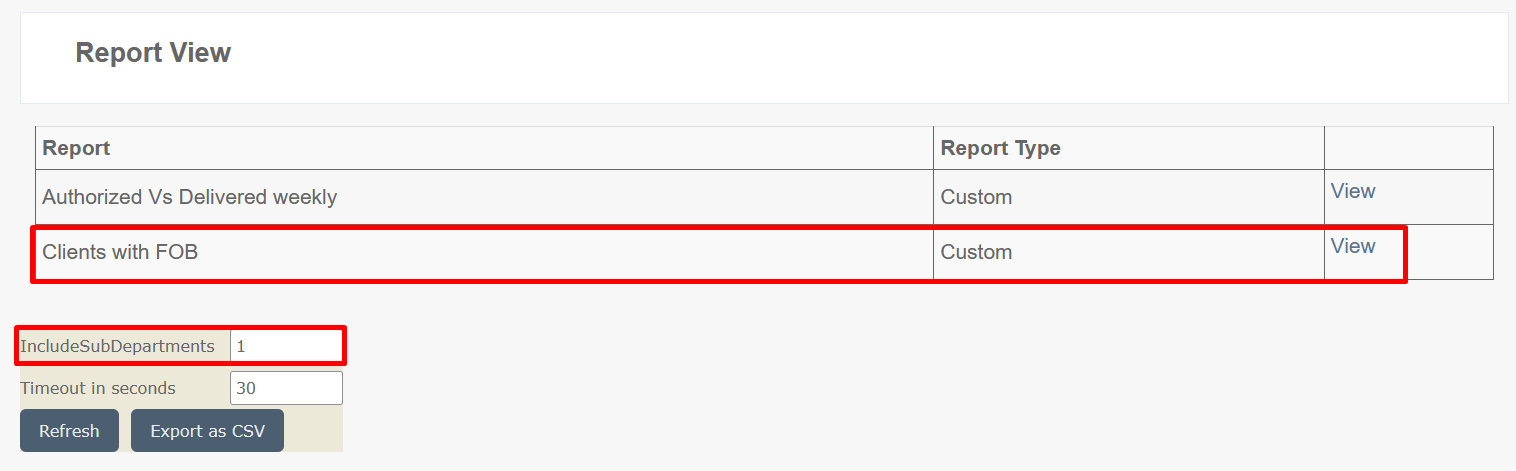
Reports View: FOB Report
- Log in to environment
- Click Reports View
- View Clients with FOB
- IncludeSubDepartments: 1
- Timeout in Seconds: 30
- Export as CSV
Message Log
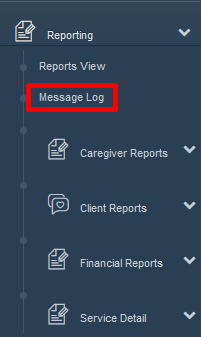
This page tracks all outgoing messages via the caregiver search message (found on the caregiver's page) and FamilyCast. If this page is not present in the environment and configuration is desired, contact Ankota support.
To access this report (once configured):
- Log in to the environment
- Click Reporting
- Click Message Log
The page shows:
- Sent to
- Sent by
- Date/Time stamped
- Subject Line (in blue)
- Message
Client Contacts Report
This page provides a list of client contacts including name, phone number, email, address, and relationship type. This information is also listed under the client's profile on the client contacts tab.
To find this report:
- Click Reporting
- Click Reports View
- View Client Contacts
- Refresh to view on screen, or Export as CSV
Reports View: Clients with Assigned Providers and Visit Types
Breaks down clients by assigned providers (caregivers) and visit types. This report is not defaulted in all environments; contact Support to configure.
To find the report:
- Log in to environment
- Click Reporting
- Click Reports View
- View Clients with Assigned Providers and Visit Types
- Timeout in Seconds: 30
- Click Refresh
- Export as CSV once the report has been generated
Visit Type Breakdown by Scheduler Report
Breaks down who scheduled how many of each visit type. Can be added as a page under a main module by request.
Adult Day Attendance Report
The Adult Day Attendance Report breaks down attendance for clients as follows:
- Approved (Authorized) and Attended: X
- NOT Approved (Unauthorized) and Attended: A
- Approved (Authorized) but NOT Attended: O
- NOT Approved (Unauthorized) and NOT Attended: [blank]
This report is available in the Adult Day section.