HR Requirements
Overview
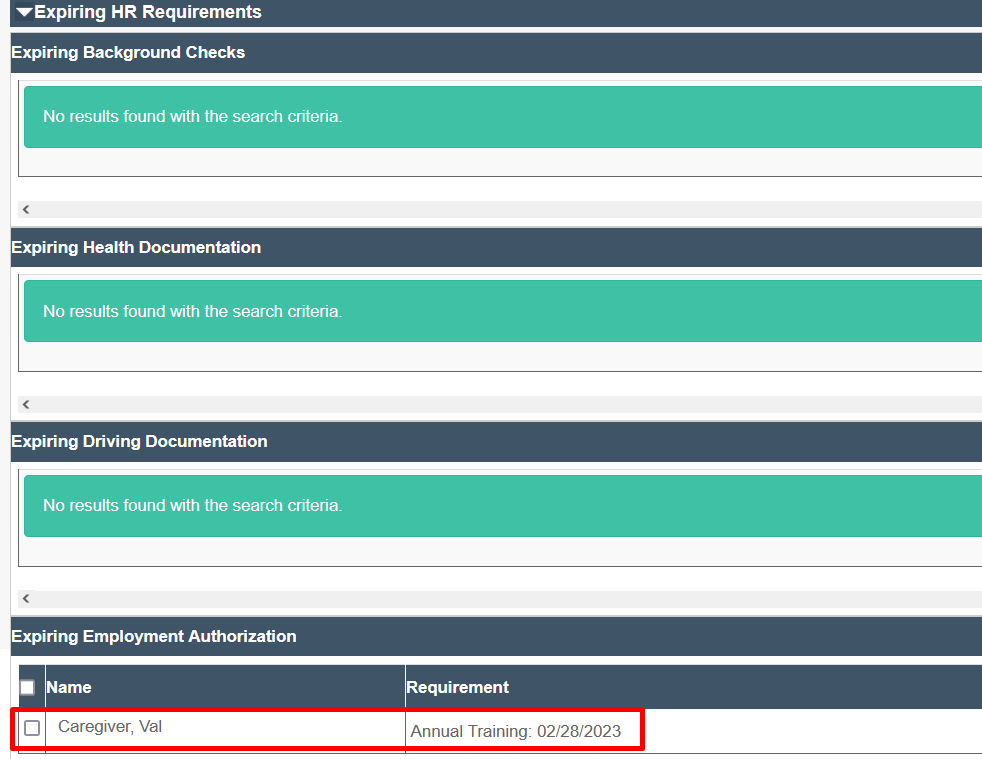
In Ankota, you can keep a history of your caregiver's HR requirements. This typically includes confirmations of documents such as background checks, licensing and certifications. HR Requirements are visible under the worker profile, HR Tab, Requirements sub-tab. If expiration dates are assigned to HR requirements, expiration reminders will be sent to the caregiver's mobile app notifications as well as noted on the Actions/Requests page. Please note HR requirements must be configured, so if you wish to add any, reach out to your implementation specialist or Ankota support for assistance in addition options.

The Requirements tab includes six sections and are typically labeled as:
- Background Checks
- Health Documentation
- Driving Documentation
- Tax Forms
- Employment Auth
- Waives Breaks
These categories are configurable and can be renamed as needed.
This article includes:
Creating HR Requirements
These functions will need to be organized in conjunction with an Ankota specialist.
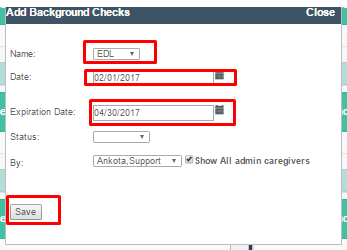
For example, Missouri agencies will want to have FCSR, OIG, EDL, and E-Verify background checks listed under Background checks. An agency can request these and other requirements as needed, and the Ankota specialist can create them so they are available in that list of background checks. Agencies can then select the appropriate background check and update the information under it for each caregiver, as in the example below.
Let's walk through each section.
- The Background Checks section records specific background checks and if they were completed.
- The Health Documentation section is for records of CPR certifications, nursing licenses, and other key documentation that must be provided by staff.
- The Driving Documentation section is where record of a driver's license and insurance can be recorded.
- The Tax Forms section is where confirmations of appropriate forms, such as the I-9, can be recorded.
- The Employment Auth section is where key employment authorizations can be recorded.
- The Waives Breaks section is for states or union workers who have required breaks, but choose to waive them in order to work a shorter day.
Once you have relayed your list of requests to your Ankota specialist, the categories can be added, and you can then add in the specific data for each individual caregiver.
Assigning HR Requirements
Once HR requirements have been created in the system, you can easily assign them by clicking either "Add" or the name of the actual item.
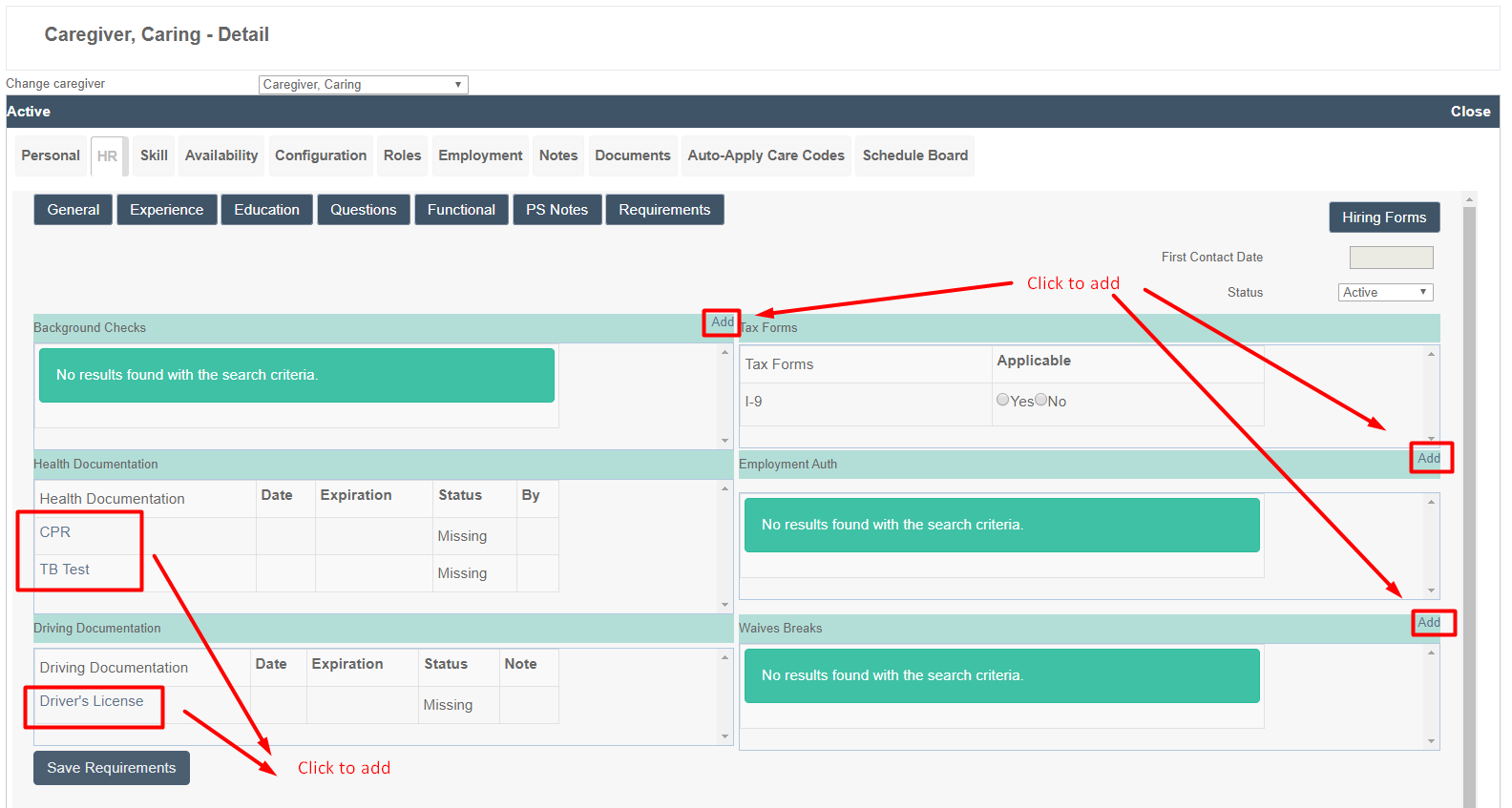
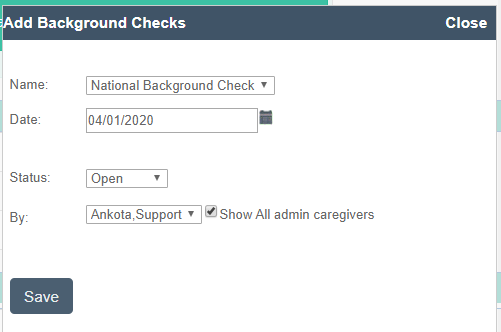
You can then update the information as needed in the pop-up that appears when you click on the appropriate function.
Notifications
Once the HR requirement is nearing its expiration date, a notification will be sent to two places: to the Notifications section of the mobile app for caregivers, and for admins, to the Actions/Requests page.