Landing Dashboard
Overview
The Landing Dashboard is your "overview" or "action list" page which highlights your company's overall status and critically needed actions, as well as providing shortcuts to those action items.
In other words, the Landing Dashboard is your list of to-do items, with quick links to all the clients, visits, and more that need your attention.
Overview Video
Landing Dashboard Sections
The Landing Dashboard's key sections are as follows:
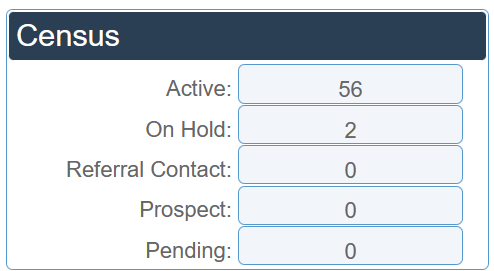
Census
The census provides an overview of clients, with a count of active, on hold, referral, prospect, and pending status clients.
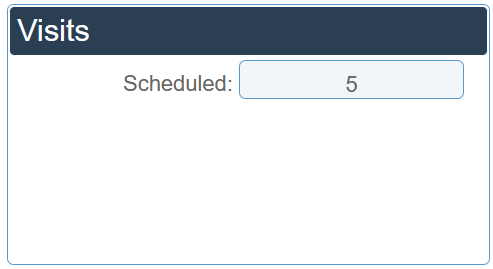
Visits
The Visits section provides a list of scheduled visits.
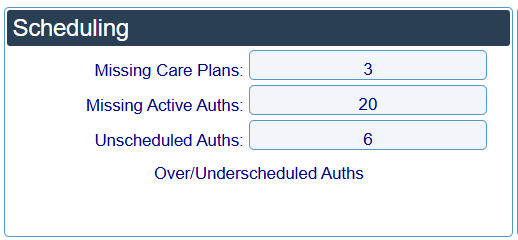
Scheduling
The Scheduling section provides a list of unmanaged scheduling actions on the Action Center page, such as missing care plans and authorizations as well as unscheduduled authorization.
Open Visits
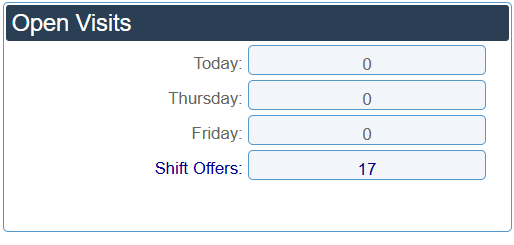
The Open Visits section provides a list of visits which are not assigned to caregivers for today, tomorrow, and two days from now.
It also links to Shift Offers from caregivers for customers who allow their caregivers to pick up uncovered visits.
Visit Approvals
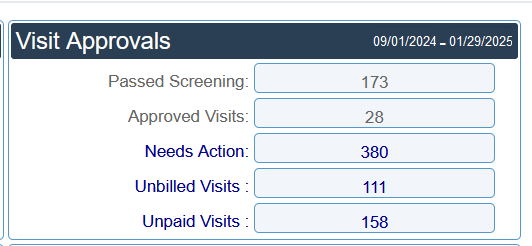
The Visit Approvals section lets you know how many visits passed screening, were approved, need action, or need billing or paying for the selected time period.
The Needs Action line is directly linked to the Visit Approval Dashboard, so after selecting the date range you can click on the link and be taken directly to the Visit Approval Dashboard sorted for all visits that need action.
The Unbilled and Unpaid lines similarly links directly to the Calculate Billing and the Calculate Payroll page for the selected time period.
: you can change the default time period if desired.
EVV Rejections
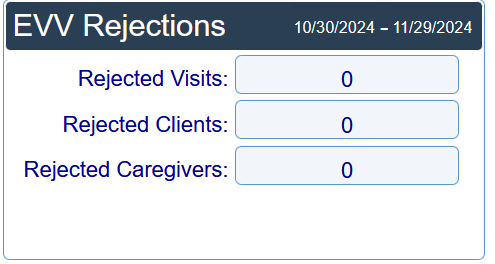
The EVV Rejections section lets Medicaid customers know how many visits, clients, or caregivers were rejected by the state for the selected time period. Each rejection section is also directly linked to the Visit Approval Dashboard, so after selecting the date range you can click on the link and be taken directly to the Visit Approval Dashboard sorted for all visits that need action.
: you can change the default time period if desired.
Warnings
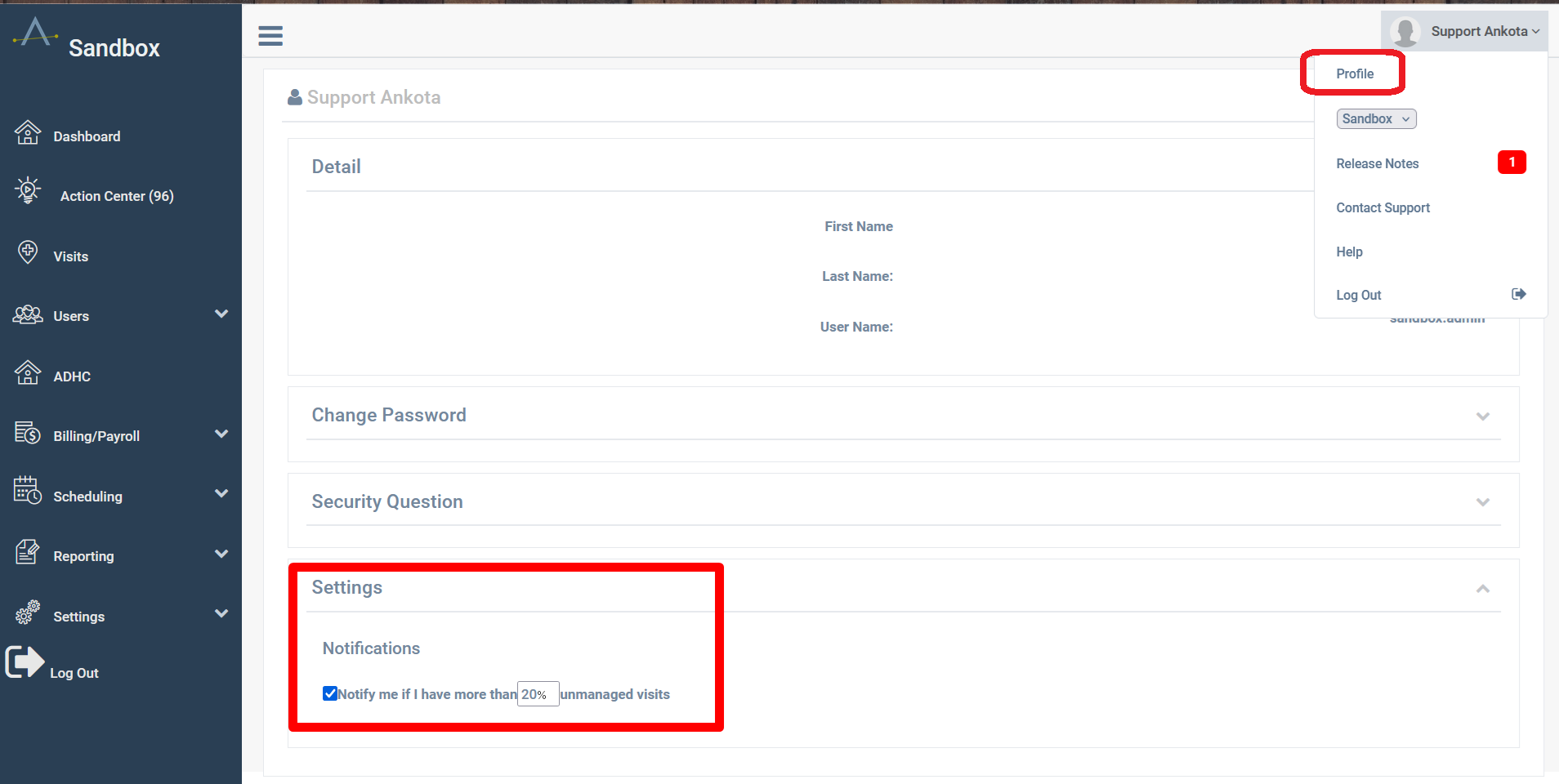
If your Needs Action and/or Rejected visits exceed 20% of your total visits, you will receive a warning pop-up to address your unmanaged visits.
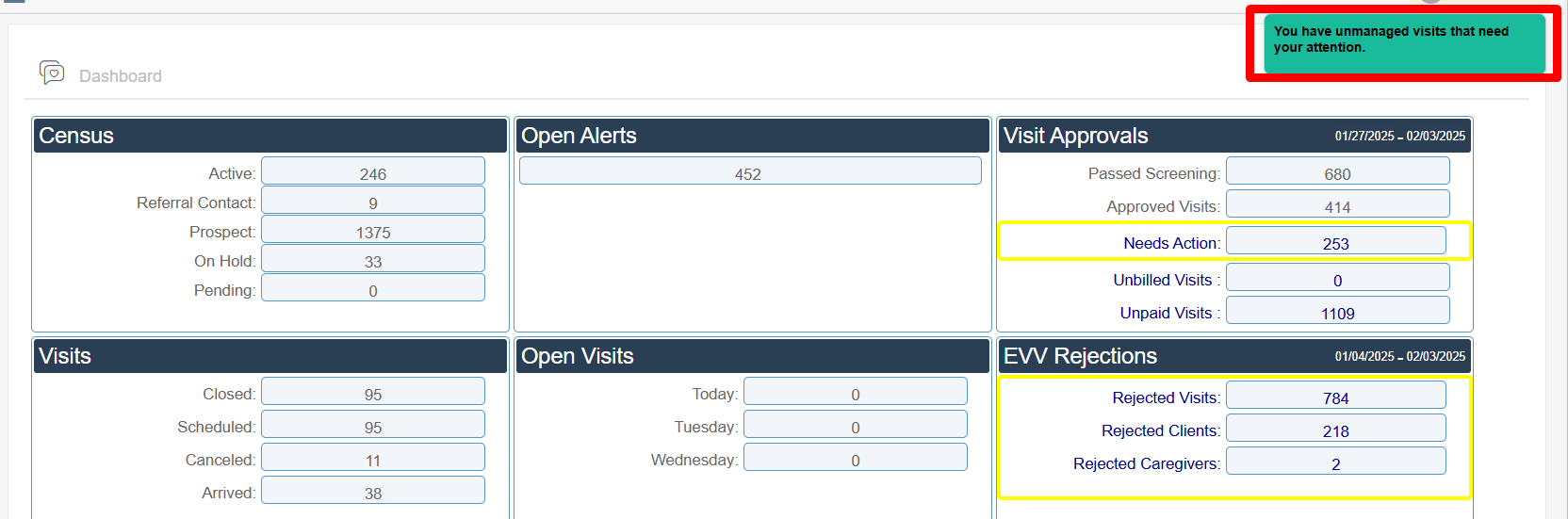
If you would prefer to alter the percentage, this can be adjusted under your profile's Settings section. (Profile settings are in the right-hand menu.)