Profile Access
Overview
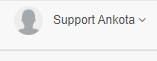
At the top right of every Ankota environment, the user's name, picture (if uploaded), and a drop-down arrow are visible.
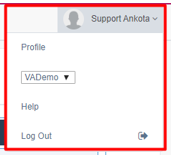
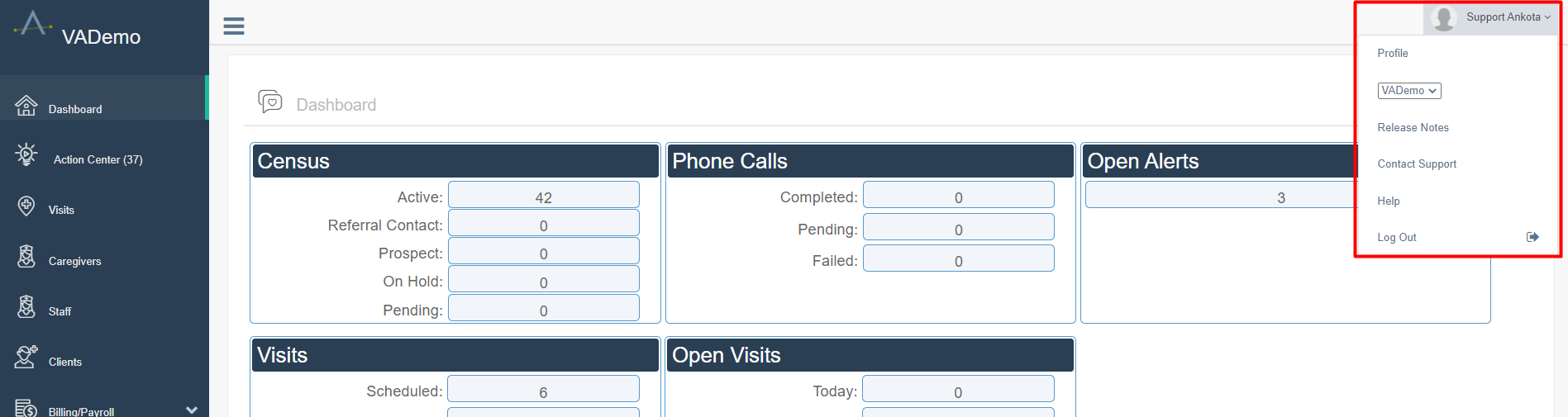
Clicking the drop-down arrow reveals several options:
- Profile
- Department List (for users in environments with more than one department)
- Release Notes
- Contact Support
- Help
- Log out
Profile
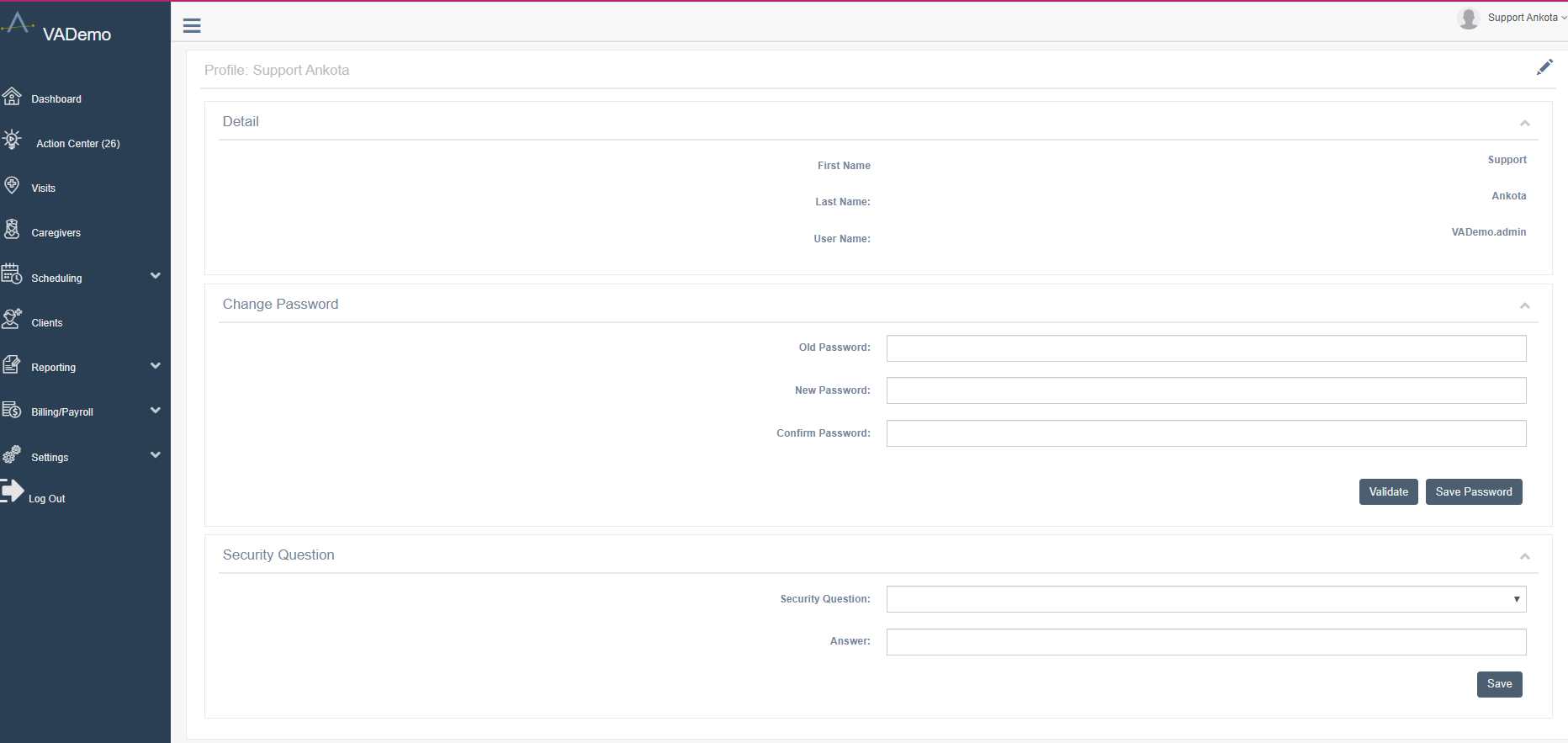
Clicking Profile opens the profile page, which displays the listed name and user name. Below that are options to edit the password and create or change a security question and answer. Users are taken here on first login to create a new password.
Department List
If the company has multiple departments and the user has access to them, departments can be switched by selecting one from this list. Best practice is to close all Ankota tabs before switching departments and to start fresh from the Dashboard before proceeding to other pages.
Release Notes
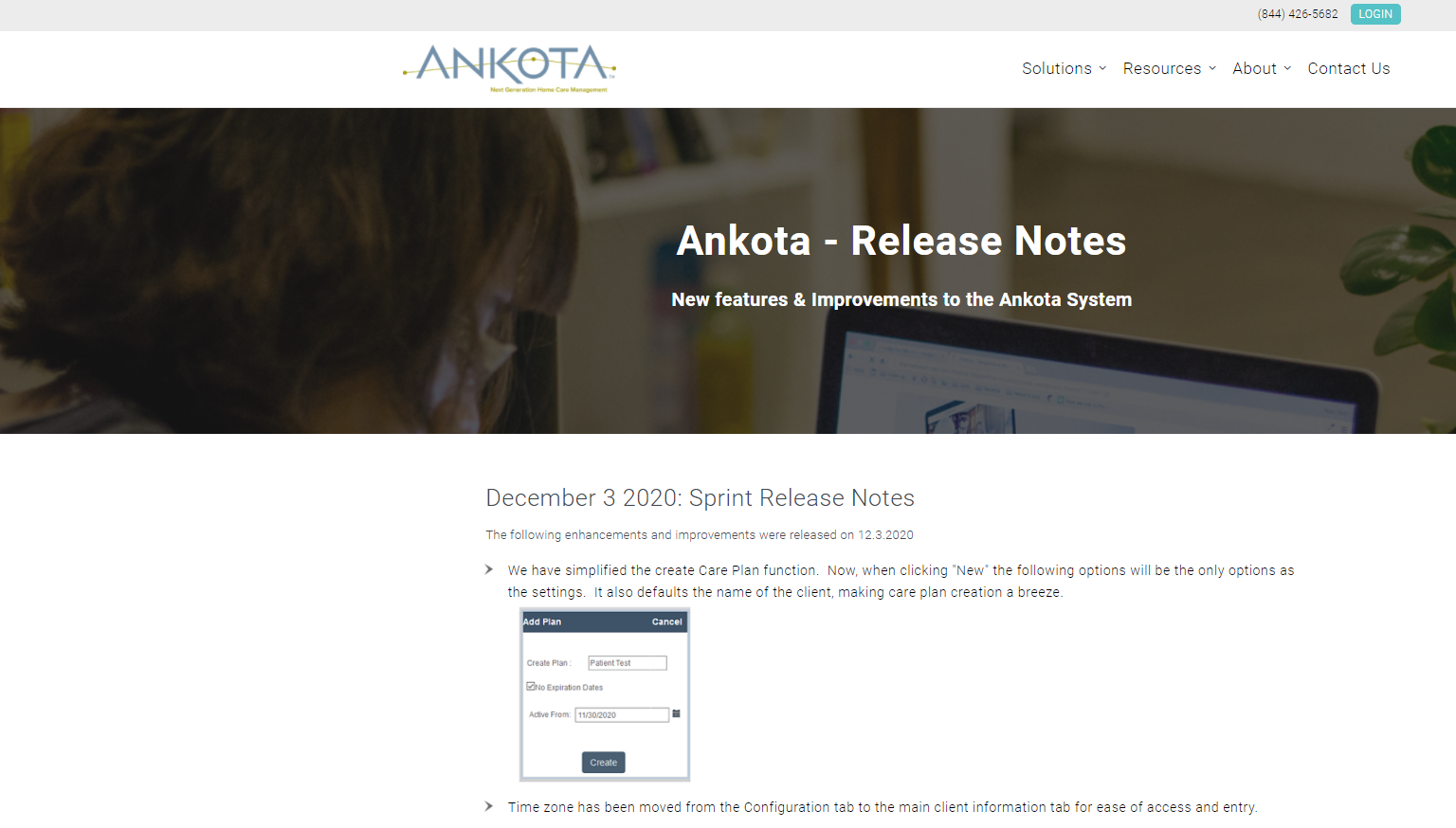
In addition to Ankota update emails sent to customers, recent Ankota developments can be reviewed quickly by clicking Release Notes. This is a useful way to stay up-to-date and learn about new features, particularly for users who are not their organization's owner and may not be on the standard Ankota update email list. Users not on the update email list can contact Ankota to be added.
Contact Support
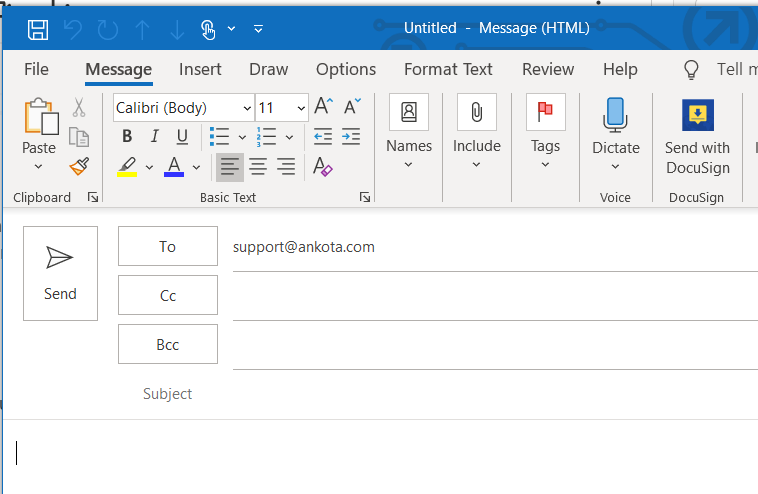
The Contact Support option is a shortcut for emailing Ankota. Clicking it opens a new email in the supported email client (such as Outlook) with support@ankota.com already entered in the To: field.
Help
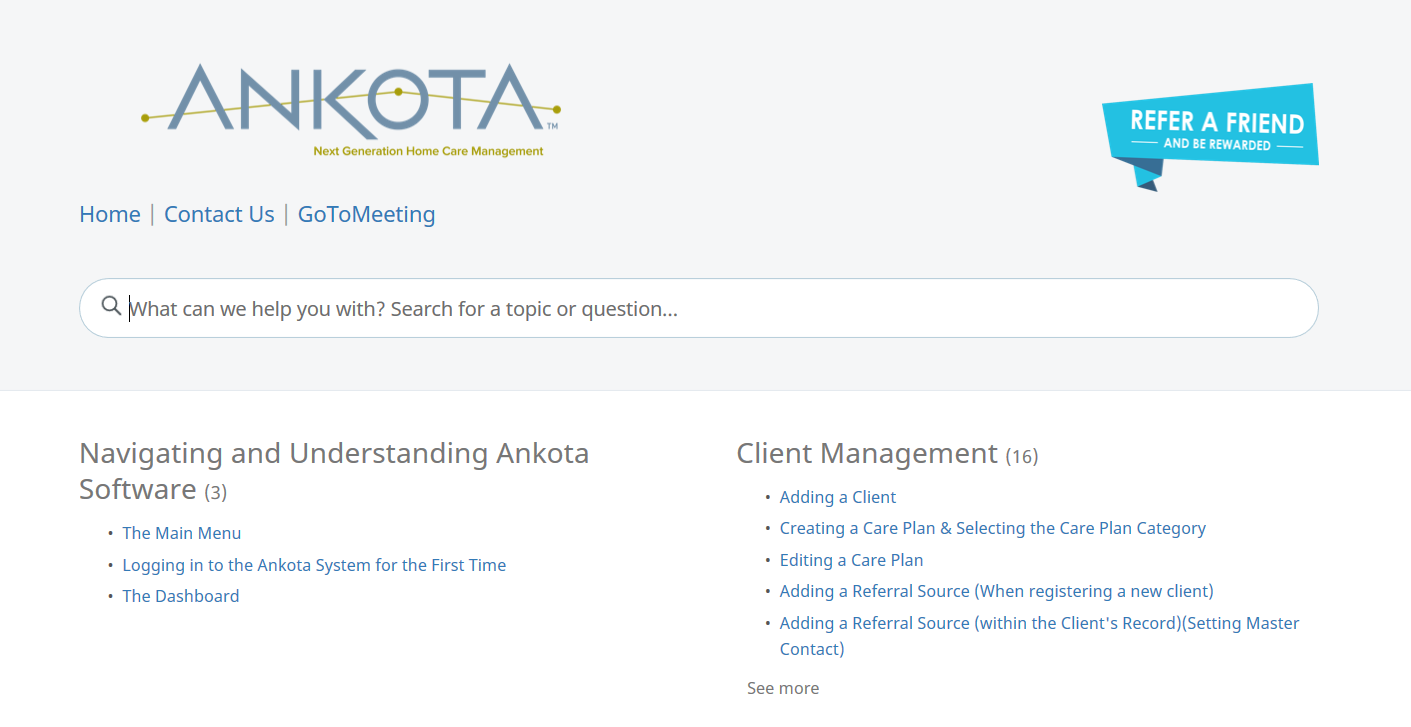
Clicking Help opens the Ankota HelpSite, which contains articles covering critical topics as well as many advanced functions in Ankota.
Logging Out
At the bottom of the profile menu is the Log out option. There is no difference between logging out here or through the Main Menu.