Mobile Chat (Text & Video)
Overview
Mobile chat is a communication option for caregivers and clients, with both text and video chat options. The sections below cover both caregiver and administrative perspectives on mobile chat.
Admin Chat
Administrators can access mobile chat directly from the Caregiver Schedule Board in the ankota.net administrative interface.
The caregiver's chat will send to ALL admins. The chat will show the history of the chats between the caregiver and any/all admins.
A yellow flashing pop-up that says "You have unread chat messages" will appear at the top right of the Caregiver Schedule Board. The flashing pop-up will only appear if there are unread chat messages.
Note: If there is only one chat, admins can click the flashing yellow pop-up and it will take them to the caregiver with the chat.
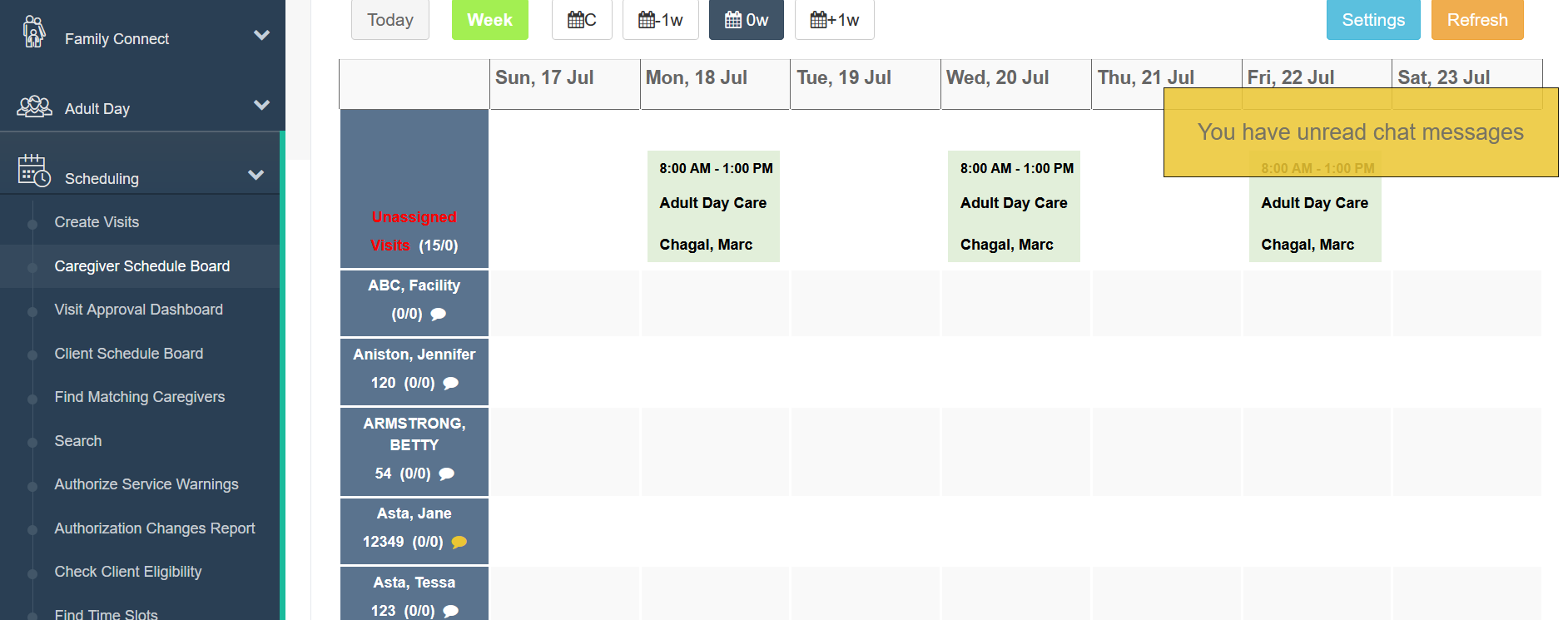
If there is more than one chat from more than one caregiver, go to the Caregiver Schedule Board.
As you scroll down the list of caregivers in the left-hand column, a chat bubble icon appears under each caregiver's name. The chat box will appear yellow if there are any unread messages.
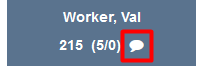
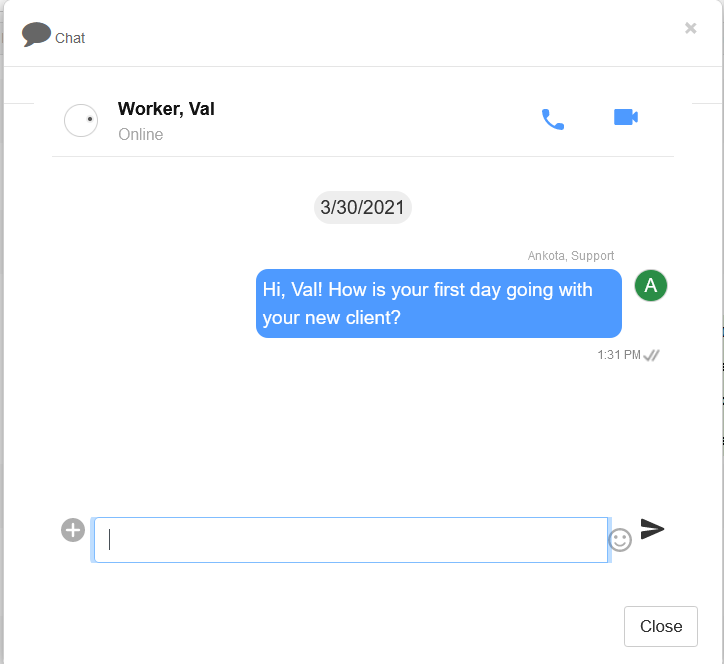
Clicking the chat icon opens a chat window directly with that caregiver. In this window, you can:
- Instant message the caregiver
- Call the caregiver
- Video call the caregiver
You can also go to the caregiver's personal profile. There you will see a chat box above the caregiver's name. If there is a chat it will light up yellow.

A working microphone and/or camera is required to use the call or video call options.
Enabling Caregiver Consent for Chat
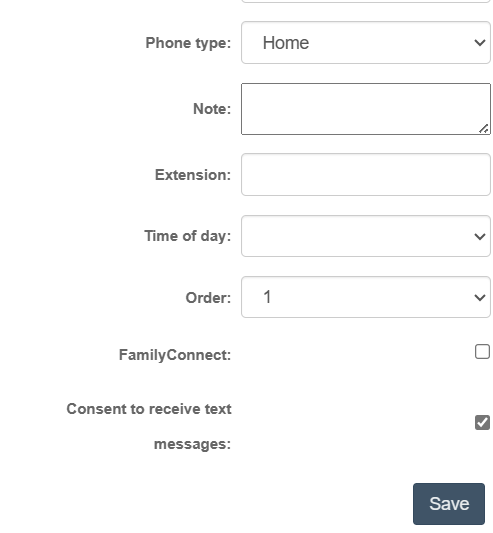
If you receive a message saying the caregiver has not opted in:
- Go to the caregiver's profile.
- Select the Caregiver tab.
- Search the caregiver's name.
- Go to the Personal tab.
- Scroll down and select Phone Number.
- Check the box "Consent to receive text messages."
- Save.
Caregiver Chat
Caregivers can access mobile chat from the mobile app. Training for this feature is also provided in the Caregiver Resources HelpSite.
To open chat, open the mobile app and click the Chat section.
Clicking this section opens a chat list of available admins. Once a caregiver clicks an admin, a chat window opens.
In this window, caregivers can:
- Instant message an admin
- Call an admin
- Video call an admin
A working microphone and/or camera is required to use the call or video call options.