Payroll Reports - Completing Payroll
Overview
Once payrolls have been created on the Calculate Billing/Payroll page, the reports are available under the Payroll Report page. On this page, they can be completed and also accessed later. This page also provides PDF access of all payrolls as well as Excel export options.
Completing Payroll
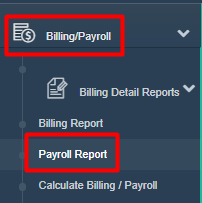
To begin, go to the Main Menu, then click Billing/Payroll, then Payroll Report. (If you clicked "View After Creation" when Calculating Payroll, you would have been automatically directed to this page.)
First, choose if you want to search by Visit Date or Invoice Date. The Visit Date option allows you to pull up previously created payrolls associated with a single date or a date range. The Payroll Date option allows you to pull up previously created payrolls that were assigned to a specific Payroll Date during the Calculate Billing/Payroll process.
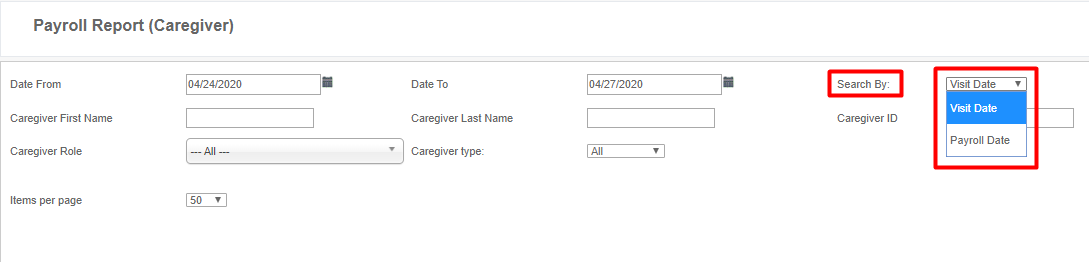
Next, enter the Date From and Date To you would like to search for. Then click the View Report button.

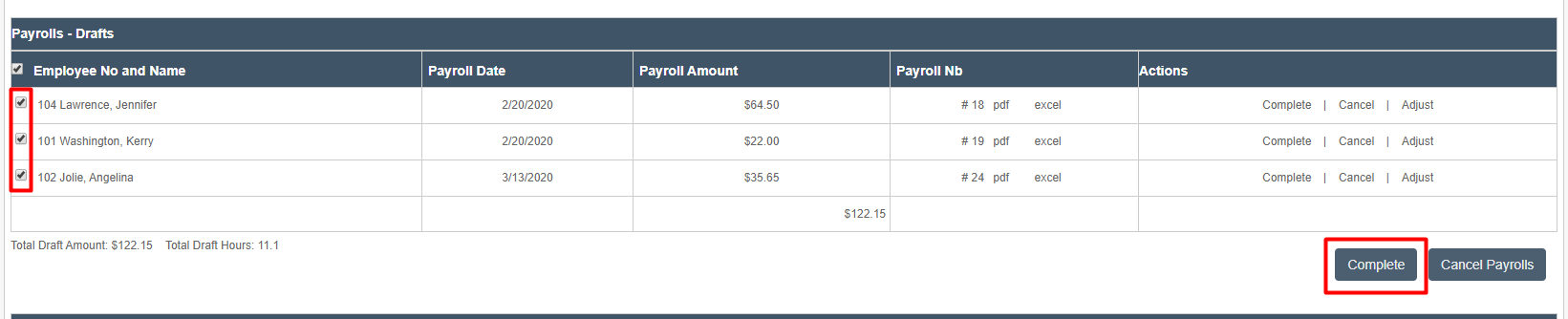
If you created your payroll in the status of Drafts, the payroll statements will be listed under drafts. You can view the invoices as PDFs by clicking "pdf" in the row of the client's name you are looking for. You can also view all of them by clicking the blue button at top labeled Save All as PDF, then opening the PDF that button generates.

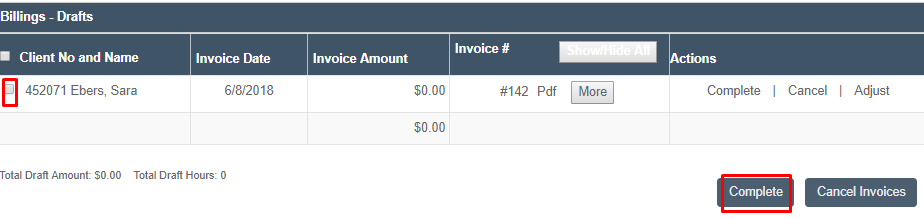
If the payroll statements are correct, check the boxes next to the staff members, then click Complete.
Handling Errors
If you see something wrong, the recommended approach is:
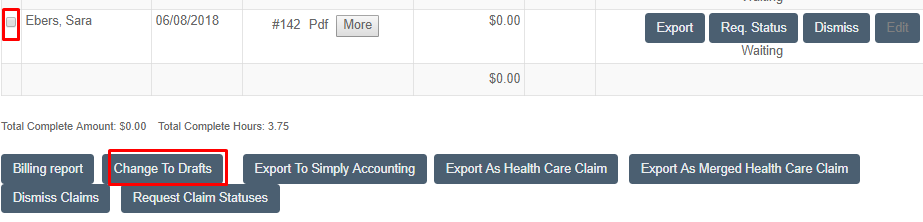
- Cancel the invoice(s) that has errors. To cancel an invoice, change it from complete to draft and cancel it.
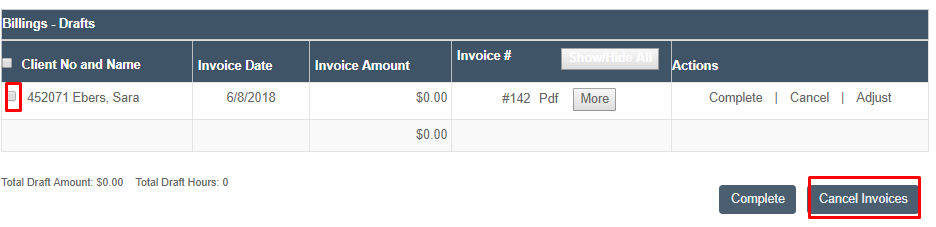
-
Fix the errors. For example:
- Go into the Visits tab and adjust times or other factors.
- If the rate was not set or incorrect, then fix the billing (or payroll) rate and recalculate, then recreate the invoice.
-
Once your draft invoices meet your expectations, move them to "Complete" (either one by one or grouped together). To do this, check the boxes, then click Complete.
Related
For more on payroll reports, see Downloadable Payroll Reports.