Re-setting Passwords
Overview
The most common question Support receives is assistance changing passwords. Because there are many different Ankota passwords and these passwords can vary by location and by app, the first question is always: whose password, and for what Ankota product?
Admin access is typically to only ankota.net, and their passwords can be re-set in ankota.net by another admin. Caregiver access is usually only to a caregiver mobile app. Caregiver passwords can be changed by an admin in ankota.net, OR they can be changed by the caregiver directly in the mobile app.
Please note that there are some employees who may have both kinds of profiles. Always be aware of which profile (Admin or Caregiver) you are working with. See below for a walkthrough of changing these passwords.
Re-setting Passwords for Admins (Admin, via ankota.net)
Re-setting Passwords for Caregivers (Admin, via ankota.net)
Re-setting Passwords for Caregivers (Caregiver, via mobile app)
Re-setting Passwords for Admins (Admin, via ankota.net)
To reset a password as an admin via ankota.net,
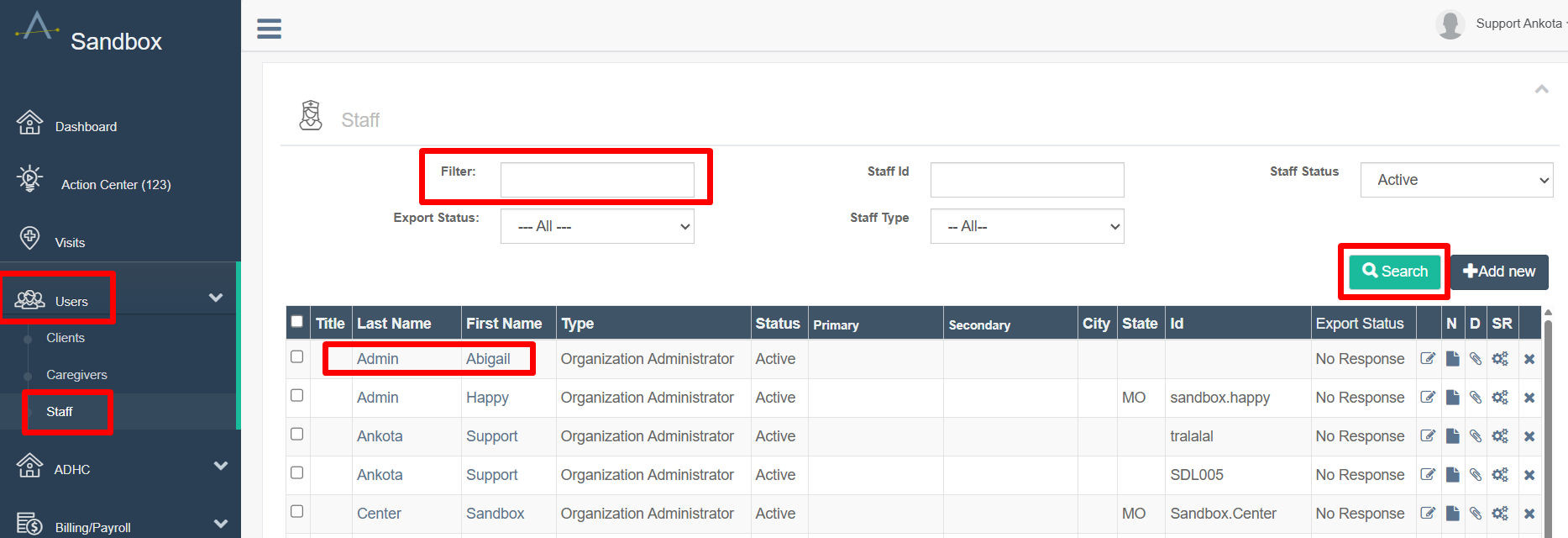
- Click on Admins or Staff in the Main Menu (the name will depend on your organization's preference)
- Search for the admin by entering their first or last name in the Filter box before clicking Search, OR by clicking search with an empty filter and clicking on their name
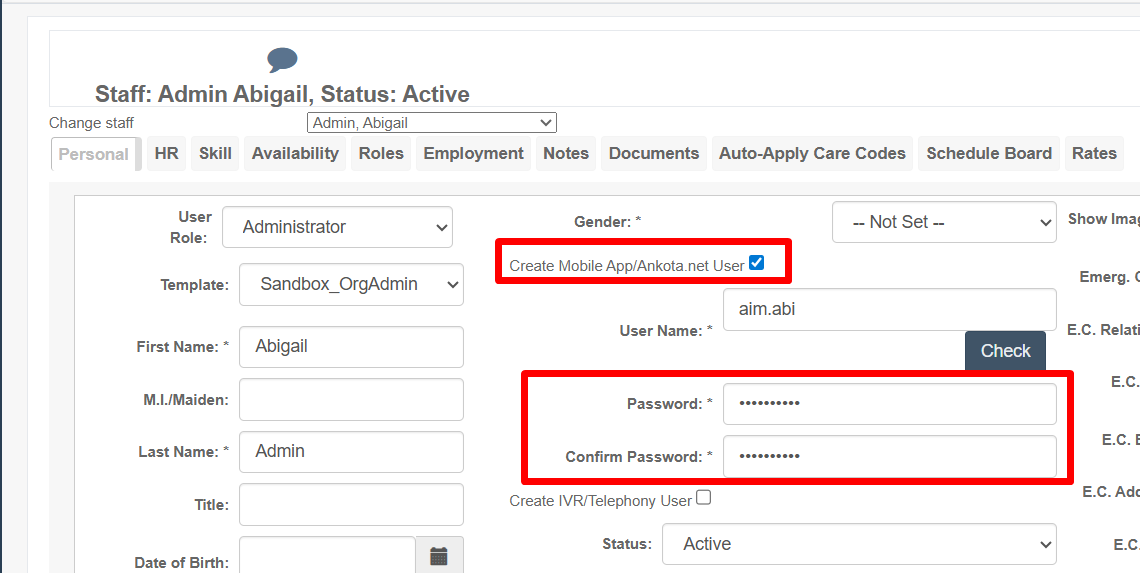
- In the admin's profile, change the Password in both the Password and Confirm Password fields under Create Mobile App/Ankota.net User
- Click the Save Personal button at the bottom of the page
Re-setting Passwords for Caregivers (Admin, via ankota.net)
Re-setting the password for a caregiver's mobile app is virtually the same as re-setting the admin's password.
To reset a password as an admin via ankota.net for the caregiver's mobile app,
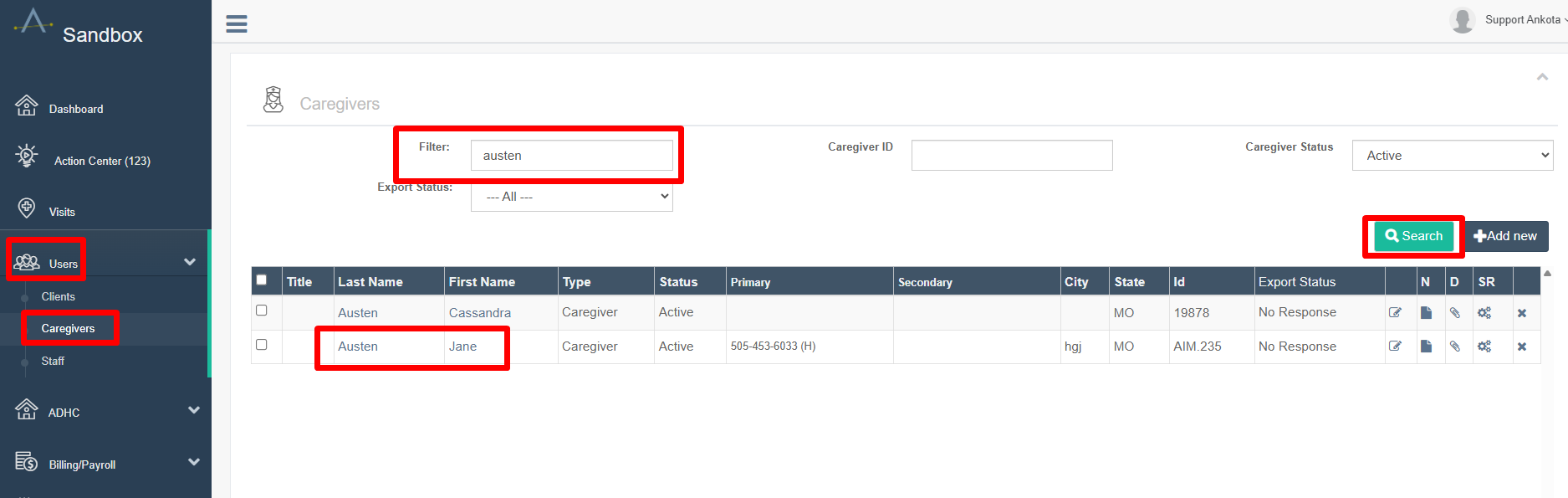
- Click on Caregivers in the Main Menu (the name will depend on your organization's preference)
- Search for the caregiver by entering their first or last name in the Filter box before clicking Search, OR by clicking search with an empty filter and clicking on their name
- In the caregiver's profile, change the Password in both the Password and Confirm Password fields under Create Mobile App/Ankota.net User
- Click the Save Personal button at the bottom of the page
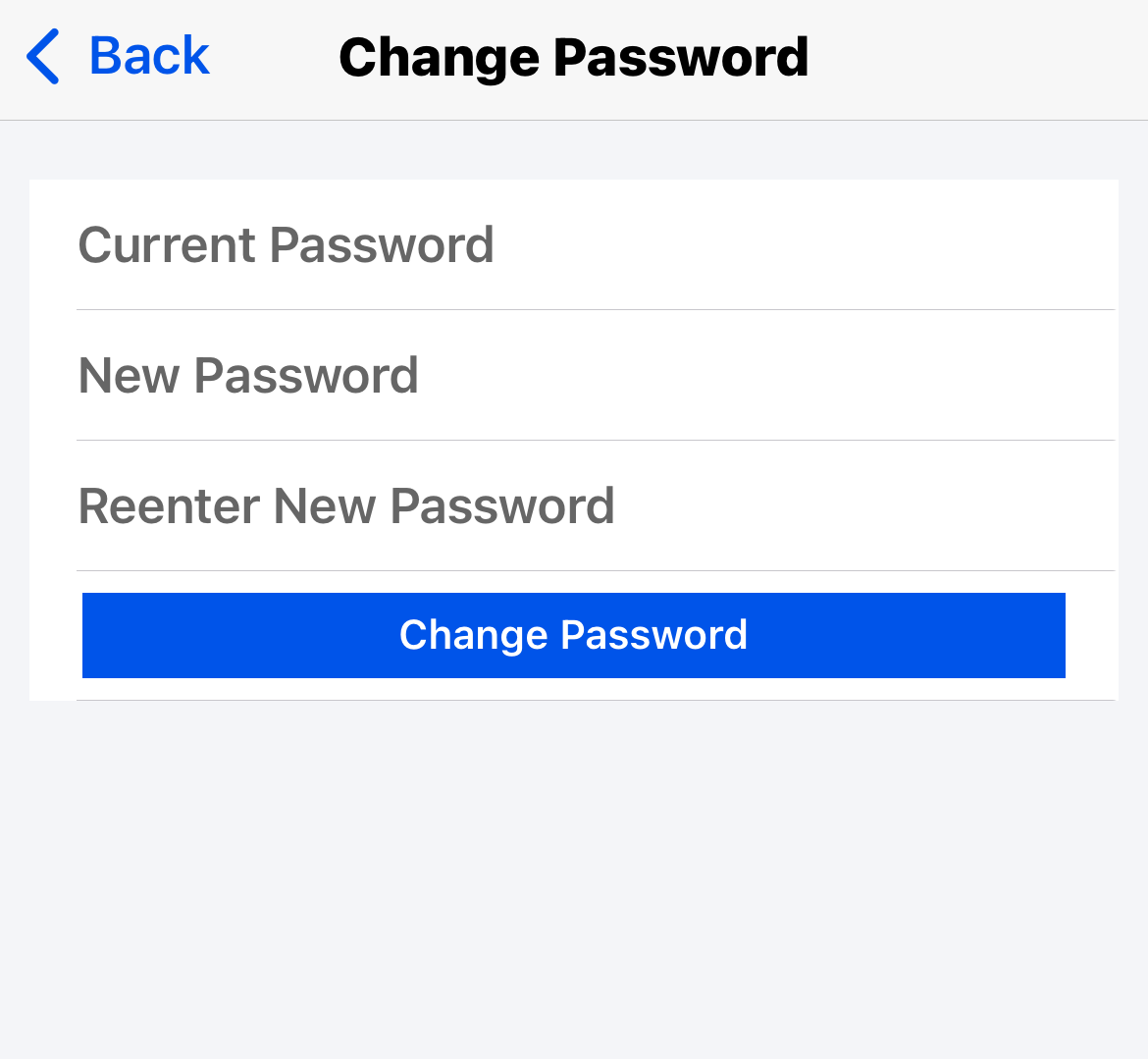
Please note that the first time the caregiver logs in after you re-set the password, they will be asked to change it to a new password immediately after log-in. After creating the new password, they will return to the front page, at which time they can log in with the new password. (Telephony/IVR password "PINs" do not change.)
Re-setting Passwords for Caregivers (Caregiver, via Mobile App)
There are now many Ankota mobile apps, but the most commonly used is still the Ankota Caregiver NextGen Mobile App. This mobile app is for homecare providers.
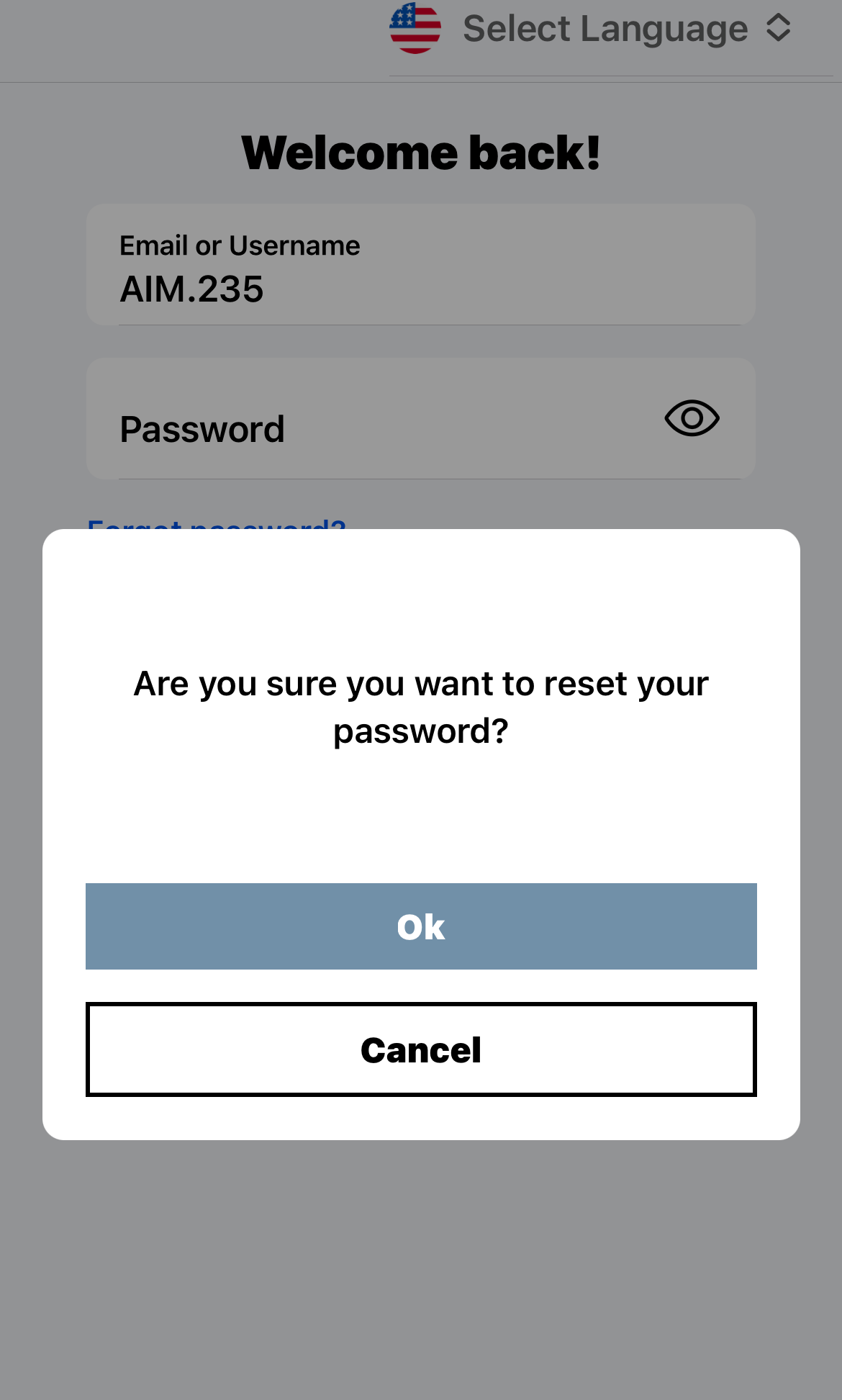
As with most apps, users can re-set their passwords at any time via the mobile app. To do so, they will open the app and click "forgot password."
A pop-up will appear asking them to confirm they want to re-set their password. If the user accepts, the caregiver will be notified they are being sent a new password.
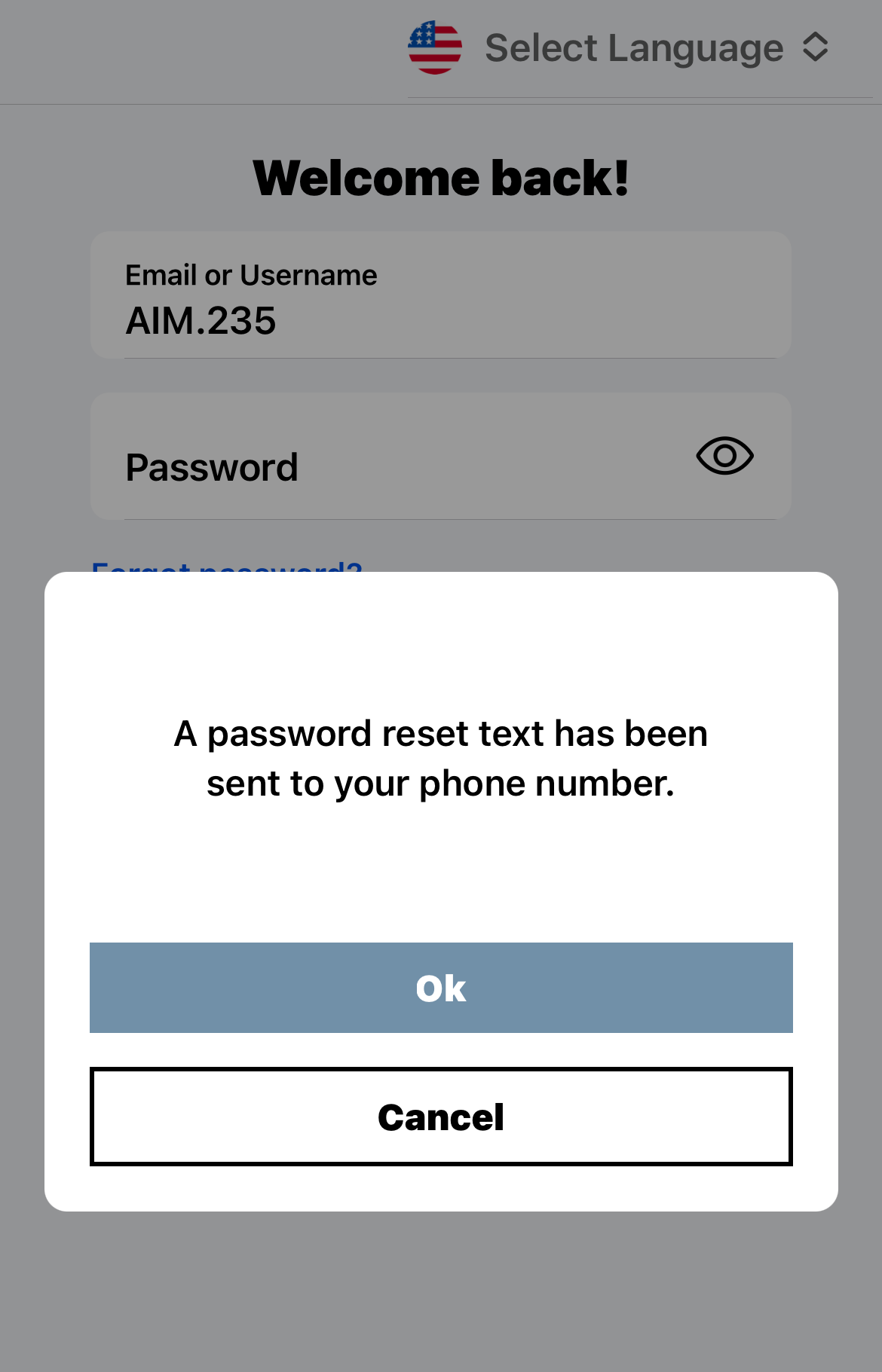
Based on the available options, the caregiver will be notified if they will receive a new password by email or text. (Text is prioritized if both email and text are provided; nothing will be sent unless the caregiver has an email and/or phone number as well as the consent to receive messages checked.)
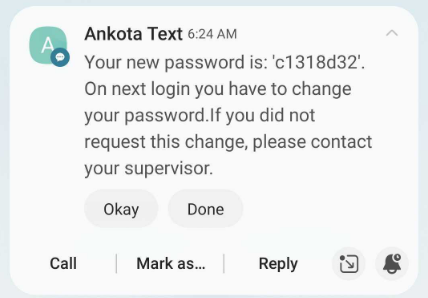
The caregiver will review the text or email, then use the new password to log in. As with the admin password re-set, they will need to set a new permanent password at that time.