Reading NetSmart (Tellus) Responses
Overview
Tellus responses are integrated directly into the Visit Approval Dashboard. This article covers:
- Integrated NetSmart Responses
- Historic Response Files
- Common Rejection Reasons & How To Correct Them
Integrated NetSmart Responses
Responses (rejections and acceptances) are automatically integrated into the Ankota Visit Approval Dashboard. Data is sent and picked up every two hours. Depending on the size of the data delivery and the timing of the export, responses may appear anywhere from a few minutes to four or more hours after data delivery.
Exported data statuses progress as follows:
- No Response — the data was not sent or not successfully sent
- Sent — the data was sent
- In Process — the data was confirmed as received by the aggregator/clearinghouse and is under review
- Rejected or Accepted — the final status of all successfully exported visits
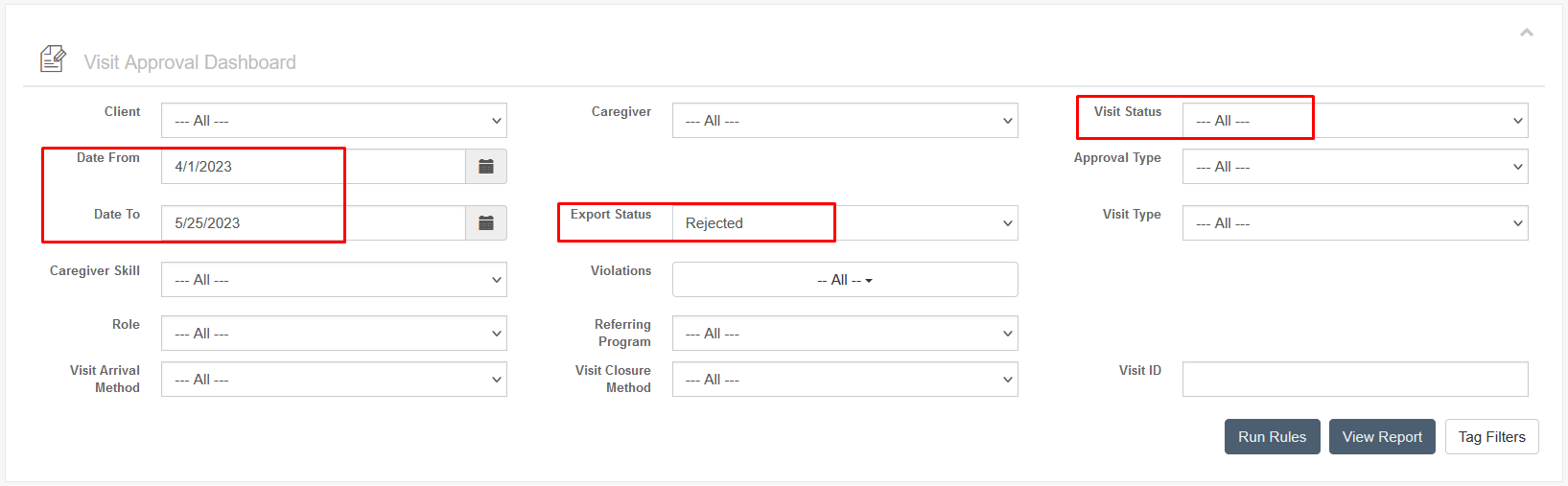
The main task is to check for rejections, view the errors, make corrections, and re-export. Filter the Visit Approval Dashboard by Date and Export Status to view rejected response files (ensure the Ankota Visit Status is set to Status: All):
Errors appear in the visit details under Status:
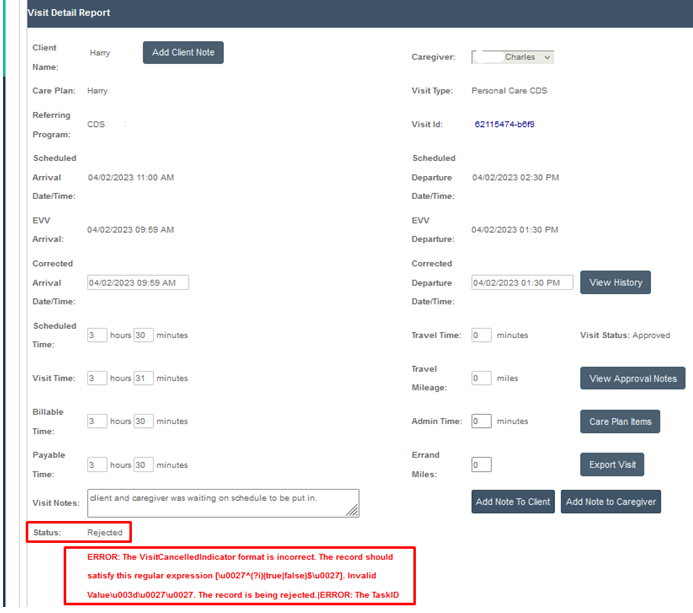
Make corrections as needed and re-export. For guidance on rejection reasons, see Common Rejection Reasons & How To Correct Them below.
Historic Response Files
Tellus response files, visible under the "Imported Files" section at the bottom of the Billing Report page, are the actual files sent by Tellus. These responses are automatically integrated into Ankota and generally do not need review. It is recommended to delete these monthly.
There are two kinds of Tellus response files: acceptance files and rejection files. Acceptance files are rarely needed except to confirm data was accepted and will be posted in Tellus soon after the response file is received. Rejection files are critical, as they provide the reasons data was rejected. (A rejection response means the file was not accepted into Tellus and will not be posted in the Work List.)
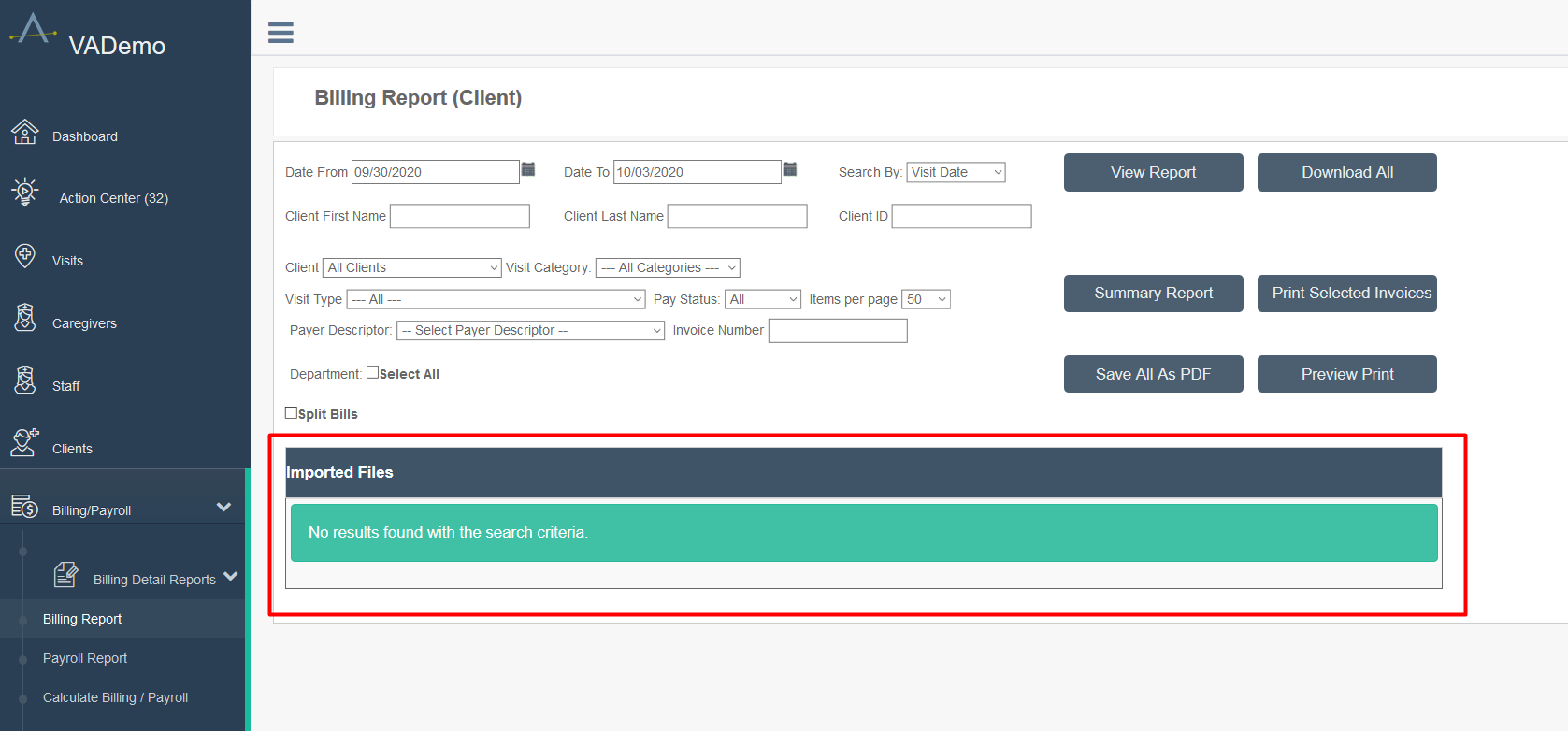
Searching for Rejection Reasons
To review rejection reasons, download the rejection file. To skip straight to the critical information, search the file for the key term "invalid." This quickly reveals the issue causing the rejection. Some rejections may be due to multiple reasons, so evaluate all "invalid" responses.
Example header and record from a rejection file:
"ERRORS"|"WARNINGS"|"sourceSystem"|"jurisdiction"|"payer"|"plan"|"program"|"deliverySystem"|"providerName"|"providerMedicaidId"|"providerNPI"|"providerNPITaxonomy"|"providerNPIZipCode"|"providerEin"|"caregiverFirstName"|"caregiverLastName"|"caregiverLicenseNumber"|"recipientMedicaidId"|"recipientMemberId"|"recipientFirstName"|"recipientLastName"|"recipientDob"|"serviceAddress1"|"serviceAddress2"|"serviceCity"|"serviceState"|"serviceZip"|"visitId"|"serviceCode"|"serviceCodeMod1"|"serviceCodeMod2"|"diagnosisCode1"|"diagnosisCode2"|"diagnosisCode3"|"diagnosisCode4"|"startVerificationType"|"endVerificationType"|"scheduledStartDateTime"|"scheduledEndDateTime"|"scheduledLatitude"|"scheduledLongitude"|"actualStartDateTime"|"actualEndDateTime"|"actualStartLatitude"|"actualStartLongitude"|"actualEndLatitude"|"actualEndLongitude"|"userField1"|"userField2"|"userField3"|"reasonCode1"|"reasonCode2"|"reasonCode3"|"reasonCode4"|"timeZone"|"visitNote"|"endAddress1"|"endAddress2"|"endCity"|"endState"|"endZip"|"visitStatus"|"missedVisitReason"|"missedVisitActionTaken"|"invoiceUnits"|"invoiceAmount"|"scheduledEndLatitude"|"scheduledEndLongitude"|"paidAmount"|"careDirectionType"|"tasks"|"priorAuthorization"|"caregiverType"|"startAddressType"|"endAddressType"|"referringPhysicianFirstName"|"referringPhysicianLastName"|"referringPhysicianNPI"|"providerAddress"|"providerAddress2"|"providerCity"|"providerState"|"providerZip"|"recipientGender"|"authorizationId"|"ICNPayerClaimNumber"|"TPLPaid"|"providerInvoiceNumber"|"serviceCodeMod3"|"serviceCodeMod4"
"MRTH SRVC 000 Invalid Visit-Already-Completed-In-System"|""|"ANKO"|"VA"|"ANTV"|"NONE"|""|"MCOR"|"MARY POPPINS HOMECARE HEALTH SERVICES LLC"|"000000000"|"1234567"|"3747P1801X"|"12345567"|"7654321"|"JANE"|"DOE"|""|"1234567"|"7654321"|"MICHAEL"|"DOE"|"1950-01-91"|"17 CHERRY TREE LANE"|""|"TOWNSVILLE"|"VA"|"1234567"|"M"|"1234567"|""|""|"0"|""|""
Once the rejection reason is identified, refer to the chart below to understand its meaning and required action.
Managing Response Files
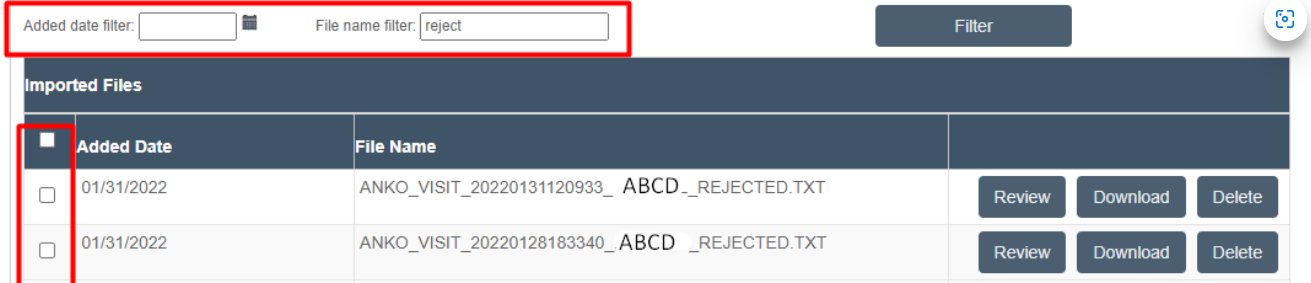
To filter or delete response files, use the Added Date Filter and the File Name Filter above the response files. Any part of the file name can be typed into the File Name Filter to search. Best practice is to delete files as soon as they are no longer needed.

Common Rejection Reasons & How To Correct Them
To correct errors, read the rejection reason, take the suggested action, and re-export the visit. Once the visit is accepted in Tellus/NetSmart, proceed with the usual Tellus/NetSmart billing process.
Note (Georgia): A rejection reason may not be received for completing a visit at a second approved location, but if that location is not on the client's file in Tellus, it may appear as unmatched (not billable) in the Tellus Work List. Enter secondary approved client service location addresses in Georgia Tellus to prevent unmatched claims.
| Error | Meaning | What to Do |
|---|---|---|
| MRTH SRVC 000 Invalid Visit-Already-Completed-In-System | This visit was already sent to Tellus and is in their system. | If you are re-sending Tellus claim data because you had an issue, this visit was not accepted because it already exists in Tellus. You need to make any corrections in the Tellus system. (If you re-sent a visit or visits by accident, you can ignore this response.) |
| MRTH SRVC 001 Invalid Recipient-Does-Not-Exist-in-System | The client/patient does not exist in their system or does not match. | Check and if needed correct name spelling/formatting, admission ID, Medicaid ID, admission ID, and DOB. Don't forget to look for missing or unnecessary characters, such as missing or extra spaces. |
| MRTH SRVC 003 Invalid Provider-Does-Not-Exist-in-System | The provider does not exist in the system. | Check to make sure your provider name, taxonomy code, NPI, address and zip code are correct and matching your state registration. Correct as needed. |
| MRTH SRVC 710 Invalid SourceSystem | The source system (the EVV company) is not valid. | Ankota is a valid source system. If you get this message, your system may not be correctly configured. Ask your Ankota specialist to review the Ankota name configuration in Ankota. If this looks correct, you will also need to review this information with Tellus. Correct as needed. |
| MRTH SRVC 720 Invalid Jurisdiction | The visit's jurisdiction does not match expected parameters. | Correct the jurisdiction. If you receive this error anywhere outside of a multi-error response, please reach out to your Ankota specialist. Correct as needed. |
| MRTH SRVC 730 Invalid Payer | The payer does not match what Tellus expects. | Check and make sure the visits have the right payer and visit type for this time period. If a client is switching back and forth between an MCO and Medicaid, for example, make sure the authorizations, visit types, and payers all match for the appropriate time periods in Ankota. Correct as needed. |
| MRTH SRVC 740 Invalid Plan | The plan does not match what Tellus expects. | This is a standard configuration. If you get this response, notify your Ankota specialist so they can correct the configuration. |
| MRTH SRVC 750 Invalid Program | The program is not correct. | Review the program on the payer. Correct as needed. |
| MRTH SRVC 760 Invalid DeliverySystem | The delivery system does not match what Tellus expects. | This is a standard configuration. If you get this response, notify your Ankota specialist so they can correct the configuration. Correct as needed. |
| MRTH SRVC 770 Invalid ProviderName | The home care company's name does not match what Tellus expects. | Home care company names are often very similar, and even the difference between "Home Care LLC" and "Homecare LLC" could cause an issue. Ask your Ankota specialist to review your name in Ankota. If this looks correct, you will also need to review this information with Tellus. |
| MRTH SRVC 790 Invalid ProviderNPI | The home care company's NPI is not a valid NPI or is not matching what Tellus expects. | Speak to your Ankota specialist to see if there was an error in your NPI. If you have multiple NPIs, be sure to confirm that Ankota's understanding of your NPIs is correct. If it is correct, then you will also need to review this data with Tellus. |
| MRTH SRVC 820 Invalid ProviderEin | The home care company's NPI is not matching what Tellus expects. | Ask your Ankota specialist to review/confirm your EIN in Ankota. If this looks correct, you will also need to review this information with Tellus. |
| MRTH SRVC 830 Invalid CaregiverFirstName | The caregiver's first name is not matching what Tellus expects. | Check the caregiver's name in your system. Make sure you have not changed their caregiver ID or other information that could result in a mismatch. Correct as needed. |
| MRTH SRVC 840 Invalid CaregiverLastName | The caregiver's last name is not matching what Tellus expects. | Check the caregiver's name in your system. Make sure you have not changed their caregiver ID or other information that could result in a mismatch. Correct as needed. |
| MRTH SRVC 860 Invalid RecipientMedicaidId | The client's Medicaid ID is not matching what Tellus expects. | Check the client's Medicaid ID. Make sure that this is not mis-entered (missing a number or wrong number). Correct as needed. |
| MRTH SRVC 870 Invalid RecipientMemberId | The client's Member ID is not matching what Tellus expects. | Check the client's Member ID in the admission ID field in the client's authorization. Make sure that this is not mis-entered (missing a number or wrong number or including asterisks*, which need to be removed). You may need to check this against the Recipient information in Tellus to check for a mismatch. Correct as needed. |
| MRTH SRVC 880 Invalid RecipientFirstName | The client's first name is not matching what Tellus expects. | Check the client's name in your system. Make sure you have not changed their ID or other information that could result in a mismatch. Correct as needed. |
| MRTH SRVC 890 Invalid RecipientLastName | The client's last name is not matching what Tellus expects. | Check the client's name in your system. Make sure you have not changed their ID or other information that could result in a mismatch. Correct as needed. |
| MRTH SRVC 900 Invalid RecipientDob | The client's date of birth is not matching what Tellus expects. | Check the client's date of birth in your system and make sure it is not missing or incorrect. Correct as needed. |
| MRTH SRVC 910 Invalid ServiceAddress1 | Your company's service address (street address) is not matching what Tellus expects. | Check the address on this claim in your system and make sure it is not missing or incorrect. Correct as needed. |
| MRTH SRVC 930 Invalid ServiceCity | Your company's service address (city) is not matching what Tellus expects. | Check the address on this claim in your system and make sure it is not missing or incorrect. Correct as needed. |
| MRTH SRVC 940 Invalid ServiceState | Your company's service address (state) is not matching what Tellus expects. | Check the address on this claim in your system and make sure it is not missing or incorrect. |
| MRTH SRVC 950 Invalid ServiceZip | Your client's primary service address (zip) is not matching what Tellus expects. | Check the address on this claim in your system and make sure it is not missing or incorrect. Correct as needed. |
| MRTH SRVC 1000 Invalid DiagnosisCode1 | Your Primary Diagnosis Code is not matching what Tellus expects. | Check the client's Primary Diagnosis Code and make sure it is not missing and that it is entered as a code, not text. Only one code should go in the Primary Diagnosis Code field. Correct as needed. |
| MRTH SRVC 1060 Invalid ScheduledStartDateTime | The scheduled start date/time is not matching. | Review the scheduled start date/time. Correct as needed. |
| MRTH SRVC 1070 Invalid ScheduledEndDateTime | The scheduled end date/time is not matching. | Review the scheduled end date/time. Correct as needed. |
| MRTH SRVC 1190 Invalid Reason Code | The reason code is being rejected. | Review the reason code on the visit. Correct as needed. |
| Any Invalid Longitude or Latitude Warning | The service address is resulting in an error. | There are a variety of possibilities, and the specific file must be reviewed. Please send the exact name of the rejection file to your Ankota specialist and request assistance. (One possibility is that no GPS data was sent. Another common issue is that the visit was listed as non-GPS, but the system saw a GPS location, resulting in a warning.) |
| Excessive Invalid Reasons | Tellus is having trouble interpreting this visit. | If you see a list of what seems like every possible rejection reason in a file, this is likely the result of misformatting or missing data. This data entry issue is causing a domino effect, where every field is misread by Tellus as wrong, resulting in the long list of rejection reasons. Please report the issue to your Ankota specialist for follow-up, as this will require both a review of the exported data and potentially also an Ankota/Tellus Integrations team review. |
| MRTH SRVC 1237 Invalid InvoiceAmount | ** Please reach out to your Ankota Specialist if you see this error | |
| MRTH SRVC 1310 Invalid ReferringPhysicianNPI | The Physician's NPI is not correct and/or matching. | Review the Physician's NPI. Reach out to Support for assistance. |
| MRTH SRVC 1315 Invalid ReferringPhysicianNPITaxonomy | The Physician's taxonomy code is not correct and/or matching. | Review the Physician's taxonomy code. Reach out to Support for assistance. |
| MRTH SRVC 1099 Invalid StartDateTime-After-EndDateTime | The scheduled start and/or end date/time is not matching or formatted incorrectly. | Review the schedule start and end dates, and correct as needed. |
If a rejection reason is not on this list, contact your Ankota specialist for more information. This list is a work in progress.