Rework, Missed Visit, Cancel Visit, and On Hold Functionality
Overview
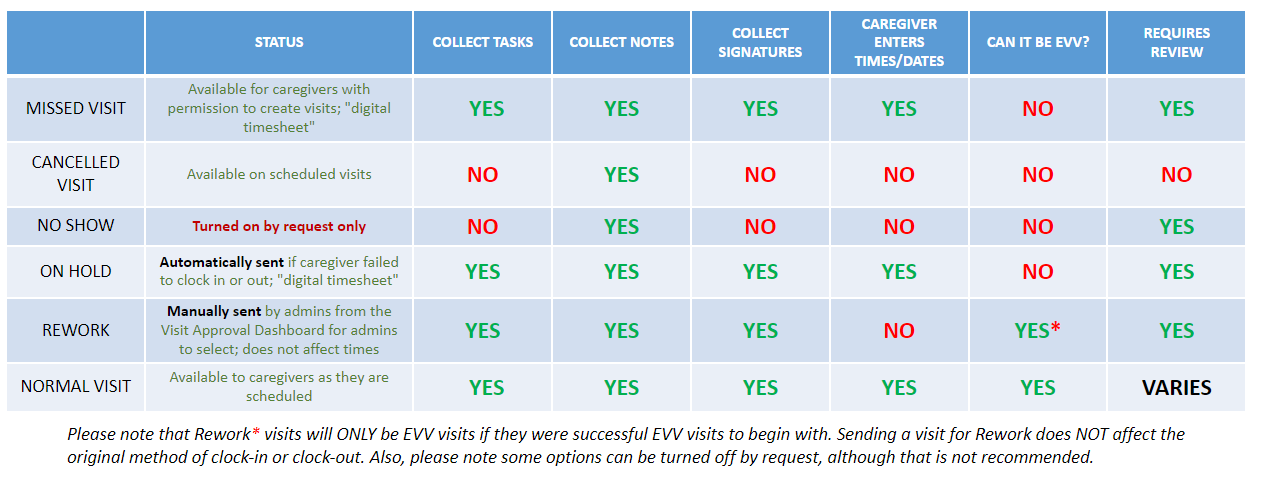
When caregivers do not complete their visits, administrators have several options that can be configured in their system. (These are not defaulted in every state; reach out to support@ankota.com to request them if desired.)
An overview of these special features from the caregiver's mobile app perspective is also available.
Rework
Intended for caregivers whose visits are scheduled by admins and need to update notes, care plan item statuses, and/or signatures (no reporting of dates/times).
- Available by default (except in legacy environments)
- Sent by admin (NOT automated)
- Only to pick notes, care plan items, and/or signatures
- TIMES & EVV STATUS ARE NOT AFFECTED
Missed Visit
The only function that is NOT turned on by default in new systems. Intended for caregivers who schedule their own visits and need to retroactively create/close a visit.
- NOT AVAILABLE BY DEFAULT
- Created by caregiver
- Makes a manual visit in the past that can be closed
- Only for caregivers who already have permission to create their own visits
On Hold
Allows caregivers to manually close their own On Hold visits, selecting a manual date/time in addition to updating notes, care plan item statuses, and/or signatures.
- Available by default (except in legacy environments)
- Automated by system - sent when caregiver fails to clock in or out
- Allows user to close visit manually with notes, care plan items, signatures (if applicable), and dates/times
- TIMES & EVV STATUS ARE AFFECTED
Cancelled Visit
Allows caregivers to report a visit cancelled by a client same-day prior to the start of the visit. (For the rarely used No Show option — where caregivers report a client's failure to arrive after the caregiver has clocked in — contact Support.)
- Available by default (except in legacy environments)
- Available to caregiver same-day
- Allows caregiver to cancel visit
- TIMES & EVV STATUS ARE AFFECTED
Send for Rework & Rework Recall
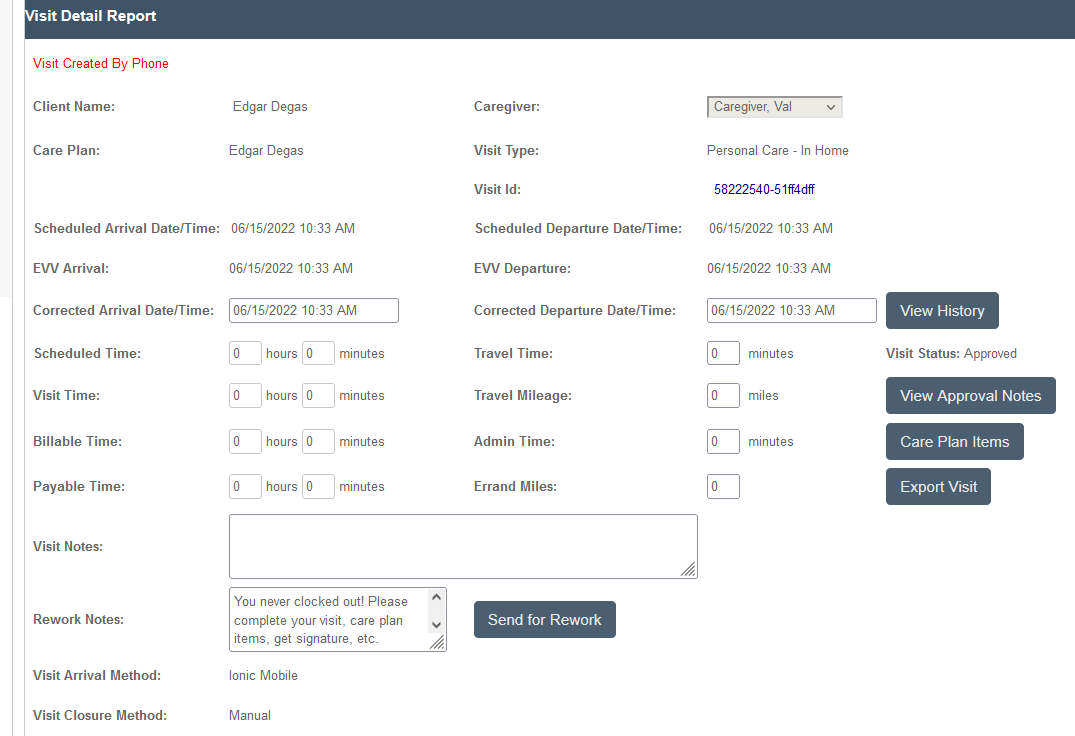
Similar to the On Hold visit closure for caregivers, CLOSED visits can be sent back for Rework by an admin from the Visit Approval Dashboard, along with a request in the Rework Notes box that will be seen by the caregiver. The Rework status works as a request to the caregiver, asking them to recomplete their visit. This request is usually sent as the result of an administrator manually sending the request from the Visit Approval Dashboard, but can also be triggered in some systems when a visit is hung up too early, resulting in the Departure status.
NOTE: If a caregiver departed without completing their visits in Ankota but care plan item completion was confirmed, visits can be manually closed and Support can be contacted to request temporary access to a Complete Care Plan Items button to quickly resolve a large number of visits with unreported care plan items.
This changes the visit from Closed to Departure status. EVV date/times and the arrival/departure method (manual, mobile app, or IVR) cannot be changed by Rework. If the caregiver needs to be able to report times manually, use the On Hold Manual Closure by Caregivers feature. Note: When a rework is sent and completed, the caregiver and client's original signatures will disappear, and a new signature will need to be captured.
The major difference between Rework and the manual visit closure for On Hold visits is that caregivers can only enter a note regarding date and time. Caregivers cannot enter the time and date manually with the Rework function.
This causes the visit to show up back on the mobile app or mobile form, where the caregiver can re-fill out the visit or document and re-send.
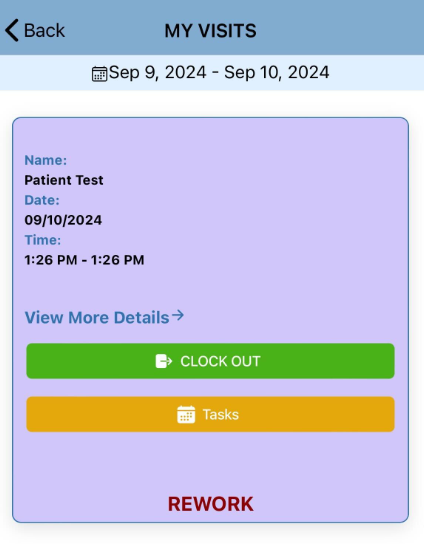
The following updates can then be made by the caregiver:
- Report the times with a note only (no entry of actual times as in the On Hold visit closure)
- Set the care plan item values
- Add errands if errand miles is configured
- Add notes
- Get client signature
- Get caregiver signature
- Resubmit for review in the Visit Approval Dashboard
Once it is re-completed, it will be flagged in the Visit Approval Dashboard once more as a closed Rework visit. Times cannot be manually entered; the caregiver can only enter the times as a note, which can then be reviewed by the admin.
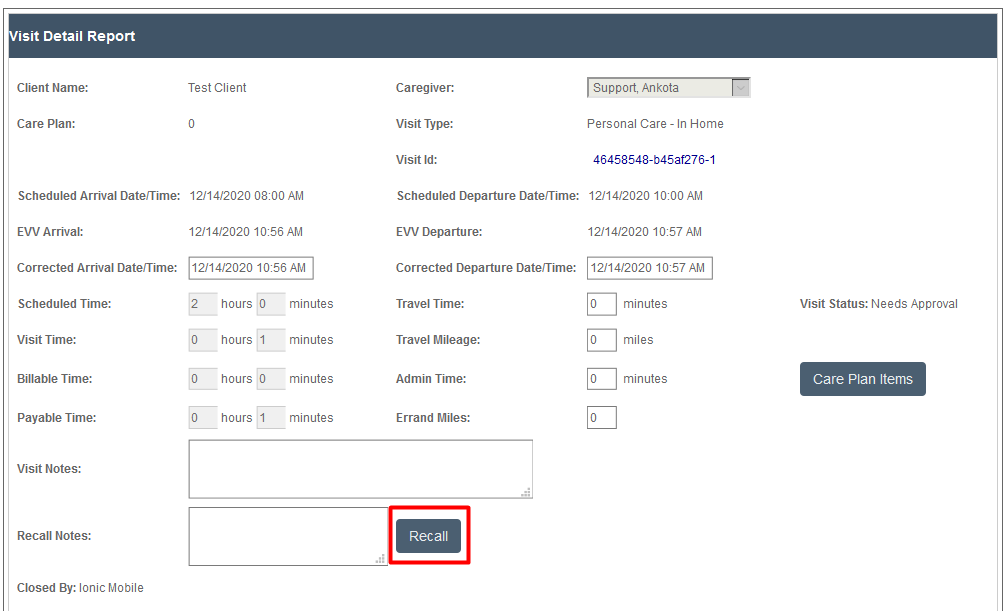
Alternately, if the Rework request was accidental or is no longer needed, the administrator can press Rework Recall in the Visit Approval Dashboard. This changes the status back to closed, sets the additional VAD status to "not set," and sends a message to the worker that says "The request for rework has been recalled."
Missed Visit Additions
Missed visit functionality is an option which is only turned on by request. Missed visits are visits which can be retroactively created by the caregiver so long as they are assigned to the client and have been given access to the My Clients (self-scheduling) section in the mobile app. This function is intended for caregivers who missed unscheduled visits that cannot be sent out for Rework.
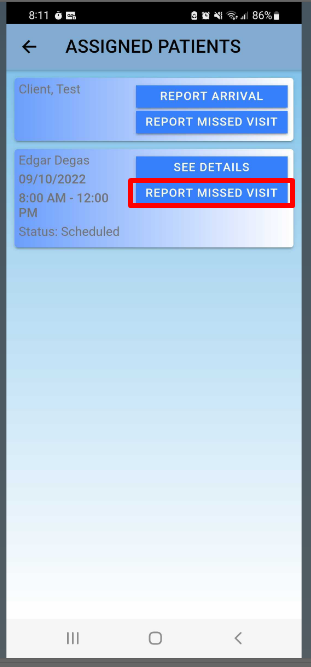
To create a missed visit, open the My Clients section of the mobile app, then click the Report Missed Visit button.
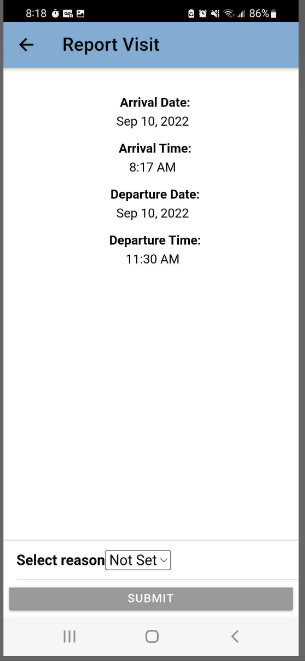
Enter the dates and times as appropriate. If the organization has a list of reasons to choose for the missed visit, select one at that time.
Complete the visit as needed:
- Set the care plan item values
- Add errands (if errand miles is configured)
- Add notes
- Get client signature
- Get caregiver signature
After completion, the visit will automatically be flagged in the Visit Approval Dashboard for review by an administrator.
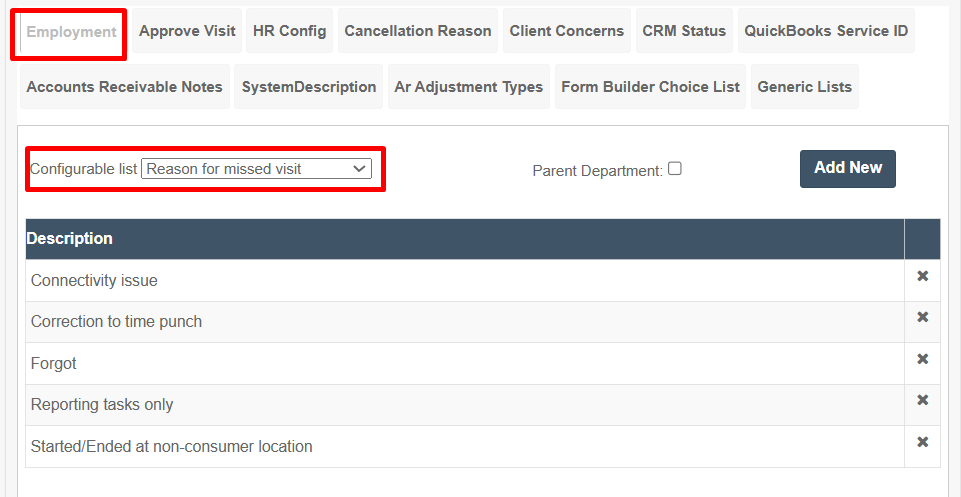
Add Reasons for Missed Visit (Dropdown in Ionic Mobile App)
To configure:
- Select Settings
- Click Configurable List
- Click the Employment subtab
- Filter Configurable List: Reason for Missed Visit
- Add New
On Hold Manual Closure by Caregiver
In Ankota, visits which were never clocked out of by a caregiver are automatically set to the status of On Hold. This status changes the visit color, makes the visit available on the Visit Approval Dashboard, flags the visit for review, and causes the visit to return to the caregiver. Once a visit is placed On Hold, a caregiver can no longer clock out with EVV, but they can clock out manually and report the end date/time. This manually closed visit will be brought to attention in the Visit Approval Dashboard. This is intended for caregivers who remember to clock in, but forget to clock out.
NOTE: Most organizations have the option selected to set visits which are not clocked out (visits in the status Arrived) to On Hold the next day. Some organizations ALSO choose to set visits which were not clocked IN from the previous day (visits in the status Scheduled) to be placed On Hold. In that case, caregivers can manually report their arrival as well as their departure time.
When a visit is returned to a caregiver through this On Hold option, the intention is to let the caregiver complete the visit. Closing the visit includes putting in a time and date manually, explaining why the clock-out was missed, and completing care plan items. Any visit closed this way will show as manually closed for state exports. This function replaces paper timesheets for missed clock-outs. The reason for the missed clock-out is configurable.
Note: If the visit was manually arrived by Admin and moved to On Hold, the caregiver can adjust the arrival date/time as well as departure date/time, so the caregiver can move it to the corrected past date if needed.
The caregiver will still be able to report arrival on current visits in the My Visit tab without having to complete the older On Hold visit.
Summary
- Visits which were Arrived (clocked into) but not Closed (clocked out of) are always put On Hold by Ankota
- Visits which were not clocked into (still Scheduled) are placed On Hold automatically in newer systems or by request
- On Hold visits go back to the caregiver with this feature turned on (default)
- On Hold visits can have the dates/times manually reported by the caregiver with this feature turned on
- Contiguous visits show as a single On Hold visit where Ankota will split the duration on the caregiver's behalf
- Manually reported dates/times by the caregiver make the visit method Manual. Medicaid customers will want to limit Manual methods, so Manual visits should be rare
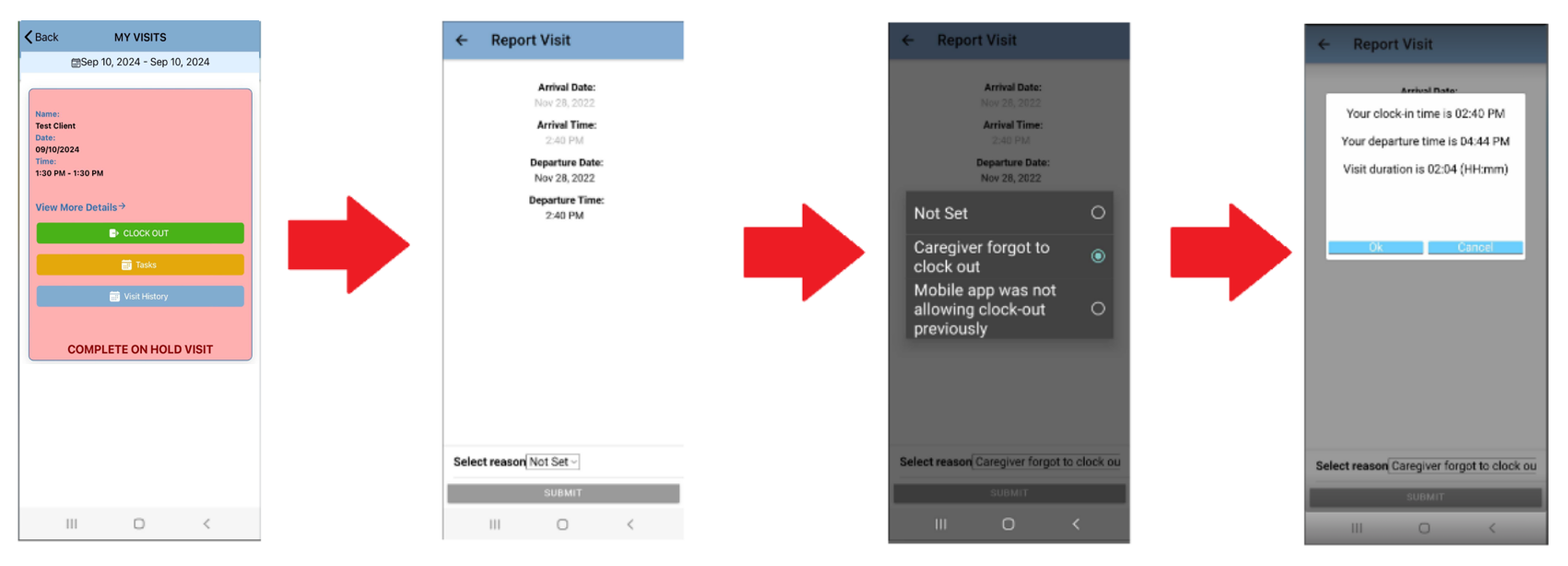
When a caregiver closes out an On Hold visit, it results in a flagged visit and a red warning on the Visit Approval Dashboard, including the reason for the missed clock-out:

This warning ensures the visit is seen, reviewed, coded if necessary, and approved (or not) by an administrator.
Report a Scheduled Not Worked Visit as Cancelled
Cancelled visit functionality is an option which is only turned on by request. Cancelled visits are scheduled visits which have NOT been worked by the caregiver. This function is intended for caregivers to report why a scheduled visit wasn't worked.
To cancel a scheduled visit:
- Select the Cancel Visit button
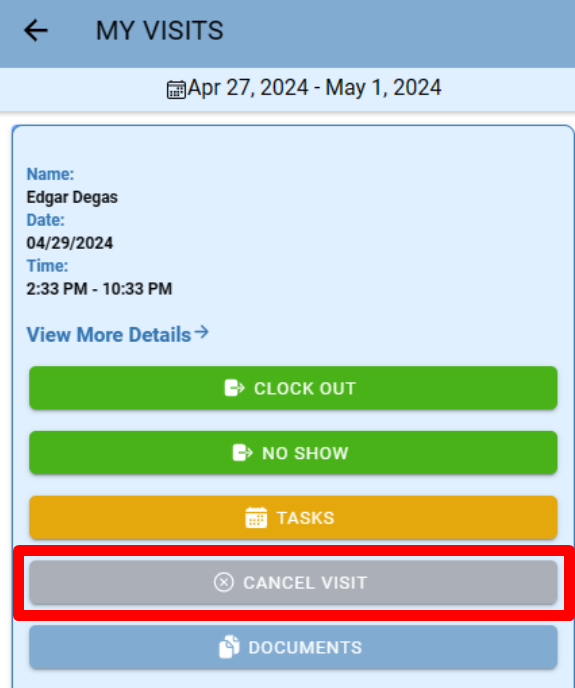
- Select a reason from the dropdown — these reasons can be customized (reach out to your Implementation Specialist)

- Select Submit
- A confirmation will pop up that the visit has been cancelled