Caregiver/Staff Management›Send Log-in: Text Mobile Log-in Credentials to Caregivers from the Caregiver Search Page

Send Log-in: Text Mobile Log-in Credentials to Caregivers from the Caregiver Search Page

Overview

In addition to messaging and exporting caregivers from the Caregiver Search page, caregivers can be texted their log-in credentials for the Mobile App and Telephony directly from the Caregivers page.

This article covers:

  • Use
  • Administrative Warnings
  • Message Log

[[VIDEO:0]]

Use

To access the Send Log-In function:

  1. Go to Profiles.
  2. Click Caregivers.
  3. Search for caregivers as desired.

Note: Confirm that each caregiver's profile indicates they have consented to receive text messages. If consent is missing, open the caregiver's profile, open their phone number, and check the Consent box.
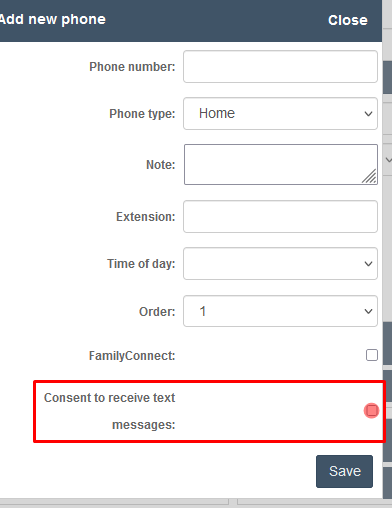
The "Add new phone" dialog form displays fields for entering phone contact information, including Phone number, Phone type (set to "Home"), Note, Extension, Time of day, and Order dropdowns, along with a FamilyConnect checkbox and a red-highlighted "Consent to receive text messages" section with a toggle switch.

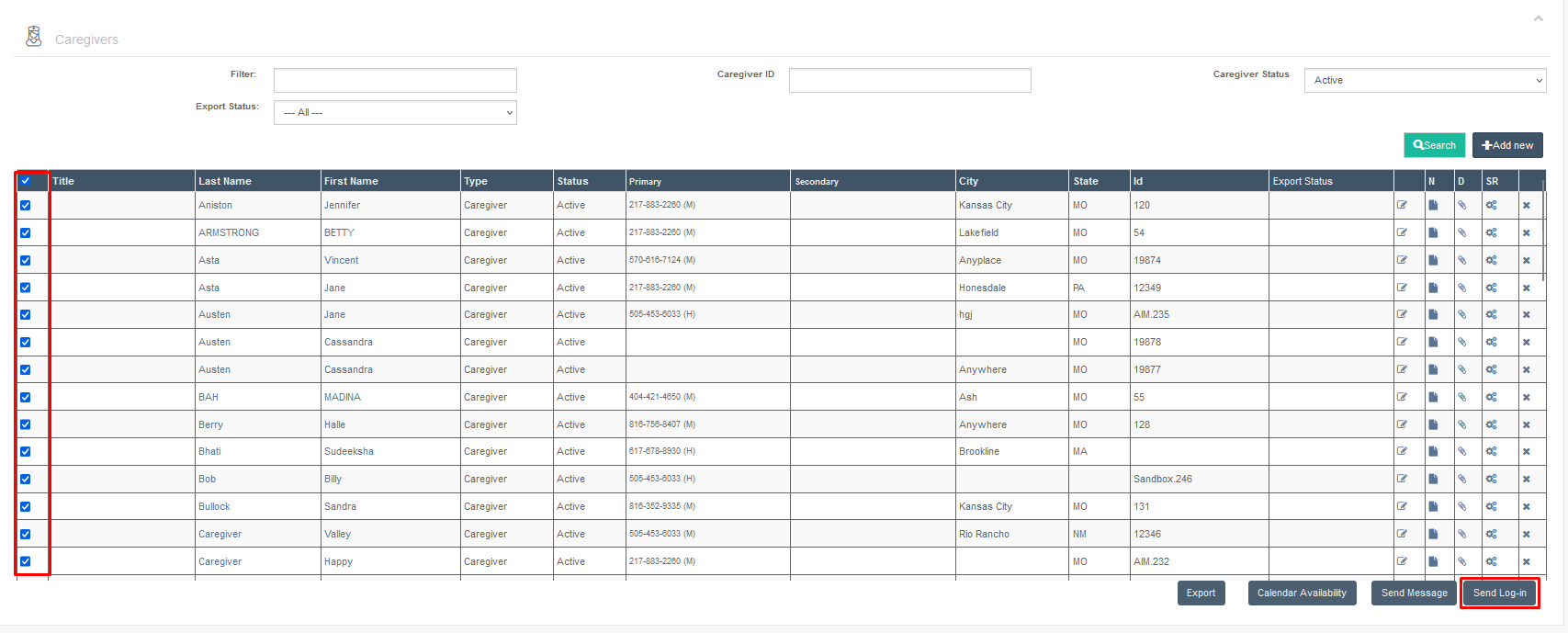
  1. Check the boxes next to the caregivers' names.
  2. Click the Send Log-in button.

The Caregivers list page displays a searchable table of caregivers with columns for Last Name, First Name, Type, Status, Primary phone, Secondary phone, City, State, ID, and Export Status. Filter options at the top include Filter, Export Status, Caregiver ID, and Caregiver Status (set to Active), with action buttons for Search, Add new, Export, Calendar Availability, Send Message, and Send Log-in at the bottom.

  1. Fill in the Reply to Name/Email, Subject, and Signature.
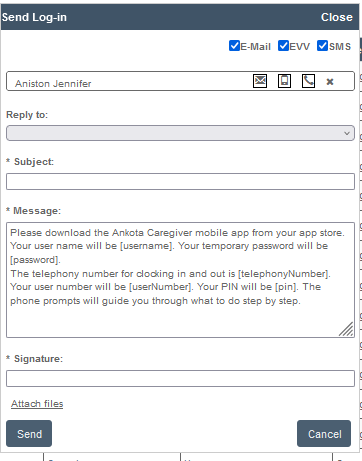
Send Log-in dialog showing a message composition form with fields for "Aniston Jennifer" recipient, Subject, and Message that contains instructions for downloading the Ankota Caregiver mobile app with placeholder text for username, password, and phone numbers; includes Signature field, Attach files option, and Send/Cancel buttons.

Administrative Warnings

If some caregivers are unable to receive the messages, a notification will appear informing administrators which caregivers do not have the Consent to Receive Messages setting enabled.
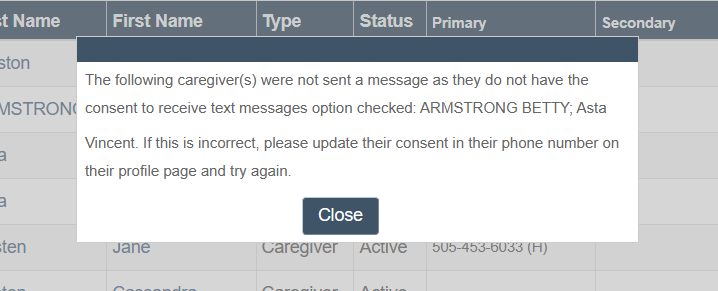
A dialog box displays an error message stating that caregivers ARMSTRONG BETTY and Asia Vincent were not sent a text message because they do not have the consent to receive text messages option checked, with instructions to update their consent in their phone number profile. The dialog includes a "Close" button to dismiss the message.

Note: The first 25 text messages per client are free of charge at Ankota; after this a standard billable rate applies (inquire for current pricing). Caregivers may also be subject to SMS fees from their cellular provider depending on their plan.

Message Log

Successfully delivered messages are recorded in the Message Log. This report, listed as a page under Reporting, tracks all outgoing messages.
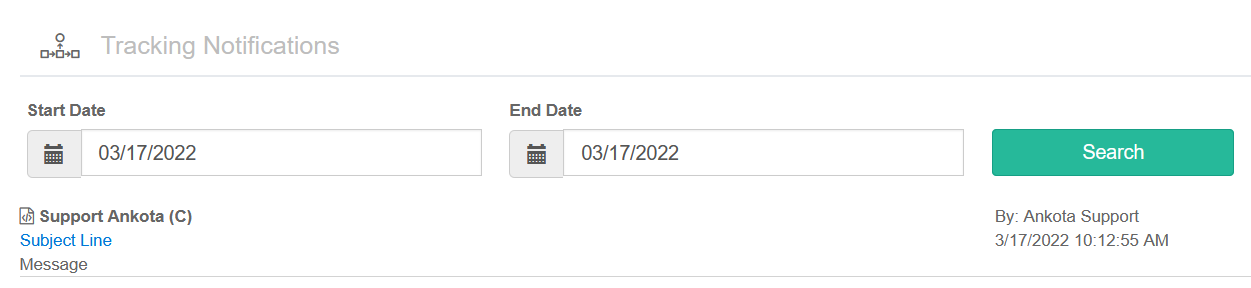
The Tracking Notifications page displays a date range filter with Start Date and End Date fields (both set to 03/17/2022) and a green Search button. Below are tracking notification details including Support Ankota (C) with a Subject Line and Message section, along with metadata showing it was created by Ankota Support on 3/17/2022 at 10:12:55 AM.

Was this article helpful?
On this page