Send Message or Text to Caregivers from the Caregivers Page
Overview
In addition to messaging caregivers and administrators from Find Matching Caregivers and the Action Center, caregivers can be sent direct messages via the Caregivers page. This function may not be defaulted in every environment; if it is not visible and is desired, contact an Ankota specialist to configure this option.
Set-up
Caregiver texting requires set-up. The following is necessary for caregiver texting:
-
A dedicated phone line for the company
-
That phone number must be approved and registered for texting
-
Ankota files the paperwork upon implementation if texting is desired, OR upon request if texting/mobile app functionality has not previously been used
-
The phone must be configured for texting in the environment
-
Caregivers must log into their mobile app and allow texting at log-in (legal requirement)
Use
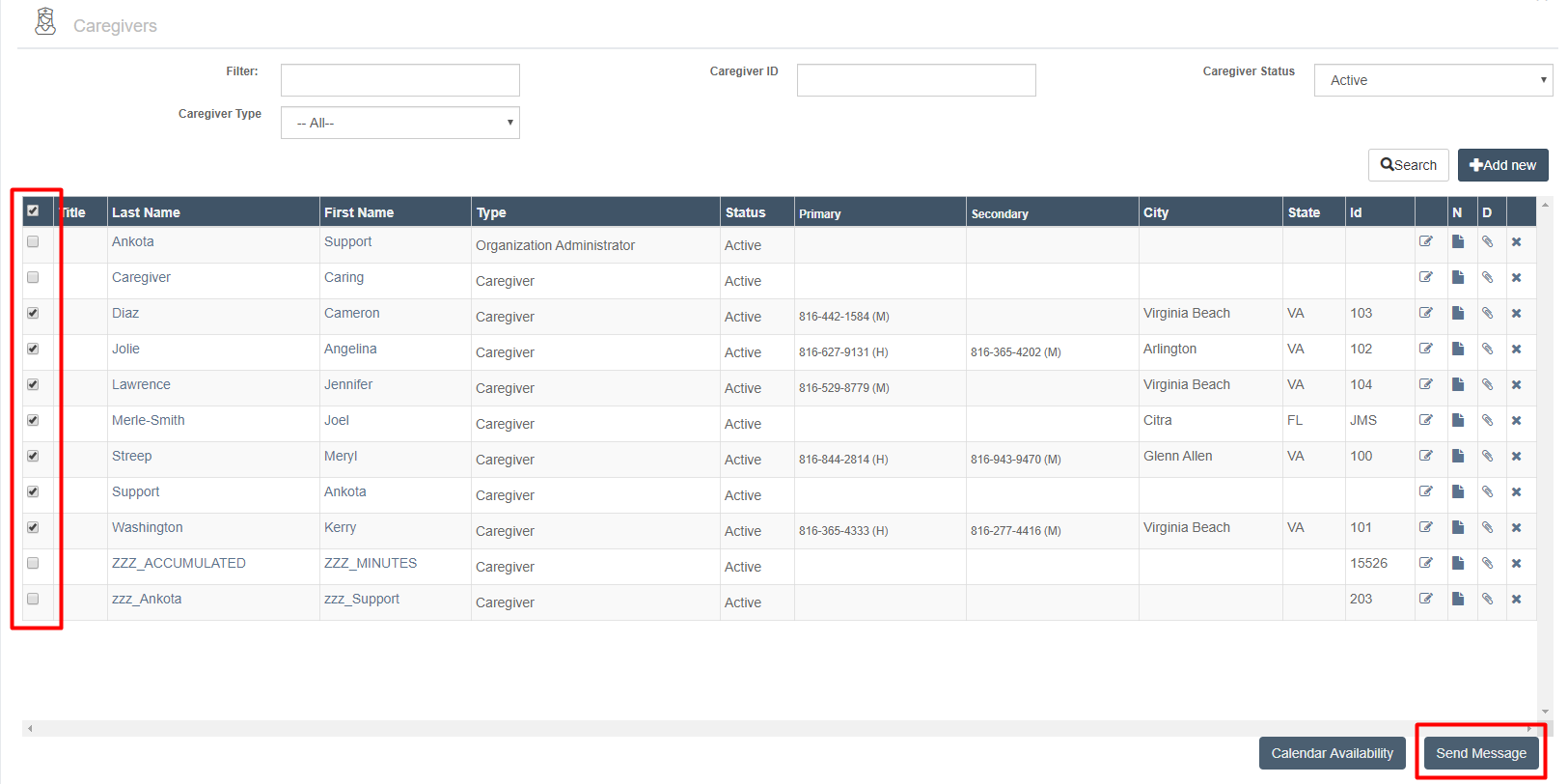
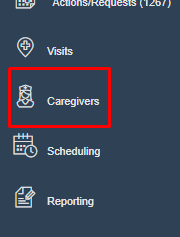
To access the Send Message function, go to the Caregivers page from the Main Menu. At the bottom of the page, there is a button labeled Send Message.
Search for the caregiver(s) to message, then check the boxes next to their names before clicking the Send Message button. Some caregivers may need to be unchecked because they are placeholders for testing or other functions, such as Ankota Support and Accumulated Minutes.
Confirming caregiver consent
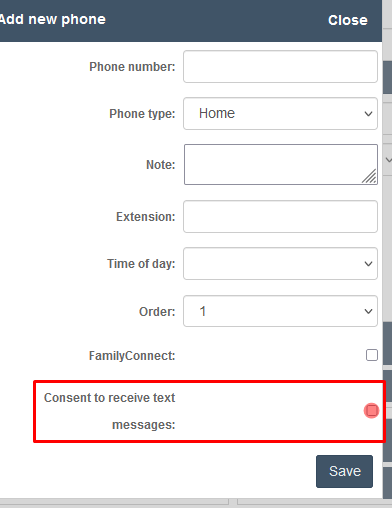
Ensure the caregiver's profile reflects consent to receive text messages. To enable this setting:
- Go to Caregivers from the main menu
-
Search for the caregiver whose number should receive the text message
-
Click on their phone number
-
Check the box next to "Consent to receive text messages"
-
Click "Save"
Sending the message
Once Send Message is clicked, a new window opens. This window allows selection of email, EVV (web browser mobile only), or SMS text messaging functions. There is also an attachment option.
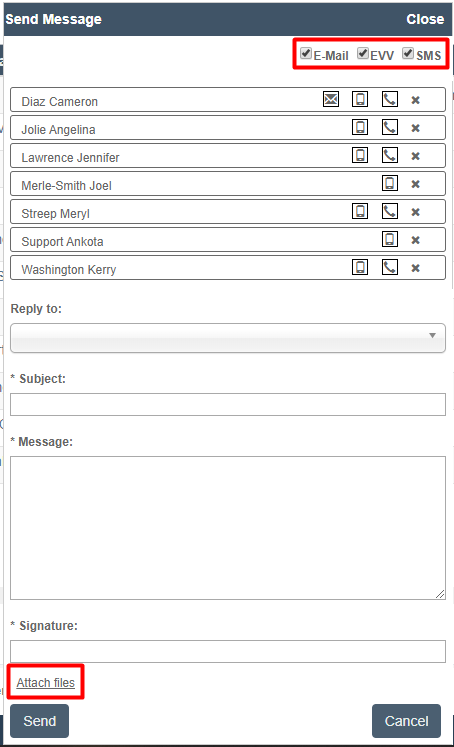
To add or remove the ways to message, check or uncheck the options at the top of the window for e-mail, EVV, and SMS (text) messaging.
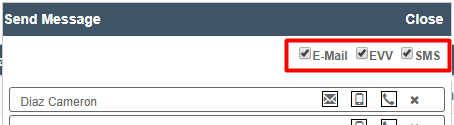
Beneath these options, each caregiver has icons next to their name indicating the available forms of communication:
-
The letter icon indicates an email is available for the caregiver.
-
The phone icon indicates a phone number is available for the caregiver.
-
The mobile phone icon indicates the mobile app is available for the caregiver.
To send a message, work from top to bottom:
-
Select the message type to use
-
Unselect any additional caregivers if too many were selected
-
Select which administrator will receive the email under Reply to (the administrator must have an email to be presented as an option)
-
Enter a subject line
-
Enter a message
-
Enter a signature
-
Attach a file if desired
-
Click Send
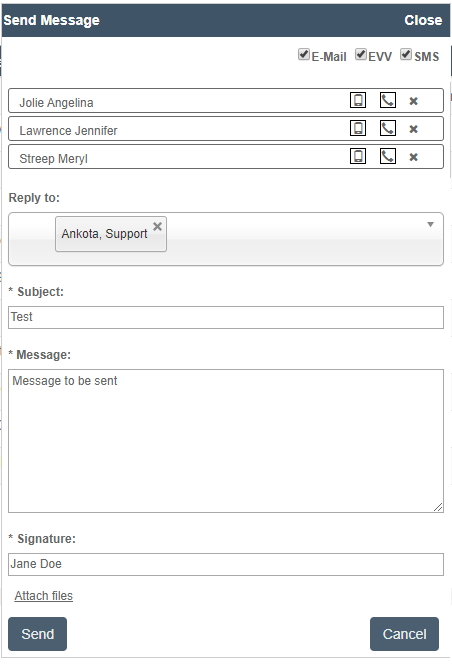
These messages will be sent according to the available selected options. Any response from text or email will be sent to the selected administrator's reply-to email. If no response email is selected, no response will be sent. There is no response function in the mobile app; it is notification only.
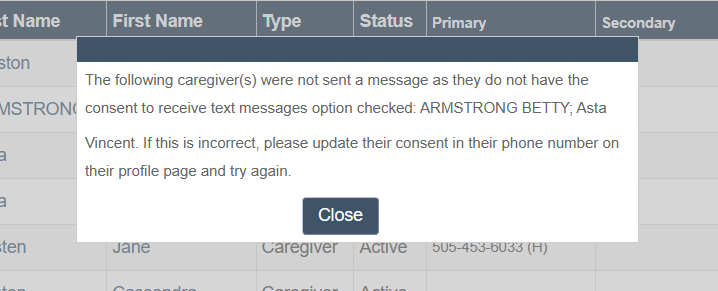
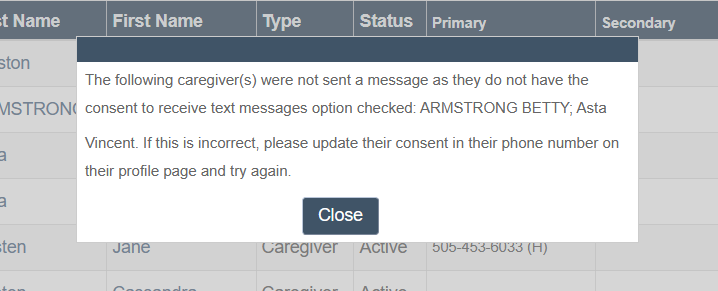
A message will appear notifying administrators of which caregivers do not have consent to receive messages. If this appears, go to the caregiver's profile and check the box Consent to Receive Messages after clicking on the caregiver's phone number.
Notes and Limitations
-
The first 25 text messages per client are free of charge at Ankota; after this there is a standard billable rate (inquire for current pricing). Caregivers may be subject to SMS fees by their cellular provider depending on their plan.
-
Emails may sometimes be misidentified as junk mail/spam. If email will be used primarily for caregiver communication, perform a test to ensure that all caregivers can find their emails.
-
When sending text messages, each message must be under 128 characters. If the message is longer, split it into smaller parts and send them separately. Send the first part, wait about five minutes, then send the next part. If a message is typed longer than 128 characters, the system will break it up automatically, and the pieces may not send in the correct order.
Message Log
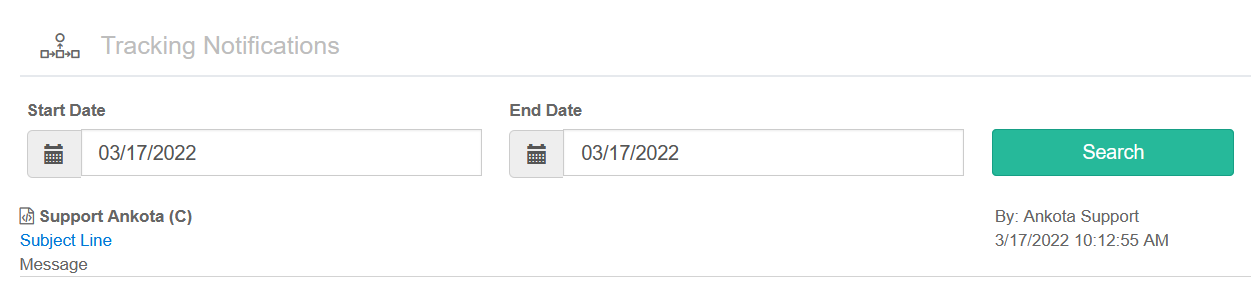
This report, listed as a page under Reporting, tracks all outgoing messages. To have this report added to an environment, contact Ankota Support.
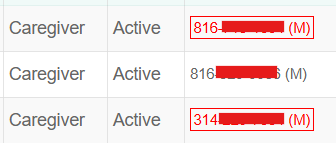
Red Phone Number
A caregiver's phone number will be highlighted in red on the caregiver search page after three consecutive text message failures. Admins can hover over the flagged number to view the failure reason and receive a prompt to update it with a valid mobile number.