Caregiver/Staff Management›Setting Availability

Setting Availability

Overview

To fully utilize the Ankota scheduling system, admins can input their staff's availability (both days and hours) and time off directly into ankota.net.

Alternately, caregivers can enter their own availability if they are given access.

Caregiver Access

If you choose to allow caregivers to access and manage their own availability, this is accessible through the mobile app. They will be able to add their regular work availability as well as request time off through the mobile app.

Admin Access

To enter Availability information as an admin, first open the caregiver's profile whose availability and/or time off you wish to enter.
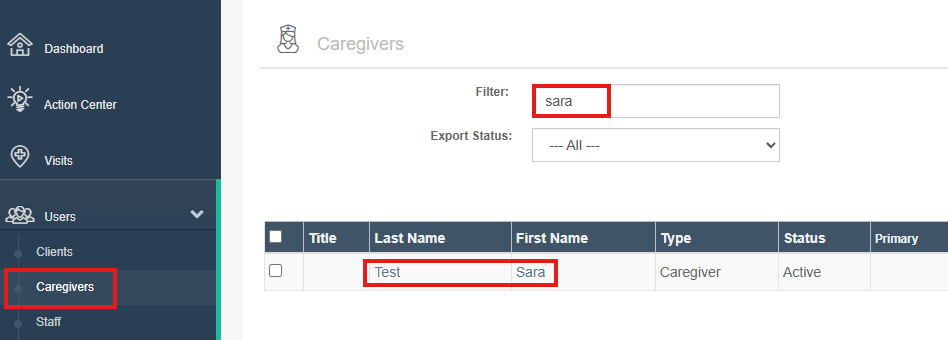
The Caregivers page displays a filtered list of caregivers with a search field containing "sara" and an Export Status dropdown set to "--- All ---". The results show one caregiver named Sara Test with Type "Caregiver" and Status "Active", with columns for Title, Last Name, First Name, Type, Status, and Primary.

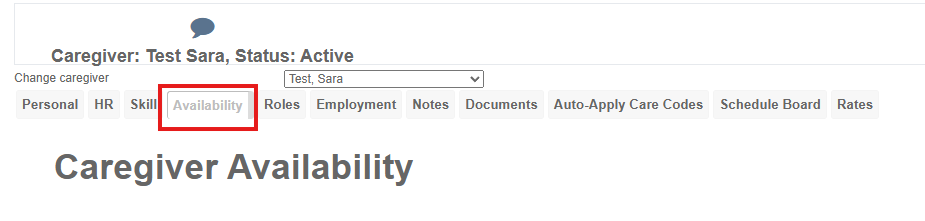
Next, click the Availability tab.

The Caregiver Availability tab is displayed for Test Sara (Active status), showing the main section header "Caregiver Availability" with tabs for Personal, HR, Skill, Availability (currently selected), Roles, Employment, Notes, Documents, Auto-Apply Care Codes, Schedule Board, and Rates.

The screen will appear below. The left side of the screen for Availability and the right side for Time Off/Conflict.
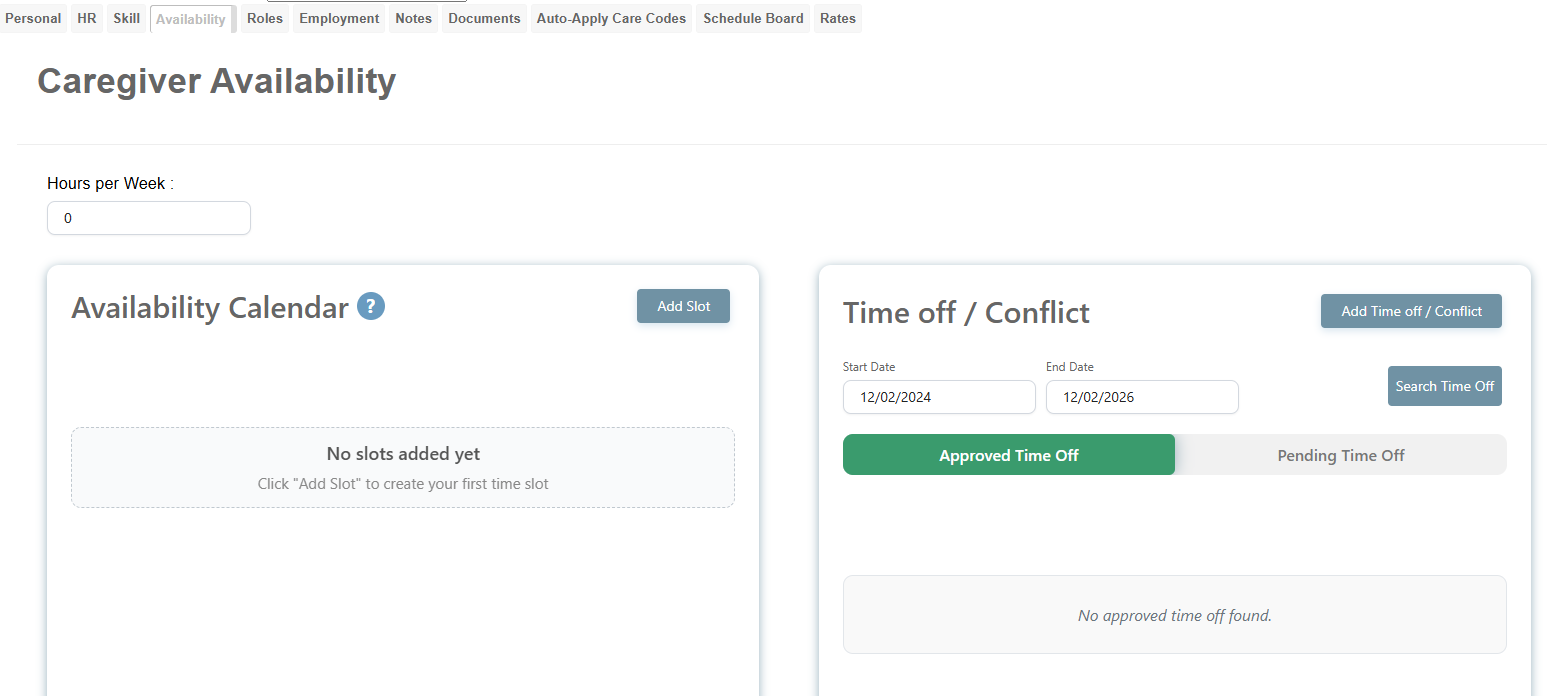
The Caregiver Availability page displays a form to manage a caregiver's work hours and time off, with sections for Hours per Week, Availability Calendar (currently empty with an "Add Slot" button), and Time off/Conflict management (showing date range fields from 12/02/2024 to 12/02/2026 with tabs for Approved Time Off and Pending Time Off).

Defining Availability

This is where you can define the available times for your staff.

Your base calendar will represent all dates. If you add a specific date range, it will overwrite the calendar for those specific dates.
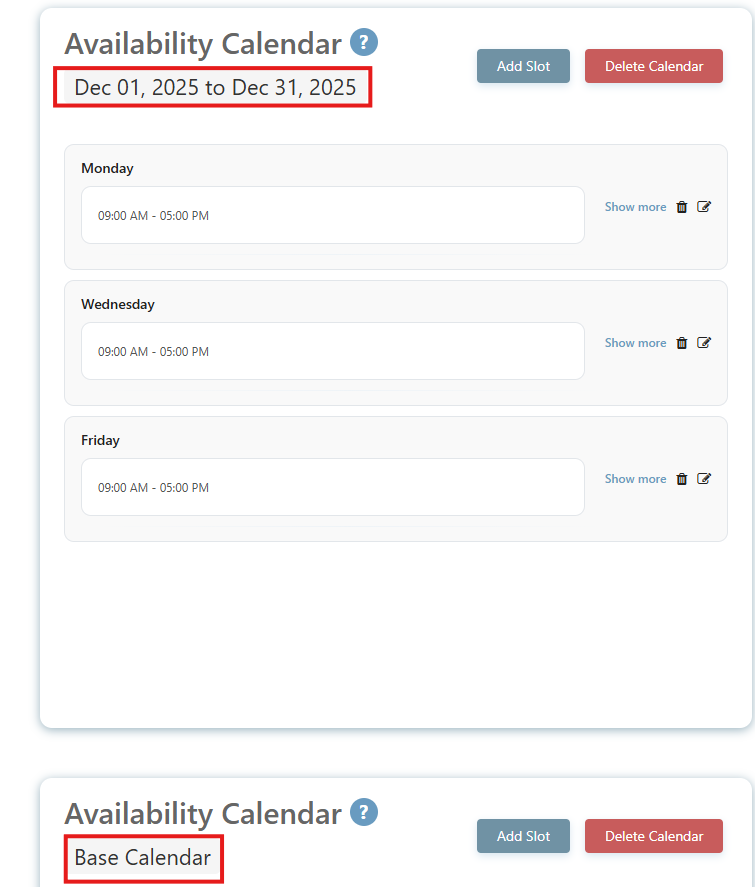
The Availability Calendar page displays a date range (Dec 01, 2025 to Dec 31, 2025) with weekly availability slots showing Monday, Wednesday, and Friday each scheduled from 09:00 AM to 05:00 PM, along with "Add Slot" and "Delete Calendar" buttons at the top right. Below is a second Availability Calendar section labeled "Base Calendar" with the same action buttons.

First add the hours per week available and hit save changes
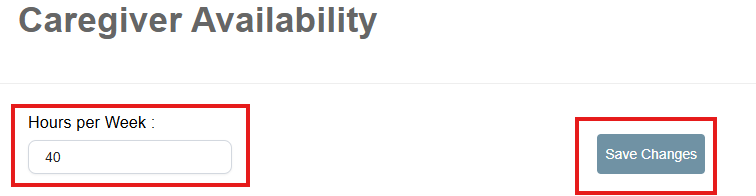
The Caregiver Availability page displays an input field labeled "Hours per Week" with a value of 40 entered, and a "Save Changes" button to apply modifications.

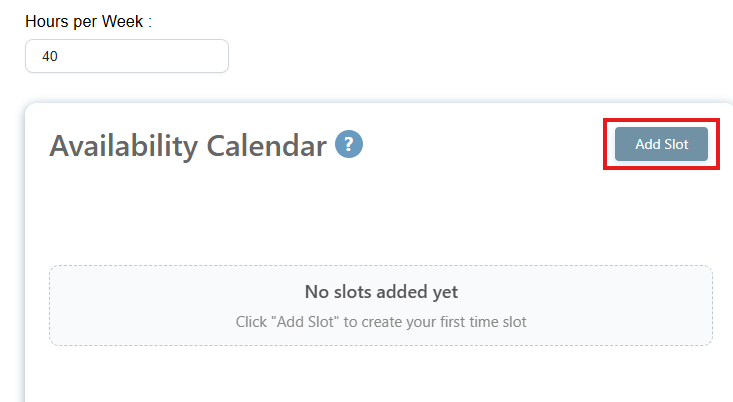
Then select Add Slot

The Availability Calendar section shows an empty state with the message "No slots added yet" and instructions to click "Add Slot" to create the first time slot, with an "Add Slot" button highlighted in the top right corner. Above this section is a "Hours per Week" field set to 40.

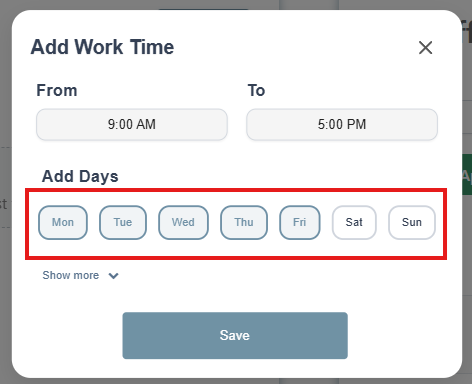
Select the days and times available.

The Add Work Time dialog shows fields for setting work hours from 9:00 AM to 5:00 PM, with an "Add Days" section displaying day-of-week buttons (Mon through Sun) where multiple days can be selected, and a Save button at the bottom to confirm the settings.

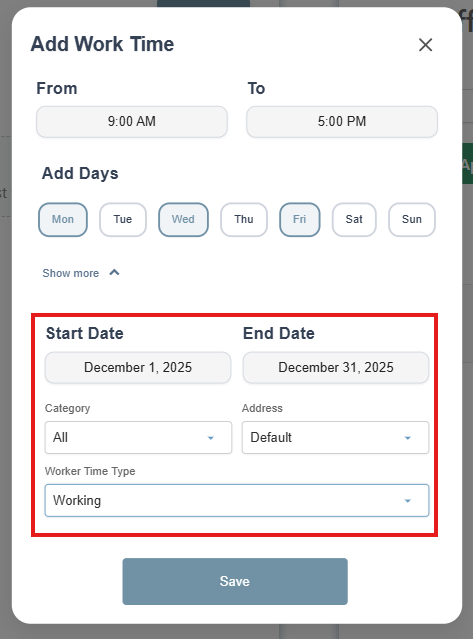
Set your working hours for that day in a typical week or you can select Show More and do by date range then select Save. The following other statuses are also available:

  • Working

  • Busy

  • Unavailable

  • Unavailable (Full Day)

  • Standby

  • Available

The "Add Work Time" dialog box displays fields for scheduling work hours, including From/To times (9:00 AM to 5:00 PM), day selection buttons (Mon-Sun), and a section with Start Date (December 1, 2025), End Date (December 31, 2025), Category, Address, and Worker Time Type dropdowns, with a Save button at the bottom.

Tagging hours as Busy functions the same as marking a caregiver as unavailable. Unavailable indicates partial unavailability, while Unavailable (Full Day) marks the caregiver out for the entire day. Standby and Available both mean the caregiver is eligible to receive shift offers, but not automatically scheduled. In most cases, Working and Standby are the options used most frequently.

You can use the edit pencil to adjust individual time entries as needed.
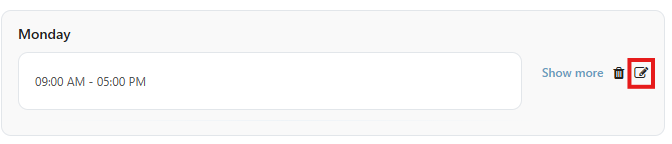
The screenshot shows a Monday availability slot displaying a time range of 09:00 AM - 05:00 PM, with "Show more" link and edit/delete action buttons in the top right corner.

The dated Availability Calendar will override any overlapping entries set in the Base Calendar. You can view both calendars by scrolling down within the Availability tab.
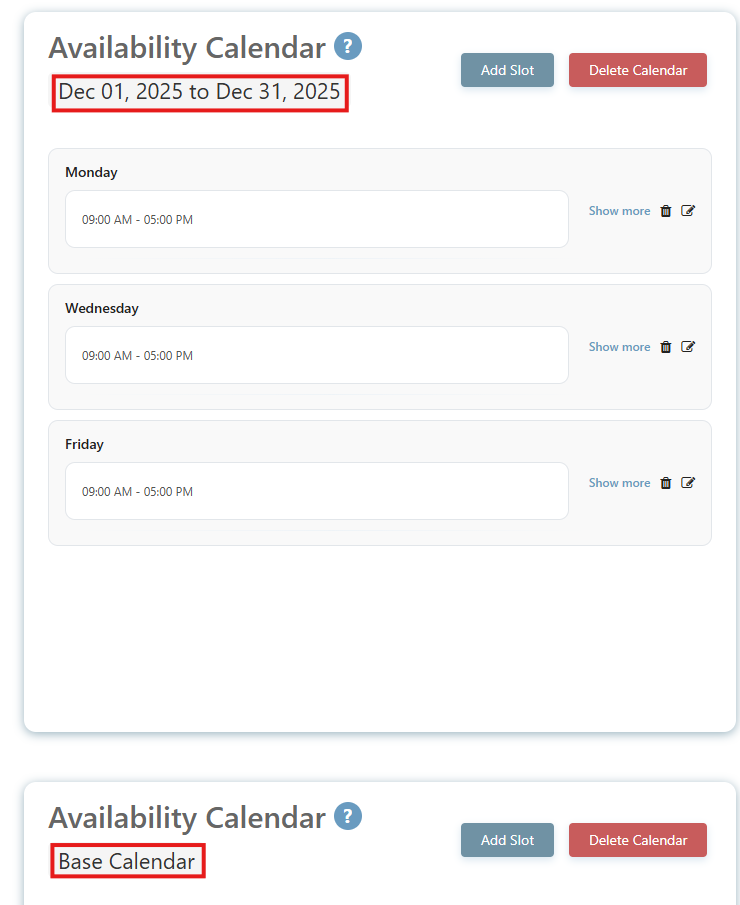
The Availability Calendar page displays recurring availability slots for December 2025, with separate sections for Monday, Wednesday, and Friday each showing a 09:00 AM - 05:00 PM time slot; buttons at the top include "Add Slot" and "Delete Calendar", while each day section has "Show more", delete, and edit icons.

Setting Time Off/Conflict

At times, you'll need to make exceptions and mark a caregiver out as unavailable. 

To do so, return to the Availability tab. On the right of the screen there will be Time off/Conflict. Next to add time off, select Add Time off/Conflict.
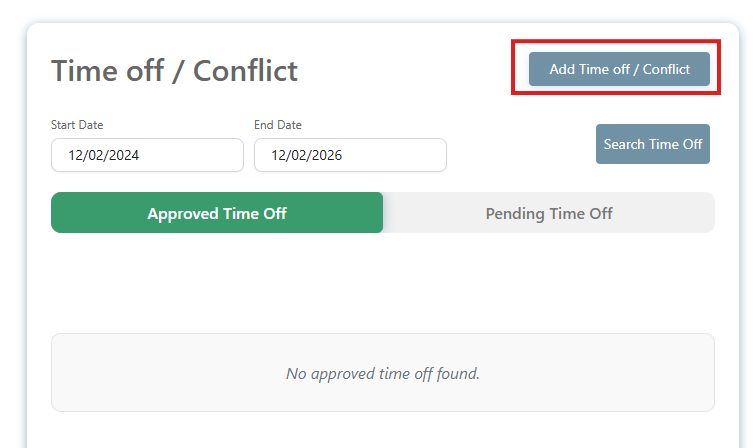
The Time off / Conflict page displays fields for Start Date (12/02/2024) and End Date (12/02/2026), with tabs for "Approved Time Off" and "Pending Time Off" and an "Add Time off / Conflict" button in the top right; the Approved Time Off tab is currently selected but shows "No approved time off found."

Change the Type to an appropriate category, such as Unavailable (Full day), then click the Save Adjustment(s) button.
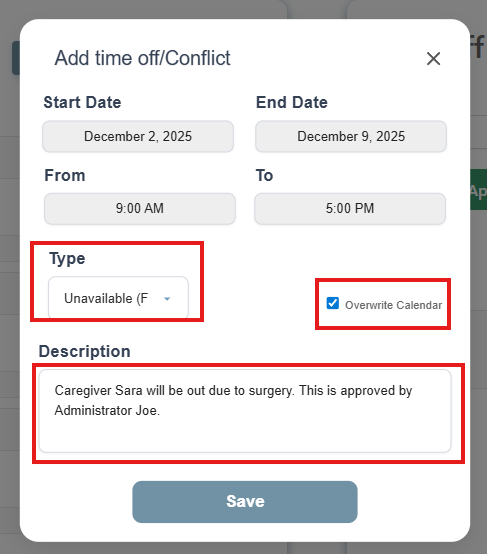
The "Add time off/Conflict" dialog shows fields for creating a time-off entry with Start Date (December 2, 2025), End Date (December 9, 2025), From time (9:00 AM), and To time (5:00 PM). The Type is set to "Unavailable (F" with an "Overwrite Calendar" checkbox enabled, and a Description field contains "Caregiver Sara will be out due to surgery. This is approved by Administrator Joe," with a Save button at the bottom.

If you have a visit scheduled on this day, the system will warn you and ask you if you wish to proceed. Proceed if desired. The visit will not be unassigned, so be sure to delete any visits that present a conflict, unless you wish to keep them. (This functionality allows you to make the decision; this is particularly useful when a caregiver wishes to be out for the day, but agrees to keep one short visit. As the admin, you make the call on what to keep assigned or unassigned.)

You can view all Pending Time Off requests below. Administrators can approve a request by clicking the green button, which will move it to the Approved Time Off section.
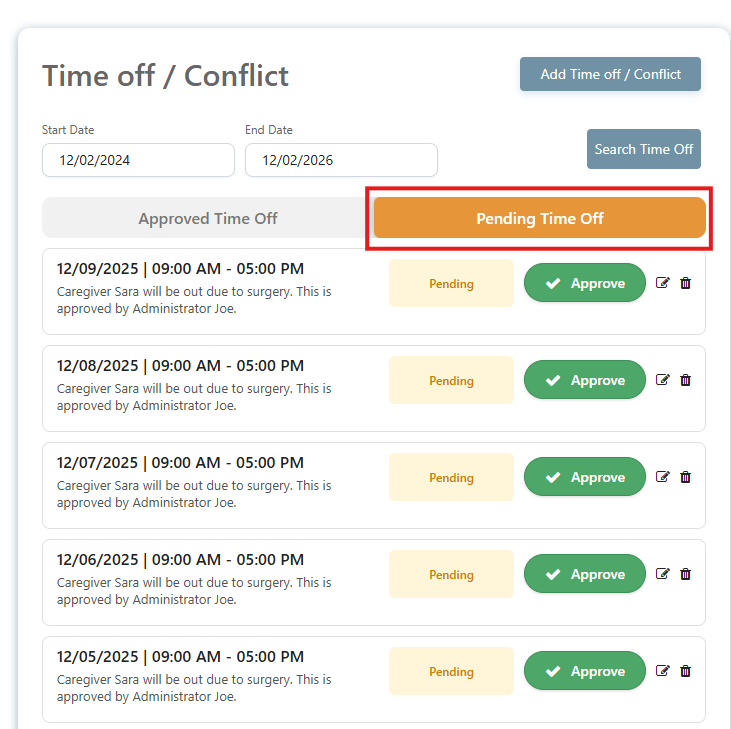
The Time off / Conflict page displays pending and approved time off requests for a caregiver named Sara, with a date range filter (12/02/2024 to 12/02/2026) and an "Add Time off / Conflict" button at the top. The main section shows multiple pending time off entries from December 2025, each listing the date, time (09:00 AM - 05:00 PM), reason (surgery), approver (Administrator Joe), along with Pending status badges, green Approve buttons, edit icons, and delete buttons.

The caregiver's calendar (on all calendars) will be marked appropriately to reflect the calendar adjustment.
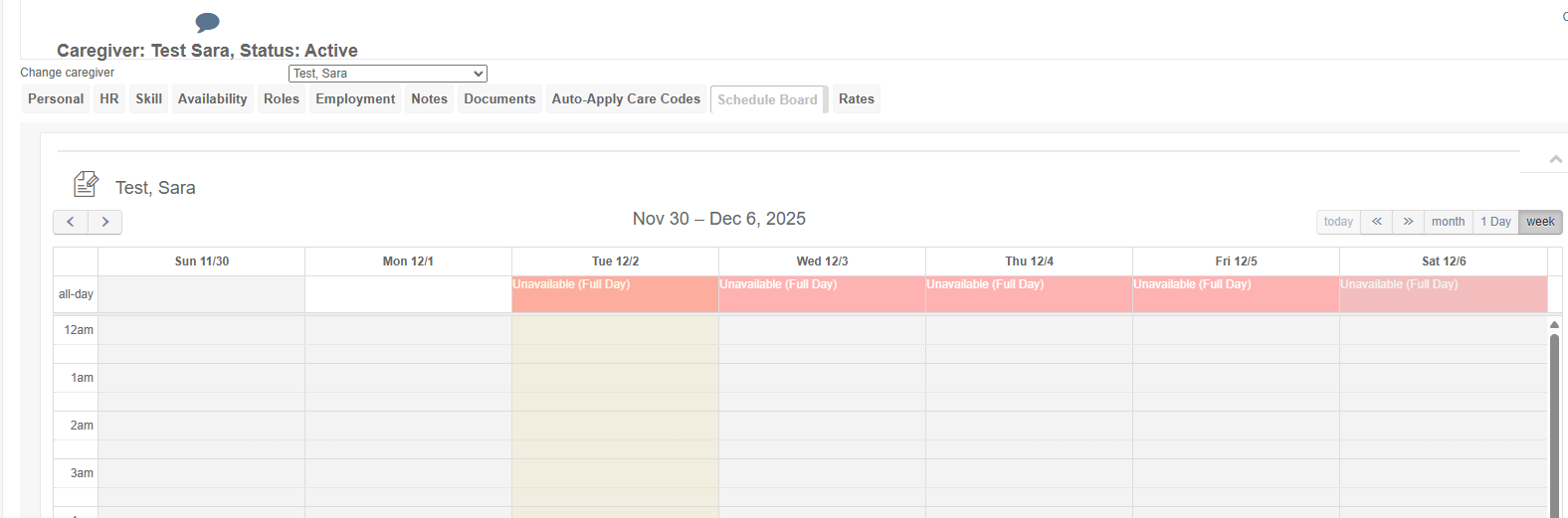
The Schedule Board tab displays a weekly calendar view for caregiver "Test, Sara" from November 30 to December 6, 2025, with time slots starting at 12am, 1am, 2am, and 3am, showing "Unavailable (Full Day)" status marked in pink for multiple dates (December 1-5). Navigation options at the top include tabs for Personal, HR, Skill, Availability, Roles, Employment, Notes, Documents, Auto-Apply Care Codes, Schedule Board, and Rates, with view options for today, month, 1 Day, and week displayed on the right.

Was this article helpful?
On this page