Setting Pay Rates
Overview
While Ankota will usually help set initial pay rates, pay rates often need to be added or updated later. There are four main approaches to setting pay rates:
- Setting the individual pay rate by worker
- Setting the pay code by client
- Setting the pay rate by visit type (typical for RN visits)
- Creating a pay table of unique rates by worker
This article covers:
- Setting Pay Rate by Worker
- Setting Pay Codes
- Assigning Pay Code by Visit Type
- Assigning Pay Code by Client
- Setting/Assigning Pay Table by Worker
- Changing Pay Rates
Setting Pay Rate by Worker
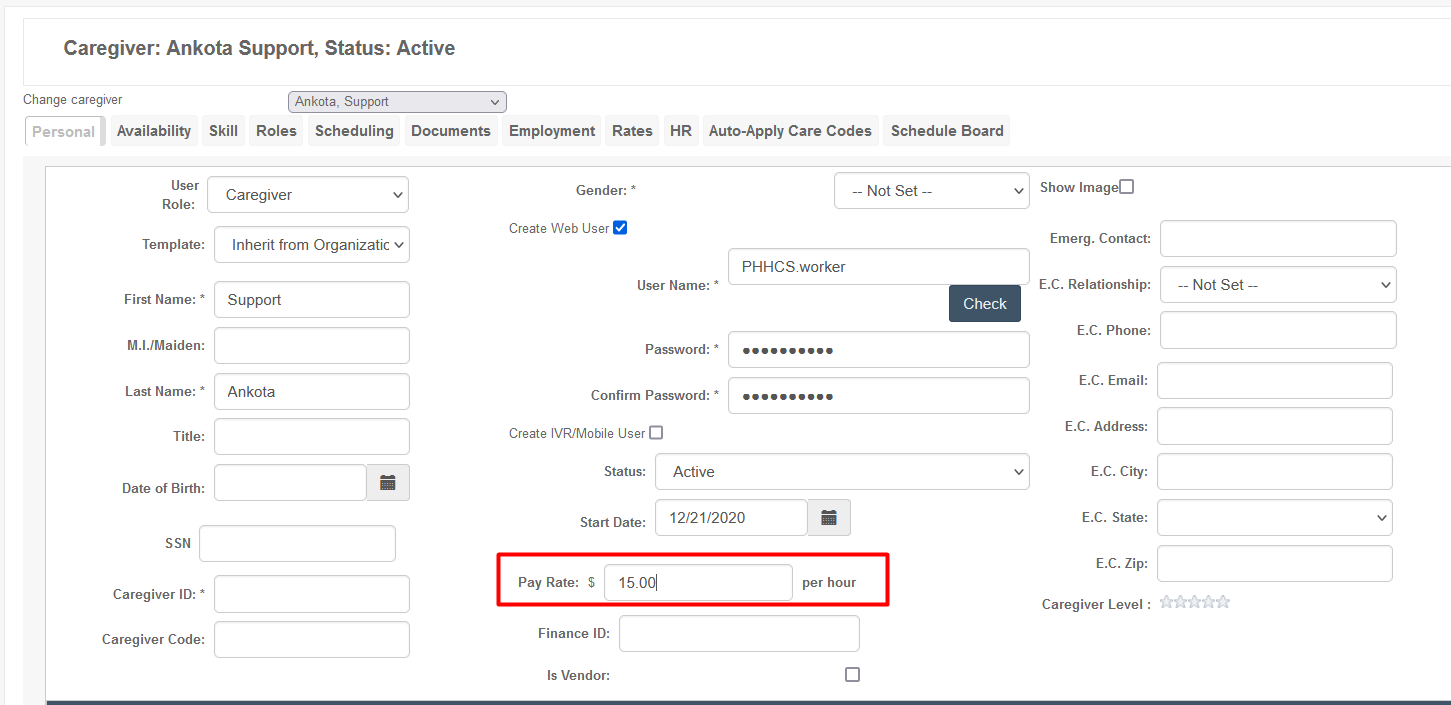
To set a pay rate by worker, open the worker's profile and enter a rate on the Pay Rate line. There is no need to pre-set the pay code; this is a direct entry option.
Setting Pay Codes
There are two main steps to ensure accuracy in set up of employee pay rates: setting the pay code, and assigning the pay code.
To create a pay code, go to the Main Menu, Settings, then Organizational Detail.
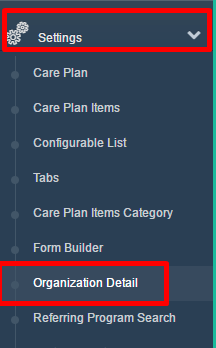
Select the tabs for Billing Configuration, then Pay Codes in the menu subset beneath it.

Select Add New Pay Code.
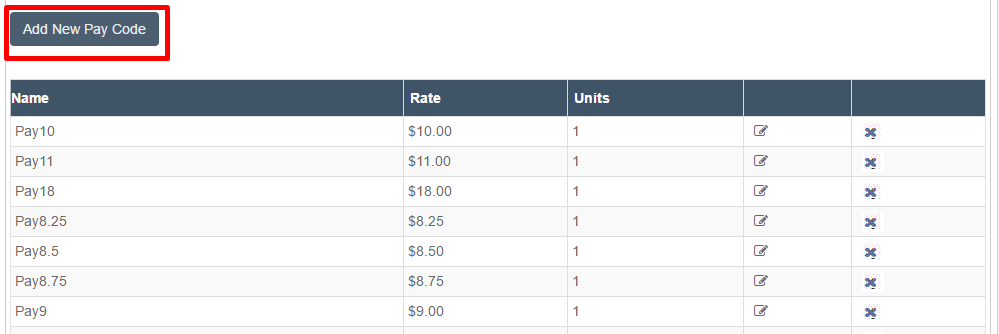
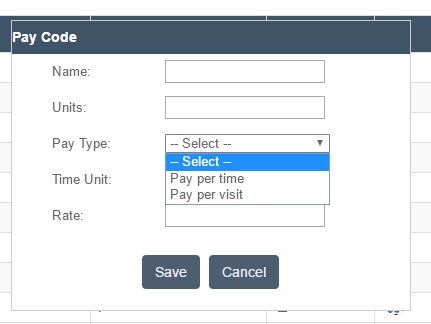
Setting the Pay Code requires details about the pay code being prepared. In general, you will need to know:
- What you are going to name this Pay Code. Note this is not a client name; this is how the Pay Code is named so it can be selected later and assigned to a caregiver as their designated pay rate.
- Whether you are paying by length or visit.
- If paying by length, whether it is by the quarter-hour, half-hour, or full hour. This length is referred to as the Time Unit.
- The pay rate associated with the length or visit.
Then fill in the information below.
A clear naming practice is recommended, for example:
- Pay Codes that are Visit-Based = Pay + PV + Visit Rate. Example: a pay code for a visit paid at $50 per visit would be listed as PayPV50.
- Pay Codes that are Length-Based/Per Unit = Pay + PU + Unit Rate. Example: a pay code paid at $25 per 15 minutes would be listed as PayPU25.
- Pay Codes that are Length-Based/Per Hour = Pay + PH + Hourly Rate. Example: a pay code paid at $25 per 60 minutes would be listed PayPH25.
Once created, these pay codes can be used in any pay code location.
Assigning Pay Codes to Caregivers
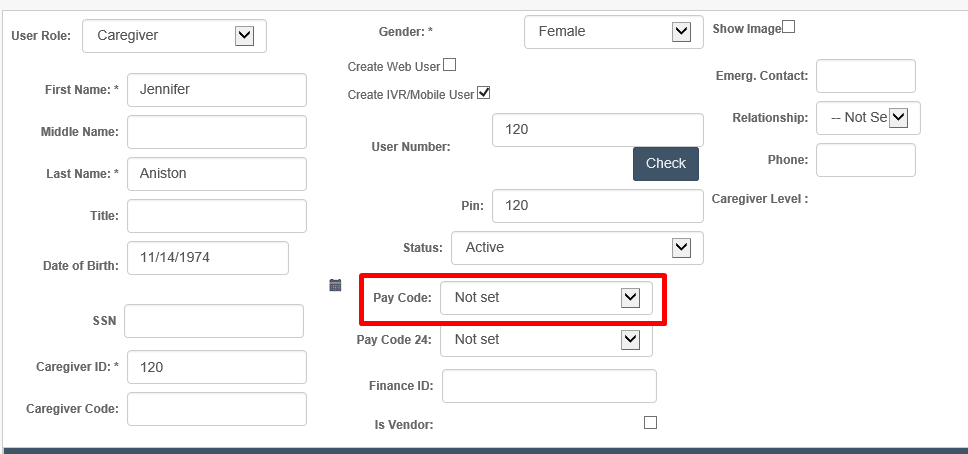
Caregiver pay rates can be limited to the pre-defined list of pay codes. If this option is desired, ask your Ankota specialist to hide the pay rates direct entry field and turn on the caregiver pay code field.
To assign the pay code, go to the Pay Code drop-down selection, select the desired pay code from the drop-down list, and save.
Assigning Pay Code by Visit Type
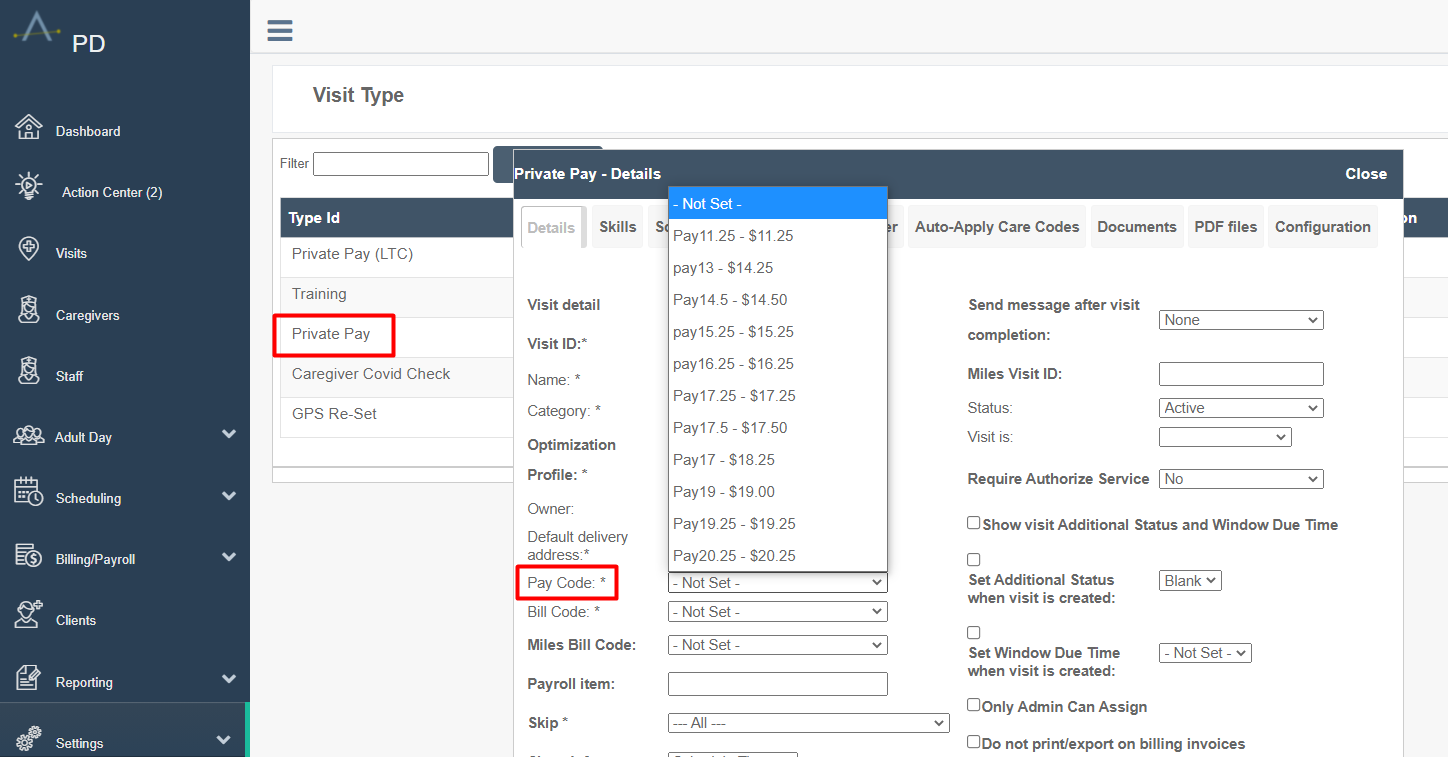
Some companies have pay codes defined by visit type for all caregivers. This is common for nurses.
To assign an existing pay code to a visit type:
- Click Settings
- Click Services Settings (if you have this section)
- Click Visit Type
- Click on any visit type name to open
- Click on the drop-down list next to Pay Code, then select the appropriate pay code
- Save
Assigning Pay Code by Client
A pay code can be assigned by client by going to each client and defining the unique pay situation. This is typically done for exceptions, such as when a worker is temporarily covering a client that is a long drive from their home and should be paid a higher rate only when working with that specific client.
To assign a pay code by client:
- Open the client's page
- Click the Assigned Caregiver tab
- Click Add New
- Select the following:
- Caregiver
- Type if needed
- Service type if this pay code only applies to one pay code
- A worker code
- The pay code from the drop-down list
- Save (no need for payroll ID)
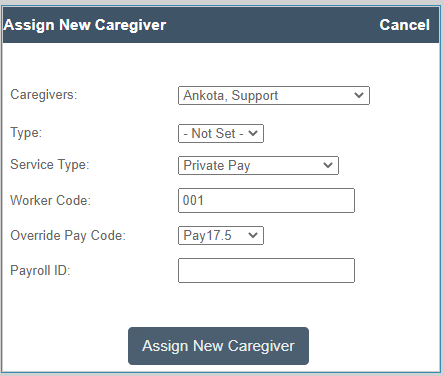
If a caregiver gets a special rate with more than one client, make sure that the worker codes are sequential (001, 002, 003, etc.).
Setting/Assigning Pay Table by Worker
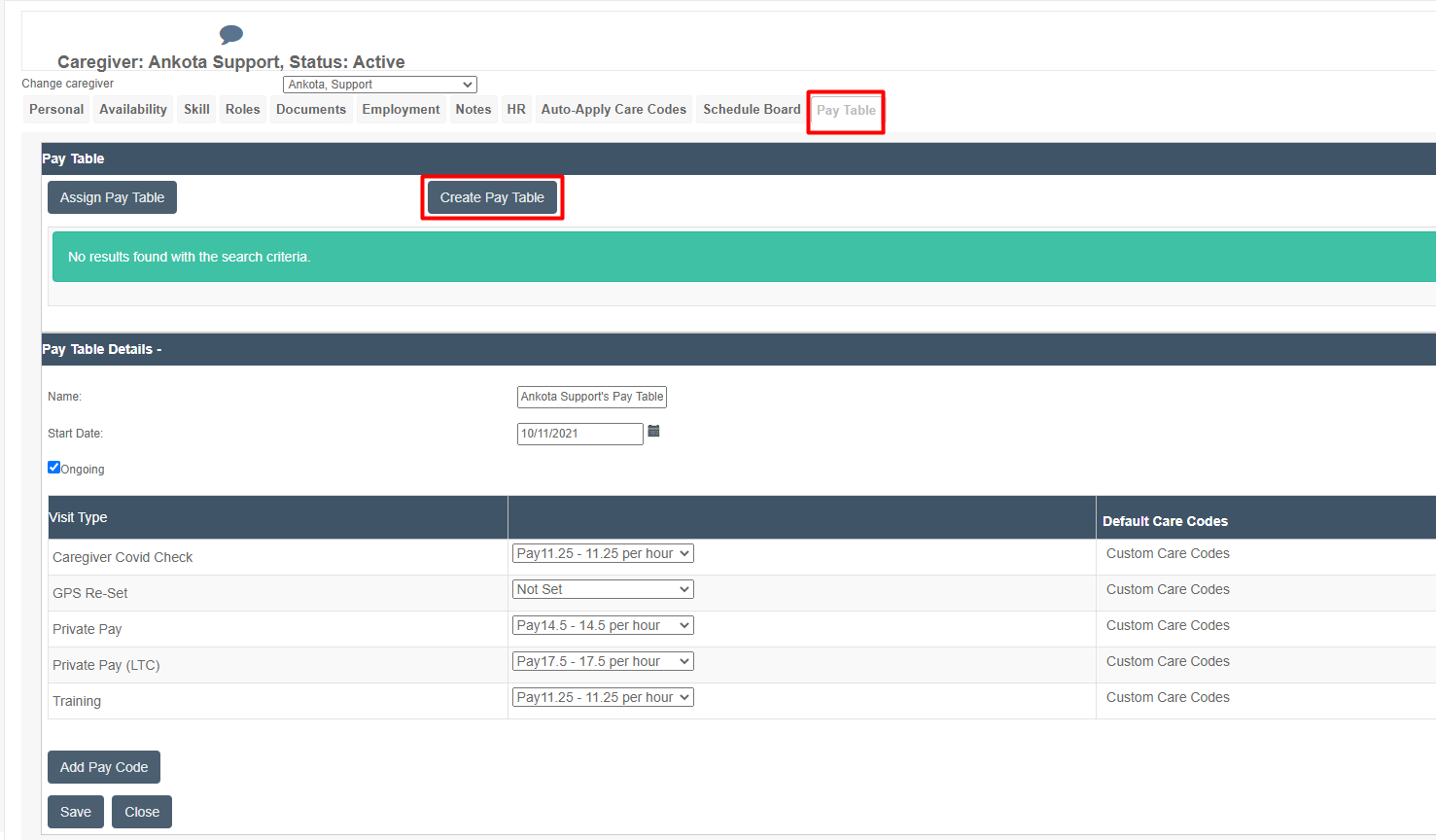
For companies where pay rates vary by worker and also vary by visit type, a pay table is the best solution.
To create a pay table by client:
- Click Caregivers, then filter for the caregiver
- Open the caregiver's page
- Click the Pay Table tab
- Click Create Pay Table
- Name the Pay Table
- Set the end date OR set to Ongoing
- Select the rate from the drop-down list for each visit type as needed (skip rate if not paid)
- Save (the pay table will automatically be applied to the caregiver)
A pay table can also be assigned by setting one up at the Org. Details level and making it universally available for assignment. This is helpful in companies where there are standard rates for different levels of caregivers on different visit types.
Changing Pay Rates
When a pay rate assigned to a caregiver or a visit type changes, adjustments may be needed. For caregivers with single regular pay rates assigned directly to the caregiver, or pay rates based on visit types, the pay rates are not associated with a date range, so they must be updated carefully. Pay tables include date ranges, so these are simpler to update.
To update non-pay table pay rates
- Change the pay rate on the day of the change OR after the change. Do not apply the rate change before, or it will apply the pay rate change early.
- When calculating Payroll, filter for the date range where the new payroll rate applies. Do not select any days of the old payroll, as it will apply the new pay rate to the entire range selected.
- Click Recalculate.
- The system will pick up the new pay rate change.
To update caregiver pay tables
- Create the new pay table with the appropriate rates and date range at any time.
- If the pay table is created in advance, it will apply the different rates automatically.
- If the new pay table is created after the visits occurred, Recalculate at the time of payroll.
- When calculating Payroll, filter for the date range where the new payroll rate applies. It does not matter if the date range covers two pay tables; the date range will be applied correctly.
- Click Recalculate.
- The system will pick up the new pay rate change.