Therap Data Delivery & Visit Management
Overview
Per state requirements, Ankota directly feeds required data to Therap, a data aggregator serving Kentucky and North Dakota, based on complex technical specs. This data becomes part of a library of data made available to the state for internal monitoring. (The content and format of this data is determined by the state in accordance with federal law.)
After reviewing the data, Therap sends Ankota responses confirming the acceptance or rejection of those visits. If the visits are rejected, Therap will usually provide a brief explanation as to why. Ankota logs those responses in the Visit Approval Dashboard for review. Rejections are also highlighted on the Ankota Landing Dashboard.
Note that in Kentucky, data is required by the state in Therap, but billing is completed separately through 837s.
Critical Workflow
- Use the Landing Dashboard to identify and complete needed actions
- Use the Approval Assistant to review Needs Action visits (following this process results in very few rejections)
- Ankota will automatically export Passed Screening and Approved visits as appropriate
- Manage Rejected visits on the Visit Approval Dashboard by reviewing the rejection, correcting, and manually re-exporting to Therap
- If the Approval Assistant wasn't used to review the visits before sending, double check the rejected visits in the AA
- Bill via 837 when visits are accepted
Data Preparation
Data preparation typically covers:
- Adding missing data entry
- Adding missing (reason, action, or exception) codes
- Unexpected duration requiring approval or change
- Individual review of some visits with unique issues
Visit Approval
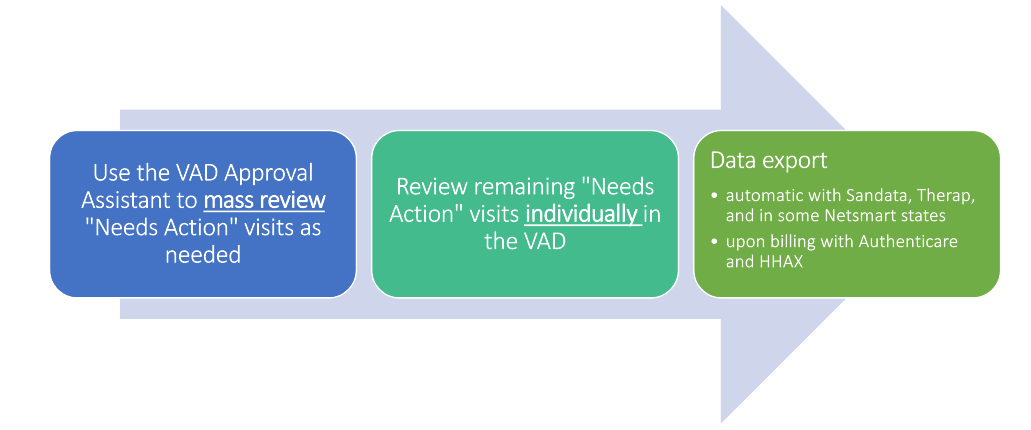
To speed up this process, Ankota usually recommends using the Approval Assistant in the Visit Approval Dashboard to rapidly identify missing data, missing codes, and duration issues prior to approval. Any remaining unapproved visits can be individually reviewed, and then data is delivered.
The Approval Assistant
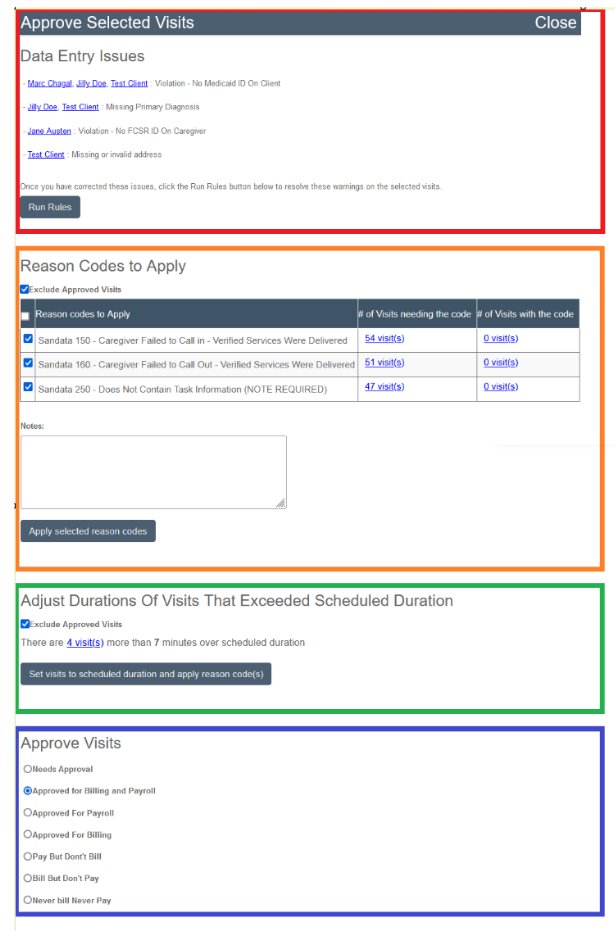
The Approval Assistant is used for mass review of Needs Action visits. It has four key sections:
- Data Entry catches missing data. It links to the profiles of clients or caregivers missing information and describes what is missing.
- Codes makes coding suggestions as appropriate for the state and aggregator and resolves the related red warnings. This hugely speeds up the review process.
- Durations helps make duration changes if necessary. This is a powerful section primarily intended for private pay and CDS.
- Approval allows approval of visits with no red warnings left. (Visits which still have red warnings will not be approved.)
The Approval Assistant resolves the majority of all issues that require attention or changes in order to be accepted by Therap. The most complex step is typically coding. Coding requires the admin to recognize the errors that occurred and apply a code to reflect the error, which will result in the state accepting the visit. Most errors which would cause a rejection can be prevented with a code. The most common codes will automatically be suggested by the Approval Assistant. Missed coding is the most common reason for visit rejection, so it is always beneficial to use the Approval Assistant.
Individual Visit Review
After completing a review of Needs Action visits with the Approval Assistant, wait a few minutes before refreshing the Visit Approval Dashboard to pull up all remaining Needs Action visits. There should be significantly fewer visits remaining.
Next, walk through each visit individually by clicking the paper-and-pencil "Edit" icon (
) and reviewing the red warnings which could not be resolved by the Approval Assistant. Typically these are unusual warnings. Resolve them, make other adjustments as needed, then approve the visit, and the visit will be exported.
Other visit adjustments will vary based on the visit. Actions may include:
- Reviewing unresolved red warnings
- Fixing the issues the red warnings flagged
- Marking the red warnings as reviewed/completed (turning them green)
- Correcting times if needed
- Always click Save Visit Details to recalculate billable/payable after adjusting times
- Reporting care plan items if needed
- Checking the Close Visit box if needed
- Adding coding if needed
- Approving the visit (even if it is approving it to be Never Bill/Never Pay)
Data Lifecycle
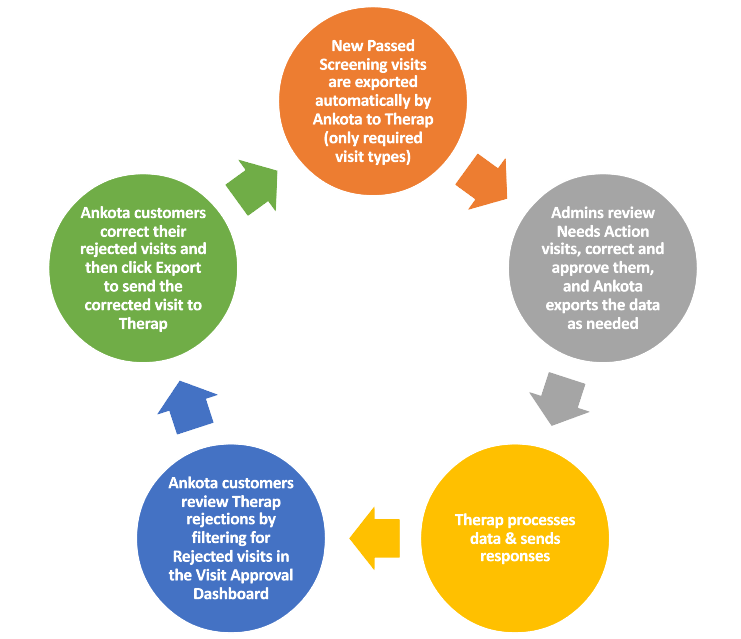
The Ankota/Therap data life cycle is initiated by visits passing screening or being approved in Ankota. Appropriate, state-required visits are then sent to Therap, who reviews them and sends feedback to Ankota. Any rejected visits are then reviewed by the Ankota user in the Visit Approval Dashboard, corrected, and re-sent to Therap. (Rejected visits are much rarer when customers use the Approval Assistant on Needs Action visits.)
Data Management Best Practices
Prepare Appropriately
- Fill out all necessary fields prior to scheduling visits for clients or caregivers
- Regularly work through the Visit Approval Dashboard so issues don't pile up
Use Dashboards
- Check the Landing Dashboard regularly
- Complete the action items visible there (manage visits)
Use the Approval Assistant Wisely
- Work through Needs Action visits one category at a time
- The Approval Assistant works best for groups of Needs Action Medicaid visits which must be delivered to an aggregator
- It can be used with non-Medicaid visits for cleaning and visit management, but it was not designed for those visits
- It can be used to review Rejected visits if the Approval Assistant was not used to begin with and key steps were missed
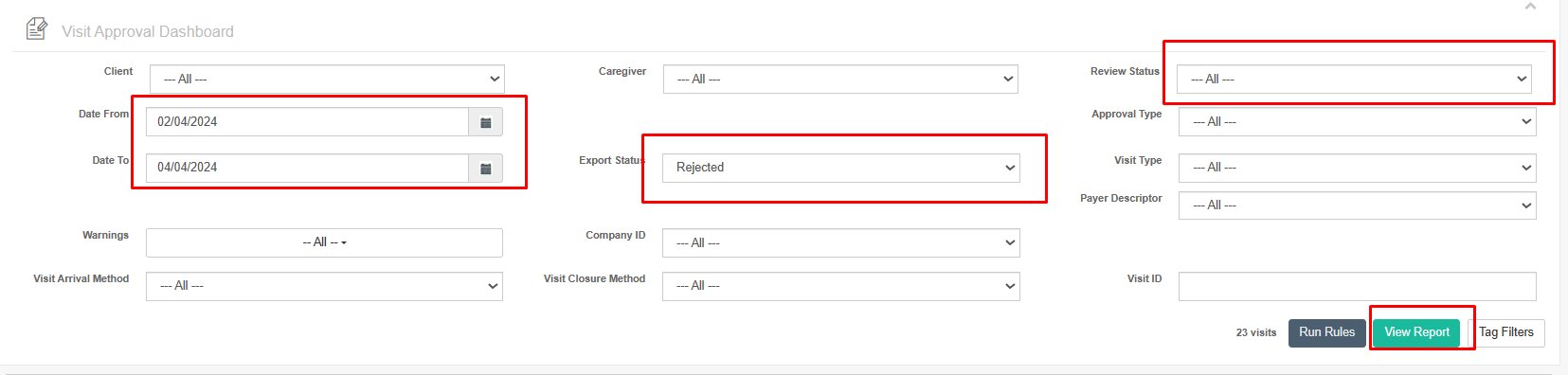
- Filter appropriately when reviewing Rejected visits
- Work top to bottom in the Approval Assistant
- Give each section time to process
- Manage visits first, then approve
Data Responses & Rejections
Integrated Responses
Aggregator responses (rejections and acceptances) are automatically integrated into the Ankota Visit Approval Dashboard. Depending on the size of the data delivery and the timing of the export, responses may appear anywhere from a few hours later to a day later.
The exported data statuses will be shown as the data progresses:
- No Response — the data was not sent or not successfully sent
- Sent to Export — the file was created and queued for delivery
- Sent — the formatted file has been transmitted
- In Process — the data was confirmed as received by the aggregator/clearinghouse and is now under review
- Rejected or Accepted — the final status of all successfully exported and processed visits
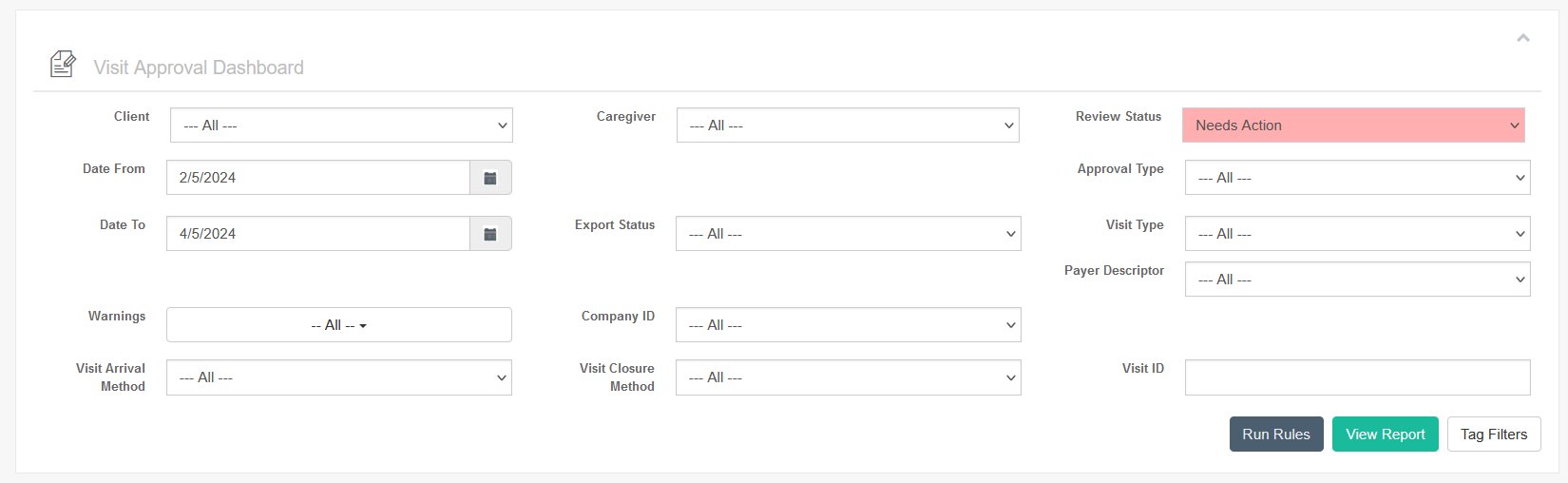
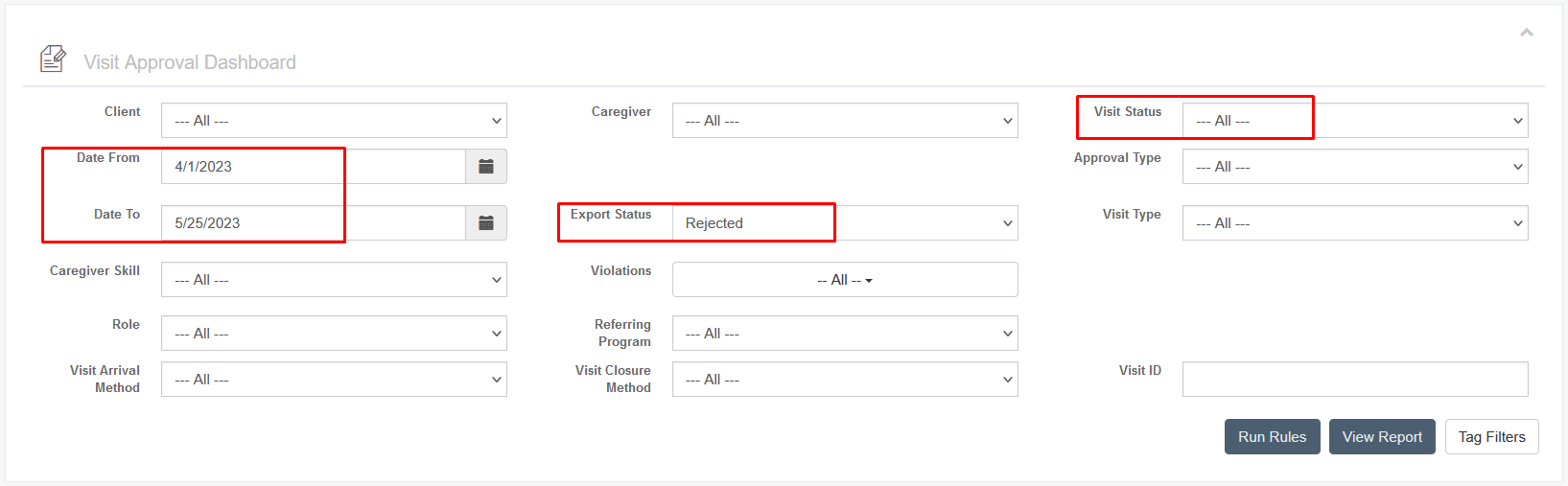
The main concern is to check for rejections, view the errors, make corrections, and export them. Filter the Visit Approval Dashboard by Date and Export Status to view rejected response files (make sure the Ankota Visit Status is set to Status: All):
The errors will show specifically in the visit details under Status:
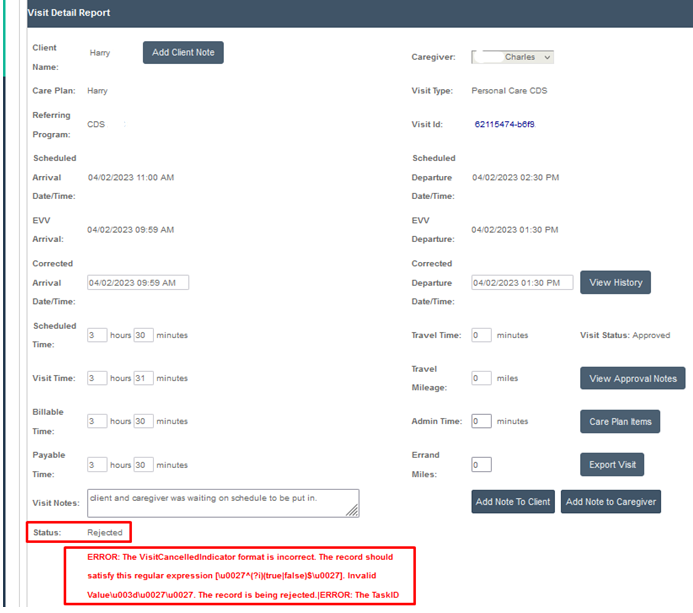
Corrections can be made as needed and re-exported.
Rejections
Rejection Reasons
Visits can be rejected for a number of reasons, but typically it is one of the following:
- Client or caregiver data is wrong or missing
- The Approval Assistant's Data Entry section helps prevent missing data errors
- The client is not authorized to bill this payer or visit type for the service date
- The visit has a basic EVV error and requires coding to allow acceptance by the aggregator
- The Approval Assistant's Coding section helps prevent missed codes
Corrections
Once the error is known (visible in the visit's rejection details), correct the errors as needed and then re-export the visit. This may involve adjusting reason codes in the Visit Approval Dashboard before re-exporting a single visit, or completely backing out billing and payroll in order to correct a fundamentally wrong visit (with wrong visit dates, time, visit type, client, or caregiver) before re-exporting the visit.
Some common errors and the actions to take are outlined below.
| Error | Meaning | What to Do |
|---|---|---|
| Check-in/out time update | The times seem to be missing or (much more likely) wrong and the visit is missing an appropriate reason code. | Check the expected and actual times and any caregiver notes in the Visit Approval Dashboard details of the visit. Code the visit appropriately and re-send the visit. This will ensure the appropriate fields are sent. (Note Therap will allow several different options to resolve this error, such as Mobile Device Issue, Other, Staff Error, Staff Forgot..., IVR/Telephony Issue, FVV Device Issue, System Unavailable / Maintenance, and/or Admin Error.) |
| IVR Phone | The phone number appears to be missing or wrong and the visit is missing an appropriate reason code. | Check the expected and actual phone number in the Visit Approval Dashboard details of the visit. Code the visit appropriately and re-send the visit. This will ensure the appropriate fields are sent. (Note Therap will allow several different options to resolve this error, such as Individual is Displaced, Mobile Device Issue, Service Outisde the Home, Staff Error, System Unavialable / Maintenance, GPS / Address Issue.) |
| If distance between Check-in location vs Residential Address Location or Schedule Address 1 Location is greater than 0.5 miles [CheckInDataCollectionMethod WEB, MOBILE, OFFLINE] or Geofence Radio (miles) | The location appears to be wrong and the visit is missing an appropriate reason code. | Check the expected and actual location in the Visit Approval Dashboard details of the visit. Code the visit appropriately and re-send the visit. This will ensure the appropriate fields are sent. (Note Therap will allow several different options to resolve this error, such as Individual is Displaced, Mobile Device Isssue, Other, Service Outside the Home, Staff Error, System Unavailable / Maintenance, GPS / Address Issue, Approved Out of State Travel.) |
| Individual [ID, ID format, ID Qualifier, Date of Birth, First Name, Last Name, etc.] is missing/invalid | Some aspect of the client's data is missing or invalid. | Review and update your client profile so that it includes all the correct required data for your state. Then re-export all of the client's visits from the Visit Approval Dashboard manually. |
| The Staff [ID, First Name, Last Name, email, etc.] is missing/invalid | Some aspect of the caregiver's data is missing or invalid. | Review and update your caregiver profile so that it includes all the correct required data for your state. Then re-export all of the caregiver's visits from the Visit Approval Dashboard manually. |
If a rejection reason is received that is not on this list, contact an Ankota specialist for more information.