835s (ERAs, or Electronic Remittance Advice)
Overview
835s are an EDI file version of Remittance Advice. It is effectively a state receipt telling you what was paid, what was not paid, and why. Its format is one that Ankota can easily process and apply, so that the AR screen, Accounts Receivable, Collections Report, and Exceptions Report are all updated with payments and rejection reasons.
A few critical notes:
- Some states do not use standard rejection reasons and so the Exceptions report may not apply; see the state guide for details.
- The system can be tailored as needed.
- After receiving and uploading an 835, exceptions (unpaid claims) can be reviewed on the Exceptions Report, corrected, and re-submitted as needed.
- 835 reversions (removing the 835 and its payments) can only be completed by Ankota.
- For multi-department companies, 835s should normally be uploaded at the parent level.
- Up to 4 modifiers on a visit type (such as T1019 U1 HR KX HX) can be processed; contact Ankota if there are more than 4.
835 Management Map
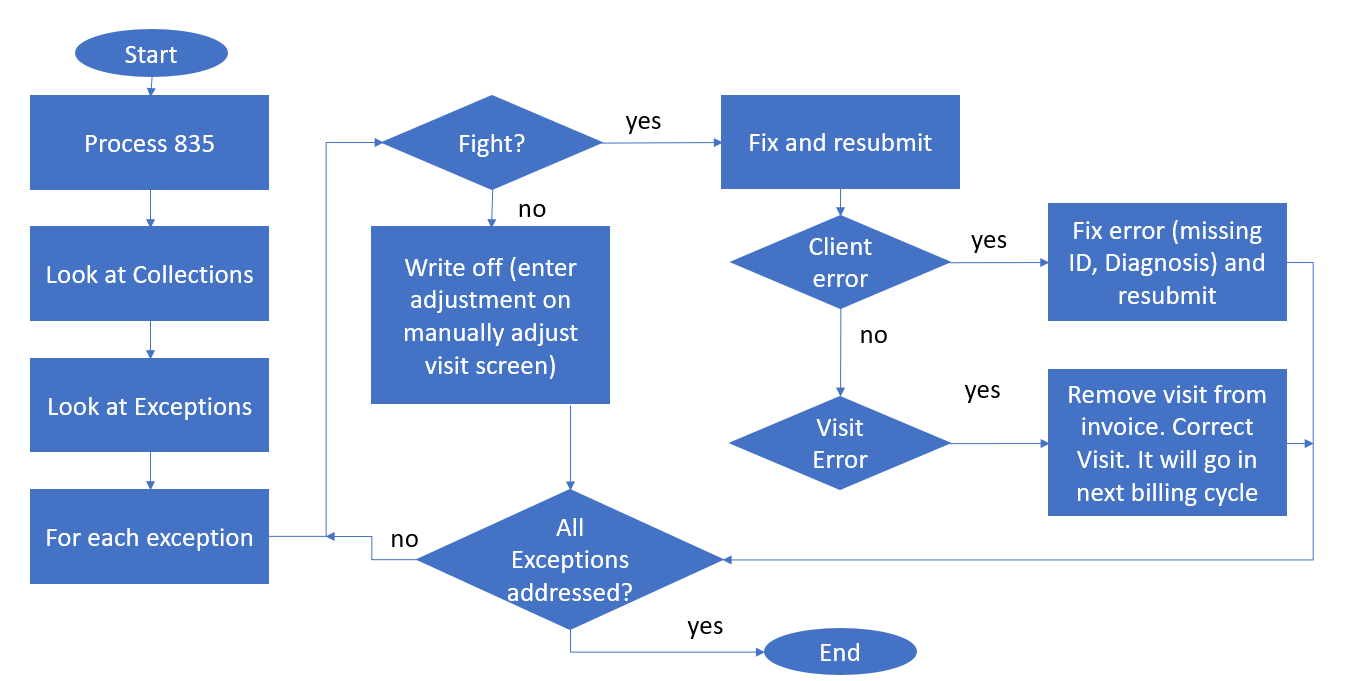
An overarching view of the 835 management process:
Uploading an 835 to Ankota
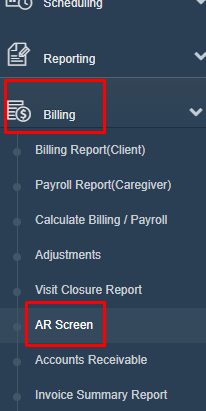
To process an 835, first click on Billing, then click AR Screen.
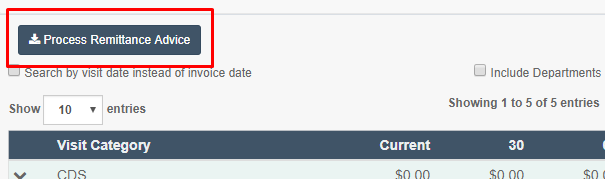
Next, click on Process Remittance Advice.
Check the box next to Process Merged file, then put in the deposit date next to the 835 file.


Choose the file to upload, then click Upload Remittance Advice.

NOTE: A PDF remittance advice file is not a format that software can read and process; be sure to get the electronic remittance advice file, or 835, to upload. The 835 file must also end in the extension .remadv. If it is not already in this format, change the extension of the file name to .remadv and the type as All Files, then click Save. Without this step the file will not process. PDF versions of Remittance Advice files will not upload. This portal requires the 835 format.

After uploading the Remittance Advice, a status message will indicate that the process has been started. Status can be checked at any time, but in general, it is best to wait at least 4 hours to see payments applied and exceptions identified. For a very large 835, it may be necessary to wait until the next day.
Exceptions Review
Depending on preference, exceptions can be reviewed in one of several places:
- The Exceptions Report (a list of unpaid visits, with reasons, known as "exceptions," as to why they were unpaid)
- The Collections and Exceptions Report (the same as the exceptions report, but also including successful payments)
- The AR Screen (paid and unpaid, but without reasons)
Once the reason a visit was not paid is known, the correction can be made in the system and the visit rebilled.
Client Correction Resubmissions
If the problem with the 835 is a client issue (such as a missing or wrong Medicaid ID, client ID, or primary diagnosis code), correct the missing or incorrect data in Ankota, then resubmit the claim. The change in the data will be picked up automatically by Ankota, so claims do not need to be re-built in order for client IDs or primary diagnosis codes to be updated correctly during export.
Visit Correction Resubmissions
If the problem with the 835 is a visit issue (such as a wrong or missing payer descriptor, visit type, caregiver, date, time, or duration), cancel the invoice, correct the visit, and then re-invoice and re-bill.
To cancel an invoice, correct, and re-bill:
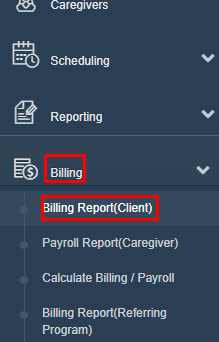
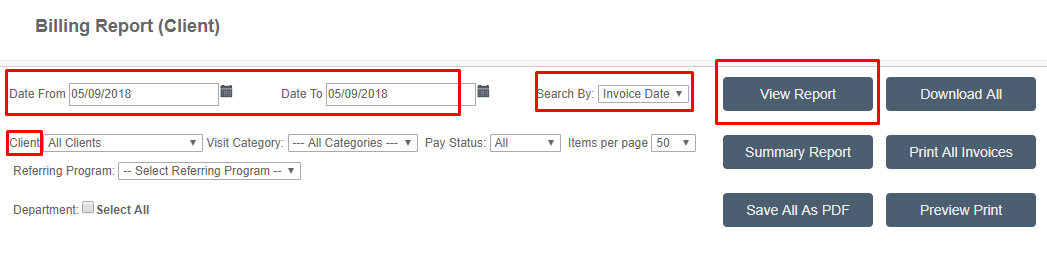
- Click on Billing, then Billing Report (Client).
- Both the Date From and Date To should be the date the original invoice or visit was completed. (If there is more than one, a date range can also be used.)
- For Search By, select Invoice Date or Visit Date from the drop-down menu, depending on the date used in Date From and Date To.
- Optionally search for a specific client.
- Click View Report.
- Check the box next to the completed invoice to be re-billed:
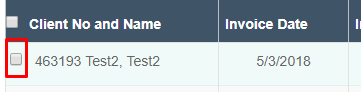
- Click Change to Drafts.

- Cancel the draft.
- Recalculate billing.
- Proceed as usual to uploading the Merged Health Care Claim to the appropriate billing portal.