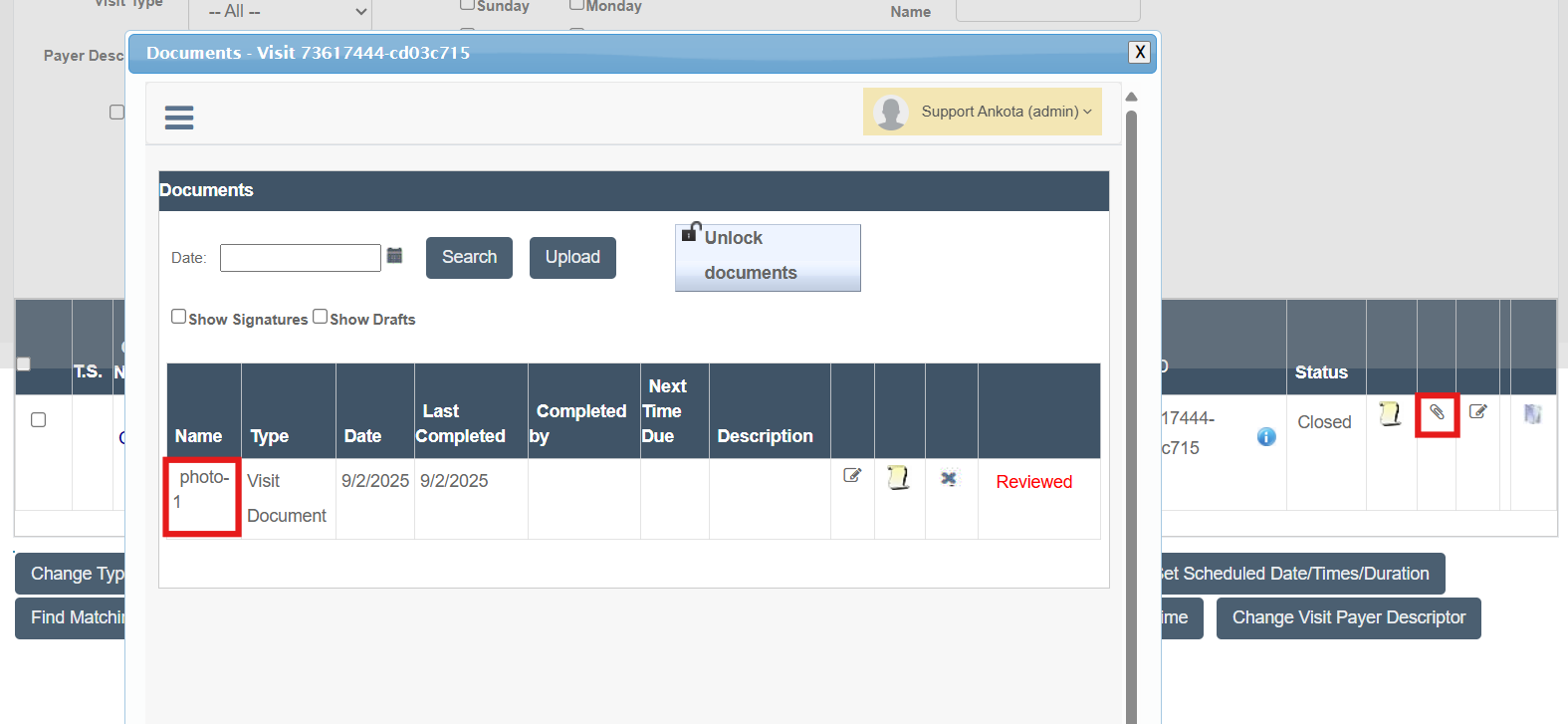
Adding a Photo to a Visit in the Ankota Caregiver NextGen
Adding a Photo to a Visit in the Ankota Caregiver NextGen
Caregivers can now upload photos directly to their visit within the Ankota Caregiver NextGen app. This feature is ideal for capturing images such as updated driver’s licenses, visible bruising, or paper documents.
Please note: Photo uploads are not a substitute for written visit notes. Most administrators still require detailed documentation to be typed in the designated notes section. Contact your administrator to get clarification.
After reporting their departure, caregivers will be prompted to upload a photo on the signature page.
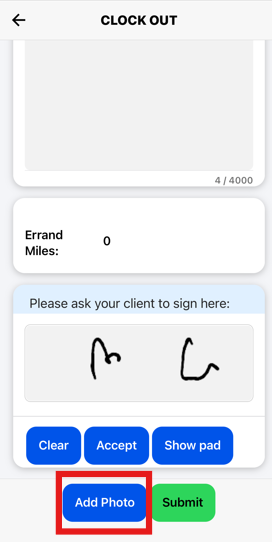
After tapping the “Add Photo” button, you’ll be prompted to take a photo using your device’s camera.
If you haven’t granted the app permission to access your camera or photos, this feature won’t work. Access is typically requested the first time you log in after downloading the app.
If you missed the prompt, you can either:
-
Go to your device’s Settings and manually enable camera/photo access for the app
-
Or delete and reinstall the app to trigger the permission request again
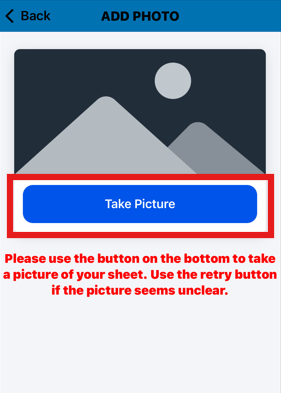
Take the photo simply by facing the camera to the desired person/document
This screenshot will send to the visit once departure is completed, as seen below.