Mobile App›Create Your Own Visits in Mobile App

Create Your Own Visits in Mobile App

Caregivers—usually nurses or consumer‑direct caregivers—may have permission to create visits. To clock in, log in to the Ankota Caregiver Next Gen app and go to My Clients (section name may vary by organization).
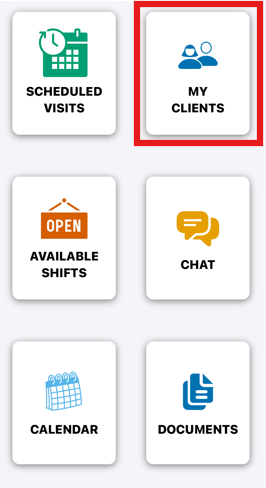
A mobile app home screen displays six menu options in a grid layout: "Scheduled Visits" with a calendar icon, "My Clients" (highlighted with red border) showing a people icon, "Available Shifts" with an open sign icon, "Chat" with a message bubble icon, "Calendar" with a grid icon, and "Documents" with a document icon.

From your list of approved clients, select Report Arrival next to the client’s name to clock in and start a new visit.
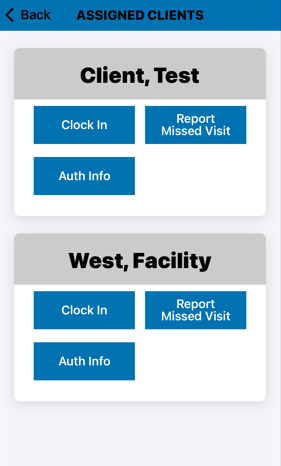
The "Assigned Clients" screen displays a list of clients with action buttons for each. Two clients are shown—"Client, Test" and "West, Facility"—each with blue buttons for Clock In, Report Missed Visit, and Auth Info.

: If you do not see any clients in the My Clients section, you have not been given special permission to clock in for that client at any time. If you think you should have this option and do not see it, speak to your supervisor.

Complete your arrival as usual.  
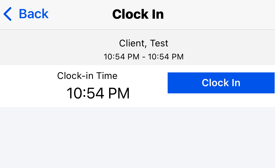
The Clock In screen shows a client named "Test" with a scheduled time of 10:54 PM - 10:54 PM, displaying the current Clock-in Time as 10:54 PM with a blue "Clock In" button to confirm the check-in.

When you are ready, you may report departure either under My Clients or under My Visits, following the usual procedures.
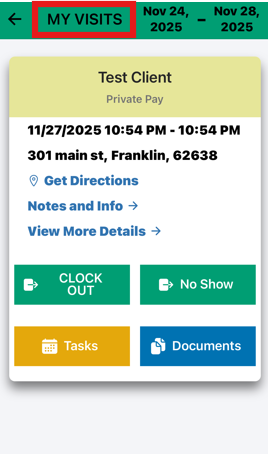
The My Visits screen displays a visit card for "Test Client" showing the date/time (11/27/2025 10:54 PM - 10:54 PM), address (301 main st, Franklin, 62638), and action buttons including Clock Out, No Show, Tasks, and Documents, along with links for Get Directions and View More Details.

Was this article helpful?