Mobile App›Availability/My Hours in Ankota Caregiver Next Gen

Availability/My Hours in Ankota Caregiver Next Gen

The Caregiver Availability/My Hours page allows caregivers to share their schedules and request time off with administrators. Any updates made here will be visible to administrators in ankota.net.

Your Administrator will need to confirm your Availability. Please reach out to your Administrator for confirmation.
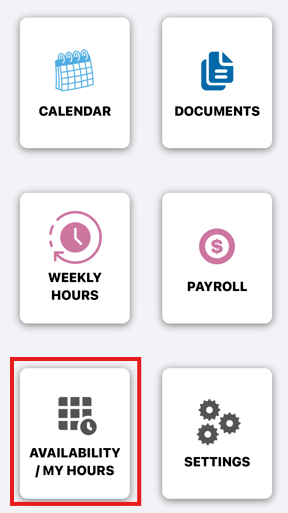
The main menu dashboard displays six option tiles arranged in a 2x3 grid, with the "AVAILABILITY / MY HOURS" tile highlighted by a red border in the bottom left position. The other available options are Calendar, Documents, Weekly Hours, Payroll, and Settings.

Step 1: Select Visits/Hours

  • Click Visits Per Week/Hours Per Week.

  • Choose the number of hours or weeks you need.
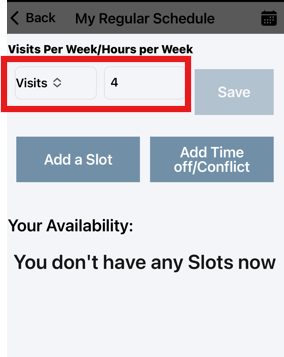
The "My Regular Schedule" screen shows a "Visits Per Week/Hours per Week" section with a red-bordered input field displaying "4" visits, along with "Save," "Add a Slot," and "Add Time off/Conflict" buttons. Below that, the "Your Availability" section indicates "You don't have any Slots now," meaning no time slots have been added to the schedule yet.

Step 2: Add a Slot

  • Click Add Slot to create availability.

Step 3: Configure Times

  • If the times are the same every day:

  • Add one slot.

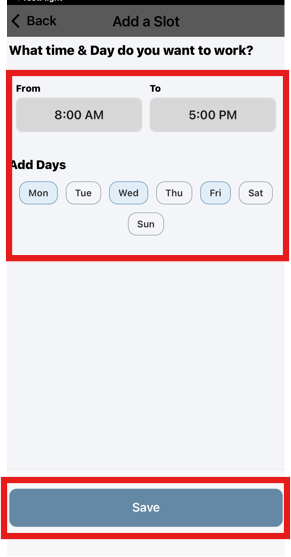
  • Select the days of the week and set the times.

  • If times vary on specific dates:

    • Add a second slot.

    • Select the specific days and times for that slot.

    • Hit Save.

The "Add a Slot" screen allows users to set their work availability by specifying start and end times (8:00 AM to 5:00 PM shown) and selecting which days of the week to work via toggleable day buttons (Mon, Tue, Wed, Thu, Fri, Sat, Sun). A blue "Save" button at the bottom confirms the availability entry.

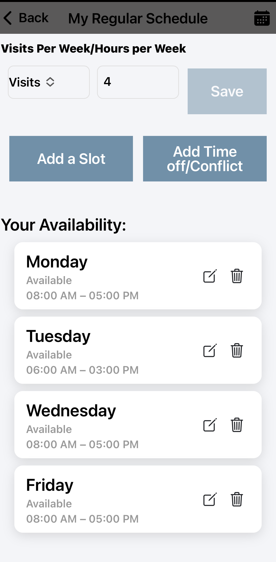
  • The screen will look like this:

The "My Regular Schedule" screen displays a weekly availability configuration with a "Visits Per Week/Hours per Week" setting showing 4 visits, along with "Add a Slot" and "Add Time off/Conflict" buttons. Below that, the "Your Availability" section lists each day of the week (Monday through Friday) with their available hours and edit/delete icons for each time slot.

Step 4: Submit

  • Your availability will be sent to the administrator.

  • It will also be visible in the caregiver’s profile.

For asking time off: This is still in progress.

Was this article helpful?